
How to Create a Login.gov Account
A step-by-step guide to create your Login.gov account, the personal sign-in you need for SAM.gov and other federal systems, with security best practices for business owners.

TL;DR
Login.gov is the federal government's shared sign-in service. One free account gets you into SAM.gov and dozens of other agency systems, and you cannot register your company for federal contracts or grants without one. Creating an account takes about ten minutes: enter your email, confirm it, set a password of 12 or more characters, and add a second authentication method (we recommend an authenticator app). A Login.gov account belongs to one person, never to a company, so every owner or officer who will touch federal systems should create their own. This guide walks through every screen.
What Login.gov Is and Why You Need One
Login.gov is one account and password for the government websites that use it. Instead of every federal system running its own logins, agencies plug into this single shared service. For government contractors, the one that matters most is SAM.gov: you cannot start, view, or manage your company's SAM registration without signing in through Login.gov first. The same account also works across other participating systems at agencies like the Small Business Administration, the Department of Homeland Security, and the Office of Personnel Management.
Two facts about Login.gov shape everything else in this guide:
A Login.gov account is personal, not corporate. It represents you, an individual human, not your business. Your company's SAM registration lives inside SAM.gov; your Login.gov account is just the key that opens the door. That means there is no "company Login.gov account" to create, and you should never make an account in someone else's name or share credentials. When several people at a company need access to the same SAM registration, each person creates their own Login.gov account and is granted a role on the entity inside SAM.gov.
It is free. Creating the account costs nothing, and so does registering your company in SAM.gov afterward. If anyone offers to sell you a Login.gov account or charges you to "expedite" one, walk away.
Before You Start
Have these ready. The whole process takes about ten minutes.
- An email address you will keep long-term. Registration confirmations, renewal reminders, and security alerts go here for years. A personal or work address you control beats a shared inbox. You can add more email addresses to the account later.
- Your phone, for the second authentication step, or better, an authenticator app already installed (Google Authenticator, Microsoft Authenticator, 1Password, and similar apps all work).
- A password manager or a safe place to store the password and the backup codes you are about to create.
Also add no-reply@login.gov to your email safe-senders list so the confirmation email does not land in spam.
How to Create a Login.gov Account, Step by Step
Step 1: Go to the sign-up page
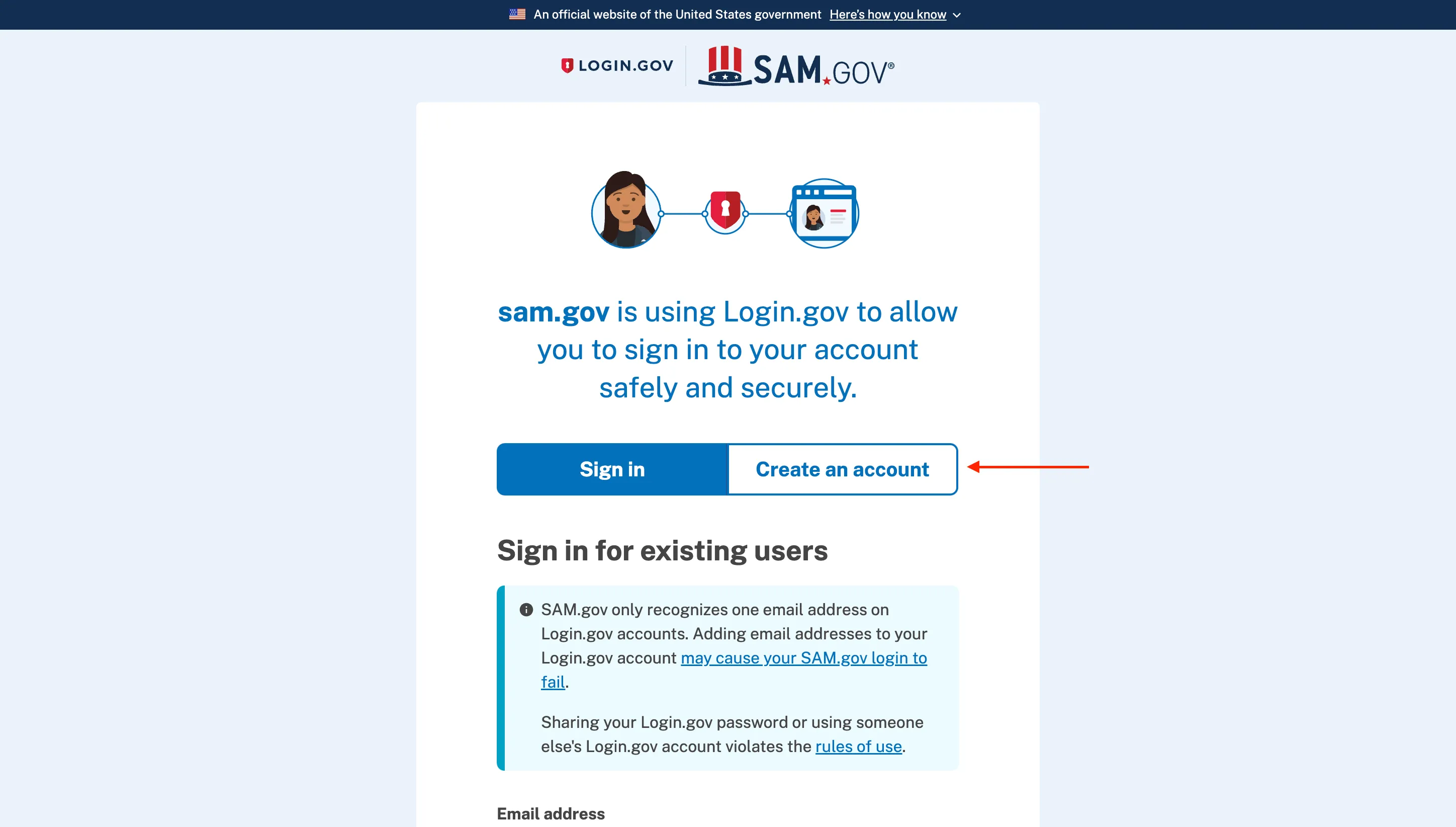
Go to secure.login.gov and click Create an account. If you are starting from a site like SAM.gov, clicking Sign In sends you to the same place.
Step 2: Enter your email and accept the Rules of Use
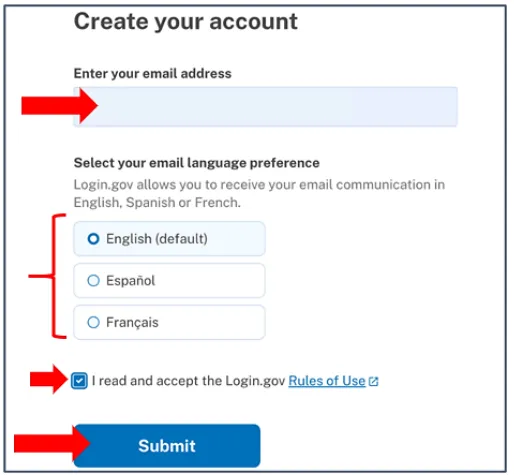
Enter your email address, choose your language, check the box to accept the Rules of Use, and click Submit.
Step 3: Confirm your email
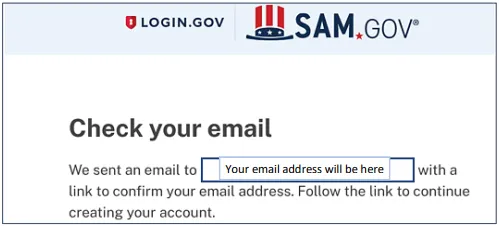
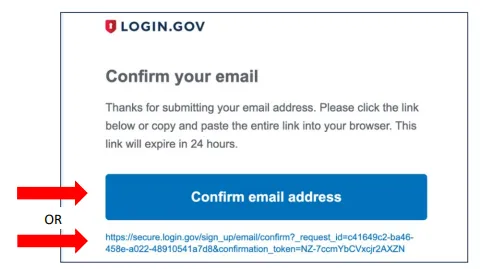
Login.gov sends a confirmation email to the address you entered. Open it and click Confirm email address, or copy the link into your browser.
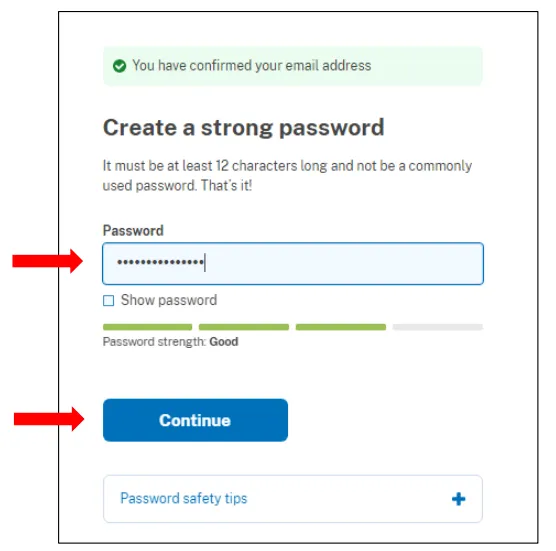
Step 4: Create your password
The password must be 12 characters or longer. Login.gov rejects common phrases and repeated characters, and you should not reuse a password from any other account. A few unrelated words with spaces, plus a number or symbol, gets you a strong password that is still typeable. Store it in your password manager, then click Continue.
Step 5: Choose your second authentication method
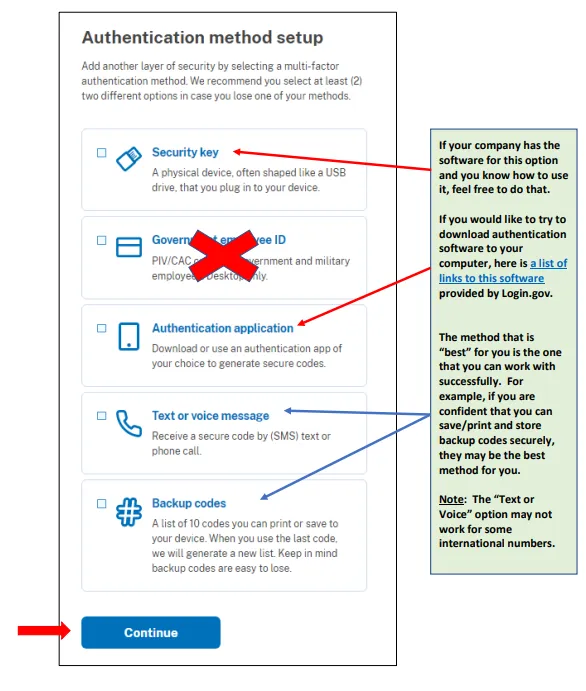
Login.gov requires a second proof of identity every time you sign in. This is the step where people make the choice they later regret, so pick deliberately. Login.gov itself splits the options into more secure and less secure:
More secure options:
- Authenticator application. An app on your phone generates a fresh six-digit code every 30 seconds. Works anywhere, survives phone-number changes, and is our recommendation for most business owners.
- Face or touch unlock. Uses the fingerprint or face reader on your device. Fast and very secure, but it is tied to the specific device and browser you set it up on, so pair it with a second method before you rely on it.
- Security key. A physical USB key. Strongest option if you already use them.
- PIV or CAC card. Government and military personnel only.
Less secure options:
- Text or voice message. Codes sent to your phone number. Better than nothing, but vulnerable to phone-number takeover, and unreliable with some international numbers.
- Backup codes. Ten single-use codes. Fine as a fallback, not as your primary method.
Pick one and click Continue, then follow the prompts to set it up.
Step 6: Add a backup method
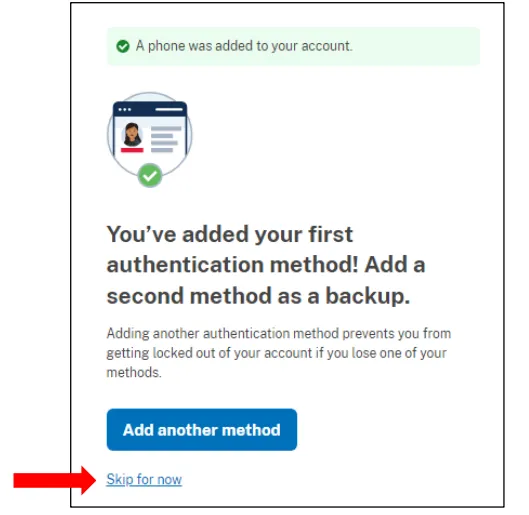
After your first method is confirmed, Login.gov offers to add another. Do not skip this. If your only method is an app on a phone that gets lost, you are locked out, and Login.gov has no recovery flow for an account with no working methods: you have to delete the account through a two-step process with a 24-hour security wait, create a new one, and redo any access the old account held. Add a second method now: backup codes are the quickest (print them or store them in your password manager), a second device or method is even better.
Step 7: Continue to the site that sent you
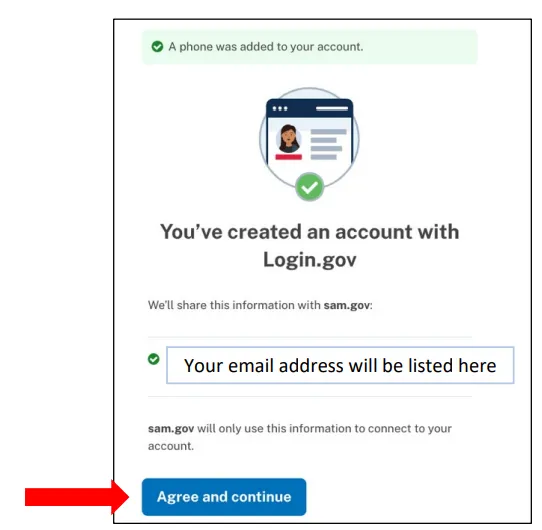
Your Login.gov account now exists. If you started from SAM.gov or another agency site, click Agree and Continue and Login.gov hands you back to finish that site's own profile setup.
That is the whole account. From here, what you do next depends on the system you came for. If the goal is registering your company for federal work, continue with our SAM.gov registration guide, and once the registration is active, our guide to finding your UEI.
Best Practices for Business Owners
One account per person, every person their own account. SAM.gov supports multiple people holding roles on one entity, including multiple Entity Administrators. The right setup for a small company is: each owner or officer creates their own Login.gov account, one person (or an authorized consultant) performs the entity registration, and the others are added as administrators once the registration is active. That way no single person's departure, lost phone, or forgotten password locks the company out of its own registration.
Never share credentials, even inside the company. Sharing a Login.gov password defeats the identity the account exists to prove, and some federal systems treat shared credentials as grounds for suspension. Granting someone a role inside SAM.gov gives them everything credential-sharing would, legitimately.
If a consultant registers your company, they use their own account. A registration done on your behalf is normal and allowed; the consultant certifies they are authorized to represent your entity. What they should never do is create a Login.gov account in your name. During registration they name an employee or officer of your company as the entity's point of contact, and SAM.gov appoints that person Entity Administrator at the end; a third party can hold only a data-entry role, so your company keeps permanent control.
Use an email you will still own in five years. SAM registrations renew annually, and the reminders go to the account email. Registrations quietly lapsing because reminders went to a dead inbox is one of the most common ways contractors lose an active status they did not know they needed to maintain.
What About Identity Verification?
Some government services need more than a username and password: they ask Login.gov to verify who you are with a photo of your state-issued ID and your Social Security number. You do not need this to create the account, and basic SAM.gov entity registration does not require it at sign-up. If a system you use later requires identity verification, Login.gov walks you through it at that point, so there is nothing to prepare today.
Frequently asked questions
After Login.gov: Getting Into Federal Contracting
The account you just created is the doorway. The actual work of winning federal contracts starts on the other side: registering your entity, finding opportunities that fit, and responding to them well. CLEATUS handles that part, from matching you with high-fit opportunities the moment your registration is active to building the proposal when you find one worth bidding.


