
Setting Up Your Capture Profile
Build the profile that drives your recommendations, from company details and capabilities to preferences and experience.
Your Capture Profile tells CLEATUS what your company does and which work you want. The artificial intelligence (AI) matching engine scores every opportunity against it. GovCon Copilot and the proposal writer also read it. This guide walks you through each tab and shows you how to fix the problems that cost you recommendations.
Or just ask CLEATUS
Review my capabilities and help me strengthen the Low-strength ones
GovCon Copilot reads your capabilities, explains why each weak one is graded Low, and asks you for the missing details. It saves a change only after you approve it.
Before you start:
Have your Unique Entity Identifier (UEI) and your capability statement ready. Users with the Limited Member role cannot open the Capture Profile.
Build your profile
Open your Capture Profile
In the sidebar, under Setup, click Capture Profile, then click Company Details. The profile has four tabs: Company Details, Capabilities, Preferences, and Experience. Each company in your organization has its own Capture Profile.
Read your Profile Strength
Click Profile Strength at the top right of the page. The meter averages six areas: Capabilities, Refine Preferences, Experience, Document Hub, Recommended, and Custom Alerts. The panel shows your next step at the top. Hover an incomplete area to see what is missing, and click the area to open it.
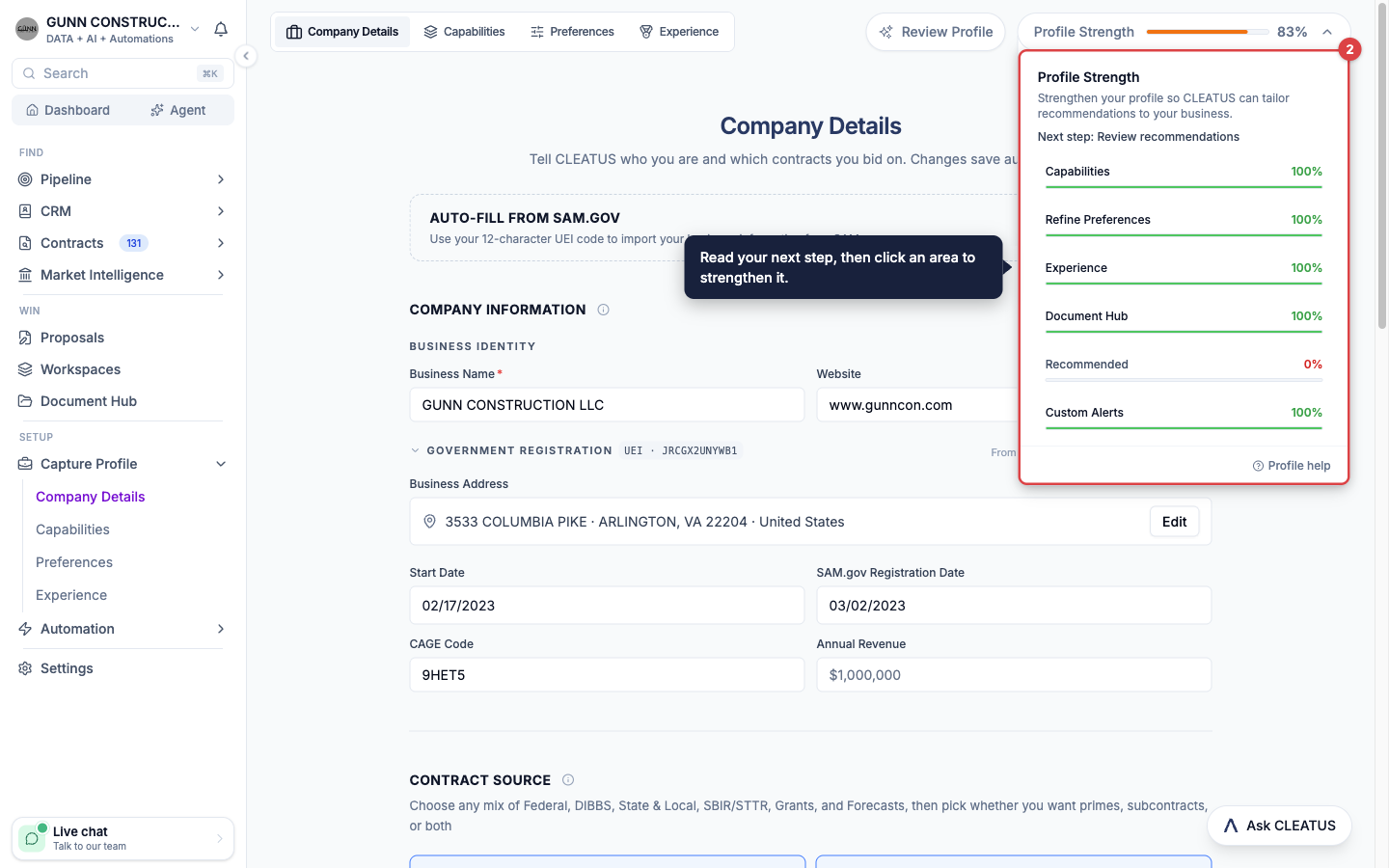
Import your details from SAM.gov
On Company Details, click Import from UEI. Enter your 12-character UEI and click Import. CLEATUS fills in your business details from SAM.gov. These include your address, your Commercial and Government Entity (CAGE) code, and your registration dates. The import can also fill your set-asides and certifications, so check them after it finishes. Changes on this tab save automatically.
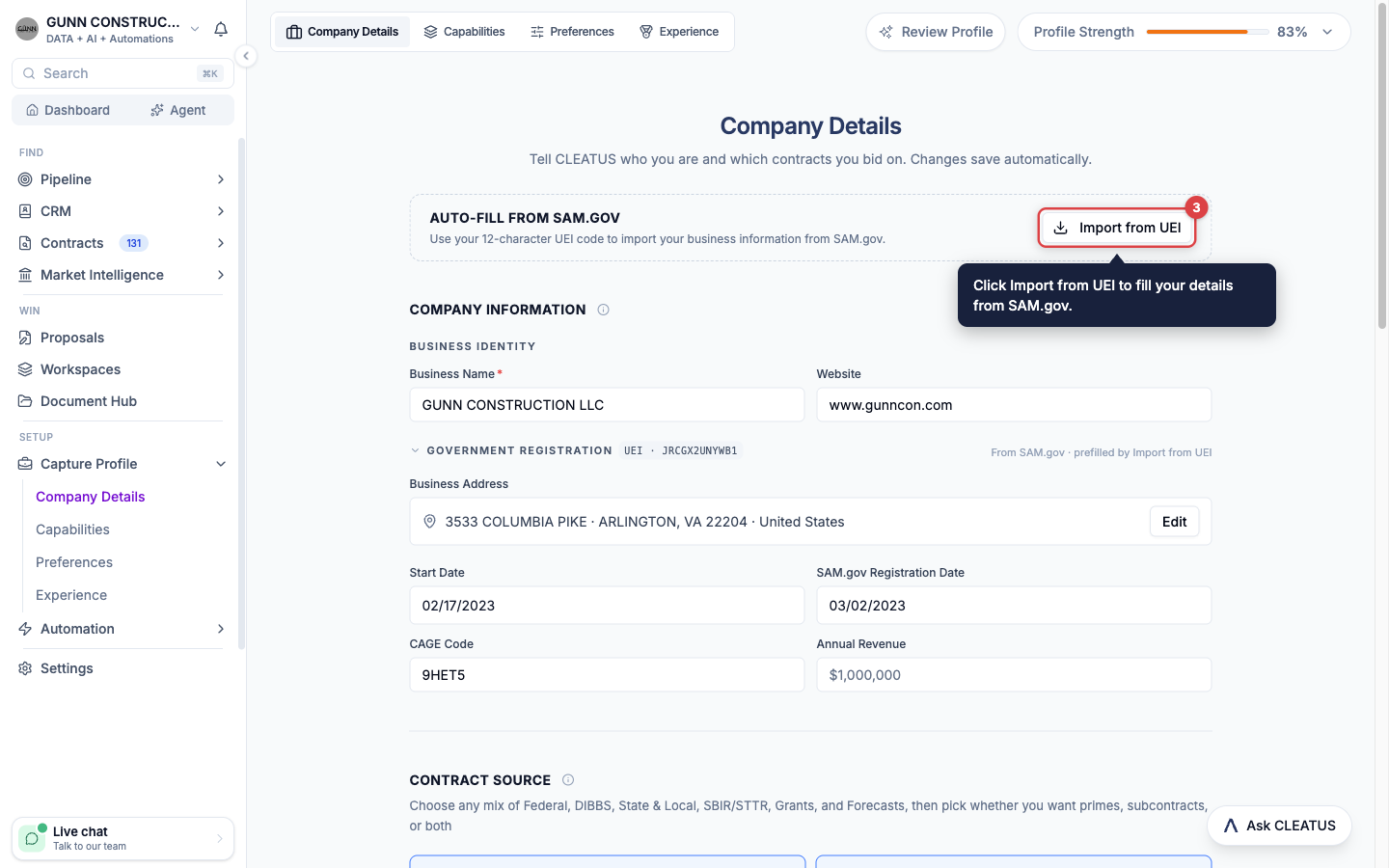
Choose your contract sources
Under Contract Source, select each source that you bid on. The sources are Federal, DIBBS, State & Local, SBIR / STTR, Grants, and Forecasts. DIBBS is the Defense Logistics Agency Internet Bid Board System. SBIR / STTR means Small Business Innovation Research and Small Business Technology Transfer. Then select Prime contracts, Subcontracts, or both. To connect General Services Administration (GSA) eBuy, click Manage integrations.
Set your locations and set-asides
Leave Place of Performance empty to include every location. Select Only these to limit matches to the states that you list, or All except to exclude states. Use Countries to limit matches by country. Under Set-Aside Programs, add every program that you qualify for. With no set-asides selected, CLEATUS shows only contracts that are open to everyone. Under Certifications & Structure, enter your Business Structure and click Add certifications to pick from the library.
Add your capabilities
Open the Capabilities tab. To import, click Import from Capability Statement, click Continue, and upload a .pdf, .doc, .docx, or .txt file. CLEATUS adds the new capabilities that it finds and keeps your existing ones. To add one by hand, click Add New Capability. Enter a Capability Title, a Description of up to 450 characters, and up to three Differentiators. Then click Add Capability.
Check capability strength
CLEATUS checks each capability before it saves it. If it finds a problem, edit the fields, or click Add Anyway to save the capability as it is. Each saved capability shows a High, Medium, or Low badge. Hover the badge to see how to improve it. CLEATUS skips Low capabilities when it matches contracts.
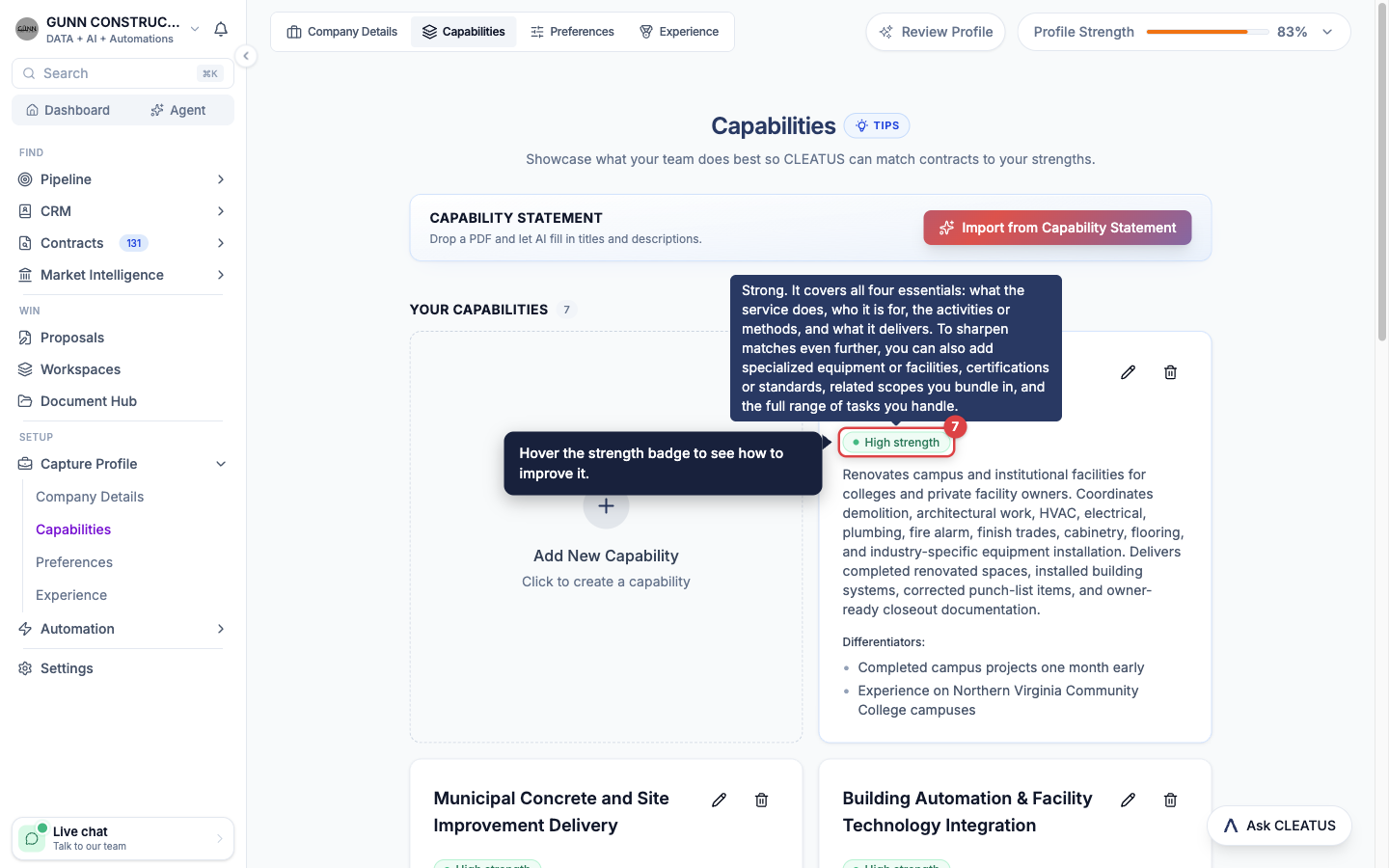
Strengthen Low capabilities with AI
When only some capabilities are Low, an amber warning shows how many are skipped. When every capability is Low, a red warning says You are not getting any recommendations. Click Strengthen with AI on the warning. Ask CLEATUS opens with a request already typed. Send it, and answer the questions that GovCon Copilot asks. It saves only the rewrites that you approve.
Add your preferences
Open the Preferences tab and click Browse & Add Preferences. Pick presets from the library, or type your own. Then move the slider of each preference to Must Avoid, Avoid, Prefer, or Must Have. Changes save automatically. Profile Strength counts four preferences as complete.
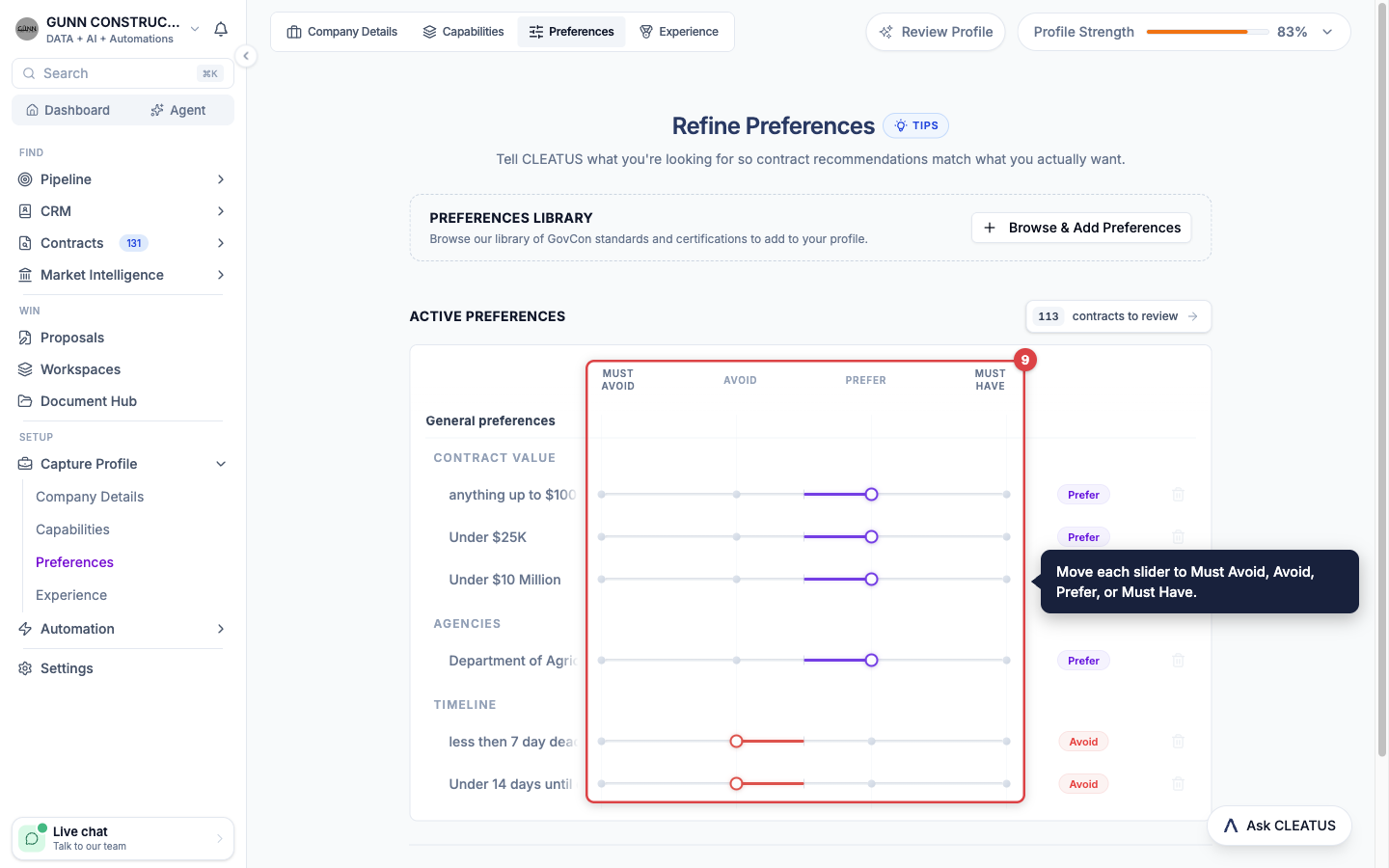
Add your experience
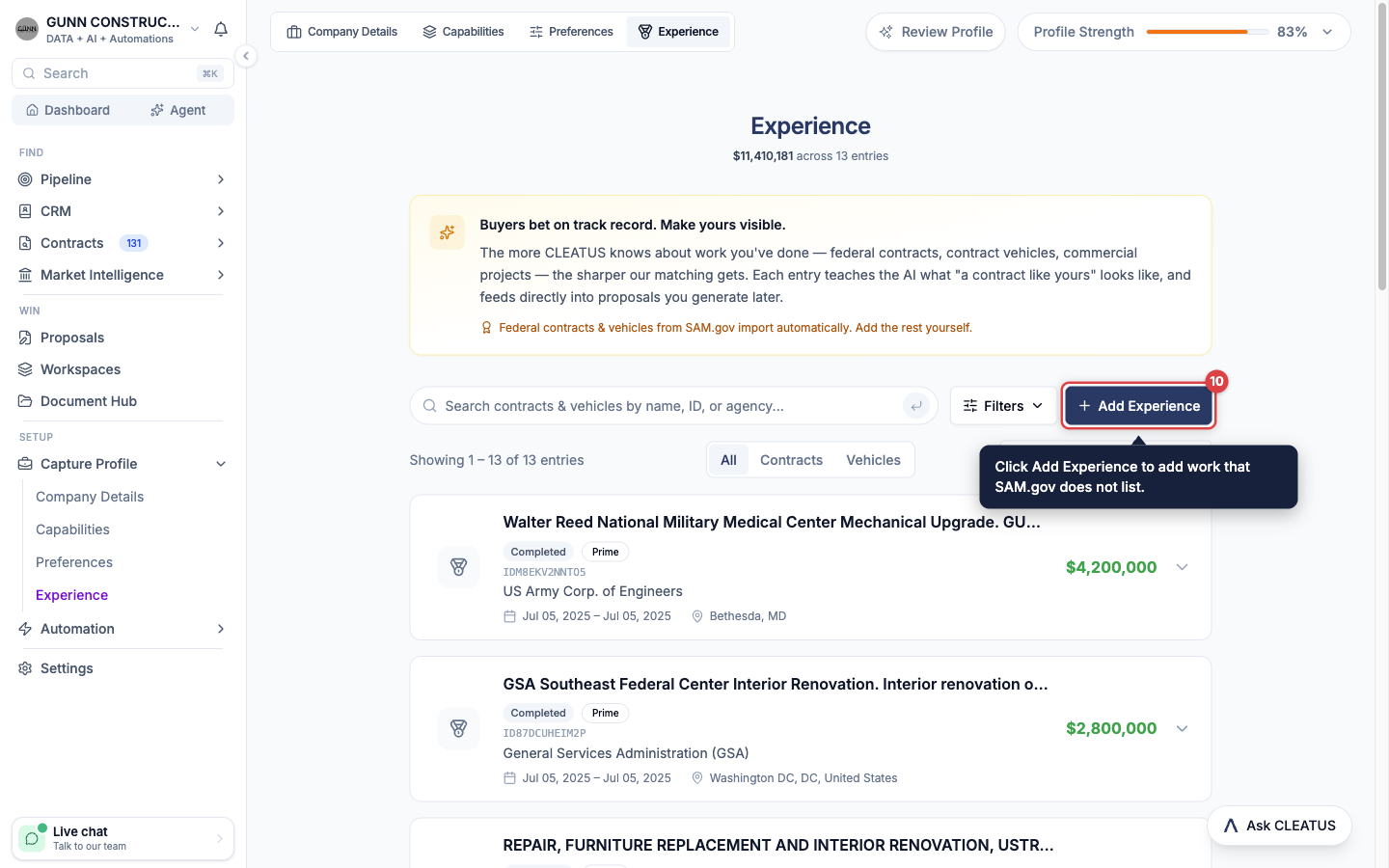
Open the Experience tab. When your profile has a UEI, CLEATUS imports your federal contracts and contract vehicles from SAM.gov. To add other work, click Add Experience. Enter the Amount, the Customer, the Type (Federal, State/Local, Private, or Sub), the dates, and a Description. Then click Save Experience. Profile Strength counts five entries as complete.
Review your profile
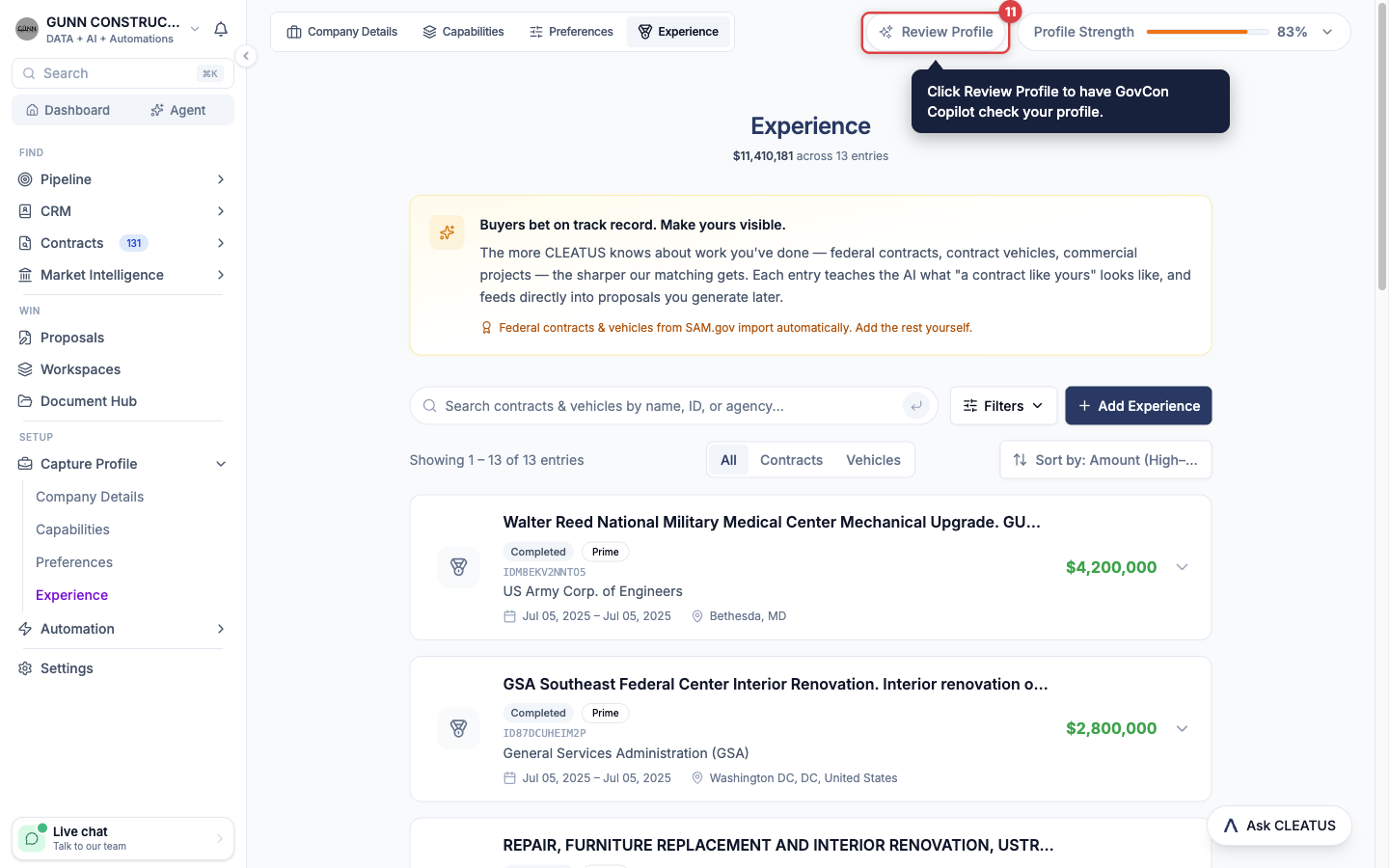
Click Review Profile at the top right. Ask CLEATUS opens with a Review Capture Profile badge in the message box. Press Enter to send it. GovCon Copilot checks the whole profile for conflicts, vague capabilities, and missing details.
Preference weights
| Weight | Effect on your recommendations |
|---|---|
| Must Avoid | CLEATUS removes every contract that matches. |
| Avoid | CLEATUS ranks matching contracts lower. |
| Prefer | CLEATUS ranks matching contracts higher. |
| Must Have | CLEATUS removes every contract that does not match. |
Use Must Have and Must Avoid only for true requirements and deal-breakers. Do not repeat what other tabs cover: set-asides belong on Company Details, and services belong on Capabilities.
Tip:
Accept and dismiss your recommendations. CLEATUS learns from them and adds preferences with the label Learned from activity. Matches that come from your experience show a Past Performance badge in Contracts > Recommended.