
Navigating CLEATUS
A quick tour of the dashboard and where everything lives.
CLEATUS keeps every part of your capture workflow one click away. This guide gives you a quick tour of the dashboard so you always know where to find what you need.
Or just ask CLEATUS
Where do I find my saved searches and recommended contracts?
Before you start:
Take a minute to fill in your company profile so CLEATUS can tailor what you see across the dashboard.
Find your way around
Start with the left sidebar
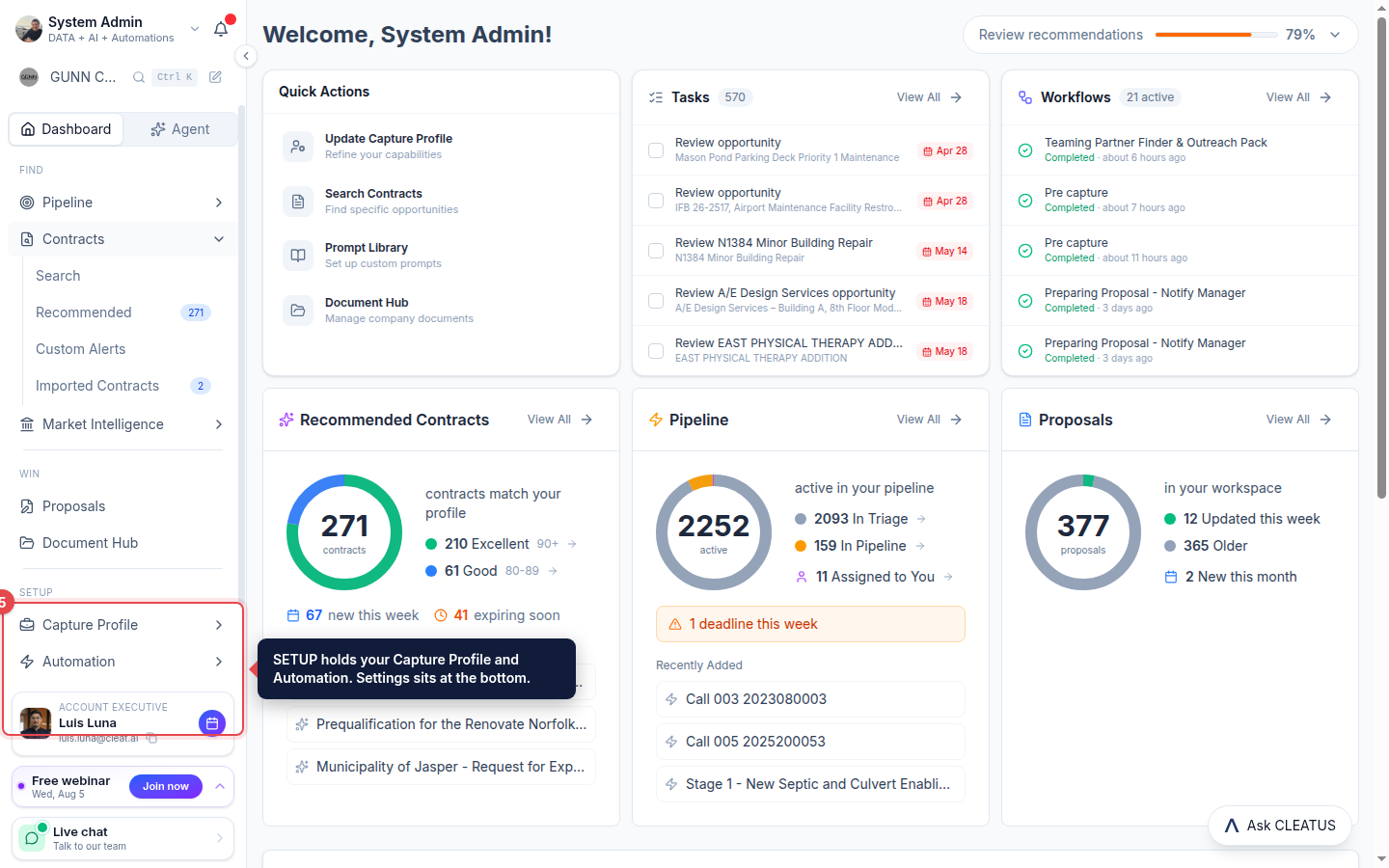
The left sidebar is your main navigation. It is grouped into FIND (Pipeline, Contracts, Market Intelligence) and WIN (Proposals, Document Hub), with Dashboard and the Agent pinned above them.
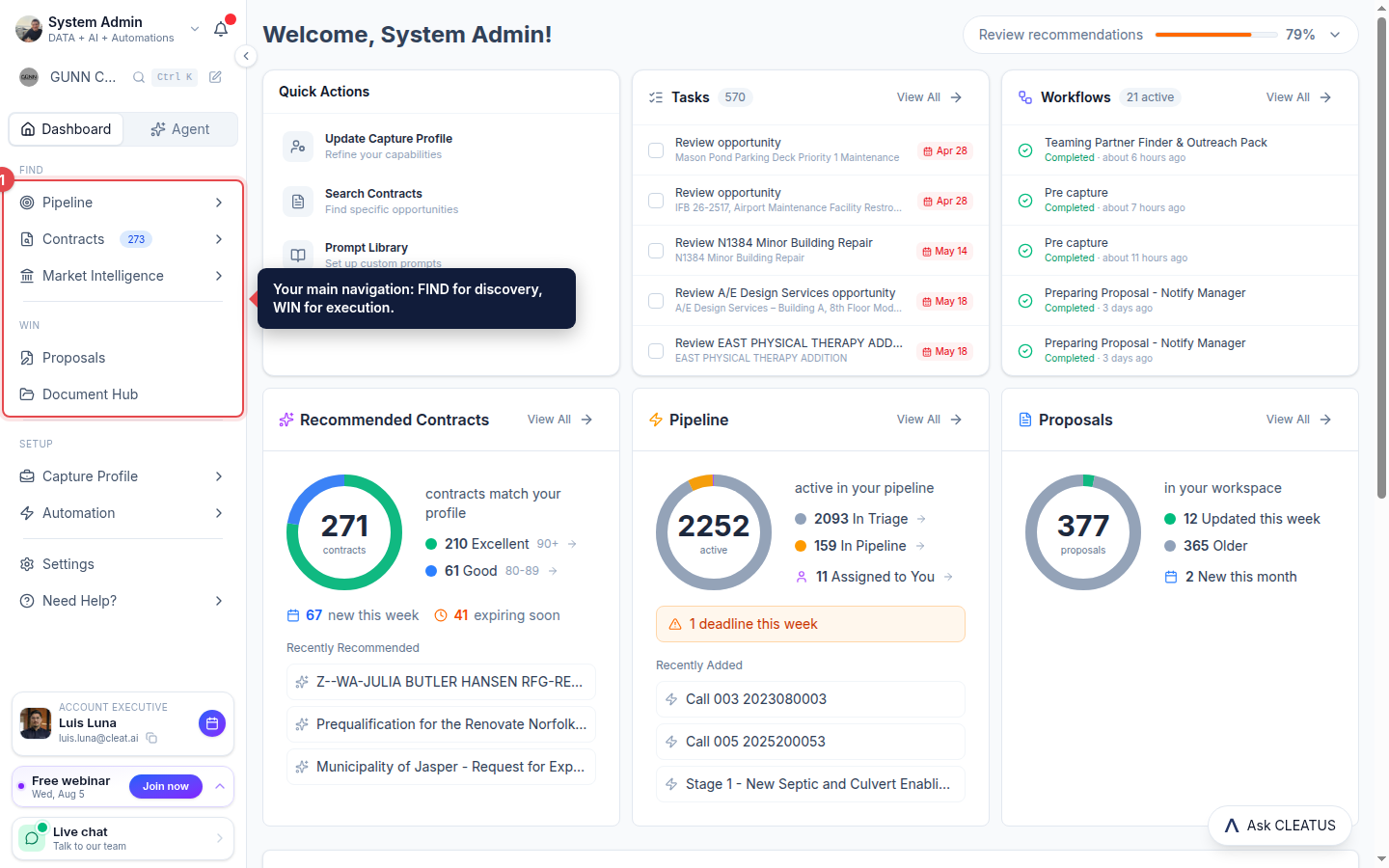
Expand Contracts
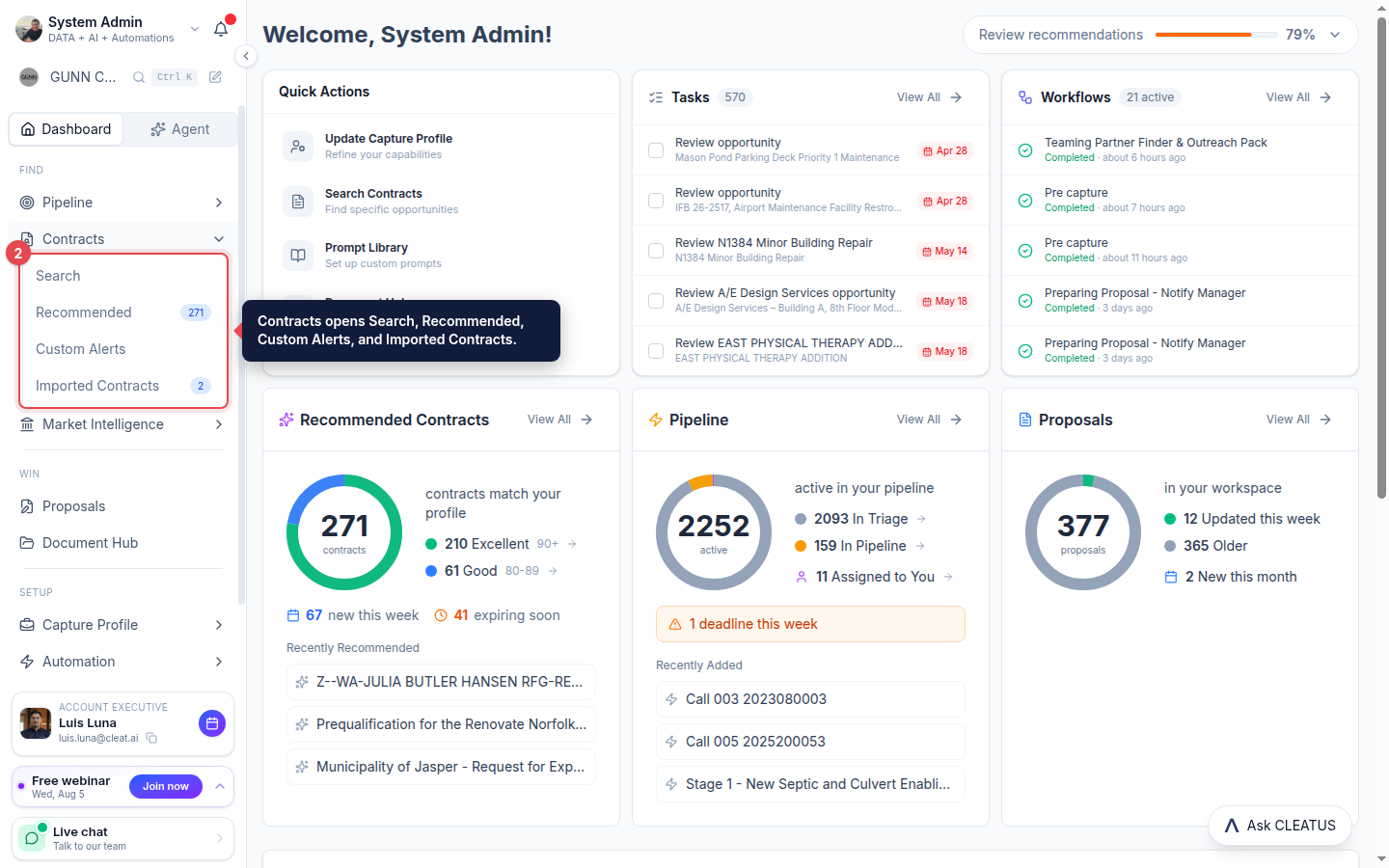
Click Contracts in the sidebar to reveal Search, Recommended, Custom Alerts, and Imported Contracts, so you can jump straight to the view you need.
Watch your profile strength
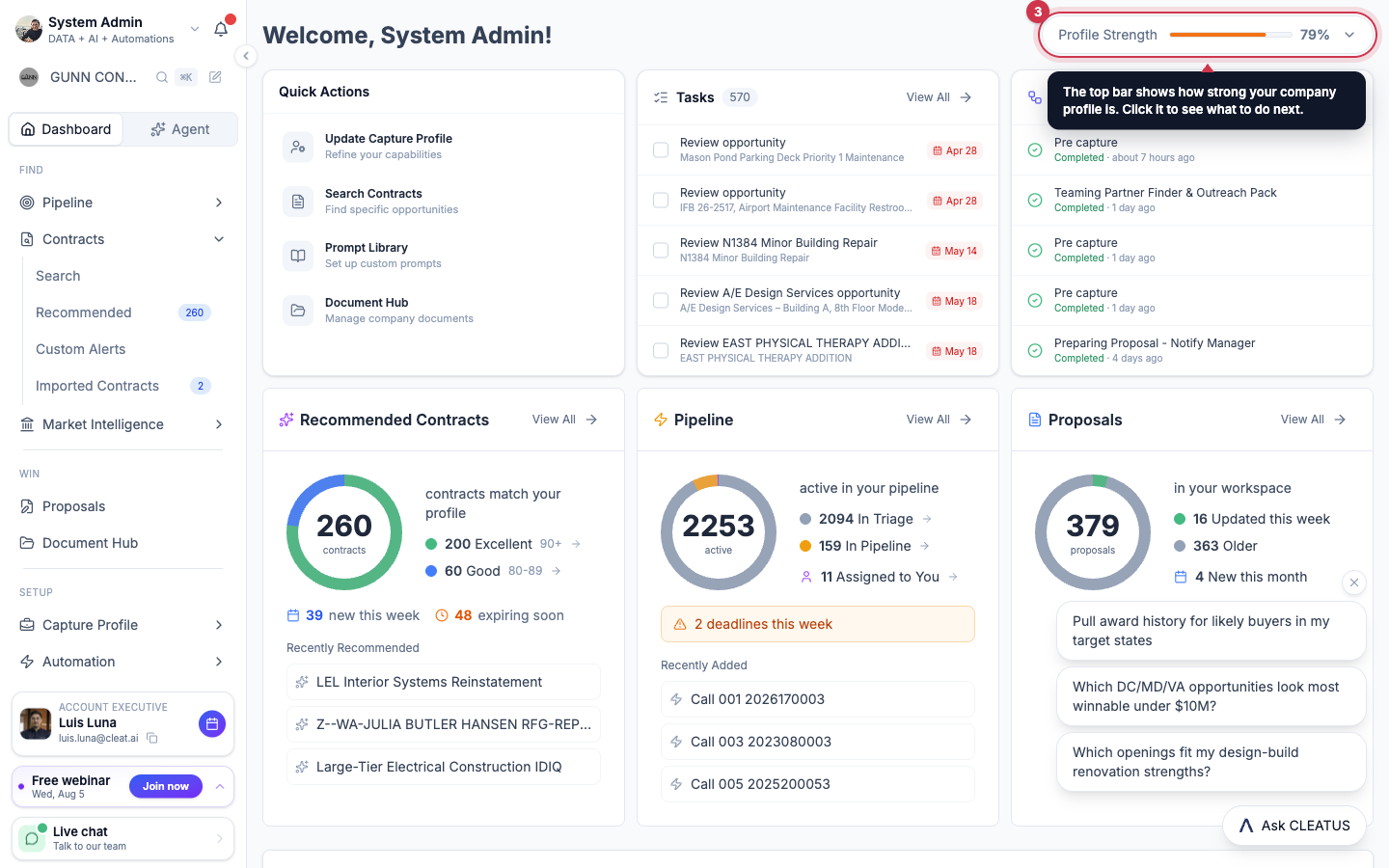
The top bar carries a Profile Strength meter. Click it to see what to strengthen next.
Switch companies
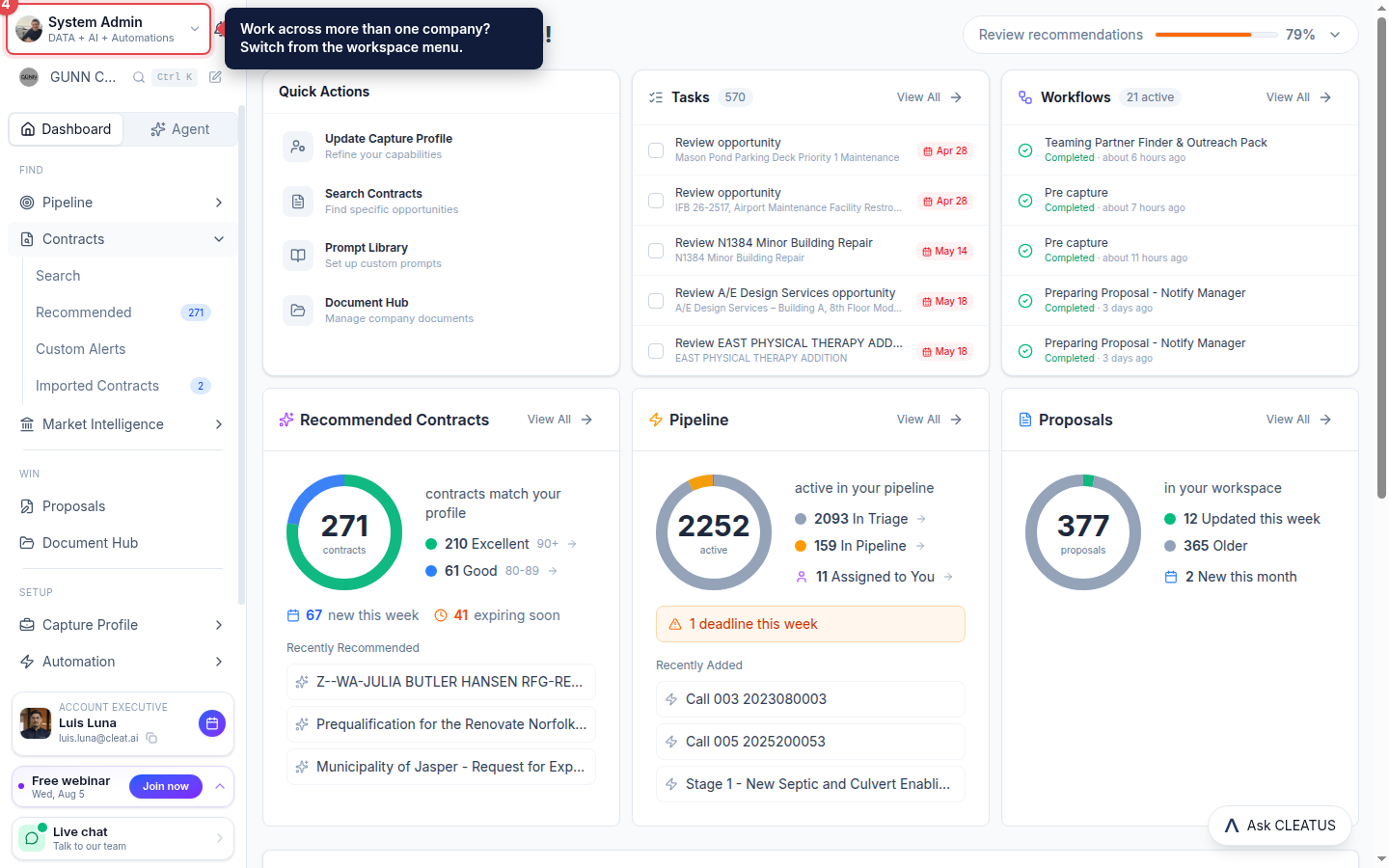
If you work across more than one company, use the workspace switcher at the top-left to move between them.
Find setup and settings
SETUP holds your Capture Profile and Automation, and Settings sits at the bottom of the sidebar.
Tip:
You can Ask CLEATUS from the Agent anytime to find a feature or get help.