
Using Settings
Manage your account, notifications, company, team, billing, and integrations from one full-screen Settings window.
Settings holds your personal settings and the settings of your organization and its companies. It opens as a full-screen window with a list of sections on the left. This guide shows you what each section holds, who can see it, and how to control your notifications.
Before you start:
Users with the Limited Member role do not see Settings. Some sections show only to Owners and Admins.
Open Settings
Open the Settings window
In the sidebar, click Settings near the bottom. The window opens on My Account. You can also start from the company name at the top of the sidebar. Click the name, then click Edit company, Edit Profile, or Notifications Settings.
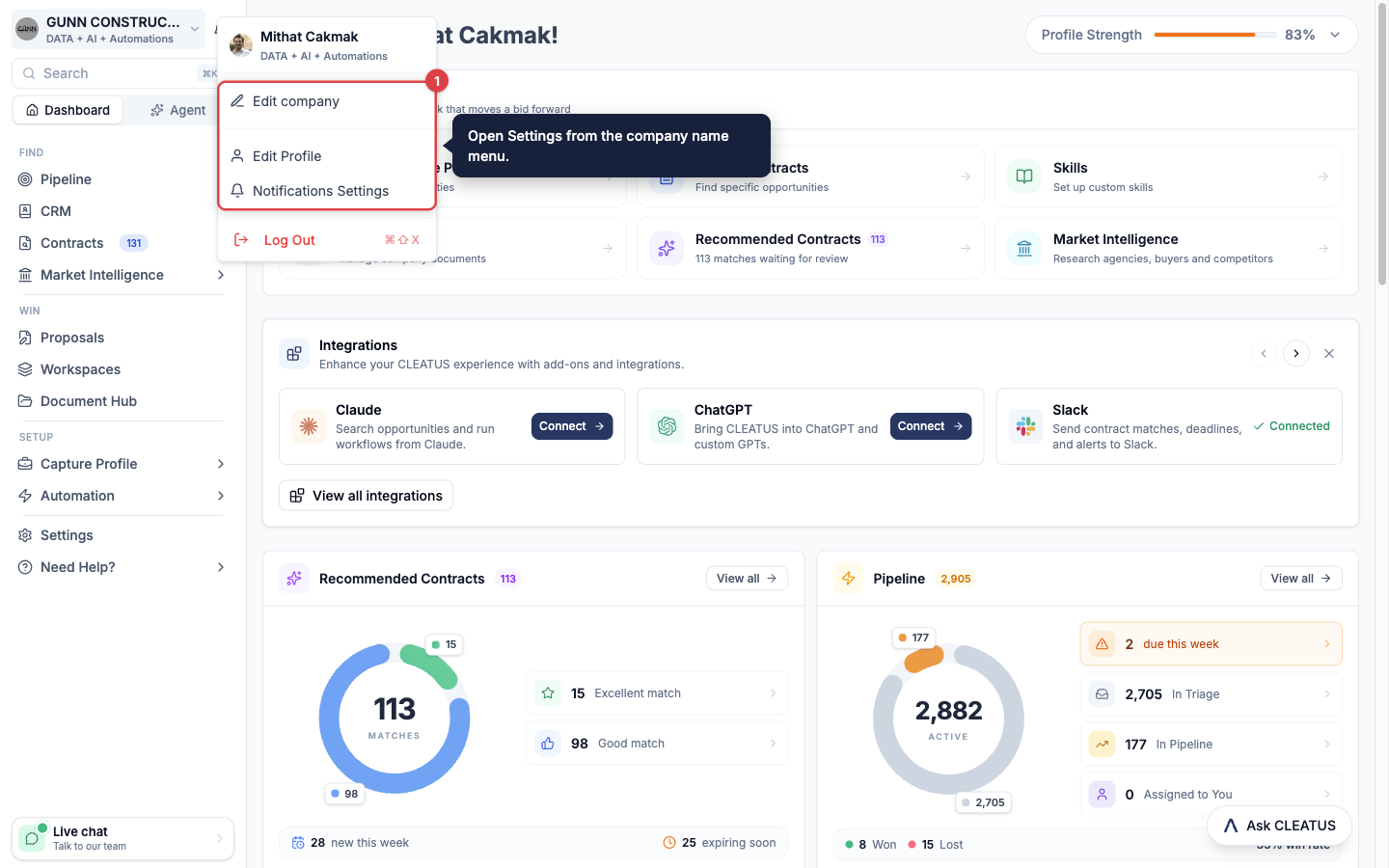
Pick a section
Click a section in the list on the left. The list puts your personal sections first, then the company and team sections, then the organization sections.
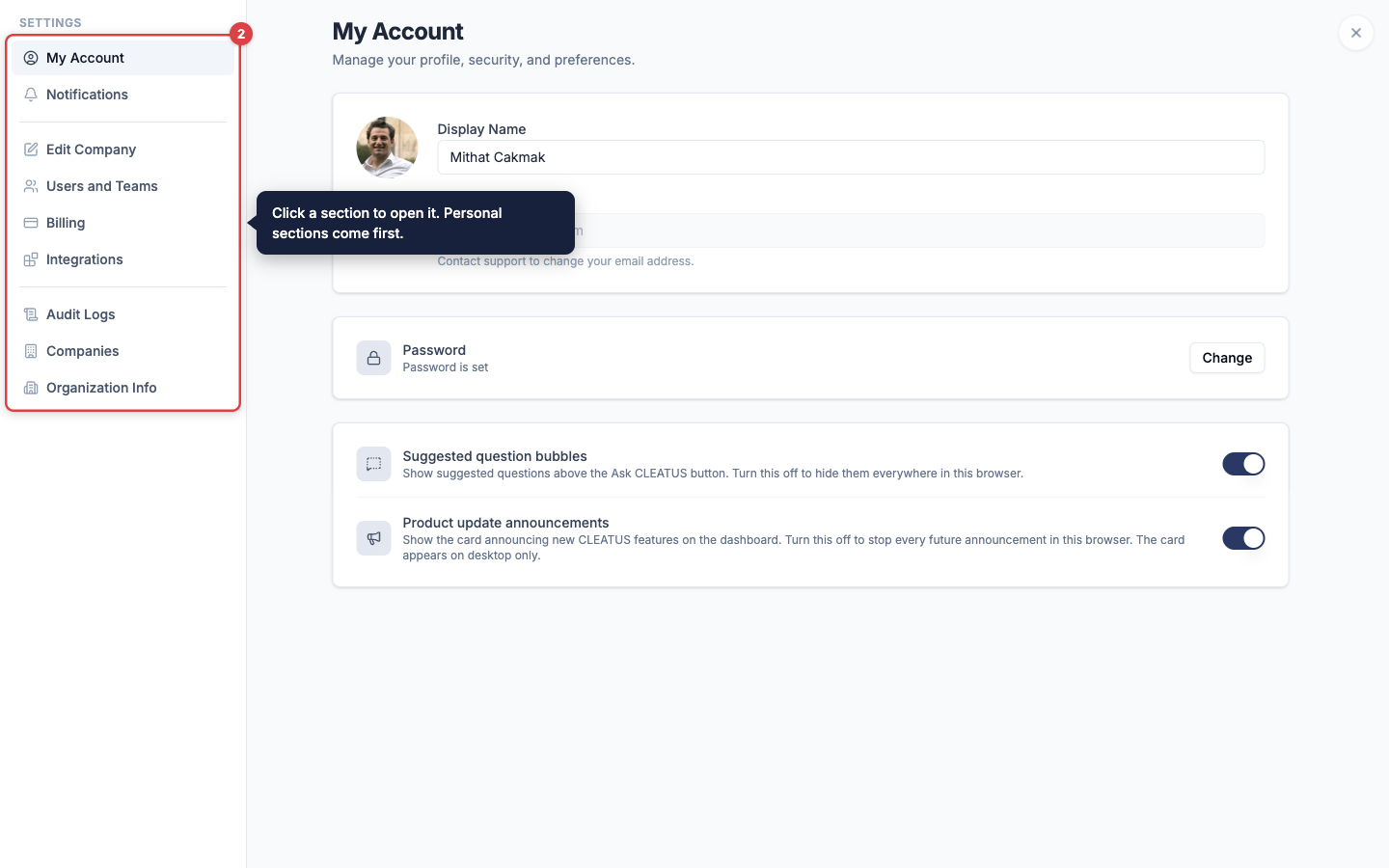
Close the window
Press Esc or click the close button at the top right. CLEATUS takes you back to the page where you opened Settings.
Sections and who can see them
"Everyone" means every role except Limited Member.
| Section | What it holds | Who can see it |
|---|---|---|
| My Account | Your name, photo, password, and interface preferences | Everyone |
| Notifications | Your email and in-app notifications, digests, and the agent sound | Everyone |
| Edit Company | The logo and name of the company that you have open | Everyone |
| Users and Teams | Members, invitations, roles, and teams | Everyone. Only Owners and Admins invite users and create teams. |
| Billing | The subscription, seats, payment method, and invoices of each company | The Owner only |
| Integrations | The connected tools of the company that you have open | Everyone |
| Audit Logs | A record of important actions in your organization | Owners and Admins |
| Companies | The companies in your organization | Everyone. Owners see every company. Other roles see their own. |
| Organization Info | The name, logo, and web address of your organization | Everyone. Only the Owner can change them. |
If your trial has not started, most sections show Start your trial to continue. My Account, Notifications, and Users and Teams stay open, so you can invite your team before the trial starts.
My Account
These settings belong to you. They apply in every organization and company that you work in.
- Profile: Hover your photo and click it to upload a new one. Edit your Display Name, then click Save Changes. To change your Email, contact support.
- Password: Click Change. Enter your current password and the new password twice, then click Update password. If you sign in with an email code, the button says Set Password.
- Authenticator app and Passkey (CLEATUS GovCloud only): Under Authenticator app, click Set up to add a second sign-in step, or Turn off to remove it. Under Passkey, click Add passkey, name the passkey, and follow the prompt on your device. Each passkey shows in a list. Click Remove to delete one.
- Suggested question bubbles: Shows suggested questions above the Ask CLEATUS button.
- Product update announcements: Shows a card about new CLEATUS features on your dashboard, on desktop only.
CLEATUS saves the two interface switches in your browser. They do not follow you to another browser or computer.
Notifications
Your notification settings are personal. They apply to every company that you work in. CLEATUS saves each change right away.
Turn a channel on or off
- Email: Turn this switch off to stop all notification emails.
- In-app: Turn this switch off to stop notifications inside CLEATUS. In-app notifications show under the bell icon next to the company name at the top of the sidebar.
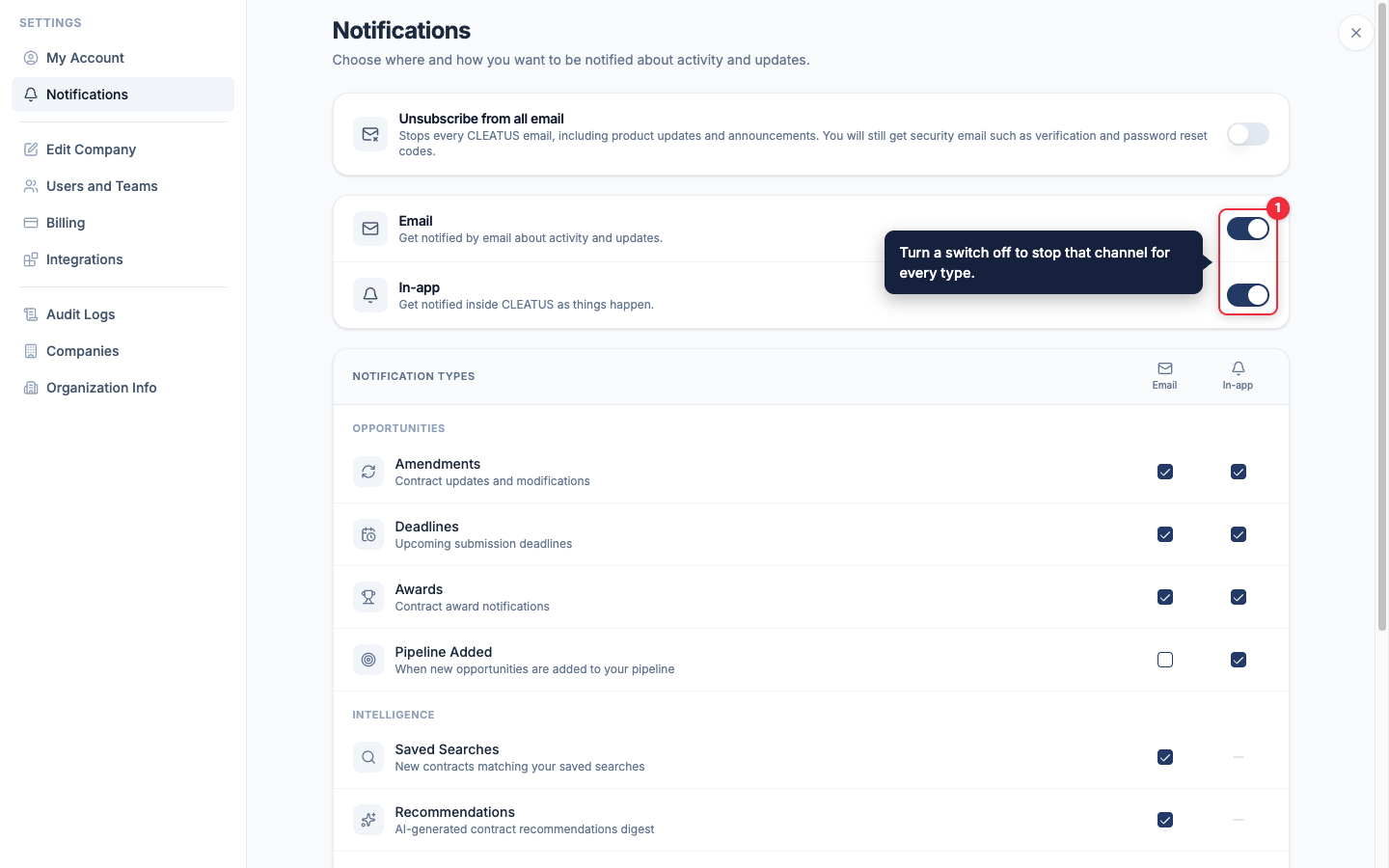
A channel switch sets every checkbox in its column. The switch shows on while at least one type in its column is on.
Choose the notification types
Under Notification types, select or clear the checkbox in the Email or In-app column for each type.
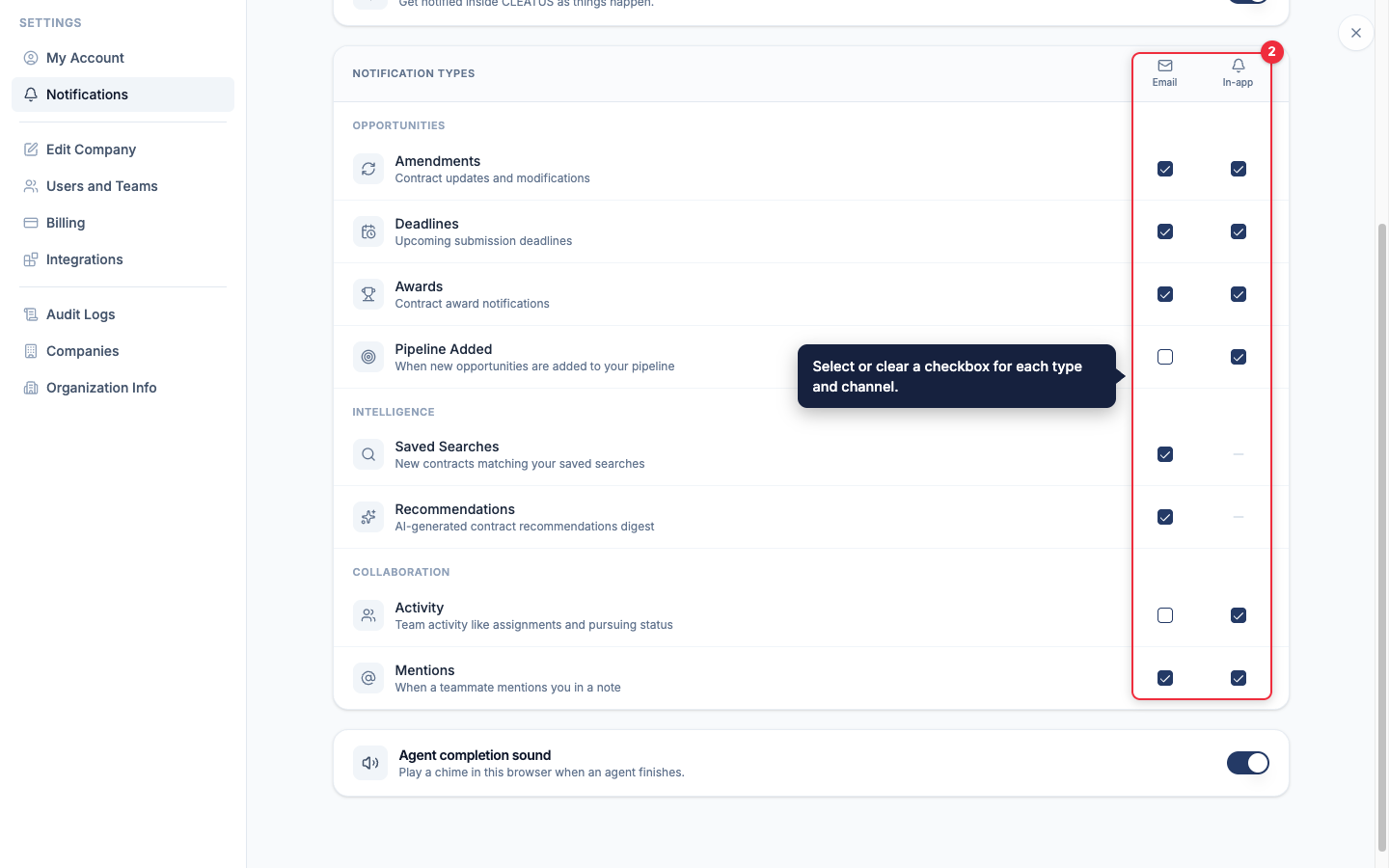
| Group | Type | What it tells you | Channels |
|---|---|---|---|
| Opportunities | Amendments | Contract updates and modifications | Email, In-app |
| Opportunities | Deadlines | Upcoming submission deadlines | Email, In-app |
| Opportunities | Awards | Contract award notifications | Email, In-app |
| Opportunities | Pipeline Added | New opportunities added to your pipeline | Email, In-app |
| Intelligence | Saved Searches | New contracts that match your Custom Alerts | |
| Intelligence | Recommendations | A digest of your artificial intelligence (AI) contract recommendations | |
| Collaboration | Activity | Team activity, such as assignments and pursuing status | Email, In-app |
| Collaboration | Mentions | A teammate mentions you in a note | Email, In-app |
Turn digests and alerts on or off
- To stop the recommendations digest, clear Recommendations in the Email column. Limited Members do not get this digest.
- To stop all Custom Alert emails for yourself, clear Saved Searches.
- To stop the emails of one alert, open Contracts > Custom Alerts. Then turn off the toggle next to that alert. See Saving a Search and Creating Alerts.
Stop all email
Turn on Unsubscribe from all email to stop every CLEATUS email, including product updates and announcements. This switch overrides the settings below it. You still get security email, such as verification and password reset codes.
Agent completion sound
Agent completion sound plays a chime when an agent finishes its work. CLEATUS saves this setting in your browser only.
Edit Company
Edit Company holds the logo and the Company Name of the company that you have open. Hover the logo to upload a new one, edit the name, and click Save Changes. To edit a different company, switch to it first. See Managing multiple companies.
Your Unique Entity Identifier (UEI), contract sources, capabilities, and preferences are not here. They are in your Capture Profile.
Users and Teams
Users and Teams lists the members of your organization, the companies that each member is assigned to, and their roles. Owners and Admins invite users, change roles, and create teams. If every company in your organization is on the DATA plan, this section shows an upgrade screen instead.
- To invite users and manage roles and seats, see Adding users to your account.
- To organize users into teams, see Inviting Your Team.
Billing
Only the Owner sees Billing. Admins do not see it. It lists each company with its billing cycle, seats, and included credits. Click Manage Billing to change the plan, seats, or payment method of a company, or to see its invoices. See Manage your billing and Plans and pricing.
Integrations
Integrations connects the company that you have open to other tools. The cards are in four groups:
- AI Assistants & Agents: MCP (Model Context Protocol), ChatGPT, and Claude. See Claude, ChatGPT, and MCP Server.
- Contract Vehicles: General Services Administration (GSA) eBuy and the Procurement Integrated Enterprise Environment (PIEE). See GSA eBuy and PIEE.
- Document Sources: Google Drive and SharePoint. See Google Drive and SharePoint.
- Data & Automation: API Keys (for the application programming interface), Zapier, Slack, and Microsoft Teams. See REST API, Zapier, Slack, and Microsoft Teams.
A card that needs a higher plan shows the plan that it requires.
Audit Logs
Audit Logs shows important actions across your organization, with the user and the time of each one. Only Owners and Admins can open it.
- Filter the list by date, Action, Type, or User.
- Click Refresh to load the latest actions.
- To download the list, click Export CSV and pick an export size. CLEATUS downloads a comma-separated values (CSV) file.
Audit Logs needs at least one company on DATA + AI or a higher plan. Without one, it shows a sample preview.
Companies
Companies lists the companies in your organization, with the seats and the contracts processed for each one. Owners see every company and can click Add a New Company. Other roles see only the companies that they are assigned to. See Managing multiple companies.
Organization Info
Organization Info shows the Organization Name, the logo, and the web address of your organization. Only the Owner can change the name and the logo. Click Save Changes after you edit them.