
Saving a Search and Creating Alerts
Get notified the moment a new matching contract is posted.
A saved search keeps working after you close the tab. This guide shows you how to save a search once and let CLEATUS watch for new matches on your behalf.
Or just ask CLEATUS
Save that search and email me when new matching contracts are posted
Before you start:
Dial in your query and filters first, since a saved search remembers exactly what you had applied when you saved it. See Filtering Your Search.
Save a search
Build the search you want
Enter a query and apply your filters until the results show the kind of opportunities you want to track.
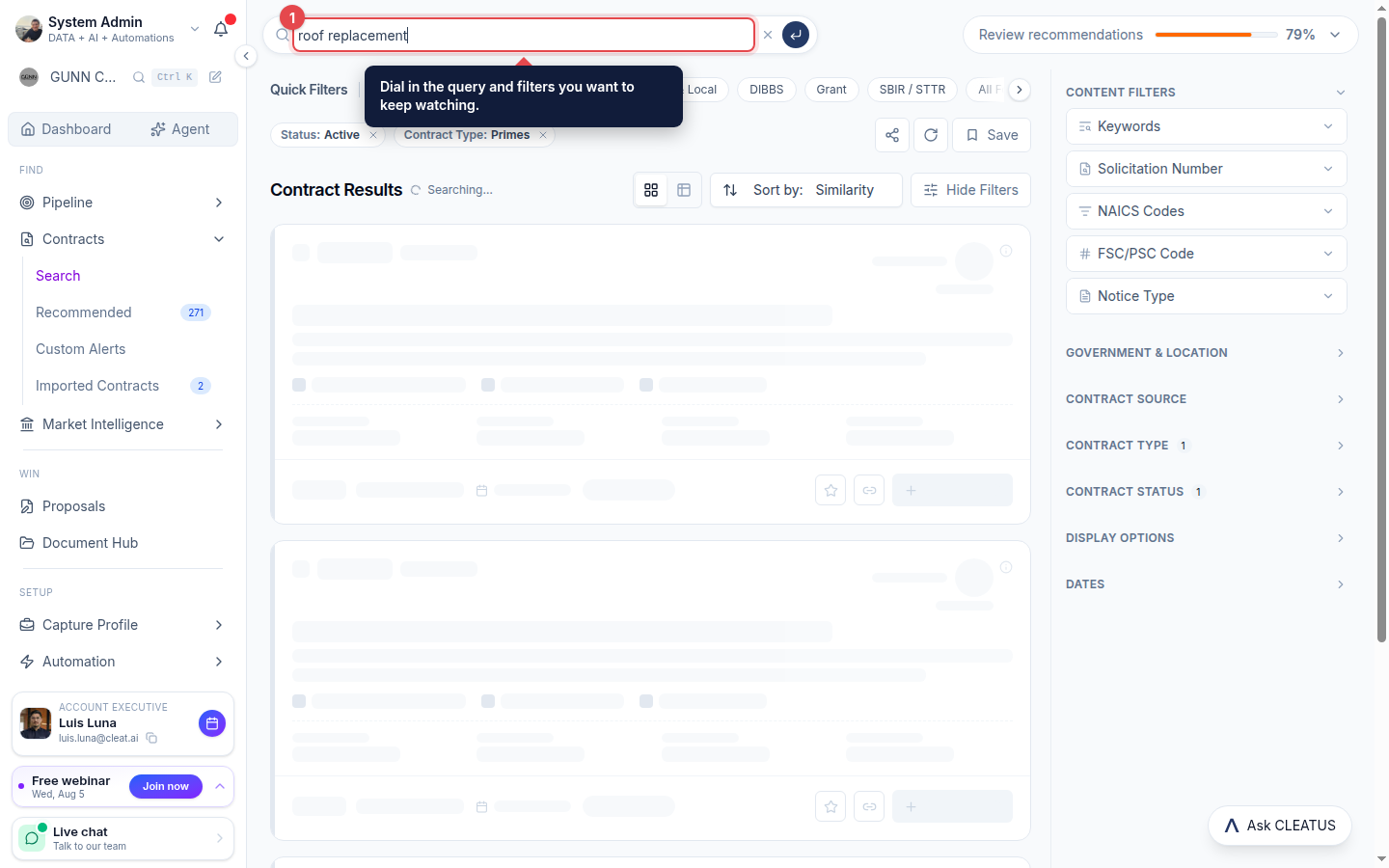
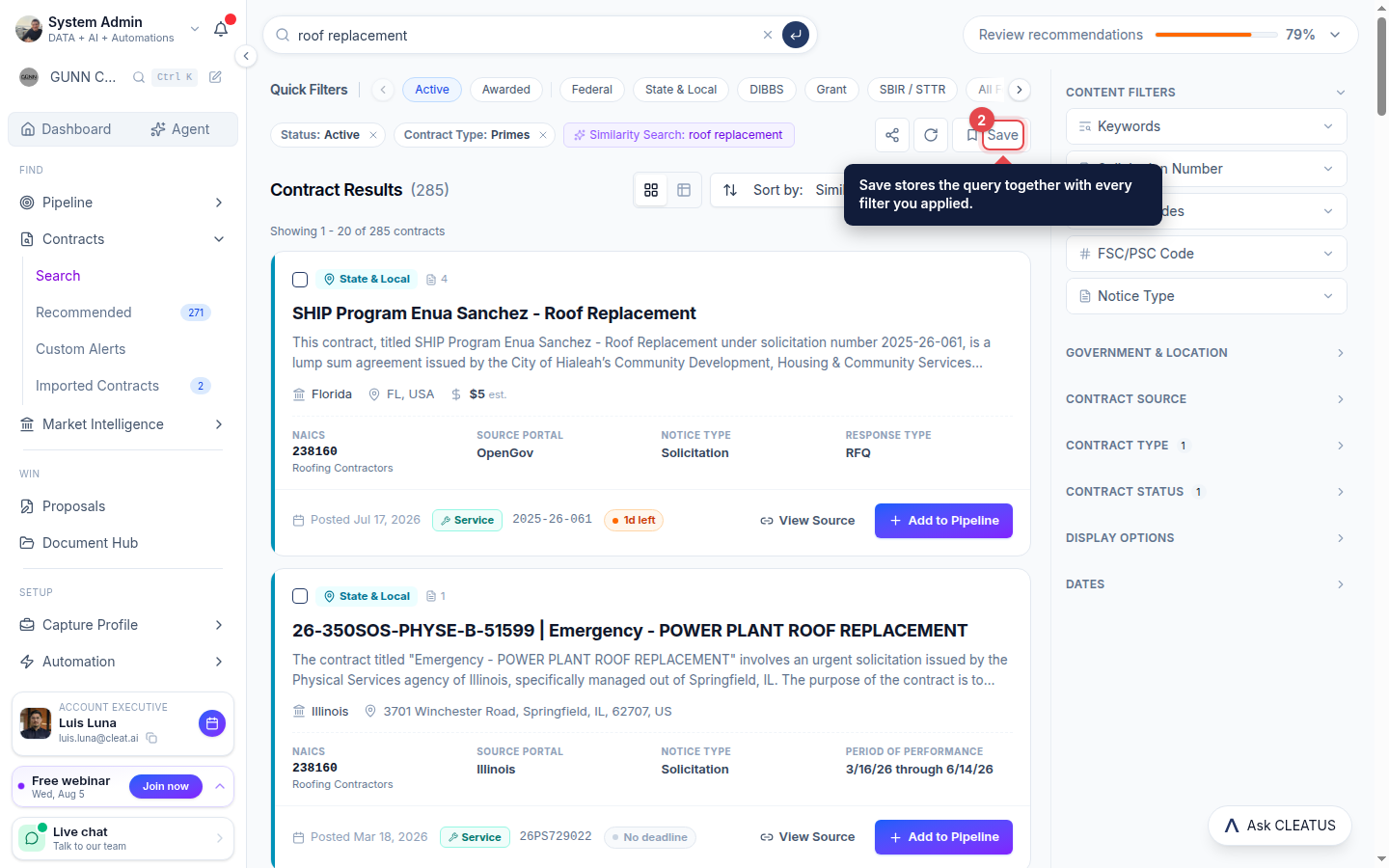
Save it
Click Save above the results to store the search along with its filters.
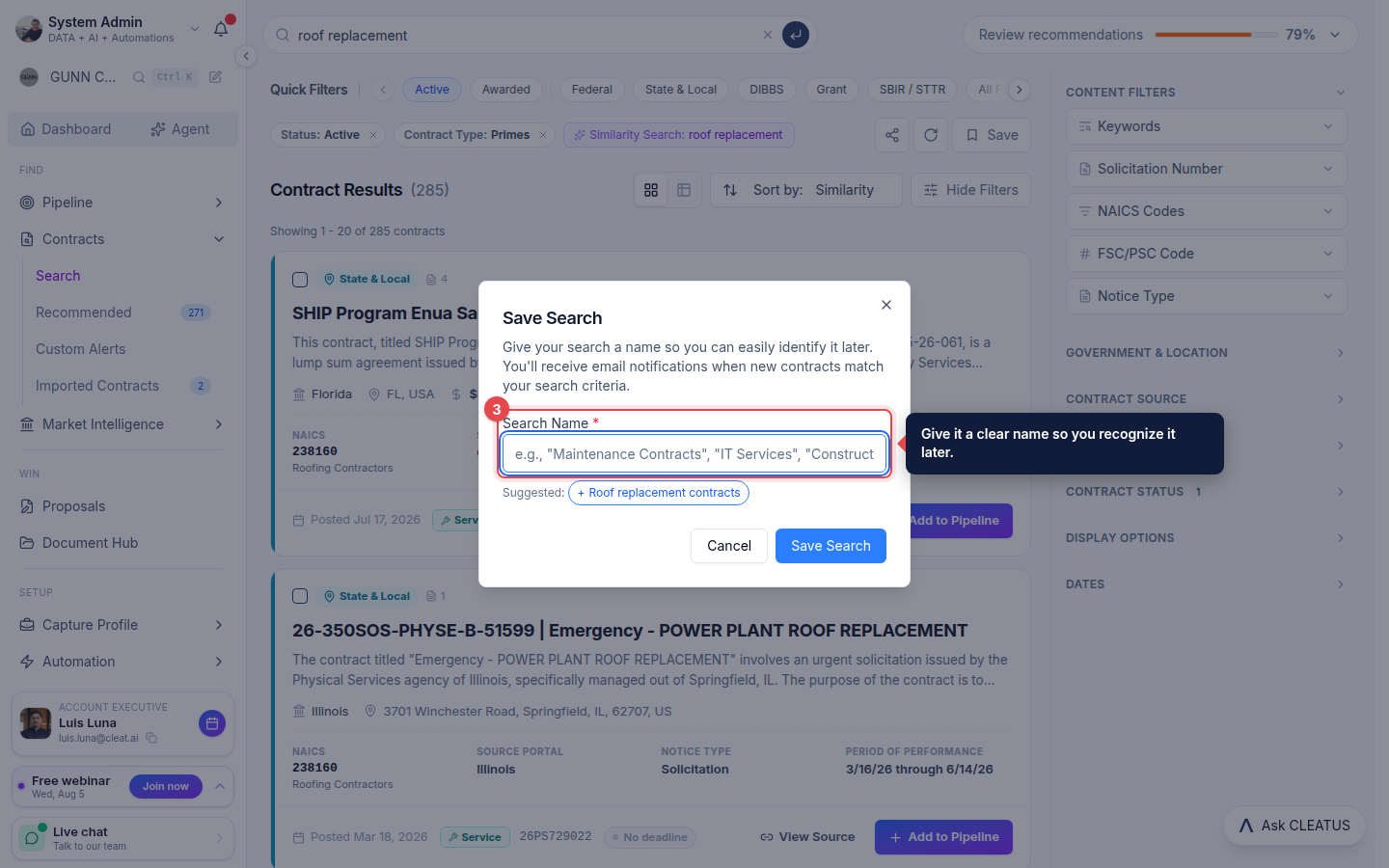
Name your search
Give the search a clear name so you can recognize it later, then confirm with Save Search.
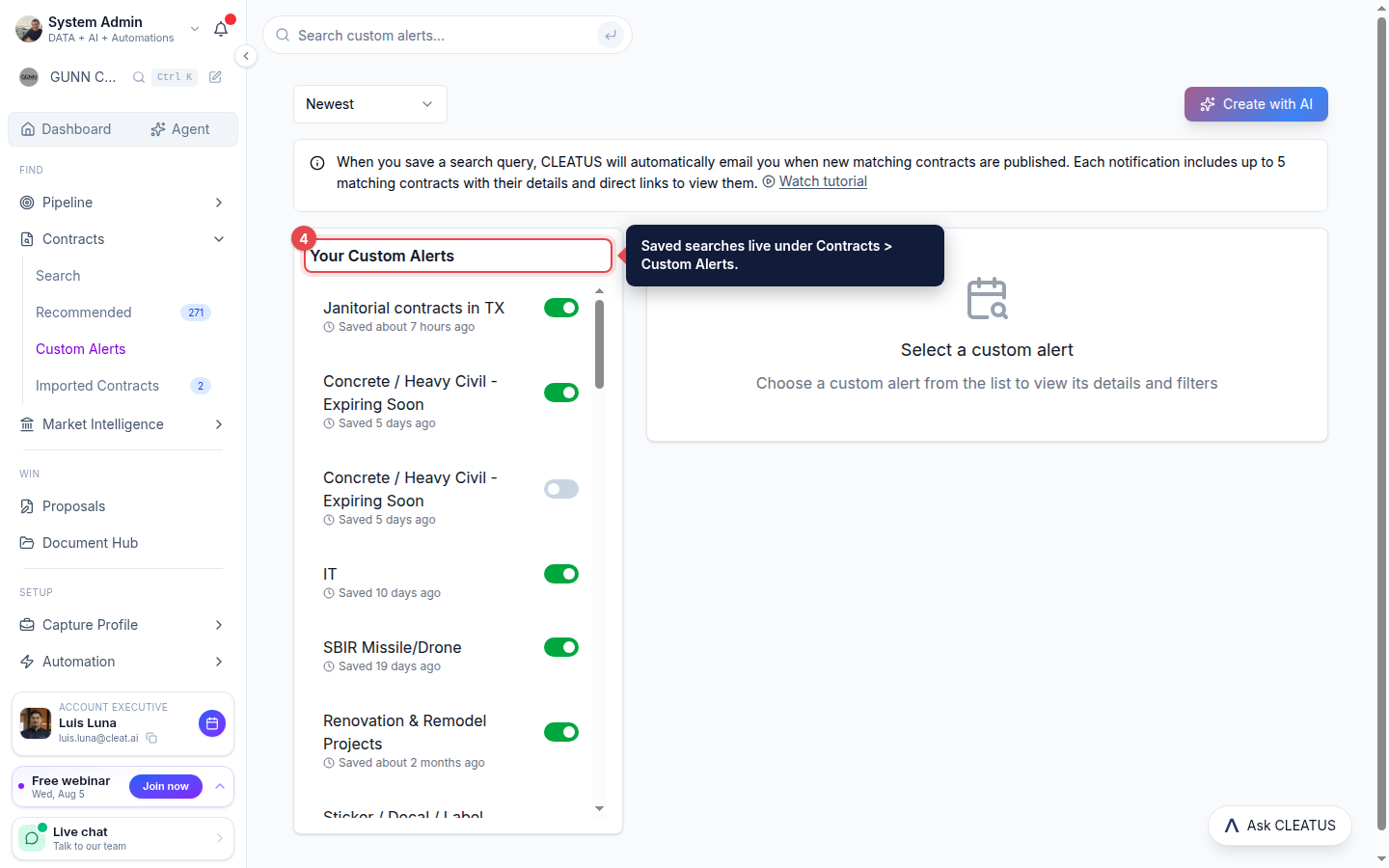
Find it as a Custom Alert
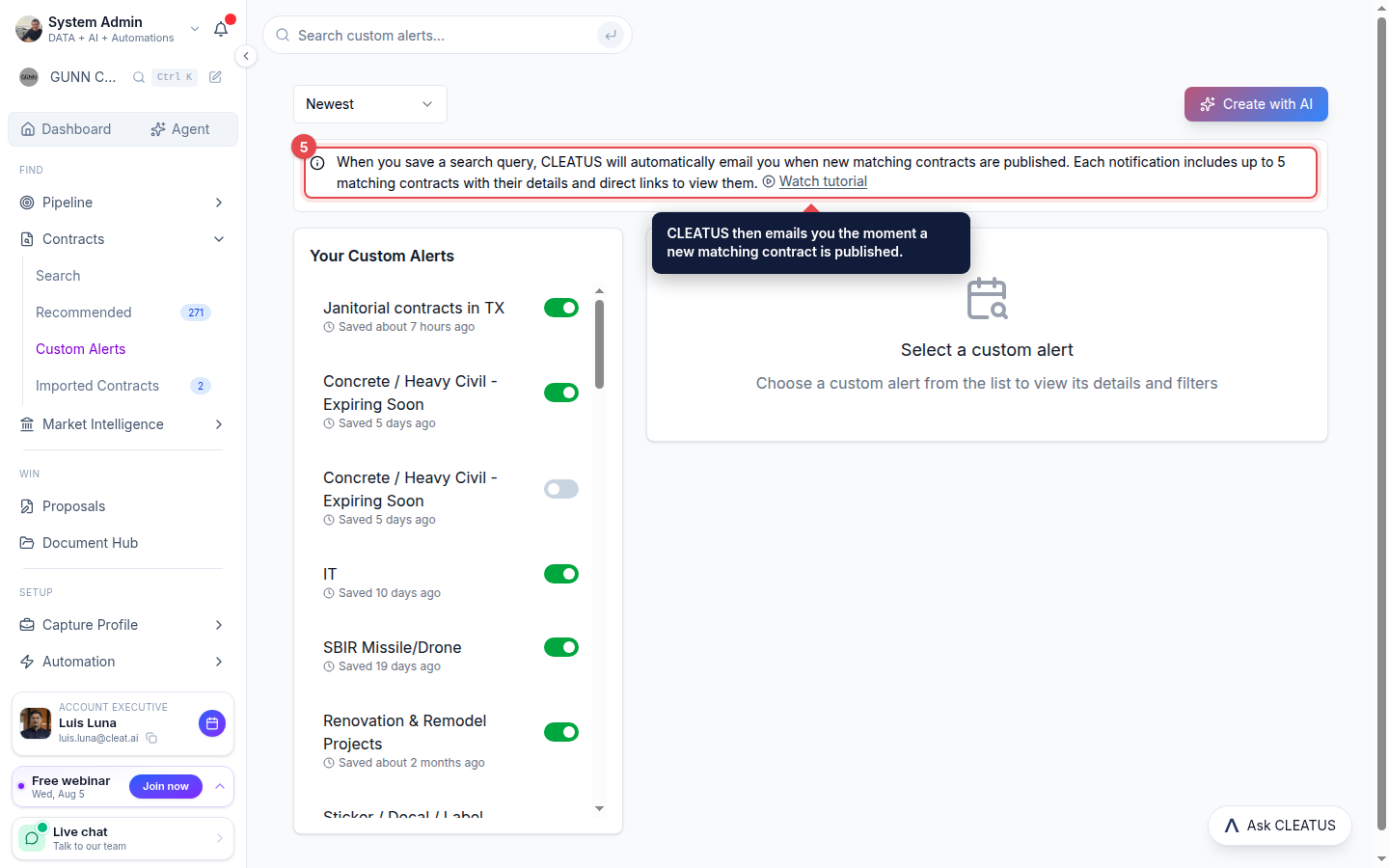
Your saved search becomes a Custom Alert under Contracts > Custom Alerts, where you can toggle it on or off at any time.
Let CLEATUS watch for matches
CLEATUS emails you when new contracts matching your criteria are published, so you never miss a fresh opportunity.
Tip:
Keep separate alerts for different capability areas so each stays focused.