
Finding Recompetes and Forecasts
Find work before the solicitation posts, see who holds it today, and start capture early.
By the time a solicitation posts, a competitor has often shaped the requirement for months. CLEATUS covers work before it posts, not only active solicitations. It shows agency forecasts, recompetes that it predicts from award history, and the incumbent on each recompete. This guide shows you where to find that work and how to start capture early.
Or just ask CLEATUS
Find agency forecasts and predicted recompetes for cybersecurity work at the Department of Homeland Security
Before you start:
Keep your Capture Profile current. Forecast recommendations score each forecast against your capabilities.
Know the kinds of early work
CLEATUS calls work that has no posted solicitation a signal. A violet SIGNAL badge marks it in search results and on its page.
| Kind | Where it comes from | Status |
|---|---|---|
| Forecast | An agency's own procurement forecast, published before the solicitation. Sources include the General Services Administration (GSA) and other agency forecast portals. | Upcoming |
| Predicted Recompete | A prediction from award history. CLEATUS finds federal awards, contract vehicles, and Canadian government awards that end within the next 18 months. The agency has not announced it. | Predicted |
| Subcontract | A scope of work that CLEATUS finds inside a prime contract that already posted. | None |
In Contract Search, a predicted recompete is a pre-forecast. A forecast never turns into the solicitation. When the solicitation posts, it arrives as its own contract.
Canadian predicted recompetes come from CanadaBuys award data. Their values are in Canadian dollars (CAD). CLEATUS matches them to your company only when your Capture Profile includes work in Canada.
A recompete can also be a live solicitation that replaces an expiring contract. CLEATUS names the incumbent on those too.
Find forecasts and predicted recompetes
Open Contract Search
From the left sidebar, open Contracts > Search.
Turn on forecasts
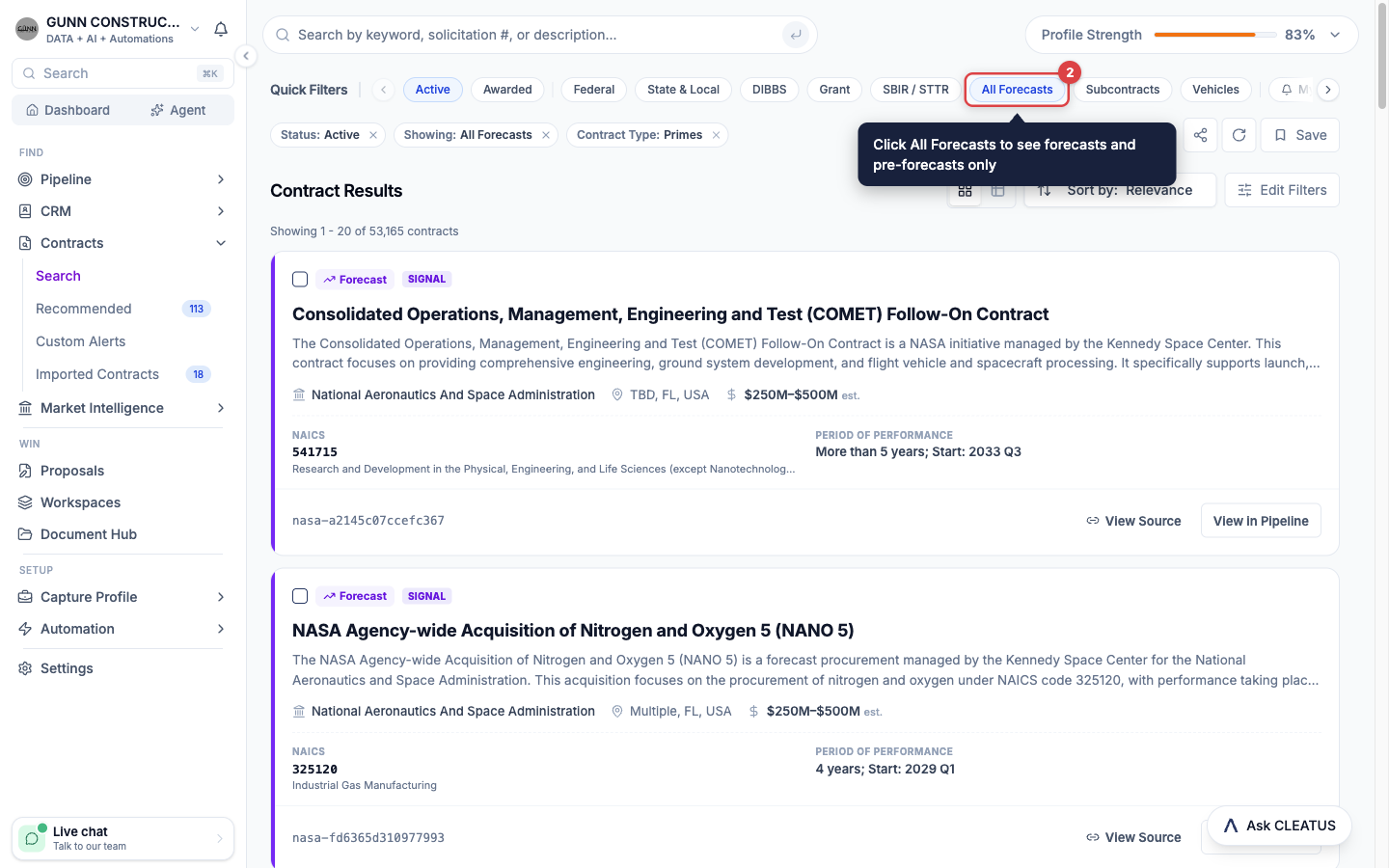
In the Quick Filters row, click All Forecasts. The results then show forecasts and pre-forecasts only. Active solicitations stay hidden until you turn the filter off.
Pick one kind
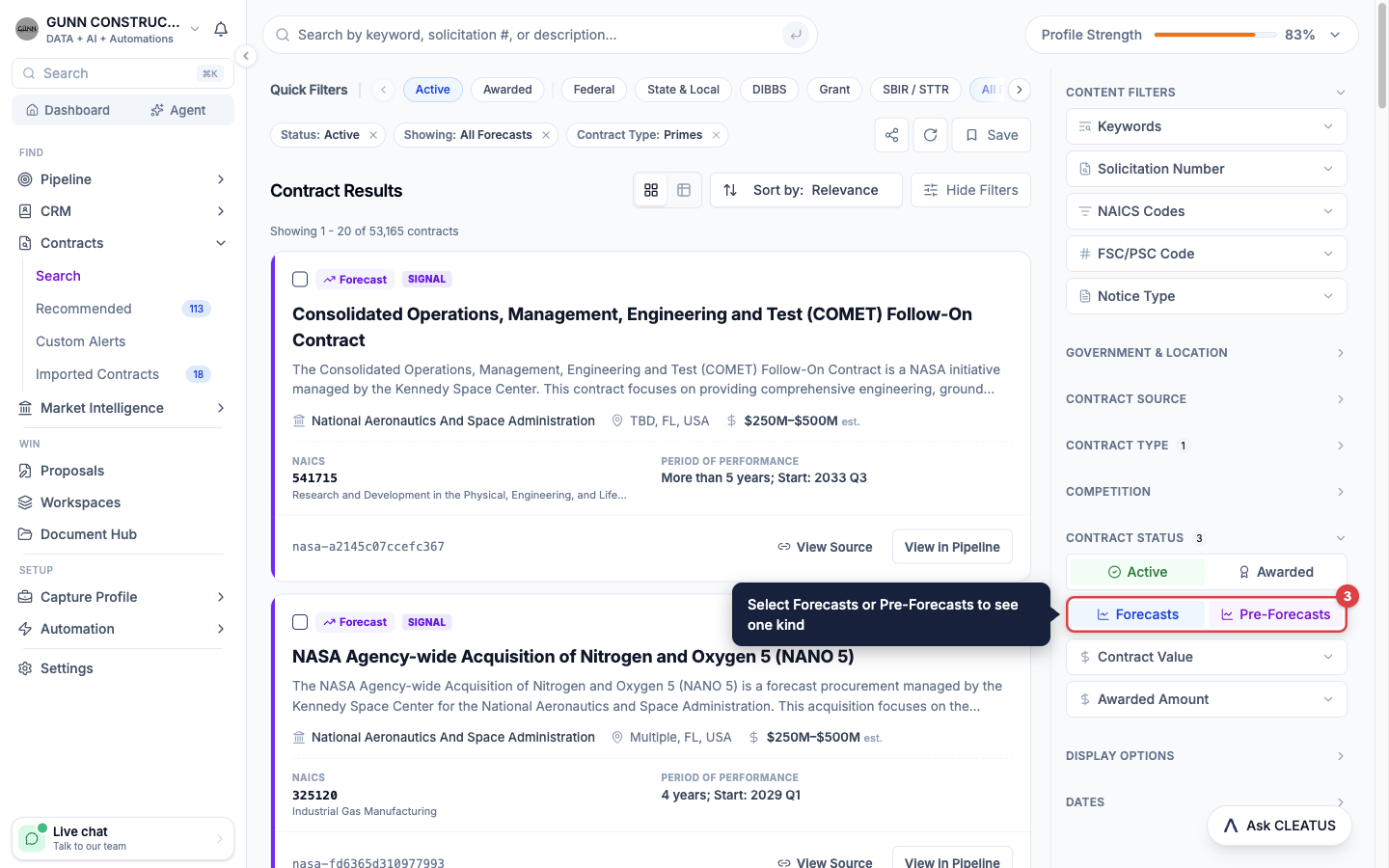
To see one kind, click Edit Filters. Under Contract Status, select Forecasts or Pre-Forecasts.
Narrow the results
Type a short description of the work, or add filters such as agency, set-aside, and location. Forecasts have no response deadline yet, so do not filter by due date.
Save the search
Click Save to keep the search as a Custom Alert. See Saving a Search and Creating Alerts.
Get forecast recommendations
CLEATUS can also score agency forecasts against your capabilities and add the best fits to your Recommended feed.
- Open Capture Profile > Company Details. In the Contract Source section, turn on Forecasts.
- Open Contracts > Recommended, then open the filter panel.
- Under Contract Source, select Forecasts to see only forecasts.
- Turn on Forecasts without a state to include forecasts that list no state. These forecasts can be outside your service area.
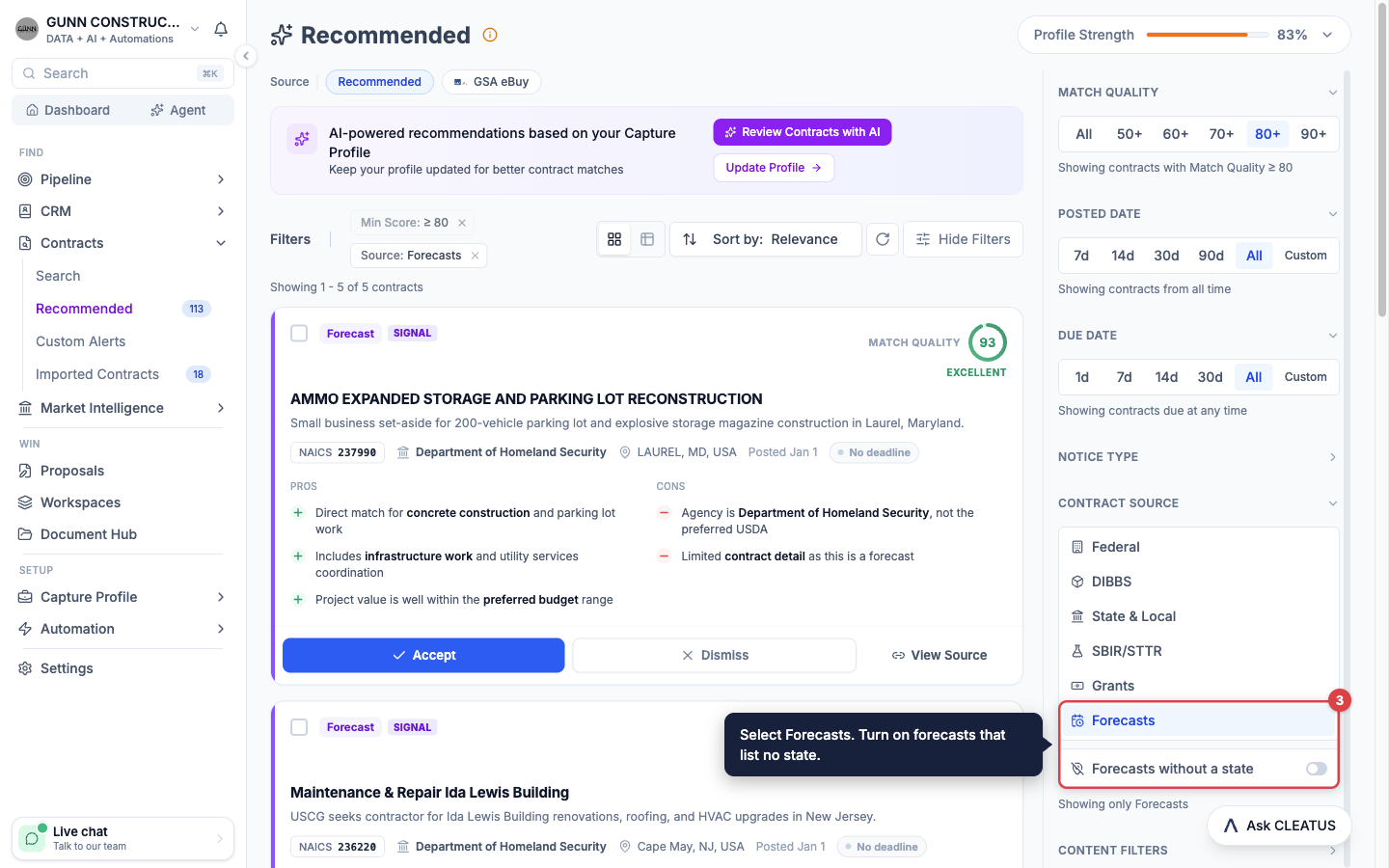
Each forecast recommendation has a Match Quality score, like your other recommendations. Forecast recommendations cover agency forecasts. To find predicted recompetes, use the Pre-Forecasts filter in Contract Search.
Know the incumbent
The incumbent is the company that holds the work today. It is often the company that you must beat.
Open the recompete
Open the recompete from Contract Search, from Recommended, or from your pipeline.
Find the Incumbent
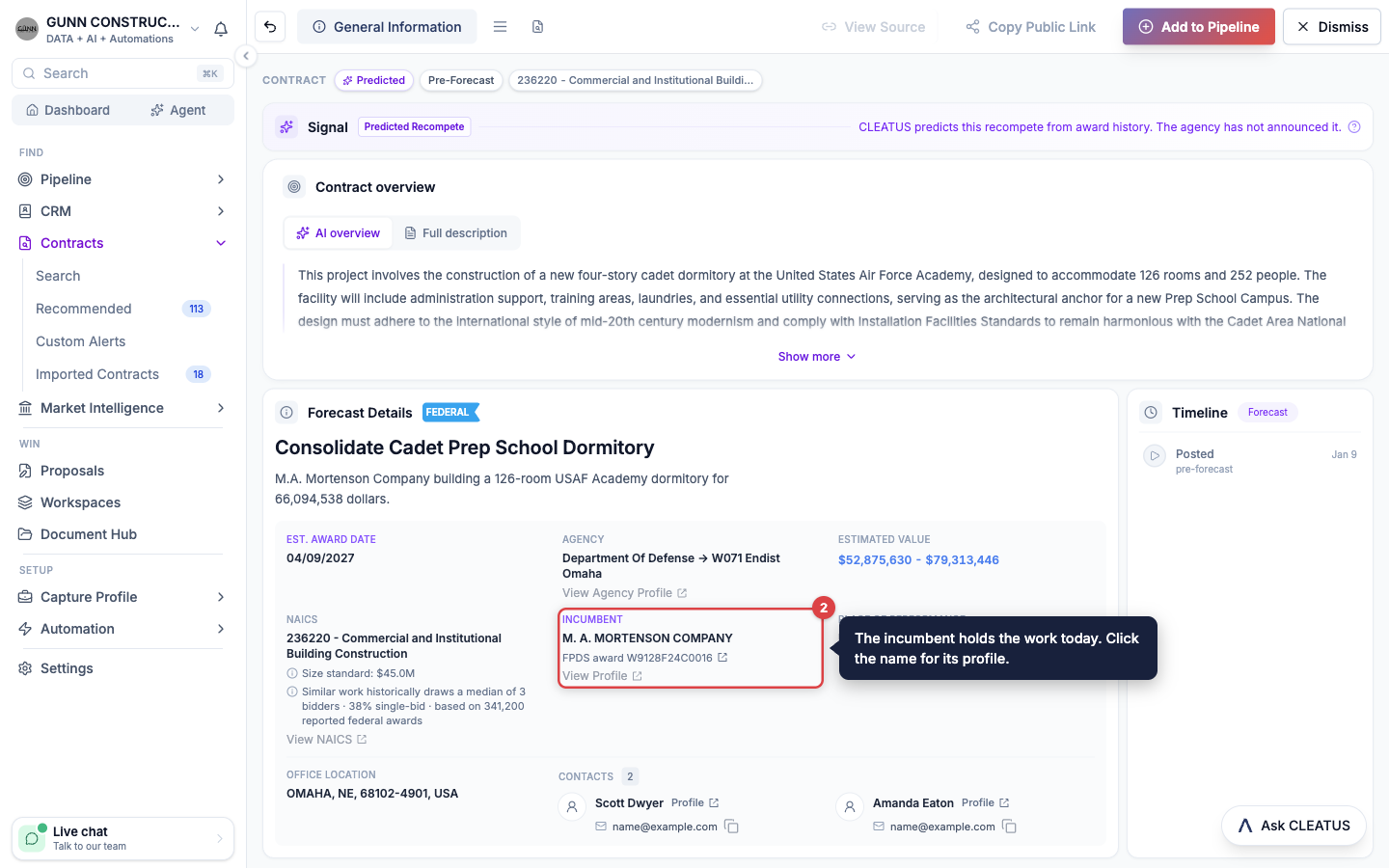
Look for Incumbent on the General Info card, or on the Forecast Details card of a forecast. Click the name to open the contractor profile. When more than one company holds the work, the card lists each one.
Check how sure CLEATUS is
The line below the name shows the source of the claim, such as a previous award or the forecast. Inferred match means that CLEATUS inferred the incumbent, with a confidence percentage. Not identified means that CLEATUS could not name the incumbent. It does not mean that the work is new.
Open the previous award
The Recompete of card shows the expiring contract: its holder, its value, and its current term. When CLEATUS has documents from the last cycle, the card links to them. Click View contract or View award to open the record. On a predicted recompete, the same card reads Predicted from.
On the pipeline board, open a card's menu and click Quick View. It shows the incumbent without leaving the board.
Find awards that end soon
Market Intelligence shows the awards behind future recompetes.
- From the left sidebar, open Market Intelligence > Contracts.
- Choose IDV Awards, Prime Awards, or Sub Awards. IDV means indefinite delivery vehicle.
- Under Recompete Window, select Next 12 mo or Next 18 mo.
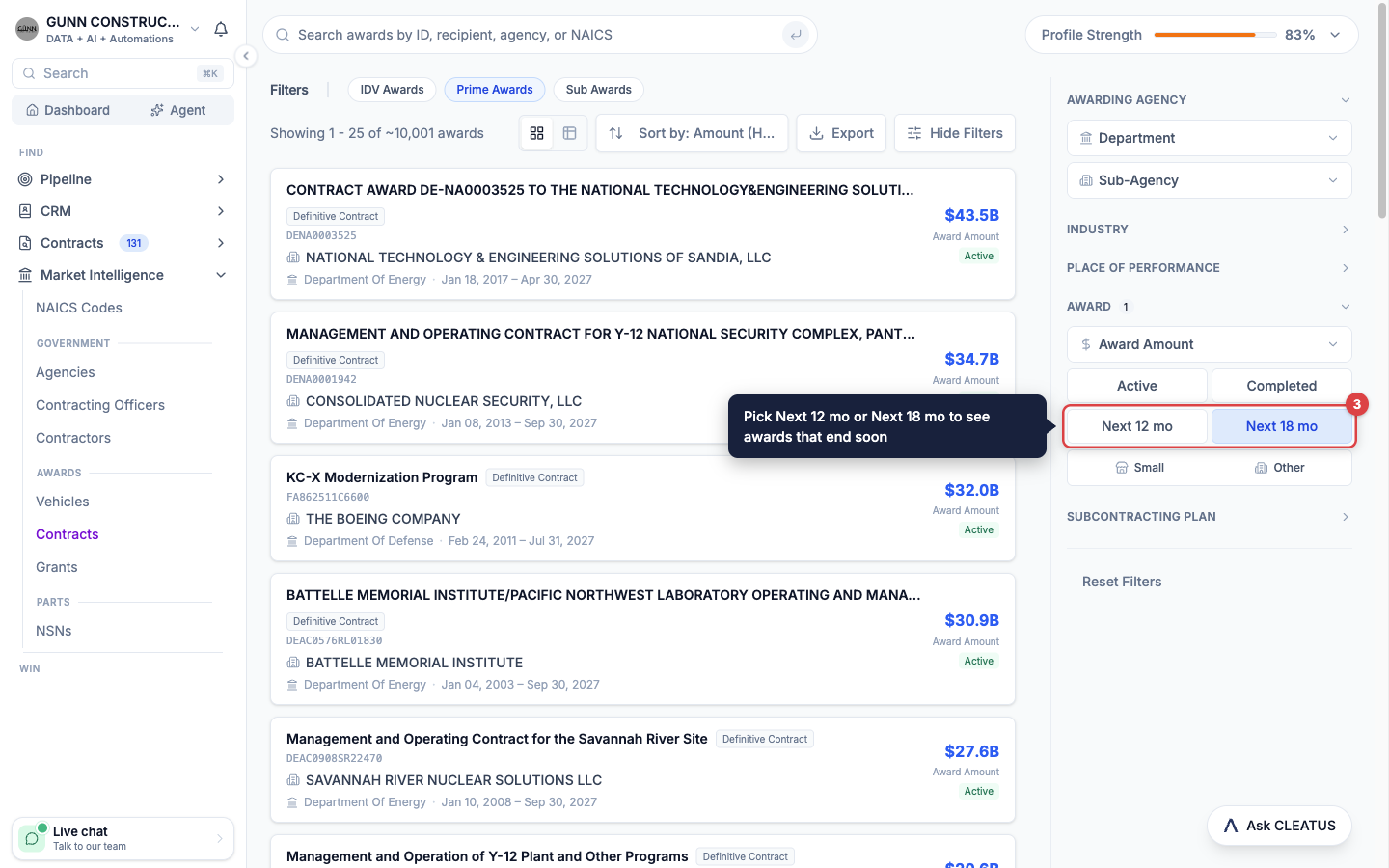
Open an award to see who holds it and when it ends. See Exploring Market Intelligence.
Know when the solicitation posts
CLEATUS links a forecast to the contract that the agency publishes from it.
- On a forecast page, the Published contracts button in the overview card lists the matched contracts. Each one shows a match percentage, strongest first.
- On the published contract, the Forecast matches button lists the forecast that it came from.
- On a live recompete, the Recompete of card links back to the expiring contract.
Start capture early
Signal pages have no build card, because there is no solicitation to respond to yet. Use the time to shape the bid.
- Add it to your pipeline. Click Add to Pipeline on the signal page. The pursuit lands in the Triage column, so your team can assign it and add tasks.
- Reach the contracting office. A forecast page shows the agency contacts on the Forecast Details card. Contact them while the requirement is still being shaped.
- Study the incumbent. Open the contractor profile and the previous award. On the General Information tab, the Competition card lists the companies that win similar work.
- Line up the prime. On a subcontract scope, click View Prime Contract. The Potential Primes card lists the companies interested in the prime.
- Automate the watch. Build a workflow with a Schedule trigger and an AI Agent step. The artificial intelligence (AI) agent can search for new forecasts each week. A workflow with the Contract added to pipeline trigger can tell your team about each new pursuit. See Creating a Workflow.
Tip:
A predicted recompete is a prediction, and forecast dates are agency estimates. Check the dates again before you commit resources.