
Reading a Contract Page
Find the fit analysis, breakdown, requirements, amendments, solicitation Q&A, and competition on every contract page, then act on it.
Every opportunity in CLEATUS has a contract page. CLEATUS prepares most of that page before you open it. You get an artificial intelligence (AI) overview and a fit analysis for your company. You also get a breakdown of the solicitation and a view of the competition. This guide shows you where each part is and what to do with it.
Or just ask CLEATUS
Summarize the evaluation factors for this contract, list what changed in the amendments, and name the incumbent
Before you start:
Open a contract from Contracts > Search, Contracts > Recommended, or Contracts > Imported Contracts. The fit analysis compares the contract with your Capture Profile, so keep the profile current.
The tabs
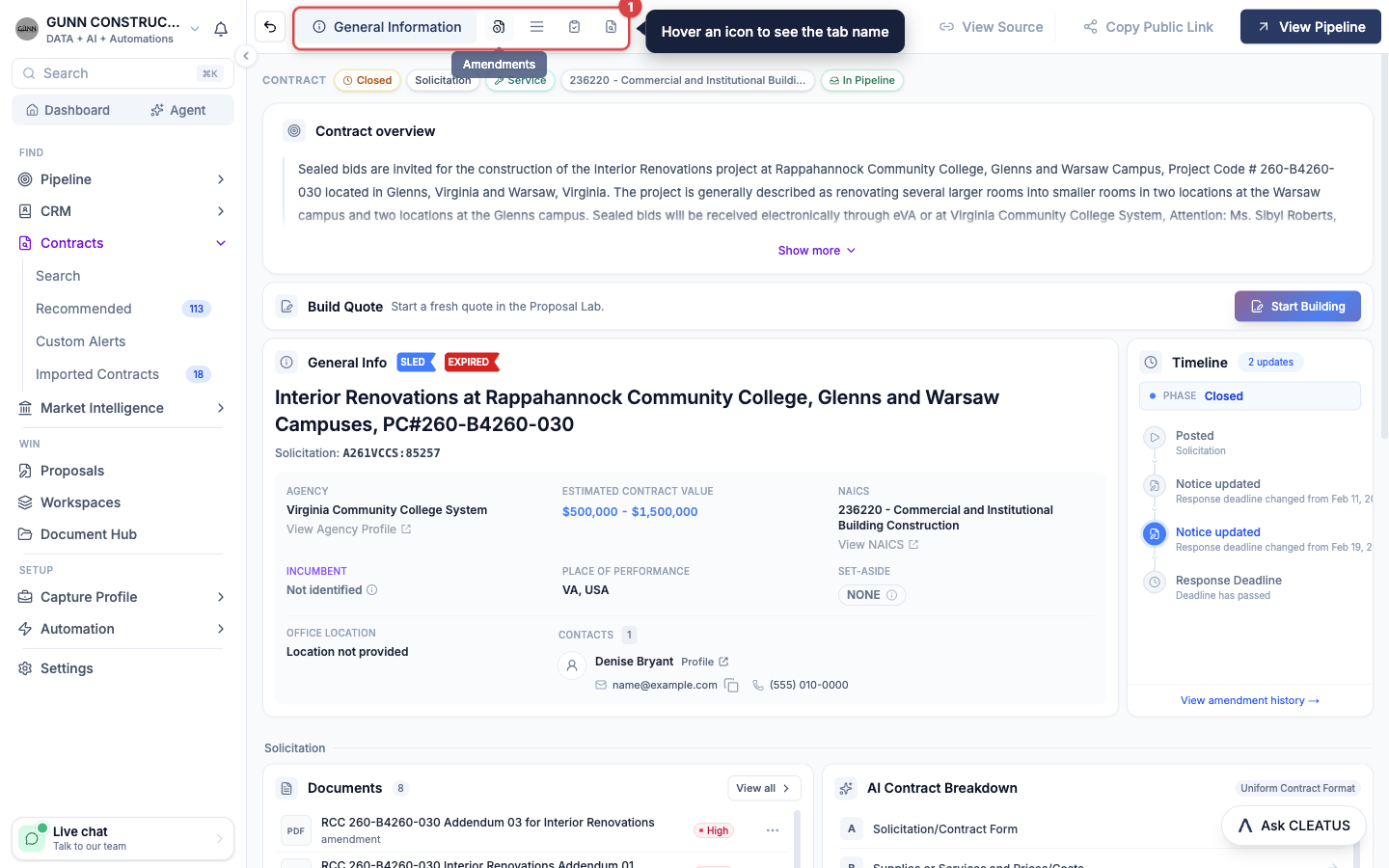
The tab bar at the top of the page has up to six tabs. CLEATUS hides a tab when it has nothing to show.
| Tab | What it shows |
|---|---|
| General Information | The overview, the fit analysis, the key facts, the timeline, the documents, and the market data. |
| Amendments | The solicitation history. This tab shows only when the solicitation has history or a linked notice. |
| Q&A | The questions that bidders asked and the answers that the agency released. This tab shows only when CLEATUS finds published questions. |
| Contract Breakdown | The solicitation, sorted into Uniform Contract Format (UCF) sections. |
| Requirements | A checklist of every requirement in the solicitation, each with its source quote. |
| Document Viewer | Every document in the solicitation package, with a button to download them all. |
The actions sit at the right end of the tab bar. The last section of this guide describes them. Click the back arrow at the left end to return to the page that you came from.
Read the General Information tab
Check the badges and the overview
A row of badges at the top shows the notice type, the source, the set-aside, and the status. The status reads, for example, Active, Closed, or Awarded. The Contract overview card holds the AI overview and the full description from the agency.
Read the fit analysis
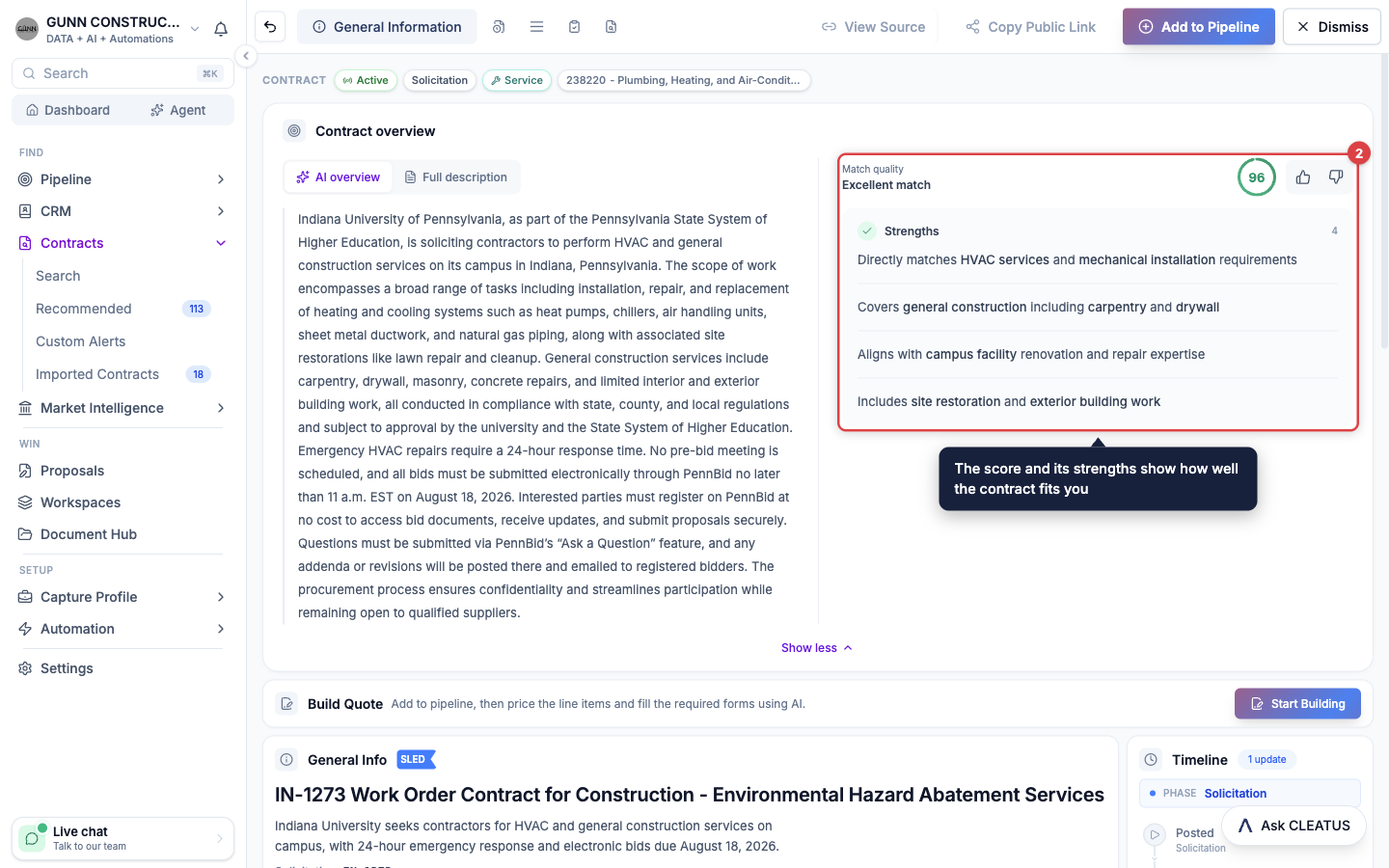
If CLEATUS scored the contract for you, the overview card shows a Match quality score from 0 to 100. Expand it to read the Strengths and Considerations behind the score.
Scan the key facts
The General Info card shows the agency, the value, and the place of performance. It also shows the set-aside and the North American Industry Classification System (NAICS) code. The card lists the contracting office and its contacts. The Timeline card beside it shows the posted date, the deadline, and each amendment.
Find the incumbent
On an open opportunity, the General Info card shows the Incumbent: the company that holds the work today. Click the name to open the contractor profile. Click the award line below the name to open the previous award. Inferred match means that CLEATUS inferred the incumbent, with the confidence shown. Not identified means that CLEATUS could not name the incumbent, not that the work is new. A contract can have more than one incumbent.
Size the bid
On a federal opportunity, two lines under the NAICS code help you size the bid. Size standard is the Small Business Administration (SBA) size cap for that NAICS code. A company at or under the cap counts as small for work under that code. The second line tells you how many bidders similar federal work drew in the past. It is a historical norm, not a count of bidders on this contract.
Linked contracts
Below the key facts, cards link this contract to the notices around it. Each card has a button that opens the linked record.
- Recompete of: the expiring contract that this opportunity replaces, with its holder, value, and current term. Predicted from shows the same link on a predicted recompete.
- Recompeted as: the later opportunity that replaces this contract.
- Released from and Released as: the earlier and later notices of the same buy. For example, a request for information (RFI) that the agency released as a solicitation.
- Awarded from and Resulting awards: the solicitation behind an award, and the awards made from a solicitation.
When a linked notice is not in CLEATUS, the card shows its number and a View on SAM.gov button. SAM.gov is the System for Award Management.
Other cards
- The Documents card lists the solicitation documents. The AI Contract Breakdown card beside it previews the breakdown.
- The Requirements card previews the requirements checklist.
- On a large prime contract, the Subcontracts card lists the subcontract scopes that CLEATUS found inside it.
- On a grant or a Small Business Innovation Research (SBIR) topic, a card shows the funding, eligibility, and deadlines.
- On a DIBBS solicitation, the Approved Suppliers card lists the approved sources for the part. DIBBS is the Defense Logistics Agency Internet Bid Board System. See Researching a Part for DIBBS.
Size up the competition
The Market section at the bottom of the tab shows who you compete against.
- Competition lists the companies that won awarded contracts similar to this one. Each row shows how many similar awards the company won and how close the match is. Narrow the list with Same place, Same NAICS, a state, or a minimum award amount. Click a company to see the awards behind it. Click the company name to open its contractor profile.
- Interested Companies lists the companies that expressed interest in this opportunity. Many state and local portals do not publish a bidder list, so this card is often empty for them.
- Similar contracts shows contracts like this one, to compare scope and value.
If the Competition card has no analysis yet, click Generate competition analysis. You can leave the page while the analysis runs.
Read the Contract Breakdown
CLEATUS breaks down active solicitations automatically, in the background. You do not have to add the contract to your pipeline first. Open the Contract Breakdown tab to read it.
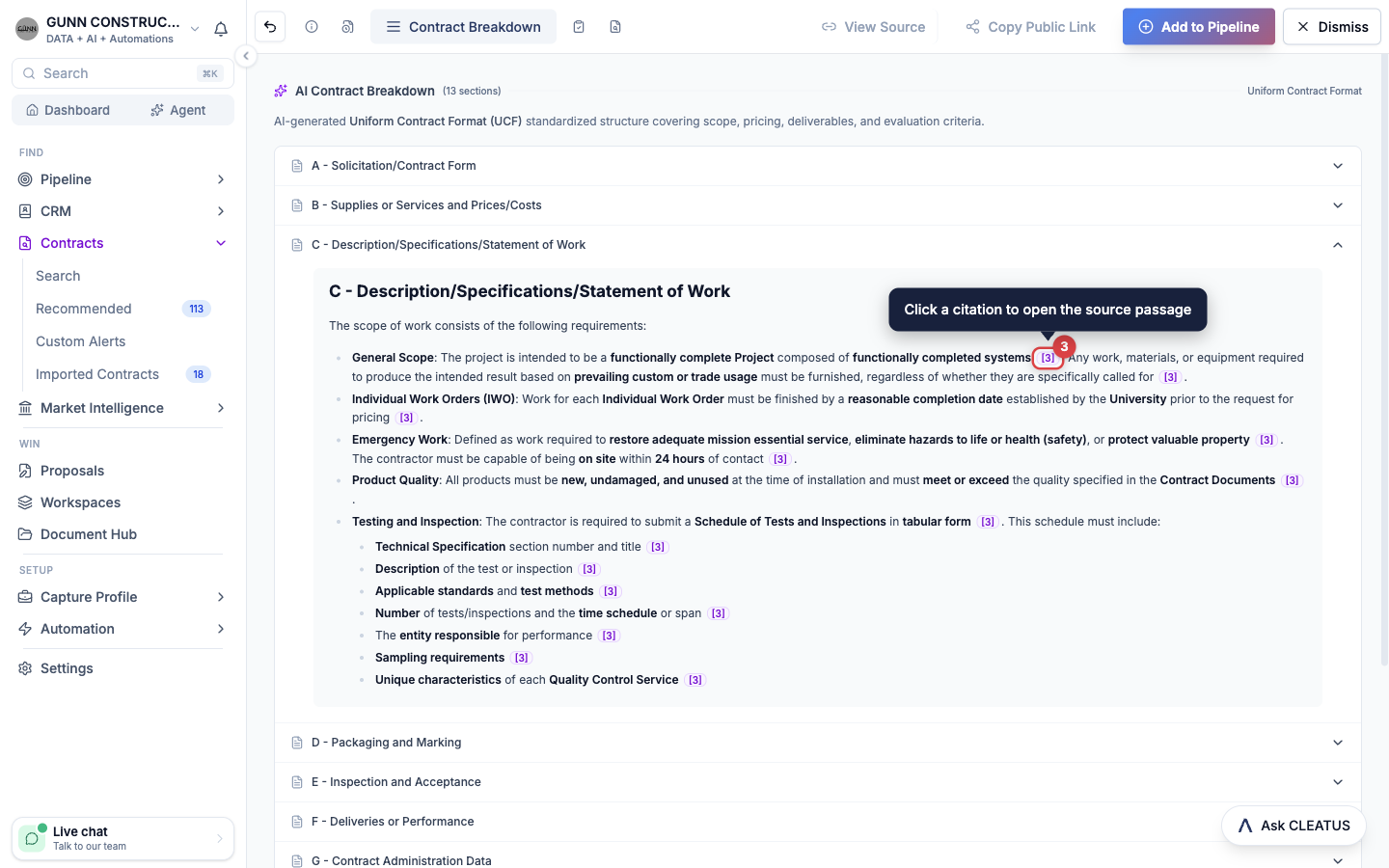
The breakdown sorts the solicitation package into UCF sections A to M. For example, C - Description/Specifications/Statement of Work holds the scope. L - Instructions, Conditions, and Notices to Offerors or Respondents holds the submission instructions. M - Evaluation Factors for Award tells you how the agency scores offers.
Each fact carries a numbered citation. Click a citation to open the source passage in the document. When the solicitation changes, CLEATUS builds the breakdown again.
If the tab shows Contract not broken down yet, click Generate with AI. If the tab shows No documents to break down, the source published no documents for this contract.
Review the requirements
The Requirements tab turns the solicitation documents into a checklist. Each requirement shows its category and priority, and links to the source quote that it came from.
Extract the requirements
Click Extract requirements. CLEATUS reads the documents and shows its progress on the tab. To start an extraction, the contract must be in your pipeline. If it is not, the tab asks you to add it first.
Find what you need
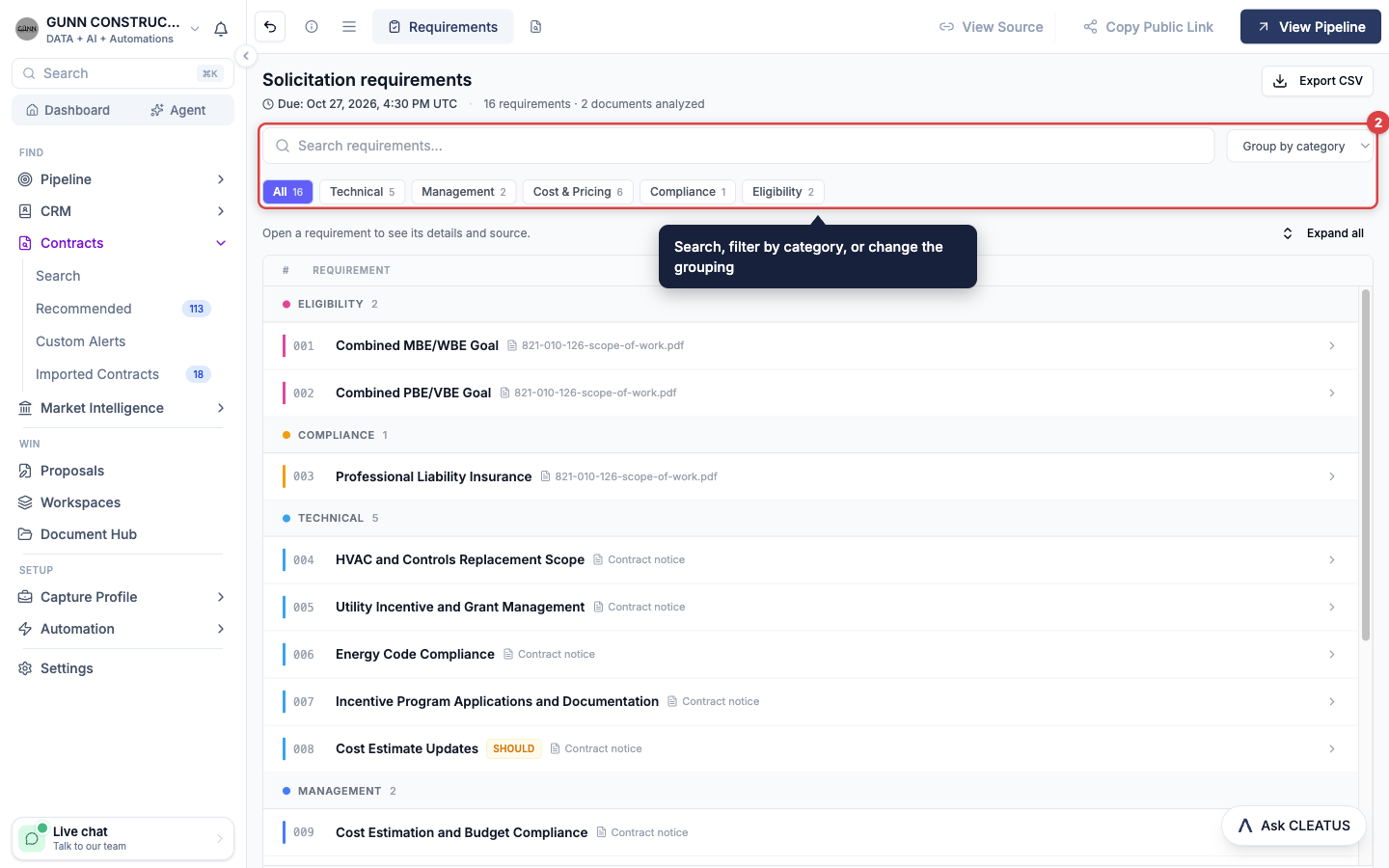
Use Search requirements to find a word. Use the category buttons to filter the list. Group the list by category, priority, or section.
Check the source
Open a requirement to read its details and its source quote. Click the name of the source document to preview it.
Clear the flagged items
Click Needs review to see only the requirements that need a second look.
Share the checklist
Click Export CSV to download the checklist as a comma-separated values (CSV) file for your team.
Forecasts and subcontract scopes have no Requirements tab, because they have no solicitation of their own.
Track amendments
The Amendments tab shows the solicitation history as a dated feed, newest first. Each entry is a sentence about what the agency did. A deadline change gets its own callout, such as Deadline extended or Deadline pulled in. The callout shows the size of the move.
- The summary card at the top shows Amendments, Net deadline shift, and Responses due.
- Click Show before and after on an entry to see the old and new values. Changes to the description show word by word.
- Open Compare any two versions to put two revisions side by side.
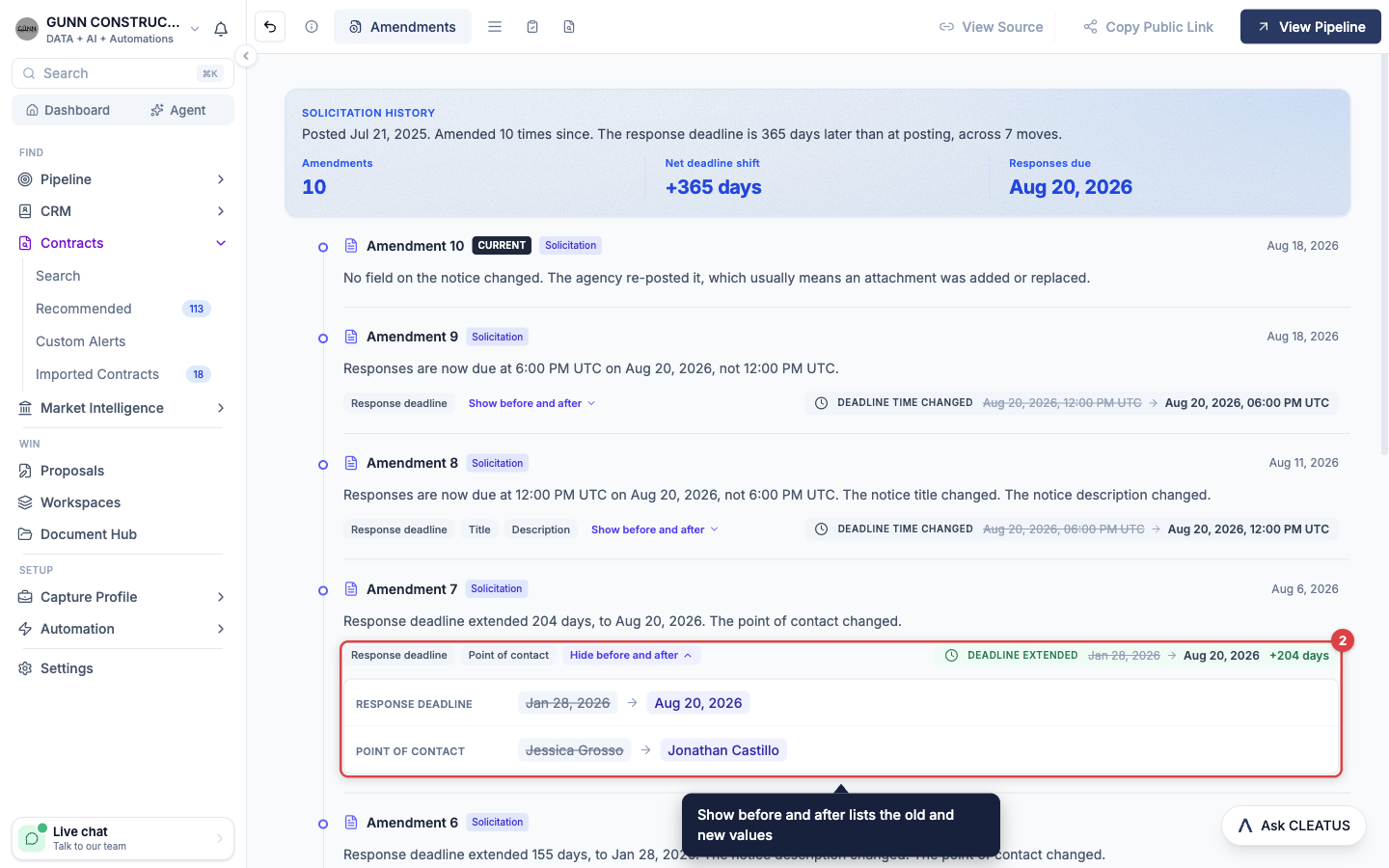
Linked notices, such as the contract that this opportunity recompetes, sit on the same feed. To open the tab from the Timeline card, click View amendment history.
Read the solicitation Q&A
The Q&A (questions and answers) tab collects the questions that bidders asked and the answers that the agency released. CLEATUS finds them in the Q&A documents of the solicitation and on the bid portal. An answer can change what you propose, what you price, or how you plan a site visit.
- The summary at the top shows how many questions are Answered, how many are Unanswered, and the date of the Latest answer.
- Switch between Answered and Unanswered to see one group at a time.
- Type in Search questions and answers to find a topic. A question matches only when it holds every word that you type. CLEATUS highlights each match.
- Sort by Newest first, Oldest first, or Document order. Document order lists the questions as the agency printed them.
- The questions from one file share a card. The card shows the file name and its release date. Click the file name to open the file in the document viewer.
The same Q&A tab shows on the pursuit after you add the contract to your pipeline. If the tab is not there, CLEATUS has not found published questions for the solicitation yet.
Signal pages
A signal is work that has no posted solicitation yet. CLEATUS marks a signal with a violet SIGNAL badge and a Signal strip at the top of its page. The first time that you open a signal page, an explainer opens. Click the strip to open it again.
| Signal | What the page shows |
|---|---|
| Subcontract | A scope that CLEATUS found inside a posted prime contract. Click View Prime Contract to open the prime. Potential Primes lists the companies interested in the prime. |
| Forecast | An agency's own forecast of upcoming work. The status reads Upcoming. The Forecast Details card shows the estimated award date, value, and set-aside. |
| Predicted Recompete | A recompete that CLEATUS predicts from award history. The status reads Predicted. The page names the incumbent. |
A signal page has no build card, because there is no solicitation to respond to yet. When the solicitation posts, it arrives as its own contract page. To learn how to use signals, see Finding Recompetes and Forecasts.
Act on the contract
- Add to Pipeline makes the contract a pursuit in the Triage column of your pipeline. The button then reads View Pipeline. If the contract is already awarded, CLEATUS asks you to confirm.
- Dismiss removes the contract from your recommendations. CLEATUS asks for a reason. Click Submit & Dismiss, or click Skip & Dismiss. A dismissed contract shows Restore, which restores it and adds it to your pipeline.
- The build card above the key facts starts your response. It reads Build Proposal, Build Quote, or Build Response, to match the notice. Click Start Building. If the contract is not in your pipeline, CLEATUS asks to add it first. Click Continue to add it and open the proposal writer.
- Copy Public Link copies a link to the public page for this contract. Anyone can open it without a CLEATUS account. The button does not show on imported contracts, or on sources whose license does not allow a public page.
- View Source opens the original notice on the agency site. CLEATUS asks you to confirm before it opens an external site. On a subcontract page, the button reads View Prime Source.
- Ask GovCon Copilot, the CLEATUS AI agent, about the contract. Click Ask CLEATUS in the bottom-right corner. The agent knows which contract you have open. You can ask "does this fit us?" or "add this to my pipeline."
If your plan does not include the pipeline or the proposal writer, CLEATUS shows an upgrade message when you click the button.