
Adding a Contract to Your Pipeline
Start tracking and pursuing an opportunity end to end.
Your pipeline is where an opportunity goes from a search result to a pursuit you are actively working. This guide shows you how to add a contract and start tracking it end to end.
Or just ask CLEATUS
Add the Fleet Services Building IFB to my pipeline and tag it facilities
Before you start:
You can add a contract from anywhere you find one, in search, in your recommendations, or on a contract detail page.
Add a contract
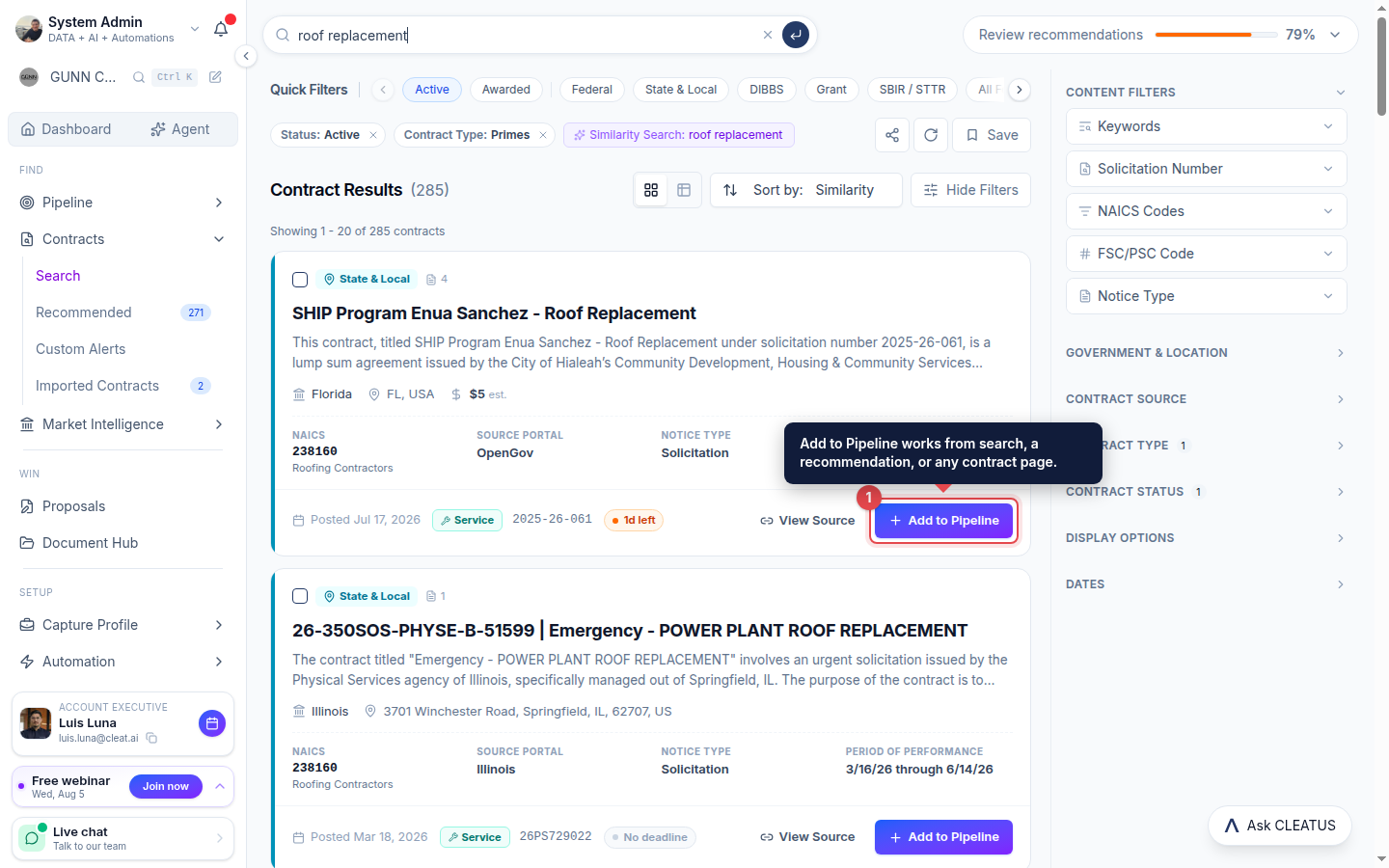
Add it to your pipeline
From any contract in Search, use Add to Pipeline. Once a contract is already in your pipeline the same button reads View in Pipeline and jumps straight to its pursuit.
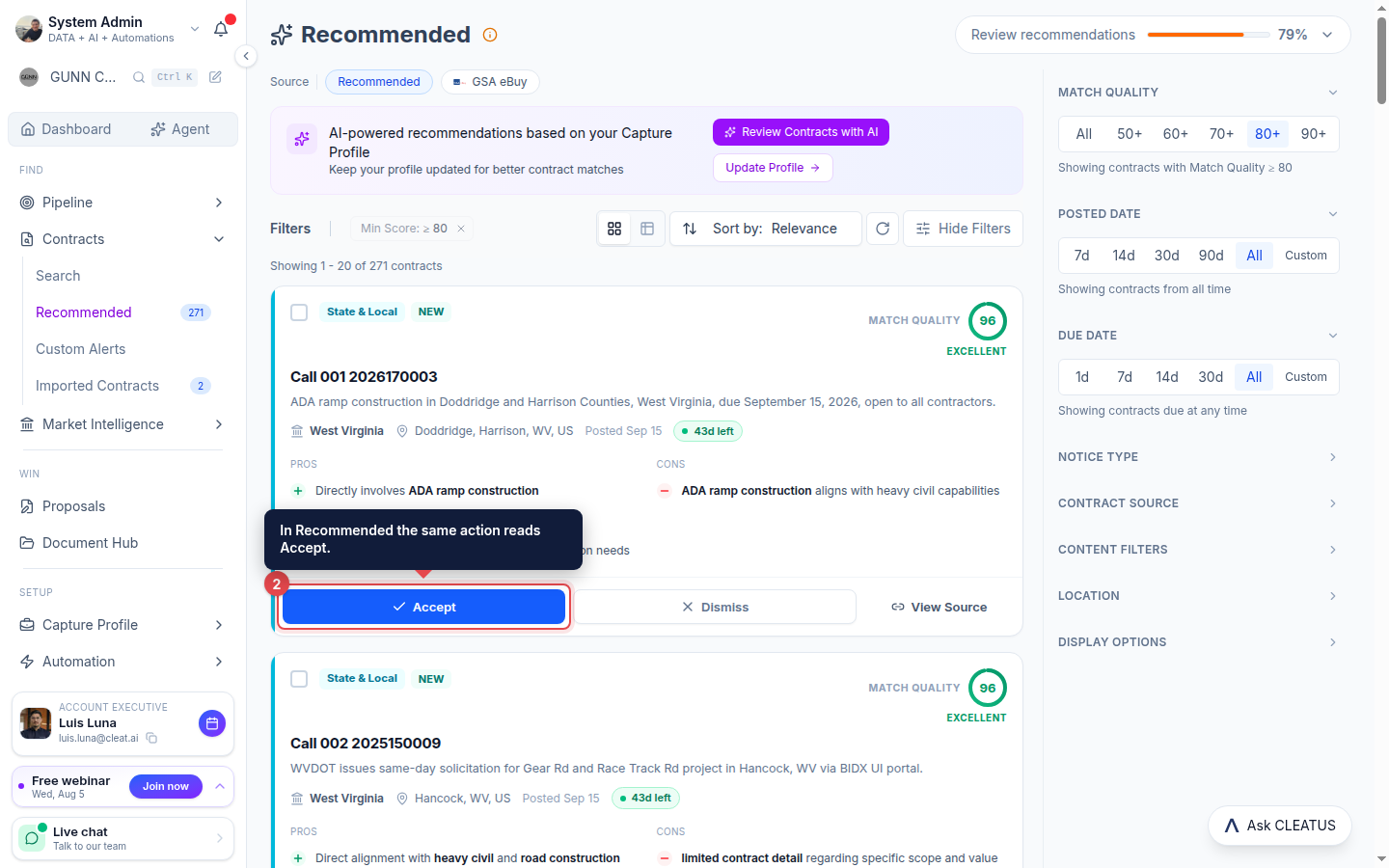
Or accept it from Recommended
In Contracts > Recommended the same action reads Accept, so you can work the matched feed and build your pipeline in one pass.
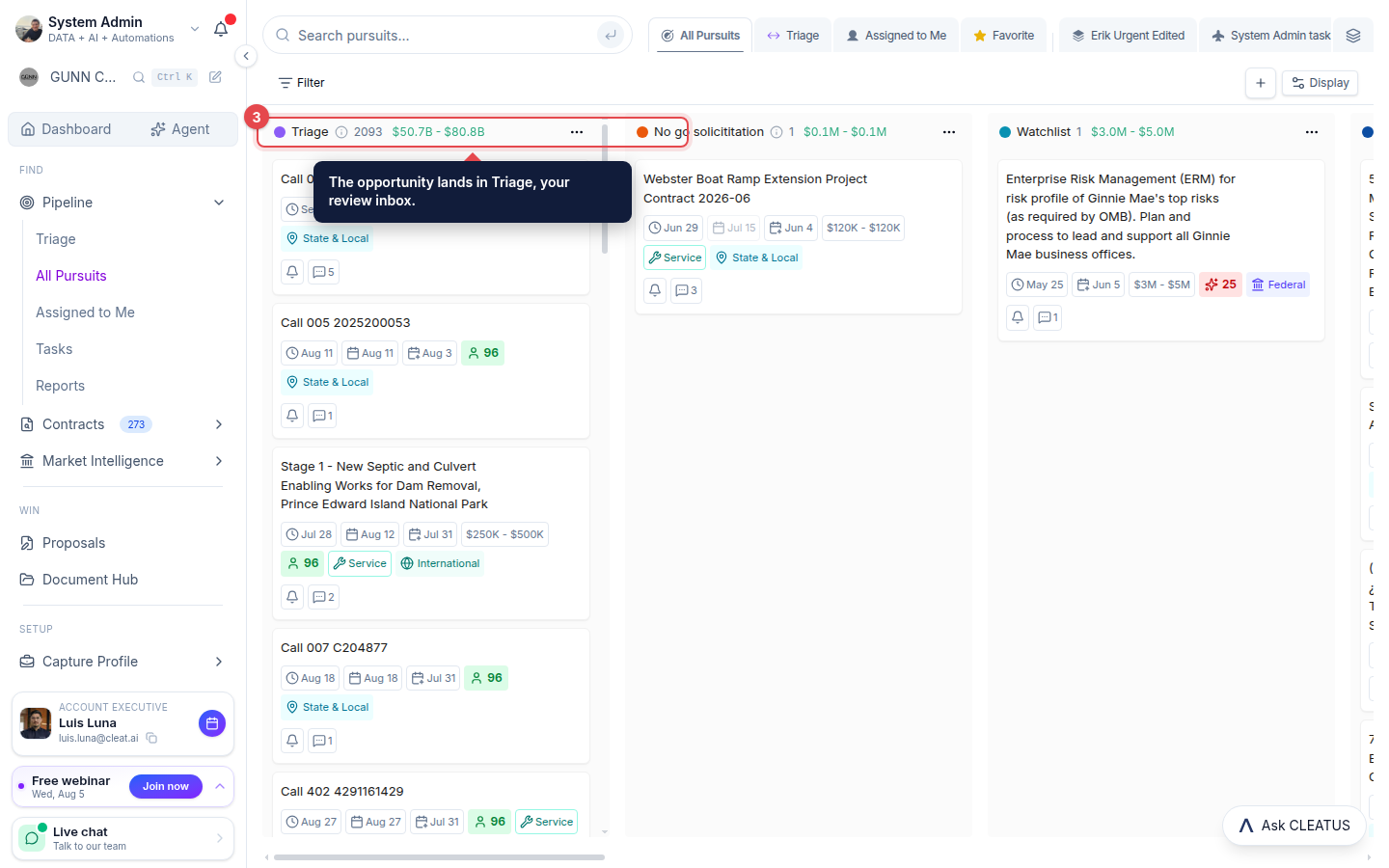
Find it in Triage
The opportunity lands in the Triage column of your pipeline board, ready for you to review. Each column shows a live count and total value.
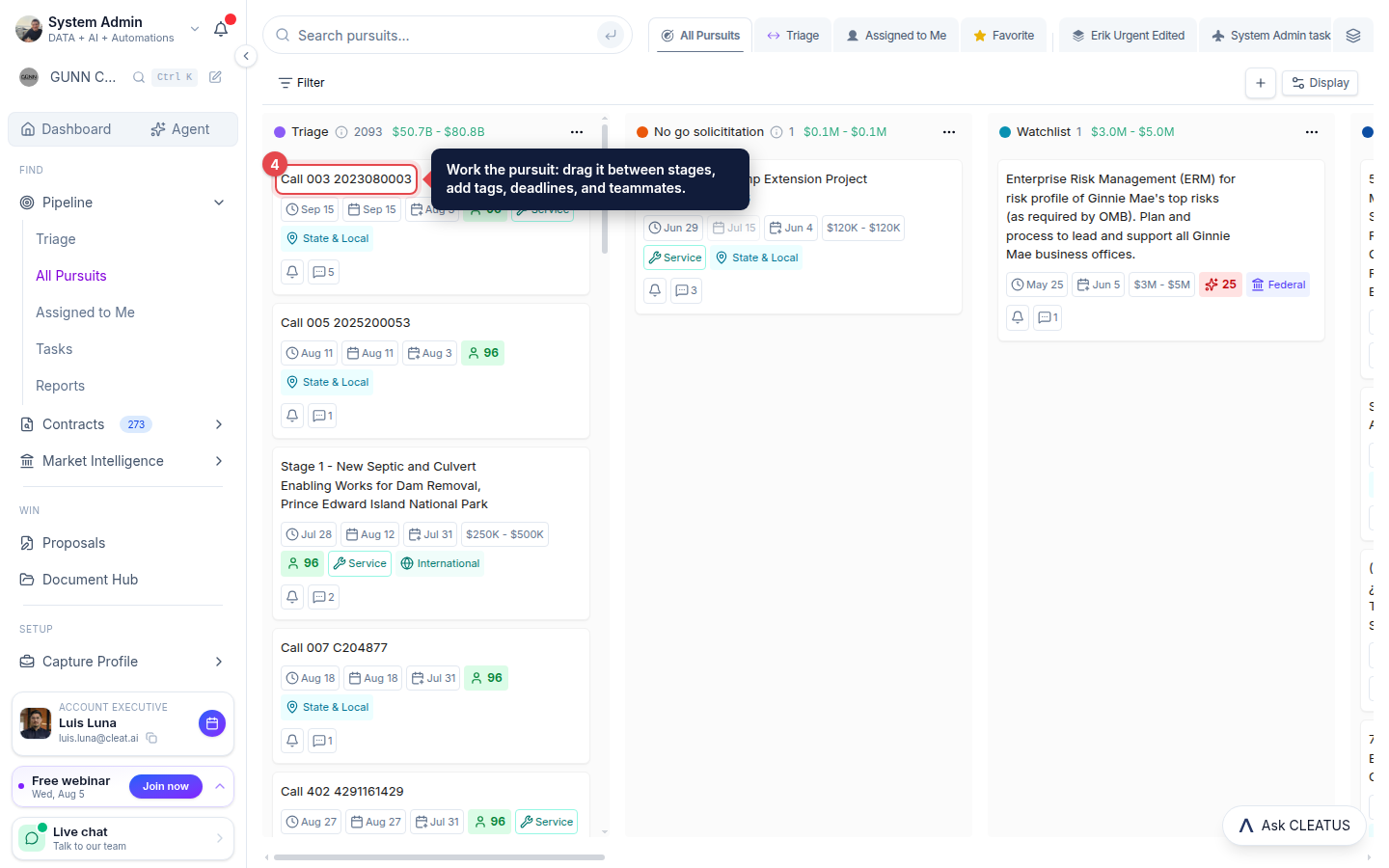
Work the pursuit
Open Pipeline to work it: drag it between stages, add tags, set deadlines, and assign teammates.
Tip:
Treat Triage as your inbox: review new pursuits there and promote the real ones.