
Organizing Pursuit Documents
Keep the solicitation package and your own files in folders, reuse your standard folder structure, and start a workflow when a teammate uploads a file.
Each pursuit has its own set of documents: the solicitation files that CLEATUS collects, and the files that your team adds. This guide shows you how to organize your files in folders, find any file fast, and set up every pursuit with the same folder structure.
Before you start:
Add the contract to your pipeline first. See Adding a Contract to Your Pipeline. Pursuit pages are not available on the Free, Contract Alerts, and DATA plans.
What the Document Viewer shows
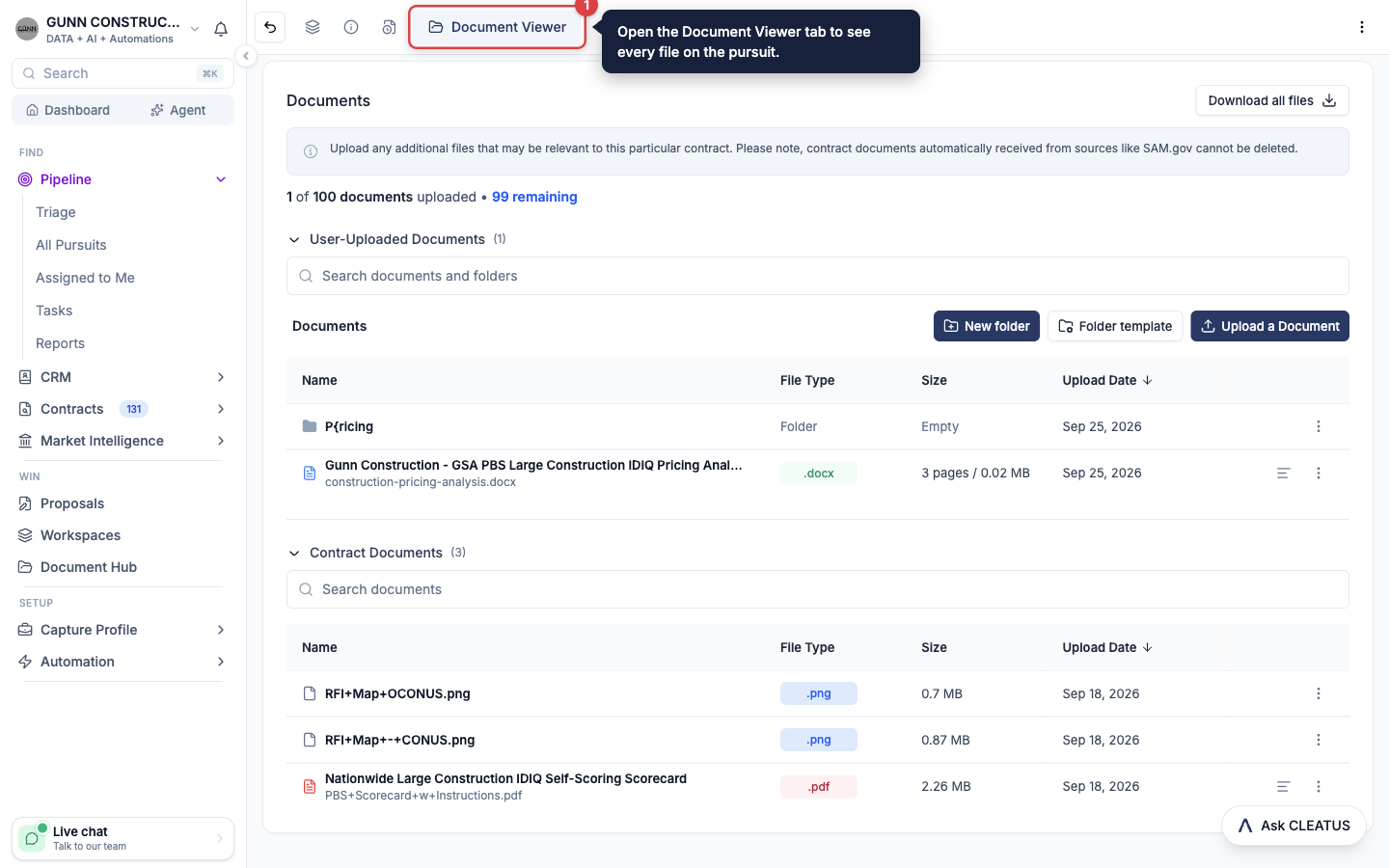
Open a pursuit and click the Document Viewer tab. The tab has two sections:
- User-Uploaded Documents: the files that your team uploads. You can upload up to 100 documents to each pursuit. Each file can be up to 500 megabytes (MB). Folders live in this section.
- Contract Documents: the solicitation files that CLEATUS collects from the source, such as SAM.gov (the System for Award Management). CLEATUS reads them to build the Contract Breakdown. You can preview and open these files, but you cannot rename, move, or delete them.
If Contract Documents is empty, open Actions at the top of the pursuit page and select View Source. The source page often has the files. For state and local contracts, the files are usually on the agency website. Download them, then upload them to User-Uploaded Documents.
To download every file on the pursuit, click Download all files. When the pursuit has more than five files, the button reads Download all as ZIP. The ZIP file keeps the two sections and your folders.
Build your folders
Open the documents
On the Document Viewer tab, find the User-Uploaded Documents section. If the section is closed, click its name to open it. The folder trail above the list starts at Documents, the top level.
Create a folder
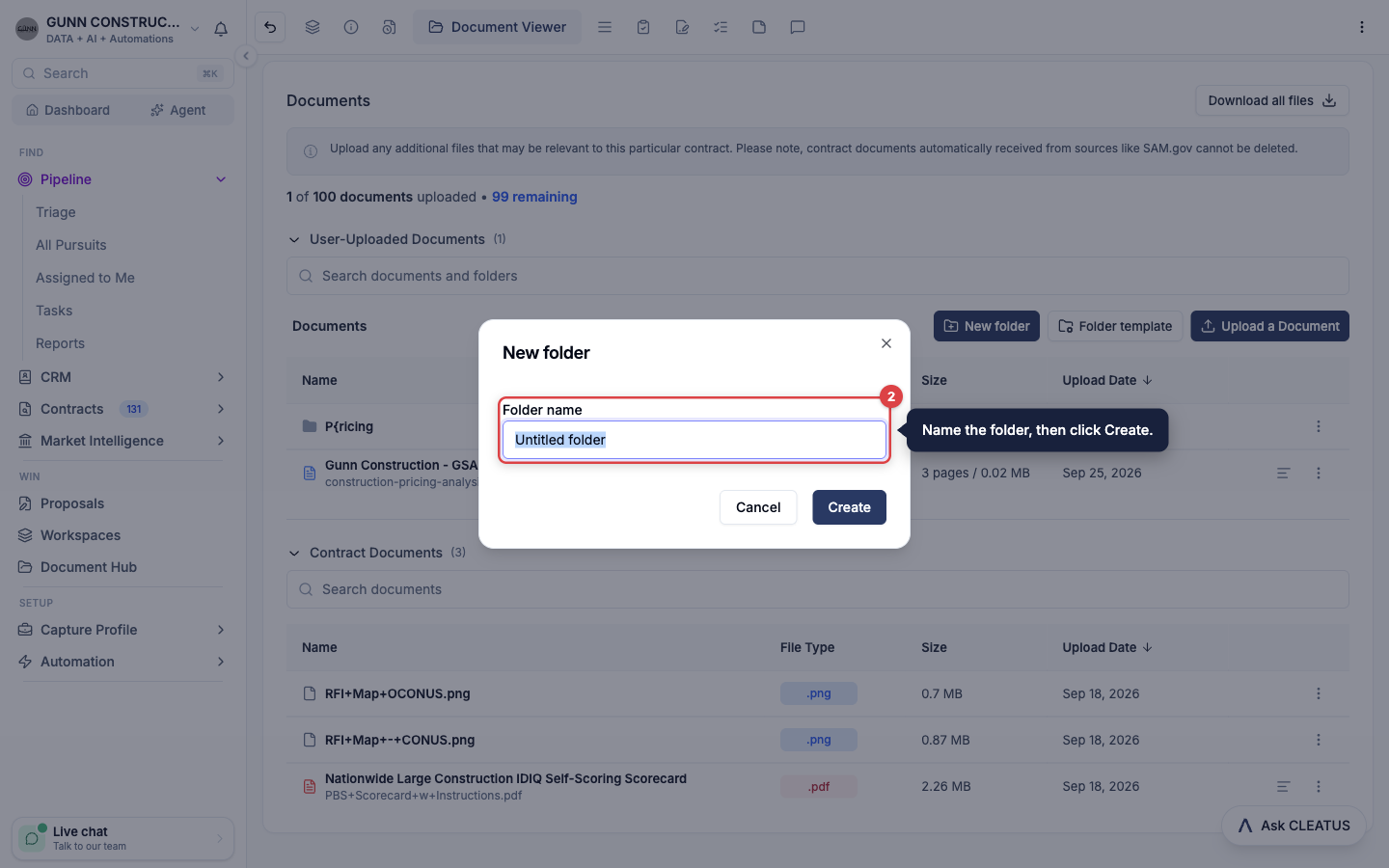
Click New folder, enter a Folder name, and click Create. CLEATUS creates the folder inside the folder that is open. Double-click a folder to open it. Click a name in the folder trail to go back up.
Upload files
Open the folder that should hold the files. Click Upload a Document, then drop files on the upload area or select them. To upload a whole folder, click or choose a folder. Click Submit. The files land in the folder that is open.
Drop a whole folder
Drag files or folders from your computer onto the User-Uploaded Documents list. A dropped folder keeps its subfolders, and CLEATUS rebuilds it inside the folder that is open. This is the fastest way to add a full solicitation package with its amendments, attachments, and exhibits.
Rename, move, or delete
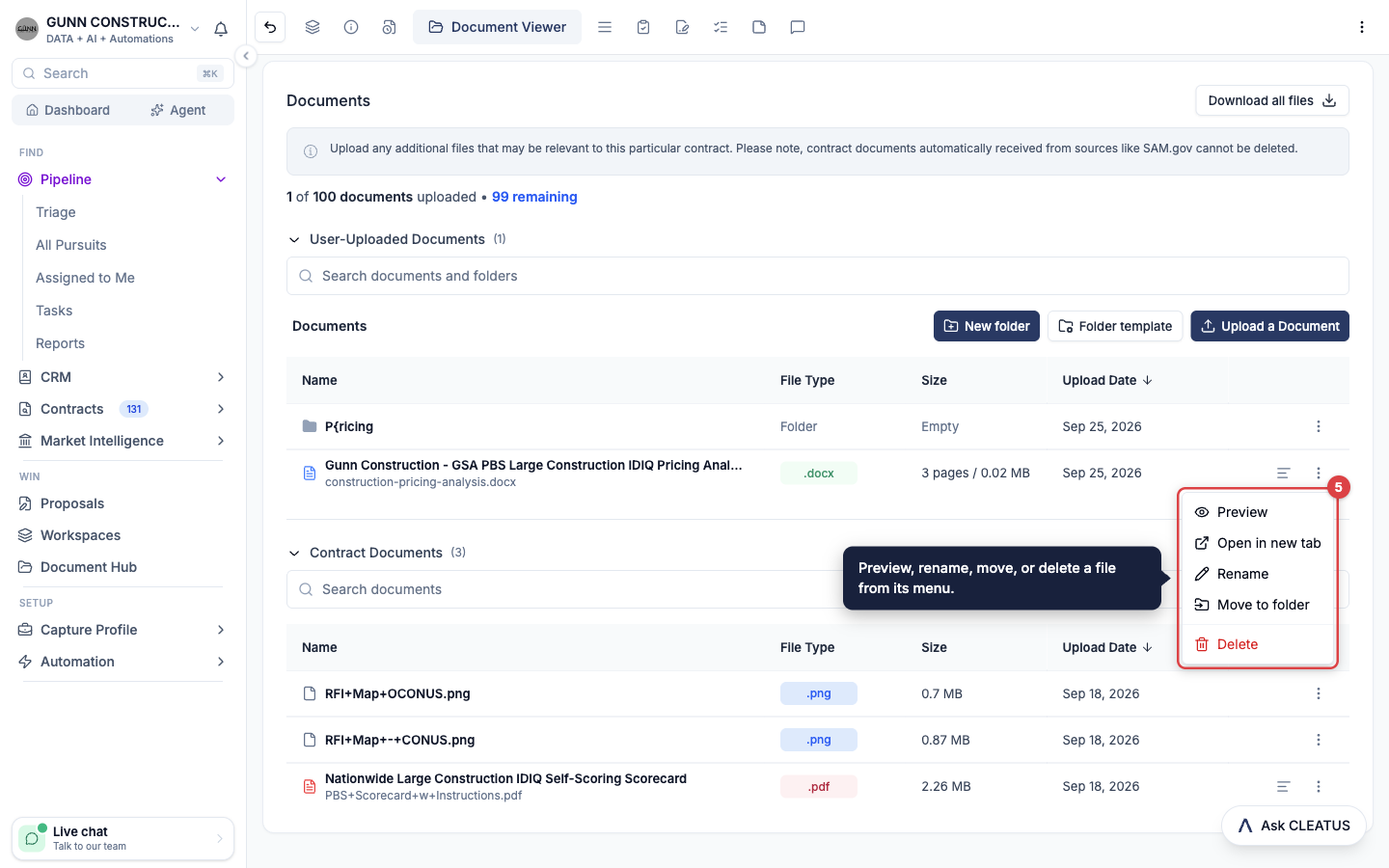
Open the menu at the end of a row. A folder menu has Open, Rename, Move, and Delete. A file menu has Preview, Open in new tab, Rename, Move to folder, and Delete. To move an item, select the destination folder, then click Move here. You can also right-click a row to open the same menu.
Work on many items at once
Click a row to select it. Hold Ctrl (Cmd on a Mac) and click to add more rows, or hold Shift and click to select a range. Use the bar at the bottom of the page to Move to... or Delete the selection. Rename works when you select one item.
Deleting a folder deletes its contents:
When you delete a folder, CLEATUS also deletes its subfolders and its files. You cannot undo this. A file that is also in your Document Hub or on another pursuit stays there.
Renaming a file changes the title in the list only. The file keeps its original name when you download it.
Find a document
- Search: type in Search documents and folders. The search covers every folder, not only the open one. Each result shows the folder that holds it. The Contract Documents section has its own search box.
- Sort: click the Name, Size, or Upload Date column header. Click the same header again to reverse the order. Folders always stay above files and sort separately.
- Summary: when a file has a summary, click See summary in its row to read it without opening the file.
GovCon Copilot can also search the documents in both sections. Open Ask CLEATUS on the pursuit and ask your question.
Reuse your folder structure with a template
A folder template saves the folder structure of one pursuit, so you can apply it to any other pursuit. Templates belong to your company, so everyone on your team can apply them.
Build the folders once
On one pursuit, create the folders and subfolders that your team uses on every bid.
Save the folders as a template
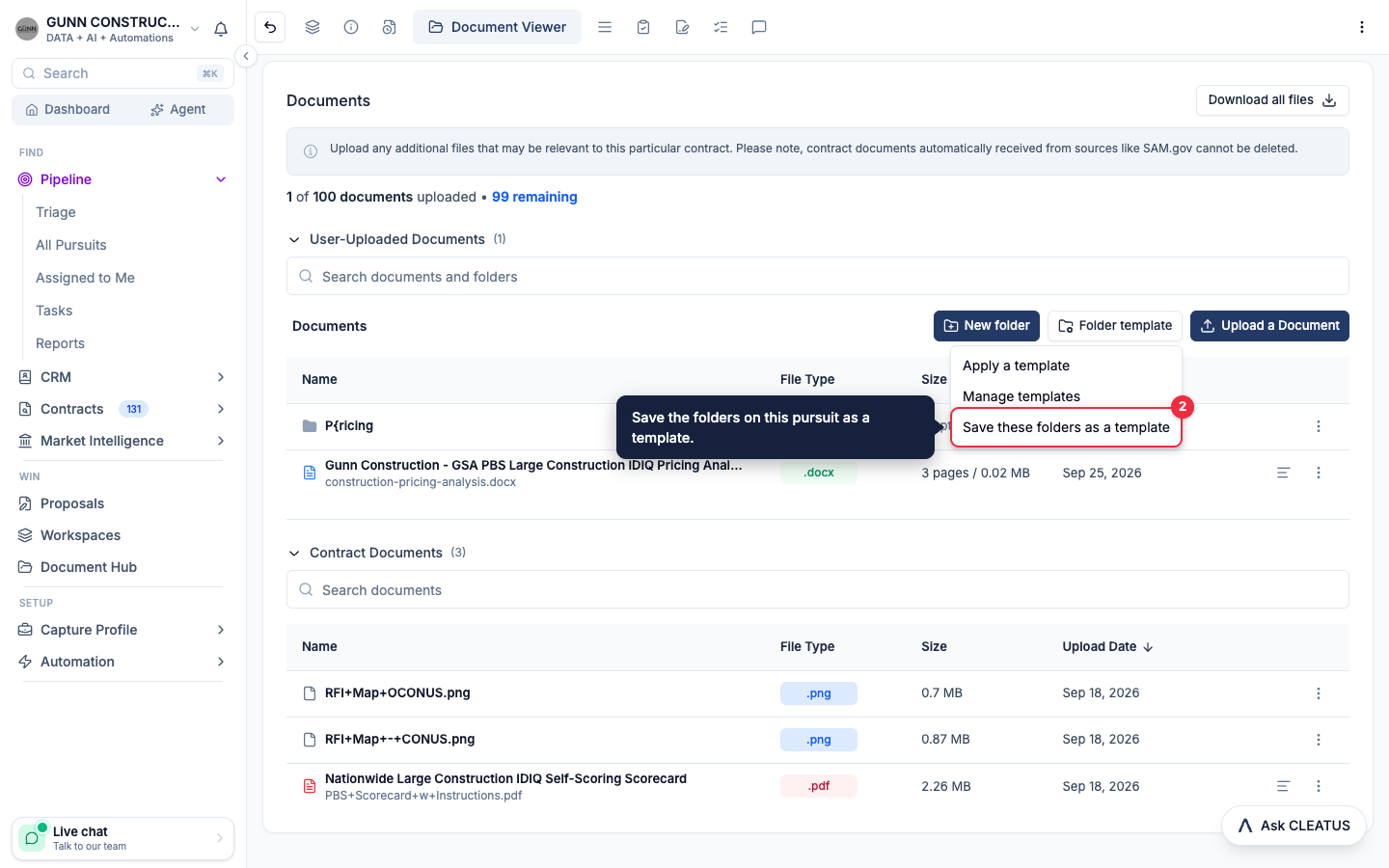
Click Folder template and select Save these folders as a template. Enter a Template name, check the folder list, and click Save template. A template holds folder names only. It never holds documents.
Apply the template to another pursuit
Open another pursuit and go to the Document Viewer tab. Click Folder template, select Apply a template, and pick a template. Review the preview, then click the Add button to create the new folders. The button shows how many folders CLEATUS will add, for example Add 12 folders.
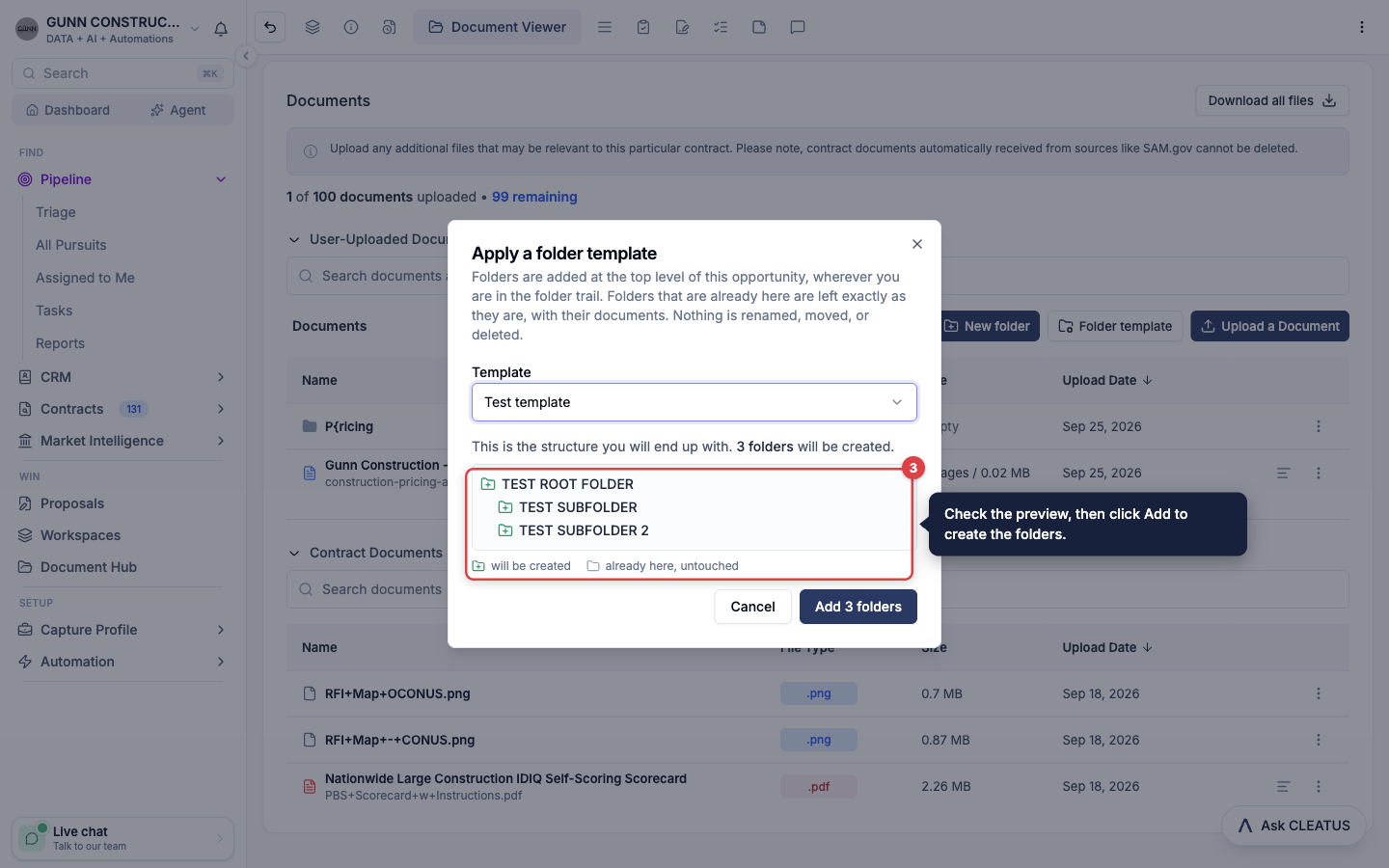
The preview shows the folder tree that you will get. A green folder icon marks a folder that CLEATUS will create. A gray folder icon marks a folder that is already on the pursuit.
Applying a template is safe to repeat:
- CLEATUS always adds the template folders at the top level, even when you have a folder open.
- A folder with the same name is reused, with its documents. The match ignores capital letters and extra spaces.
- CLEATUS never renames, moves, or deletes a folder when it applies a template.
Each template name must be unique in your company. A template can hold up to 200 folders, nested up to 10 levels deep.
Rename or delete a template
Click Folder template and select Manage templates. The Manage folder templates dialog lists the templates of your company.
- Rename: edit the name of the template, then click Save.
- Delete: click the trash icon beside the template, then click Delete to confirm. The template leaves the Apply a template list. Folders that it already created on pursuits stay as they are.
Start a workflow when a teammate uploads a file
The Pursuit document uploaded trigger starts a workflow when a teammate uploads a file to a pursuit. Use it to tell the right people, or to create the next task, while the work is fresh.
- Open Automation > Workflows in the sidebar and click New Workflow.
- Click Start from scratch. Under Pipeline, select Pursuit document uploaded.
- Under File types, select the file types that start a run, for example .pdf or .xlsx. Leave all of them off to run for every file type.
- Add the steps, for example Slack Message, Send Email, or Create Task.
Each run has the details of the file: Filename, Uploader Name, Uploader Email, and Document URL. The Document URL opens the file in CLEATUS. The run also has the contract details, such as Title, Agency, Solicitation #, Response Deadline, and Pursuit Tags.
One run for each file:
Each uploaded file starts its own run, so a dropped folder of 40 files starts 40 runs. To act once for a whole upload, add an If / Else step that checks whether File Number In Upload is 1. Use File types to skip files, because a file that a later step discards still costs a run.
Only files that a person uploads start this trigger. Solicitation files that CLEATUS collects do not start it. Files that a workflow saves do not start it either. See Creating a Workflow to build and test the workflow.
Tip:
Build your standard folder structure on one pursuit and save it as a template. Then apply it to each new pursuit as soon as it leaves Triage, so the whole team files documents in the same place.