
Automating Your Pipeline
Let workflows add contracts, tag and update pursuits, create tasks, and act on phase changes and new files.
Workflows keep your pipeline current with no manual work. They add the strong matches and sort them with tags. They move pursuits forward and give each pursuit an owner and its first tasks. This guide shows the common pipeline automations and the settings for each one.
Or just ask CLEATUS
When a contract is added to my pipeline, create a task to review the solicitation
Before you start:
Workflows are part of the DATA + AI + Automations plan and higher plans. A workflow can apply only tags that already exist. To make a tag, open a pursuit and add the tag there first.
Pick the trigger
Each pipeline automation starts from one trigger:
| You want to act when | Trigger |
|---|---|
| CLEATUS finds a new match, before it is a pursuit | New recommendation |
| A contract enters the pipeline | Contract added to pipeline |
| A pursuit moves to a different column | Pursuit phase changed |
| A pursuit is archived | Pursuit archived |
| A teammate uploads a file to a pursuit | Pursuit document uploaded |
| You choose, on one pursuit | Manual trigger |
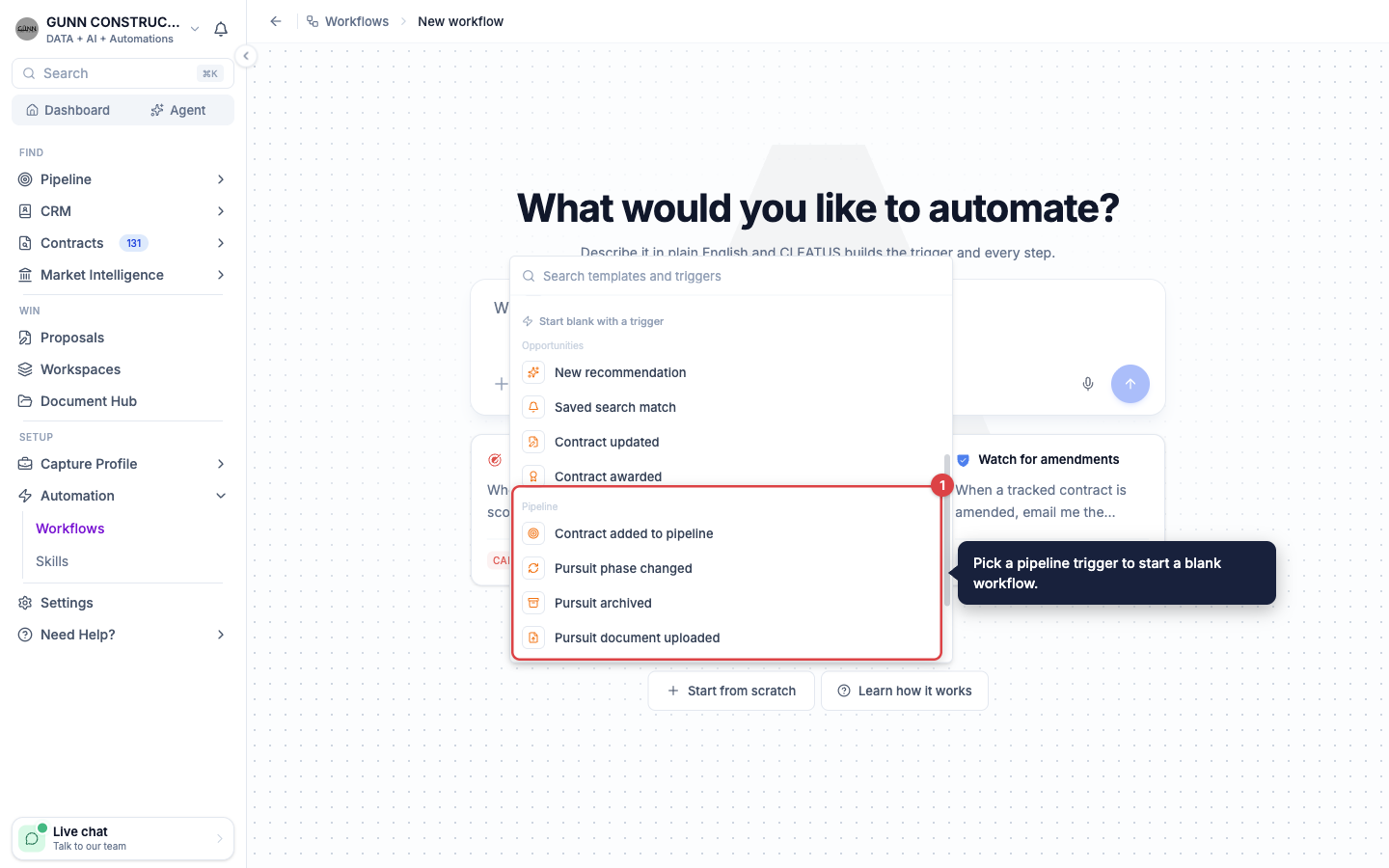
The pursuit steps, such as Update Pursuit and Create Task, need a Pursuit ID. The pipeline triggers supply it. The New recommendation trigger does not, because the contract is not a pursuit yet. Put Add to Pipeline first, and the later steps use the pursuit that it creates.
Add strong matches to the pipeline
The Auto-Add to Pipeline template adds each new recommendation above a minimum score.
Create the workflow from the template
Open Workflows under Automation and click New Workflow. Click Start from scratch, then click Auto-Add to Pipeline. The workflow opens as a Draft.
Set the minimum score
Click the trigger. Move the Minimum score slider, or click Low, Medium, or High. The template starts at 70. Only recommendations at or above the score start a run.
Choose the column and the tags
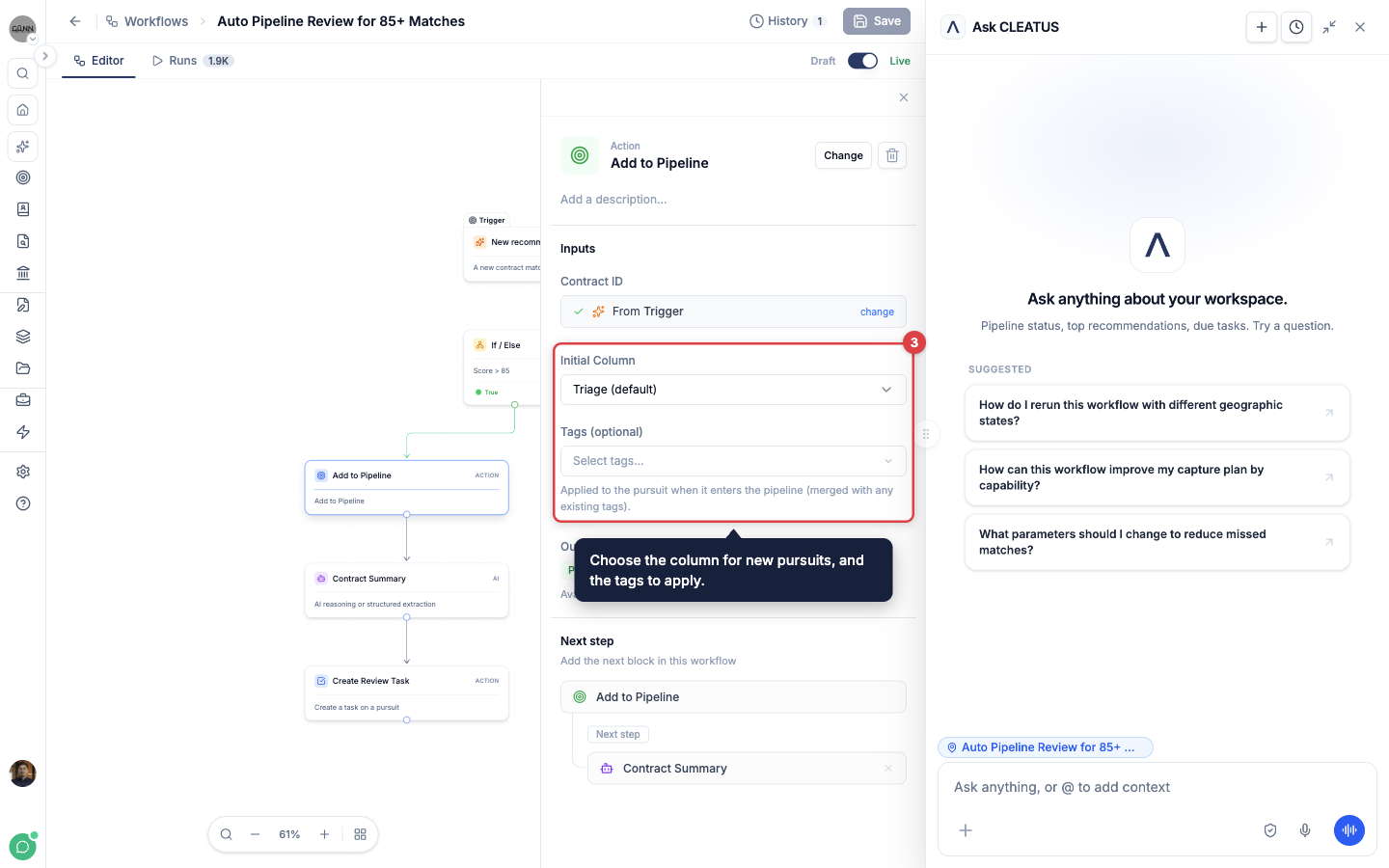
Click Add to Pipeline. Under Initial Column, choose the column for new pursuits. If you choose none, they go to Triage. Under Tags (optional), choose the tags to apply, for example a business line or a priority.
Test it and turn it on
Click Run test. After the test succeeds, switch the workflow from Draft to Live.
Add to Pipeline adds the tags to the tags that a pursuit already has. It never removes a tag. If the contract is already in your pipeline, the step does not add a second pursuit. It still adds the tags. A pursuit that a workflow adds sends the same pipeline notifications as a pursuit that a teammate adds.
To add only some of the matches, put a condition before Add to Pipeline. For example, add a Filter step that keeps only small business set-asides. To let an AI Agent step decide, start from the PWin Scoring Agent template instead. It adds a contract only when its probability of win (PWin) is 70 or higher. See Starting from a Template.
Act on a phase change
A Pursuit phase changed workflow runs each time a pursuit moves to a different column. To act on one column only, add a Filter step first.
Start with the trigger
On the New workflow page, click Start from scratch. Under Start blank with a trigger, click Pursuit phase changed.
Filter to one column
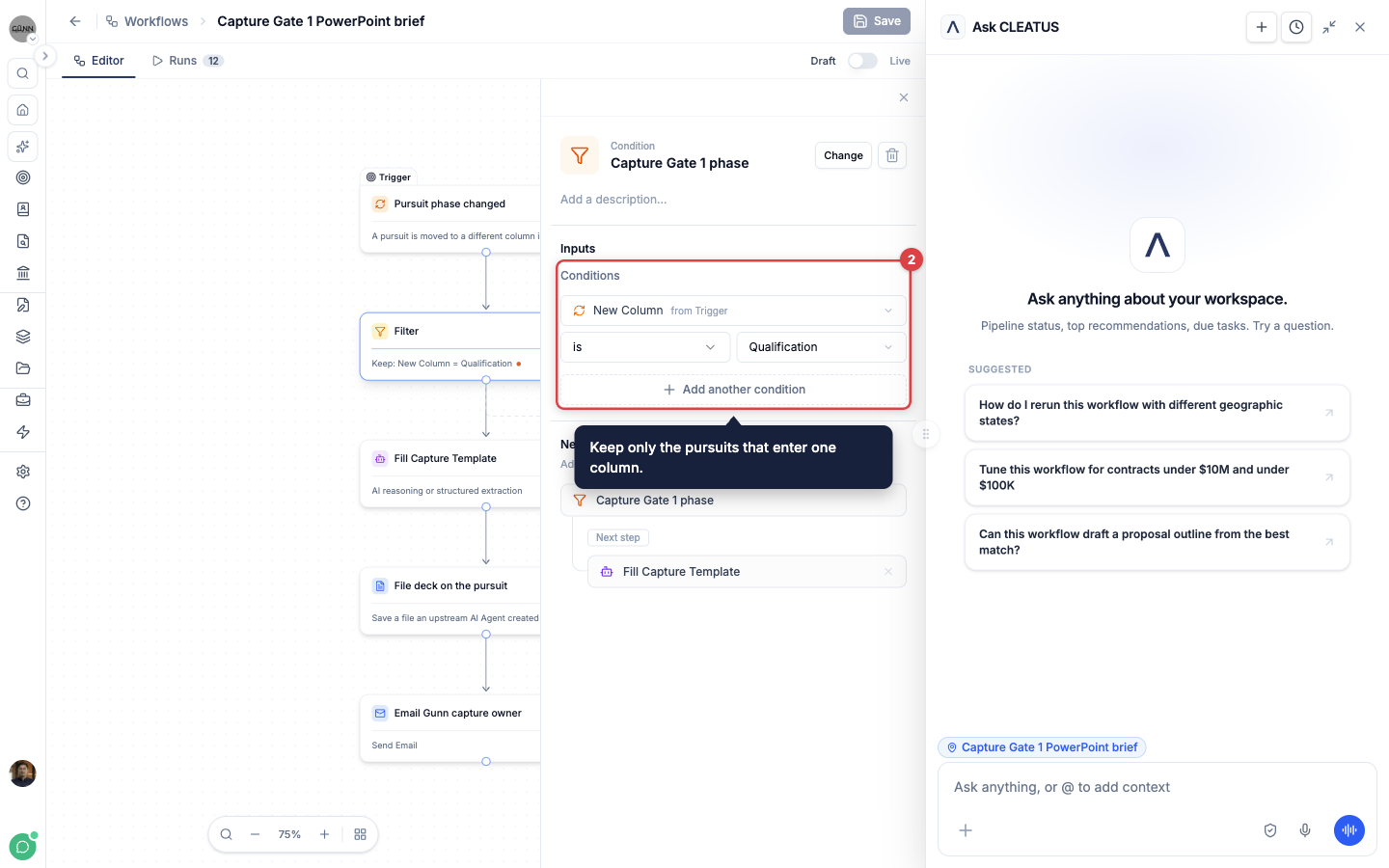
Add a Filter step after the trigger. Add a rule on New Column, and select the column, for example Building Proposal. Only pursuits that enter that column continue.
Add the actions
Add the steps that this phase needs. For example, Start Proposal starts the proposal, Assign Member adds the writer, and Create Task adds the first task.
Test it and turn it on
Click the trigger and pick a pipeline record under Sample pursuit for testing. Click Run test, then switch the workflow to Live.
To move a pursuit from a workflow, add a Change Phase step and choose the Target Column. That move can start other workflows that use the Pursuit phase changed trigger. CLEATUS does not start the same workflow twice in one chain of events.
Keep pursuit details current
The Update Pursuit step changes the details of a pursuit as your workflow learns more.
- Add an Update Pursuit step, and choose the Pursuit ID from the trigger or an earlier step.
- Under Fields to update, add only the fields to change: Estimated value (low and high), Title, Posted date, Due date, or Set-aside.
- Enter a fixed value, or use a value from an earlier step. Pick Set-aside from the list.
Fields that you do not add keep their values. If a value is not valid, the step skips that pursuit and the workflow continues. Update Pursuit changes only your pursuit. The shared contract record does not change.
For example, an AI Agent step can estimate the contract value from the solicitation. Add two Number fields to its Output schema, one for the low value and one for the high value. Then Update Pursuit writes them to Estimated value.
Act on a new file
The Pursuit document uploaded trigger runs when a teammate uploads a file to a pursuit. Teammates upload on the pursuit's Document Viewer tab with Upload a Document, or they drop files onto the User-Uploaded Documents list. See Organizing Pursuit Documents.
- On the New workflow page, click Start from scratch. Under Pipeline, click Pursuit document uploaded.
- Click the trigger. Under File types, select the types that start a run, for example .pdf and .docx. If you select none, every file type starts a run.
- Add the steps. For example, a Slack Message can name the file and the uploader. A Create Task step can assign a review.
Each file starts its own run. Files that CLEATUS brings in from the solicitation do not start a run. Filter with File types, not with a condition step. A file that a later step drops still counts as a run.
Create tasks
The Create Task step adds a task to a pursuit. Set these fields:
- Title and Description (optional). Both can include values from earlier steps, such as the contract title.
- Assignees: the teammates who own the task.
- Created by: the teammate the task is attributed to. This field is required.
- Due date: a date, or a date from an earlier step, such as the deadline date from the trigger.
The task shows on the pursuit and on Pipeline > Tasks. See Managing Tasks.
Set a custom field
The Set Field step writes one of your custom fields. Choose the Record Type (a pursuit, person, company, or agency), the Field, and the Value. For a pursuit, leave Pursuit ID empty to use the pursuit that the workflow runs on.
For example, an AI Agent step can score a pursuit. Then Set Field writes the score to your PWin field. See Adding Custom Fields.
Run a workflow on one pursuit
Some work is on demand, for example a capture brief before a gate review. Build it as a workflow with the Manual trigger, then run it from the pursuit:
- Open the pursuit and click Run Workflow.
- Select a workflow from Manual Workflows. Only live workflows can run. Draft and paused workflows are greyed out.
- Click View run in the confirmation to follow the run in a new tab.
The pursuit and its contract details go to the workflow. Its steps can use the Pursuit ID from the trigger.
Test a pursuit workflow with the agent:
A test from the editor runs without a pursuit, so a step that needs a pursuit fails there. Ask GovCon Copilot to test the workflow on one pursuit instead. For example, ask "test my capture brief workflow on the Fort Liberty pursuit." The agent runs a dry run: the steps run, but email and pipeline changes are skipped. After the dry run completes, you can switch the workflow to Live.
Tip:
Combine the automations. One workflow adds and tags strong matches. A second workflow on Contract added to pipeline assigns an owner and creates the review tasks.