
Customizing Your Pipeline Board
Set up stages, tags, and views that match your bid process.
Your pipeline is a kanban board that tracks every opportunity from first look to award. This guide shows you how to shape the board around the way your team actually pursues work.
Or just ask CLEATUS
Move every pursuit with a deadline in the next 14 days to Proposal Prep
The agent moves pursuits between columns and edits their tags and due dates. Creating the columns themselves is still a manual step.
Before you start:
Add a few contracts first so you have cards to work with. See Adding a Contract to Your Pipeline.
Set up your board
Understand the stages
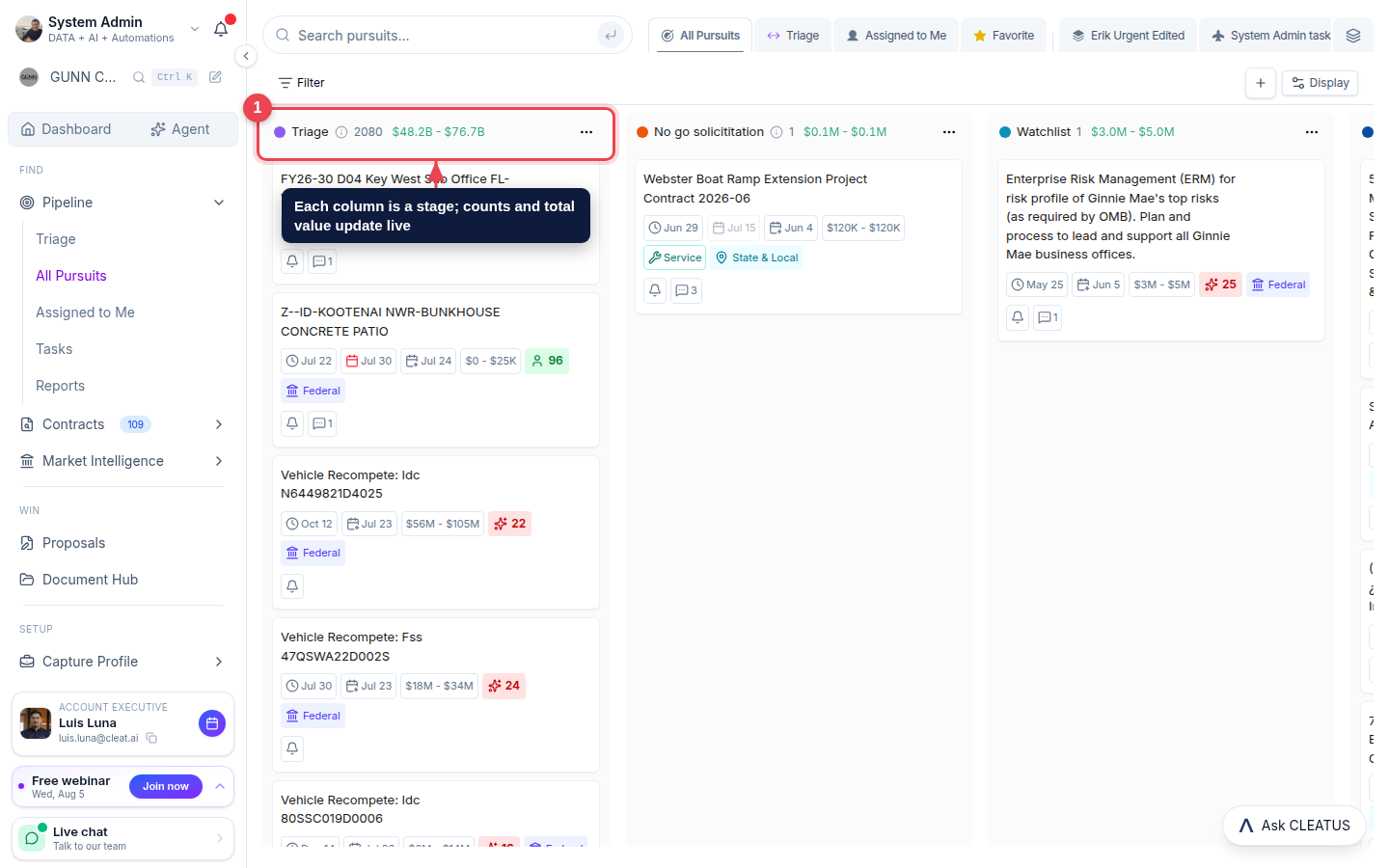
Open Pipeline from the sidebar. Each column is a stage in your process (for example Triage, Watchlist, or No-go), and every column shows a live count and total value so you always know where your work sits.
Move a pursuit between stages
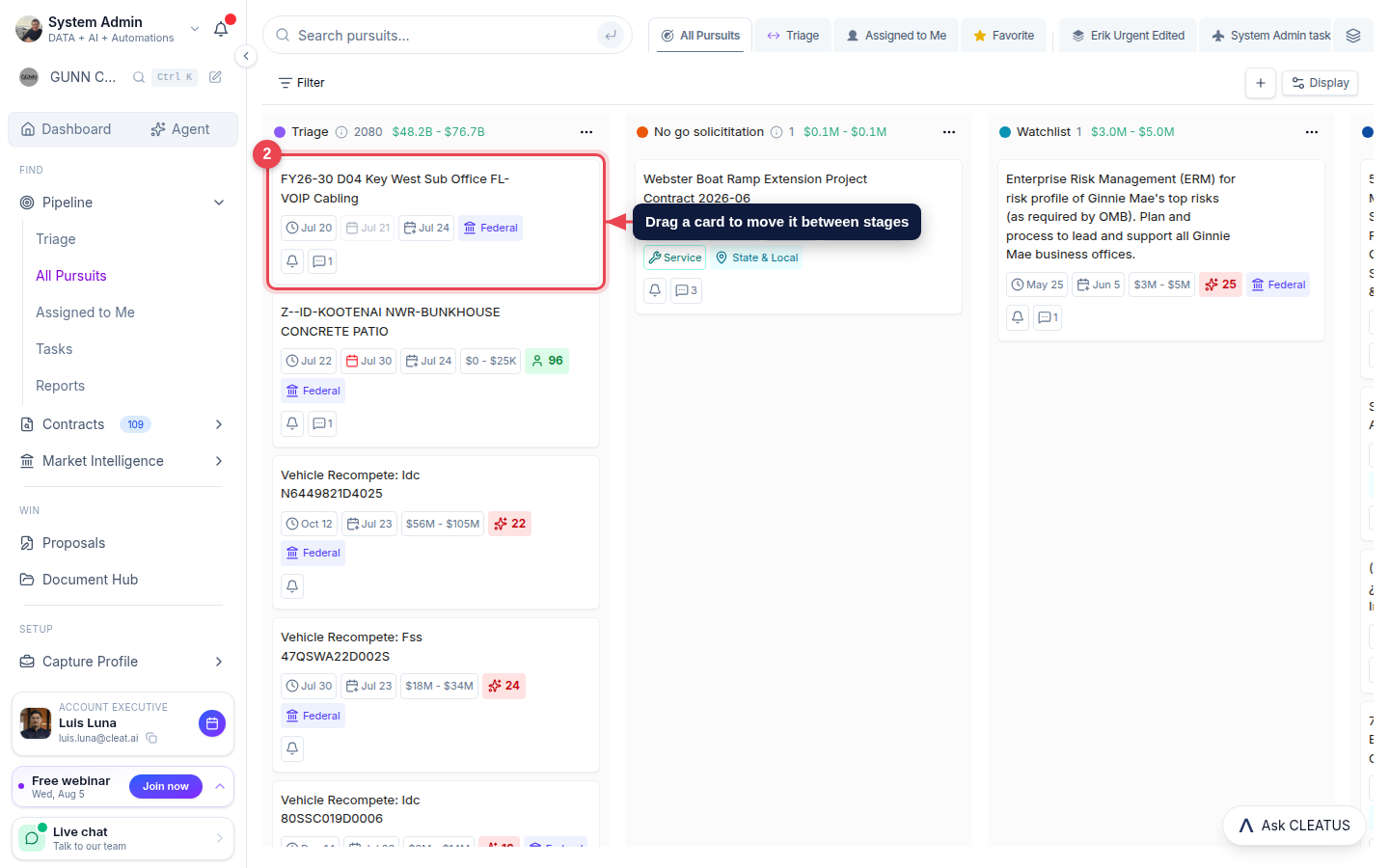
Drag any card from one column to another to change its stage. The counts and totals update instantly, so the board always reflects reality.
Tailor the board
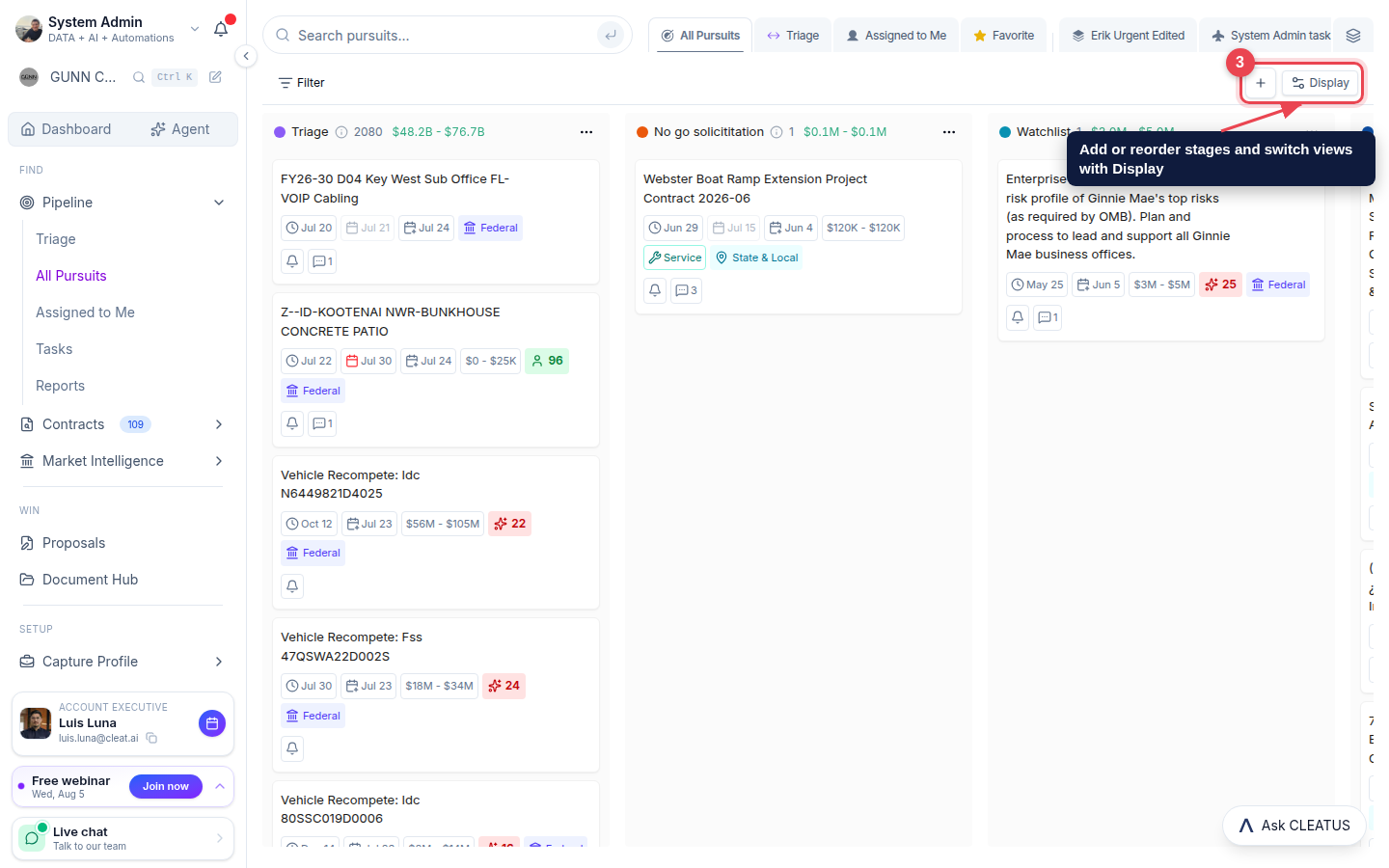
Use Display to add, rename, or reorder stages and switch views until the board matches your bid process. Set it up once so the whole team works the same way.
Find any pursuit
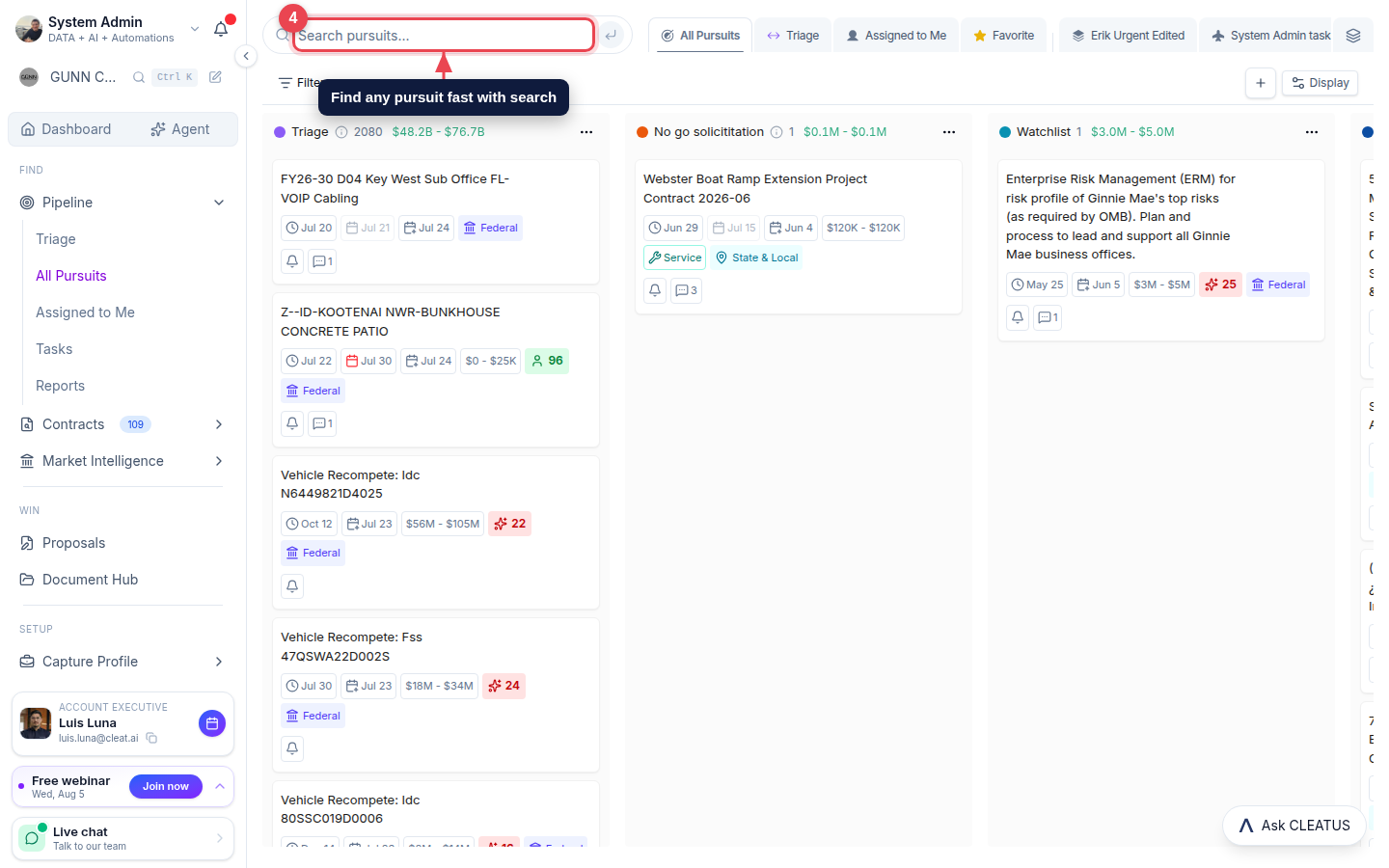
As your board grows, use Search pursuits to jump straight to a specific opportunity, and Filter to focus on a slice of the board.
Tip:
Add tags and deadlines to individual cards, and use Assigned to Me, Tasks, and Reports to manage work and track progress across the pipeline.