
Managing Tasks
Track every action item across your pursuits, with due dates, owners, and a calendar.
Tasks are the to-dos attached to your pursuits: pull the solicitation documents, confirm the submission format, get the past performance signed. Every task belongs to a pursuit, and the Tasks page collects all of them in one list so nothing slips while you are heads-down on a single bid.
Or just ask CLEATUS
Add a task to submit past performance by Friday and assign it to me
The agent also completes them. Ask it to mark a task done, push a due date, or reassign it.
Before you start:
Tasks hang off pursuits, so add a contract to your pipeline first. See Adding a Contract to Your Pipeline.
Work your task list
Open Tasks
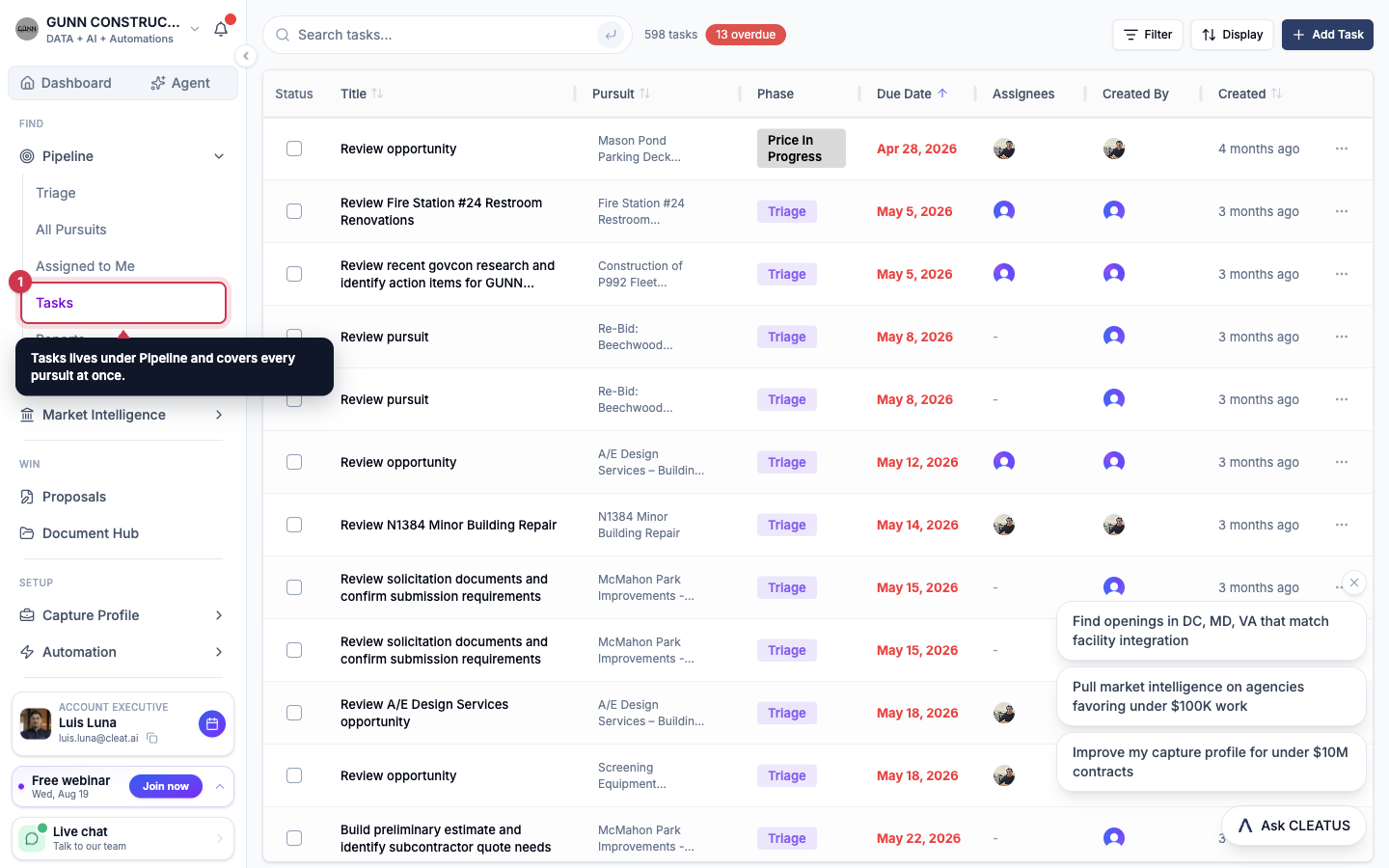
Open Pipeline > Tasks in the sidebar. You get every task across every pursuit, with a running count and an overdue badge so you can see the damage at a glance.
Add a task
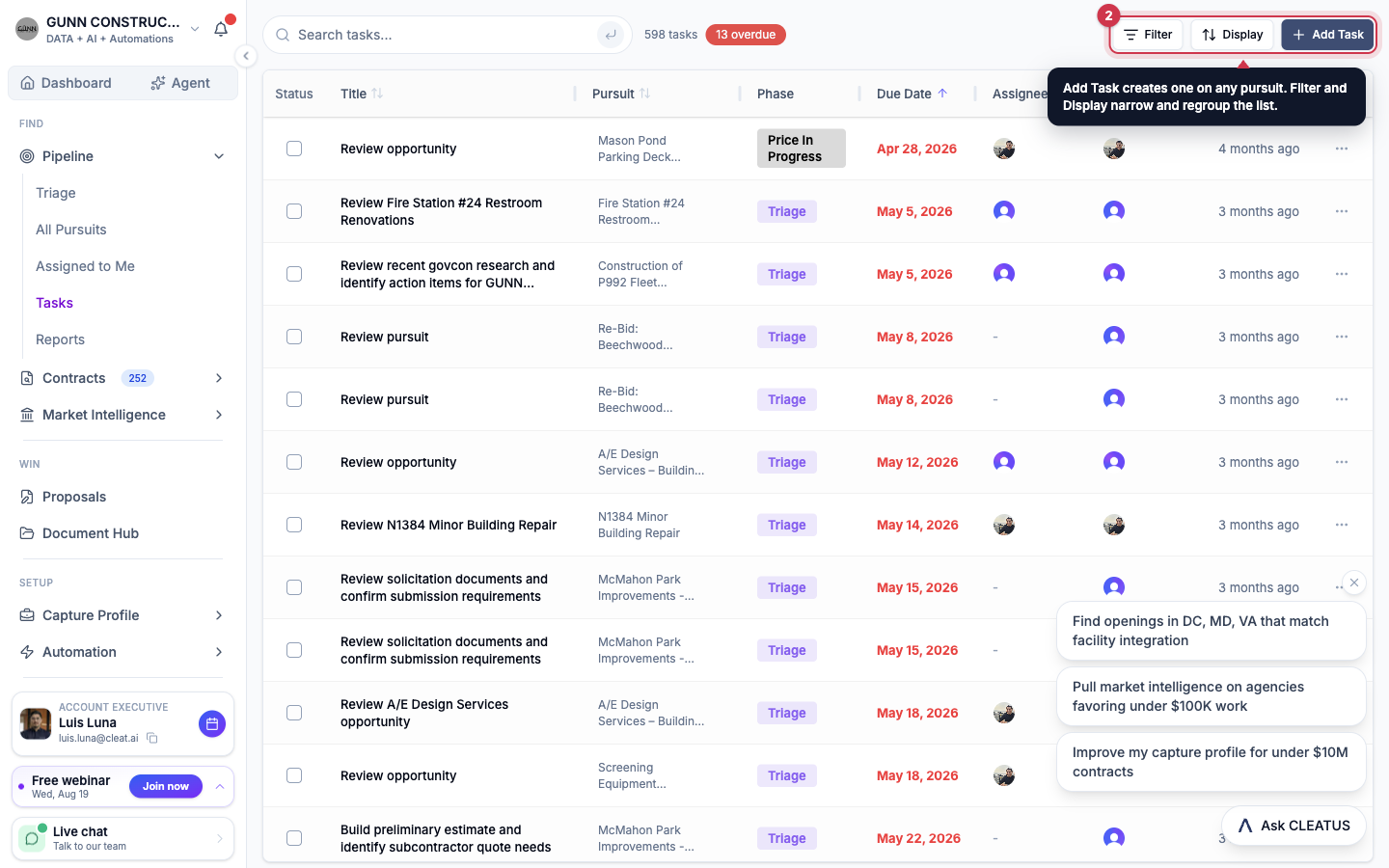
Click Add Task, pick the pursuit it belongs to, then set a name, a due date, and who owns it.
Complete and edit
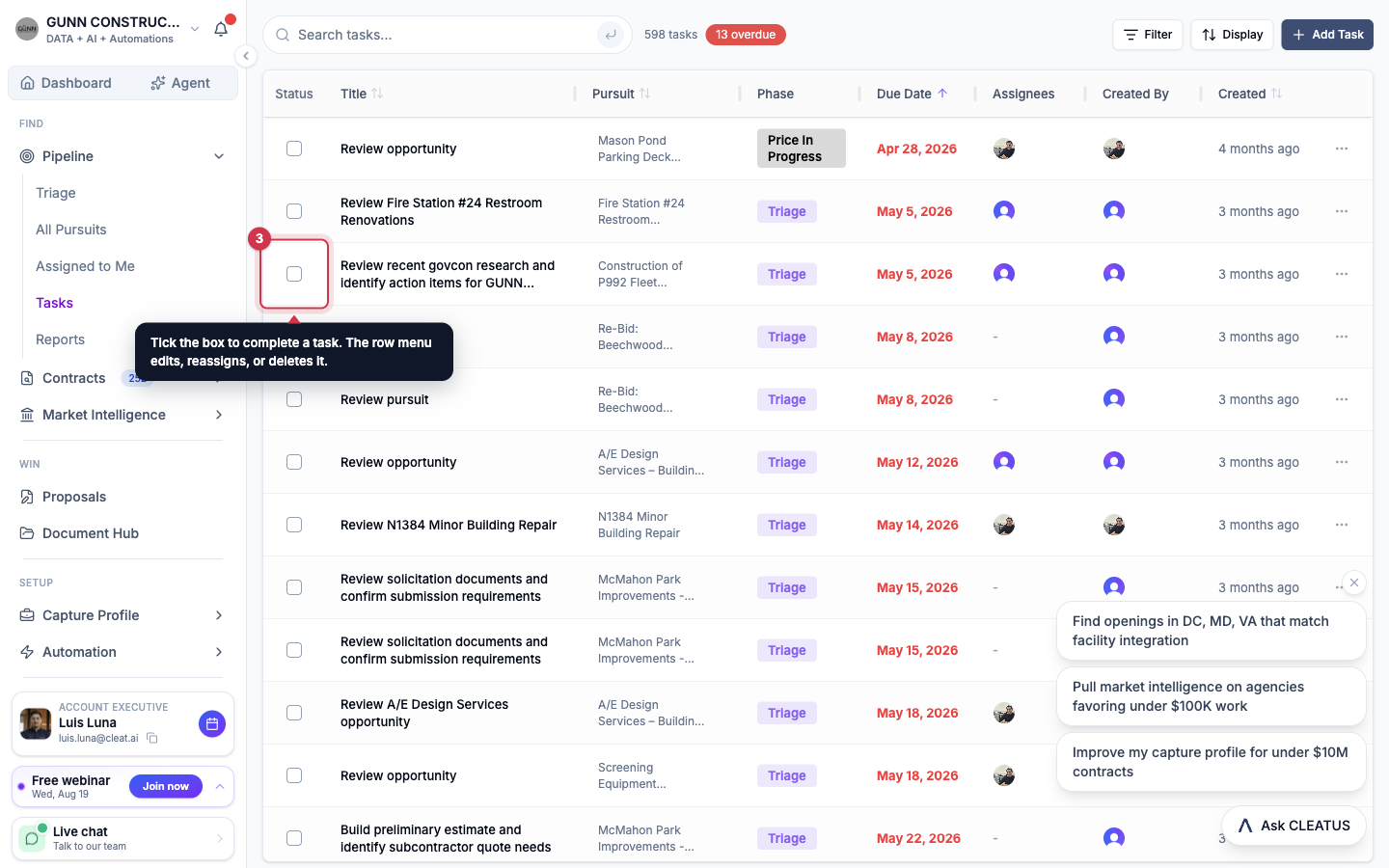
Tick the checkbox in the Status column to complete a task. The row menu on the right edits it, changes the due date, reassigns it, or deletes it.
Narrow it down
Filter by status, due date (Overdue, Today, This Week, Next Week, No Due Date), phase, assignee, or pursuit. Display groups the list by pursuit, phase, or assignee, sorts it, and controls which columns you see.
See deadlines on a calendar
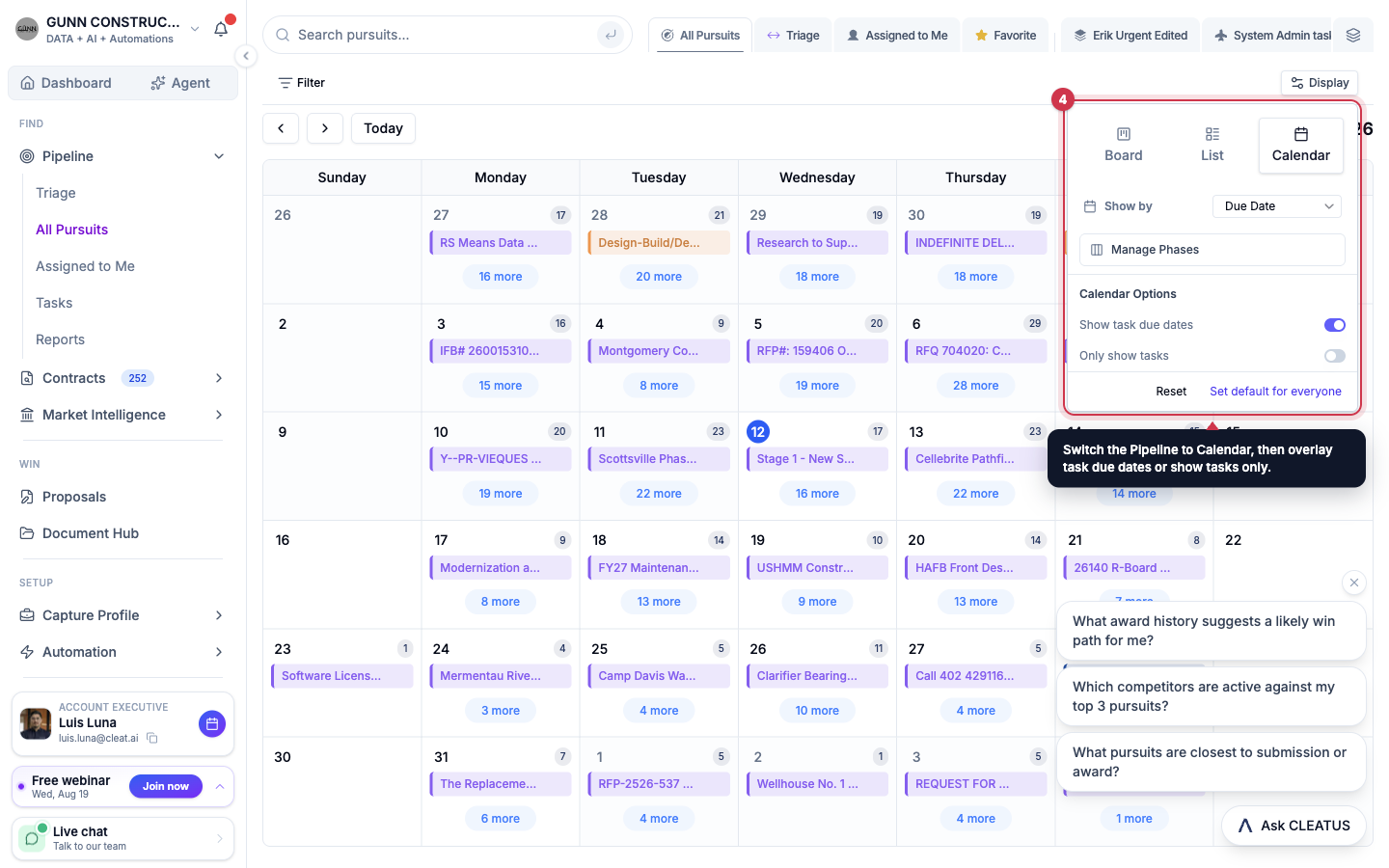
Prefer dates to rows? On the Pipeline page open Display and switch to Calendar. Turn on Show task due dates to lay tasks over your pursuit deadlines, or Only show tasks for a pure task calendar.
Tip:
Filter to Overdue first thing in the morning. It is the shortest list that tells you where a bid is actually at risk.