
Taking Notes and Managing CRM Tasks
Write pursuit notes, mention teammates and records, and assign CRM tasks with due dates.
Notes and tasks keep the capture work of your team in one place. Write notes on a pursuit or on a customer relationship management (CRM) record. Mention the teammates and records that a note is about. Create CRM tasks on people, companies, and agencies, with due dates and assignees. This guide shows you how.
Before you start:
Notes and CRM tasks are part of the CRM. The CRM is part of the DATA + AI plan and higher plans. To mention or assign teammates, invite them first. See Inviting Your Team.
Write notes on a pursuit
Open the Activity Logs tab
Open a pursuit and click the Activity Logs tab. The timeline shows the notes on the pursuit, together with its other activity, such as phase changes and uploaded files. It also shows each note on another record that mentions this pursuit. That note reads "mentioned this pursuit in a note on", with a link to the record.
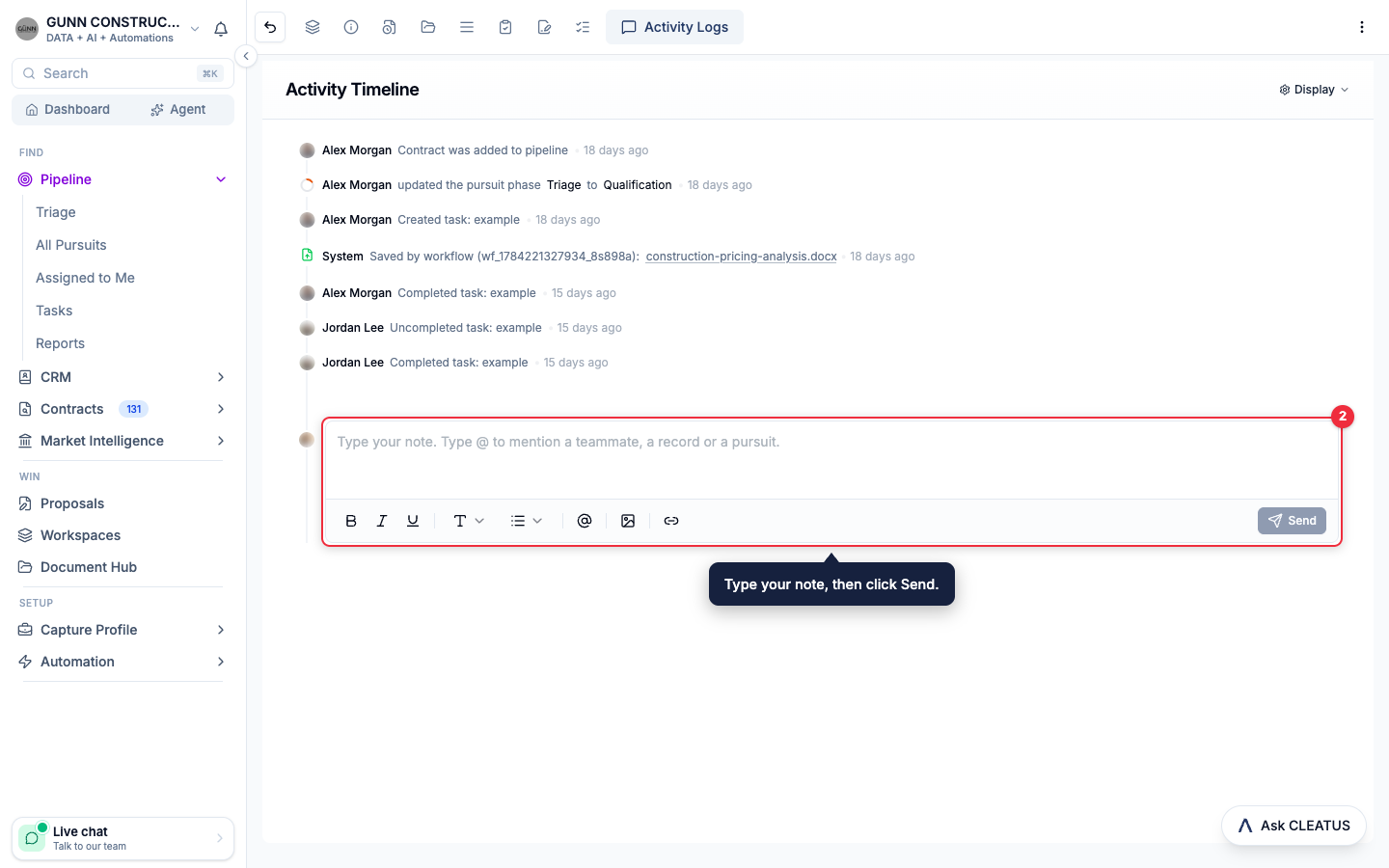
Write a note
Type in the note box. Use the toolbar to format the text and to add links and images. Click Send, or press ⌘ Enter (Ctrl Enter on Windows).
Mention a teammate or a record
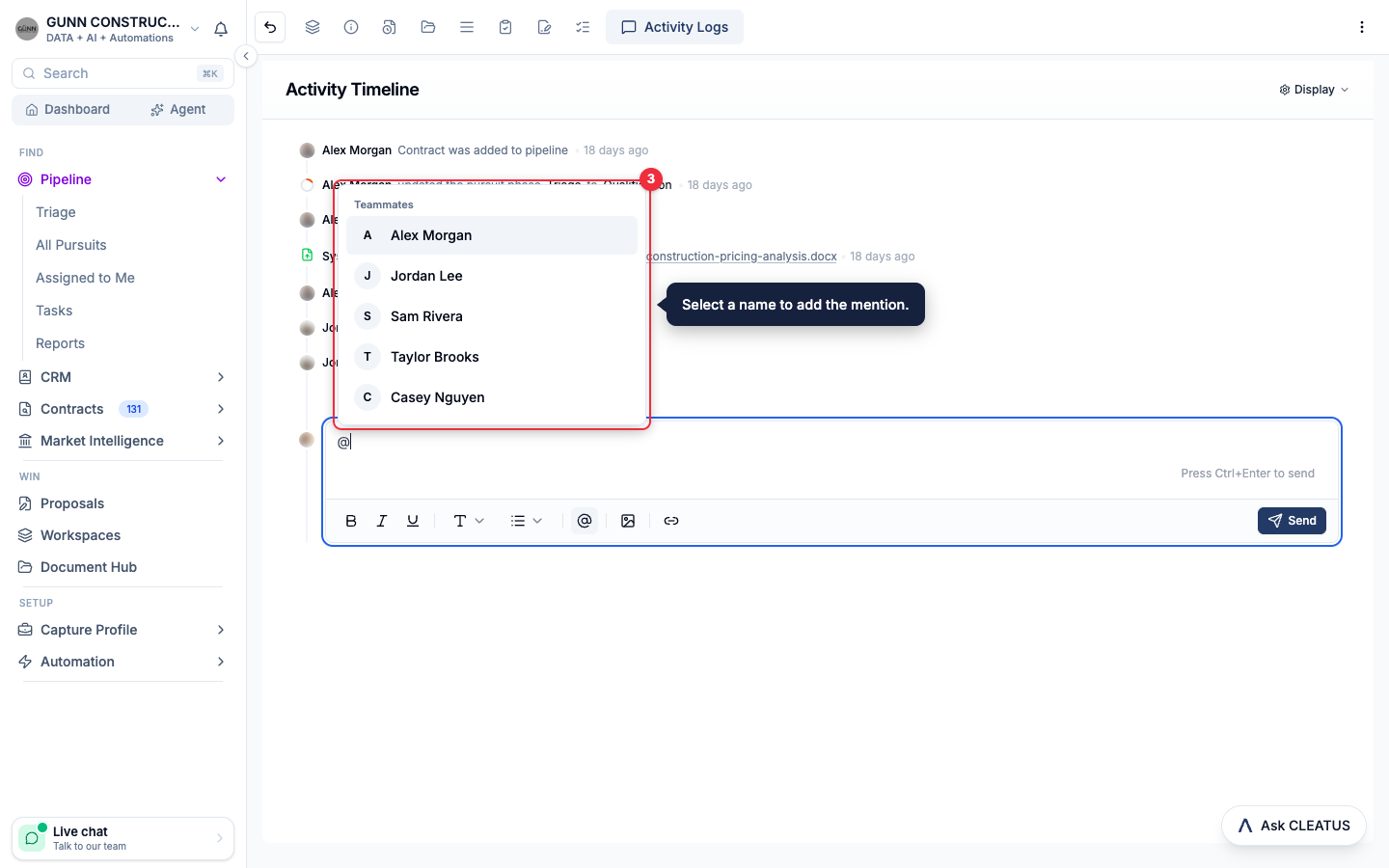
Type @ and the first letters of a name. The list shows teammates first, then records: people, companies, agencies, and pursuits. Select a name to add the mention.
Edit or delete a note
Open the menu on the note. Select Edit to change a note that you wrote. Select Delete, then click Delete note to confirm. The note leaves every record that it mentions, and you cannot undo this. You can delete your own notes. Owners and admins can delete any note.
You can also write a pursuit note in these places:
- The Activity Logs card at the bottom of the Contract Overview tab.
- The Quick View of a pursuit on the pipeline.
To hide the notes in the timeline, open Display and turn off Notes.
Each person, company, and agency has a Notes tab that works the same way. On a record page, click Note in the header, or press N.
What a mention does
- A teammate that you mention gets a notification: "Name mentioned you in a note." It shows in CLEATUS and comes by email. Its link opens the Notes tab of the record. For a note on a pursuit, the link opens the Activity Logs tab. Each teammate sets the channels in Settings > Notifications > Mentions. You do not get a notification when you mention yourself.
- A record that you mention shows the note on its own Notes tab. The note links back to the place where you wrote it. On a person, company, or agency, the mention also shows on the Activity tab.
- A pursuit that you mention shows the note on its Activity Logs tab.
Create a CRM task
A CRM task belongs to a person, a company, or an agency. Pursuit tasks belong to pursuits, and they work differently. See Managing Tasks for pursuit tasks.
Start a task from a record
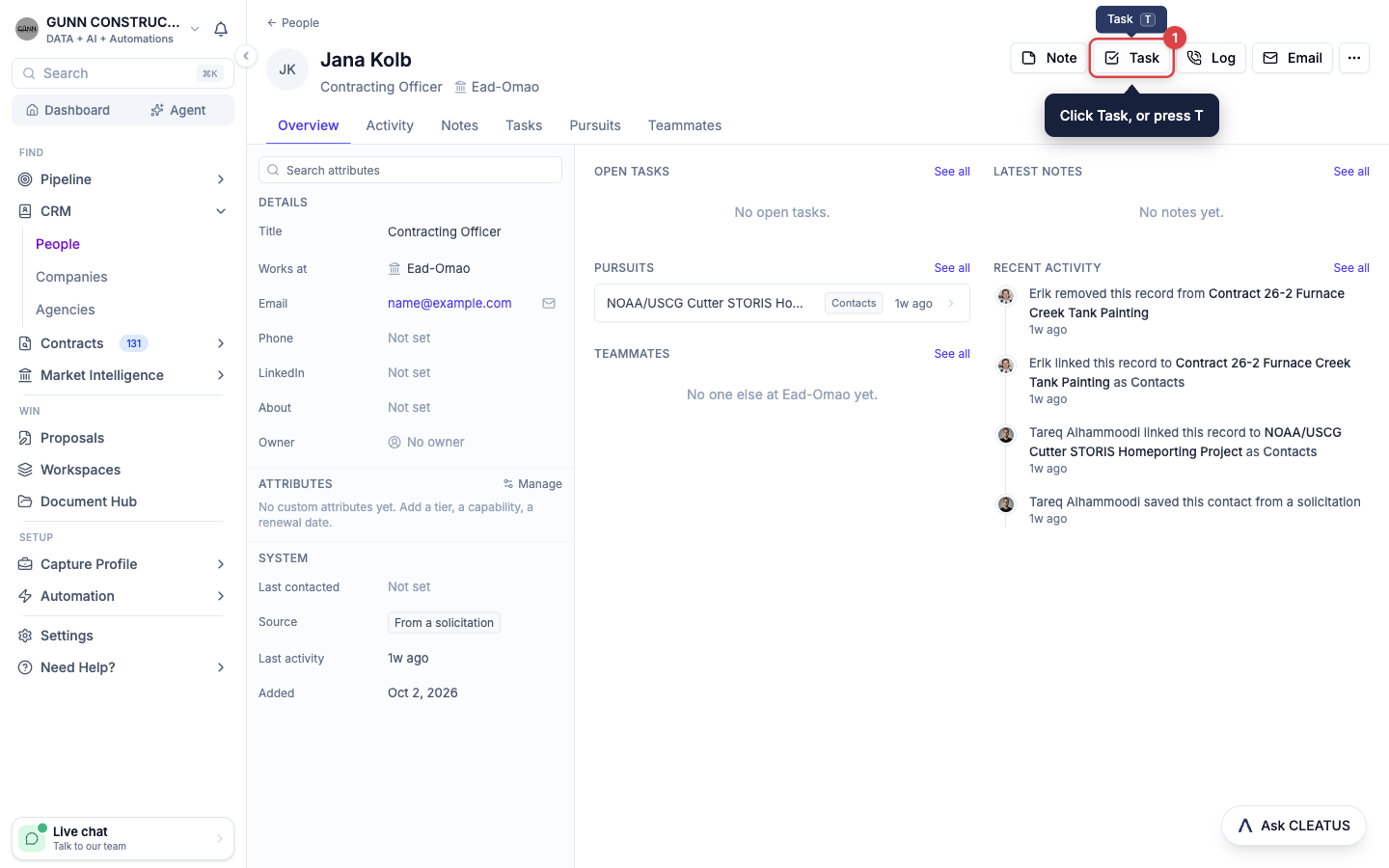
Open a person, company, or agency, and click Task in the header, or press T. You can also open the Tasks tab of the record and click New task.
Or start from Pipeline > Tasks
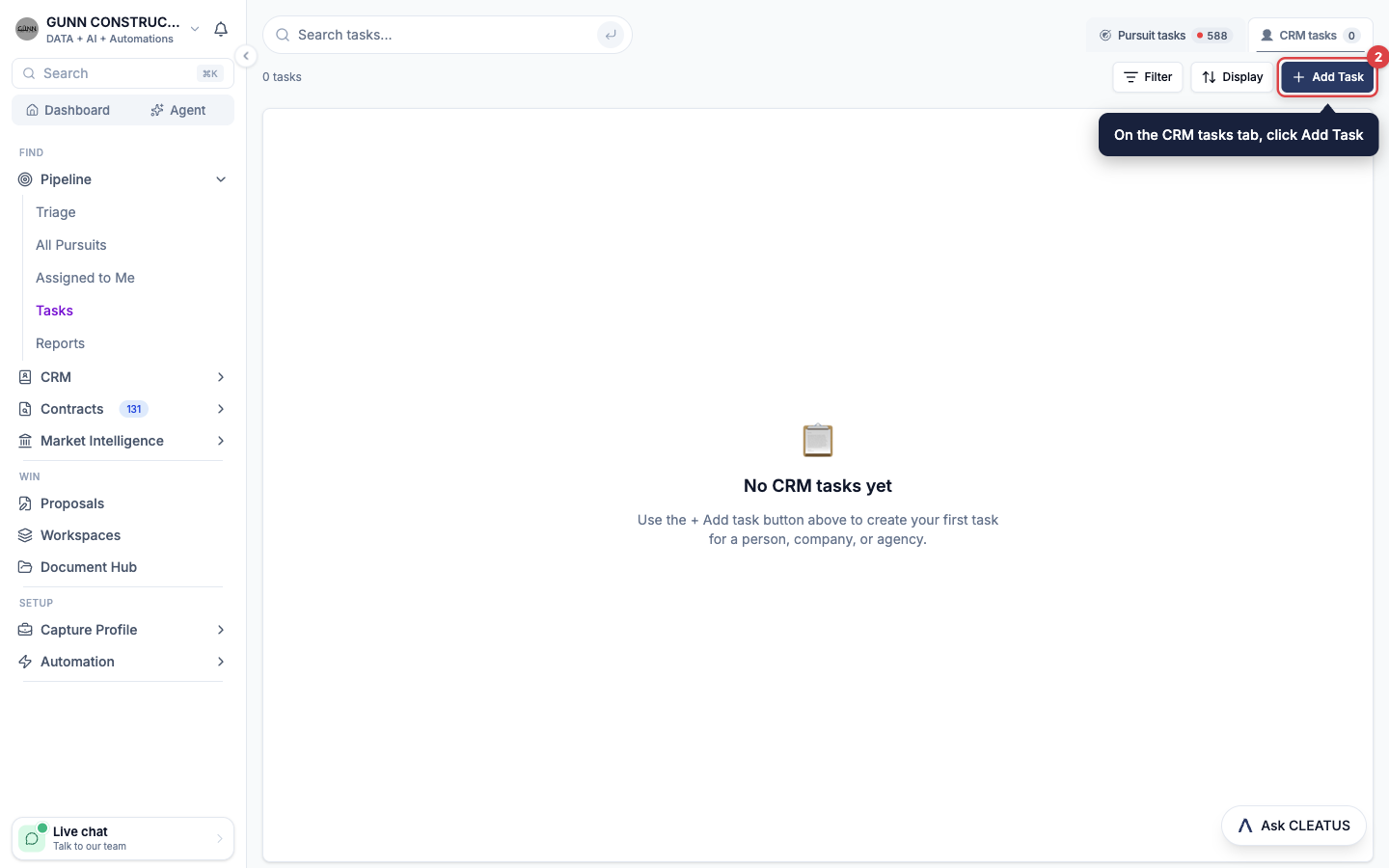
Open Pipeline > Tasks and click the CRM tasks tab. Click Add Task. In Select record, search for a person, company, or agency, and select it.
Enter the details
Type the task title, and add a description if you need one. Click Due date to pick a date. Click Assignees to select the teammates who own the task.
Link records with @
In the title, type @ to name a teammate, a record, or a pursuit. A teammate that you name is assigned. A record or a pursuit that you name is linked, so the task shows there too. The bottom of the dialog shows how many records are linked. Click Create task.
A task that names a pursuit also shows on that pursuit. Look under Tasks from the CRM on the Activity Logs tab.
Work your CRM tasks
Open the CRM tasks tab
Open Pipeline > Tasks and click CRM tasks. Each tab shows how many tasks are open. A red dot means that some tasks are overdue. The table shows the Record, the Due Date, the Assignees, Created By, and the date the task was Created.
Complete and edit tasks
Select the checkbox of a task to complete it. In the row menu, Edit Task changes the title, the due date, the assignees, and the linked records. Go to Record opens the record, and Delete removes the task.
Narrow the list
Use Filter to filter by status, due date, or assignee. Use Display to group the list by record or by assignee, to sort it, and to choose the columns. The CRM tasks tab keeps its own display settings.
On a record page, the Tasks tab lists open tasks first, then completed tasks. Select the checkbox of a task to complete it, or click the task to edit it.
Task notifications
- Assignment. A teammate that you assign gets an in-app notification and an email. Each teammate sets the channels in Settings > Notifications > Activity.
- Due date. The assignees get a reminder three days before the due date and again one day before. When a task has no assignees, the reminder goes to the person who created it. Each teammate sets the channels in Settings > Notifications > Deadlines.
Tip:
After a call with a contracting officer, open their record and press L to log the call. Then press T to add the follow-up task, so the next step has an owner and a date.