
Managing People, Companies, and Agencies
Keep the people and organizations behind every bid in the CRM, and link them to your pursuits.
The CLEATUS customer relationship management (CRM) keeps the people, companies, and agencies that you work with. Each one is a record. This guide shows you how to add records, import a list, and link records to your pursuits. It also shows how to organize and search your directories.
Or just ask CLEATUS
Add Jane Doe to the Contacts field on my fuel delivery pursuit
The agent links records that are already in your CRM. It also finds people, companies, and agencies by name.
Before you start:
The CRM is part of the DATA + AI plan and higher plans. See Plans and pricing.
Add your records
Open a directory
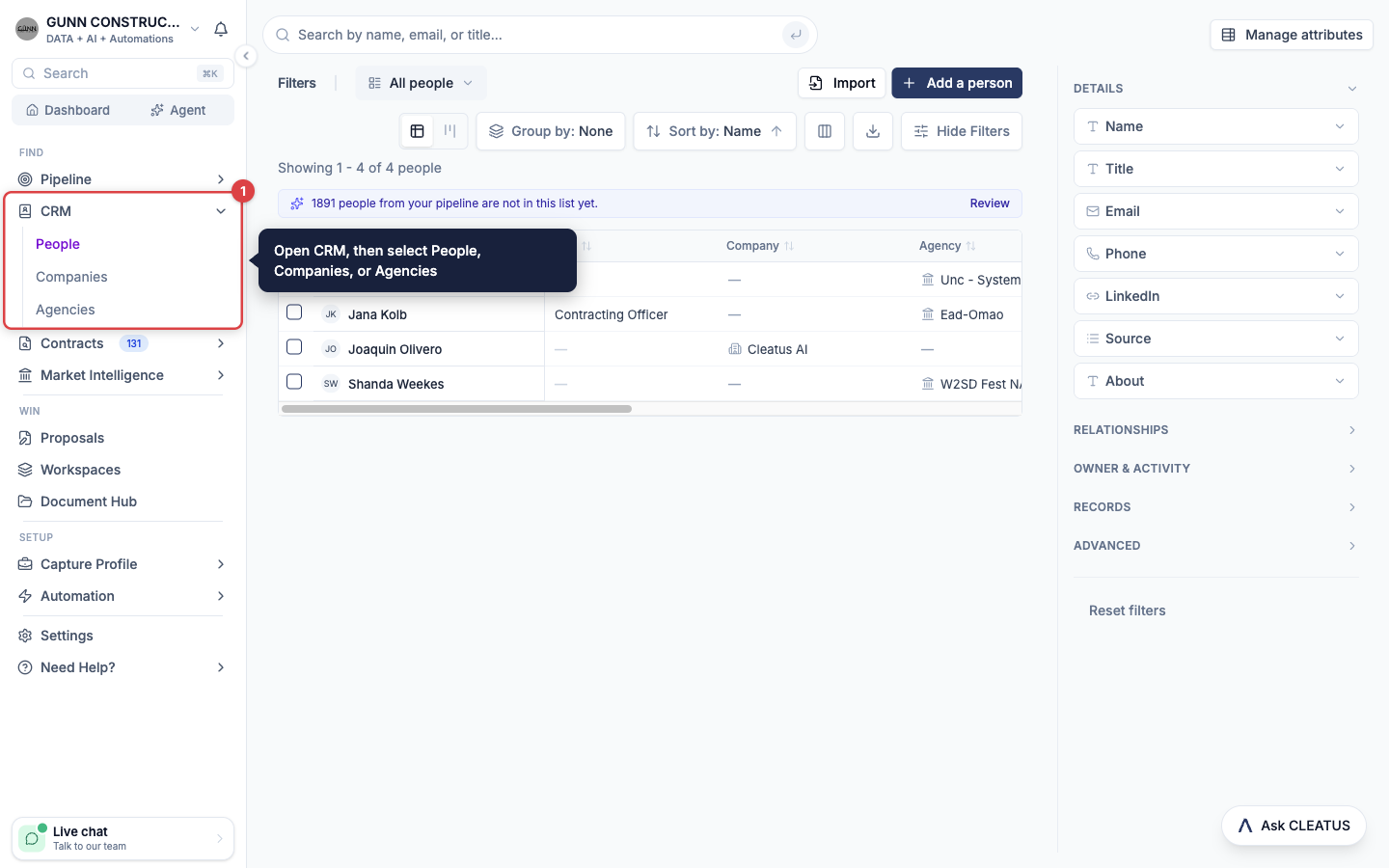
Open CRM in the sidebar and select People, Companies, or Agencies. Each page lists its records in a table.
Add a person or a company
Click Add a person or Add a company. For a person, enter the Full name. Then use Works at to select the company or agency of the person. The Email is optional. For a company, enter the Name and an optional Website. Click Add and open to open the new record, or click Add another to add more. CLEATUS warns you when a record with the same name already exists.
Track an agency
On Agencies, click Track an agency. Type two or more letters of the agency name, then select the agency. Agencies come from the CLEATUS federal agency data, so you cannot create an agency.
Edit a record
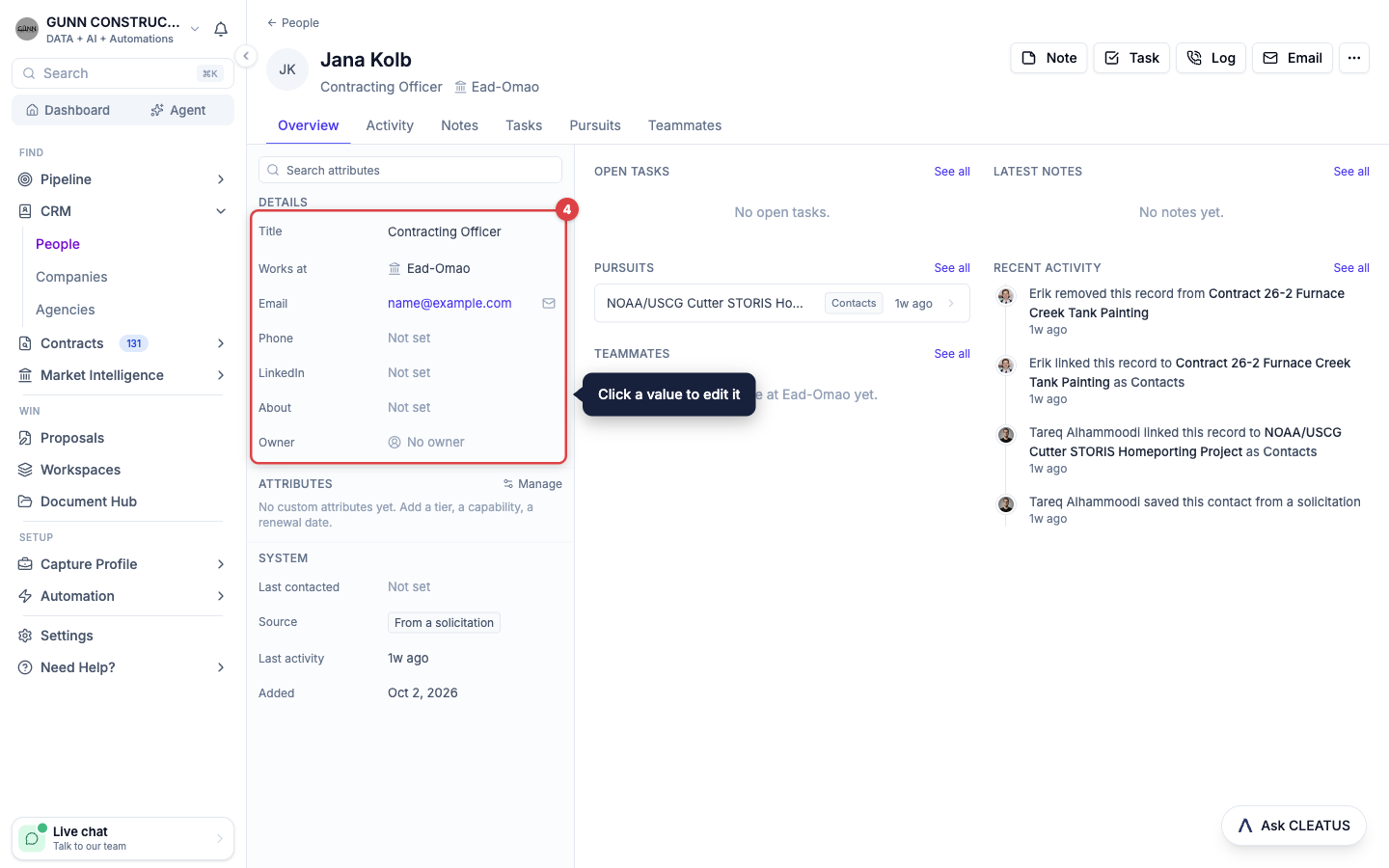
Click a record to open its page. Click a value on the left side to edit it. You can also edit a value directly in its table cell. To add a field that the record does not have, click Manage attributes. See Adding Custom Fields.
Link a company to SAM
On a company page, click Link to SAM. Search the System for Award Management (SAM) registry by name or by Unique Entity ID (UEI). Then select the registration. The company page shows the SAM data, such as the registration status and the address. CLEATUS keeps this data current, so you cannot edit it. Click Unlink to remove the link.
Import a list from a CSV file
You can import people and companies from a comma-separated values (CSV) file. Agencies have no import.
Upload the file
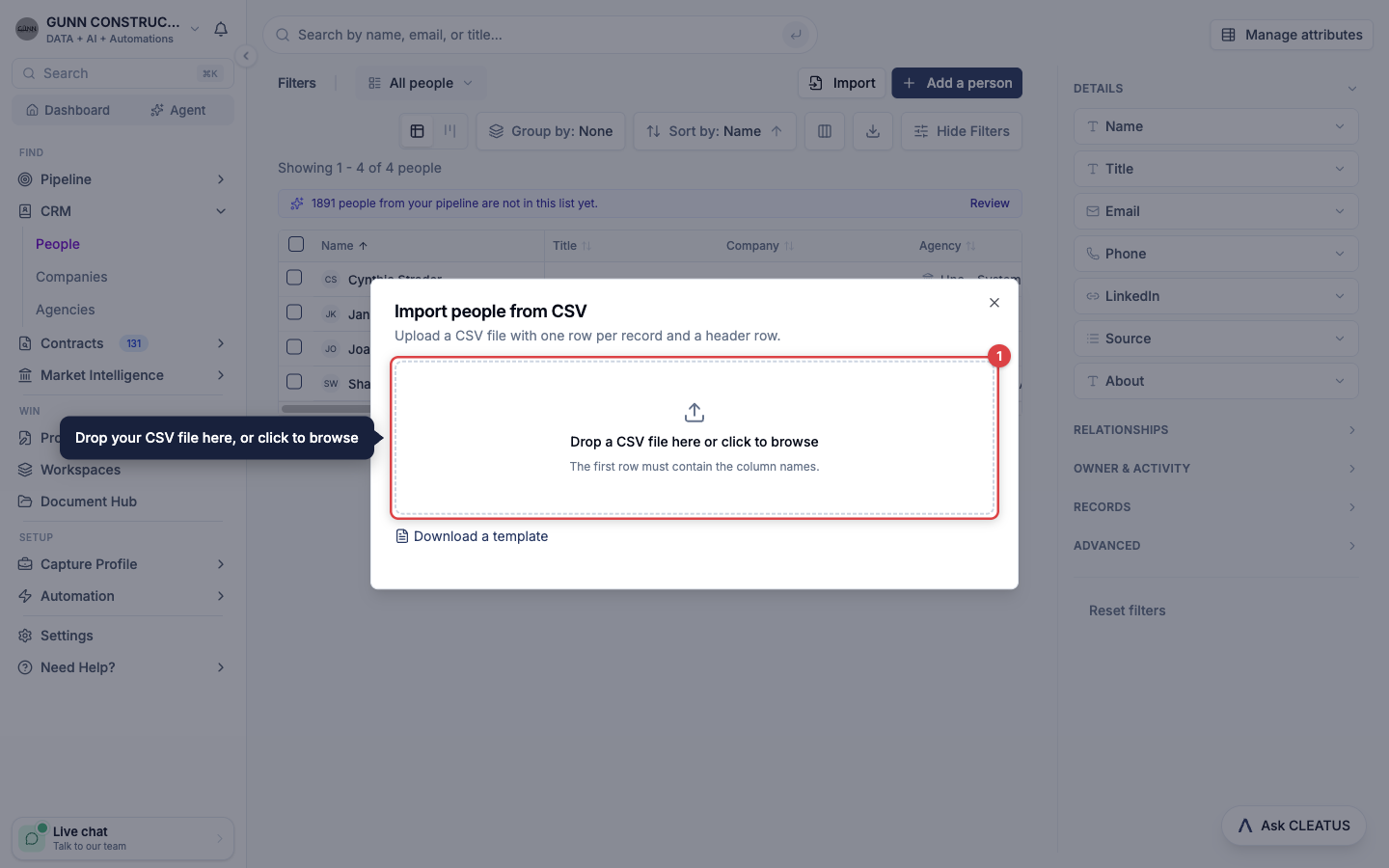
On People or Companies, click Import. Drop a CSV file on the dialog, or click to browse. The first row must hold the column names. To get a file with the correct columns, click Download a template.
Map the columns
For each CSV column, select an attribute or select Skip. CLEATUS maps common column names for you. A people file needs a Full name column and a Company or Agency column. A company file needs a Name column. You can also map columns to most custom fields. Fields that link to records and computed fields are not available.
Run the import
Click the import button, which shows your row count, for example Import 120 rows. Keep the dialog open until the import finishes. The result shows how many rows CLEATUS created, updated, and could not import. Each failed row shows the reason and its row number in the CSV file. If a batch of rows fails, the import stops, and the rows after that batch are not sent.
How the import matches records:
A row that matches a record updates that record. It does not add a duplicate. A person matches by email address, and a company matches by name. The import fills only the empty values of the matched record. When a people row names a company that is not in your CRM, CLEATUS creates the company. An agency name must match the federal agency name exactly.
Link records to pursuits
Link from the pursuit
Open the pursuit. On the Contract Overview tab, find the Attributes card and click Edit attributes. When the card is empty, the button is Add details. In a field such as Contacts or Incumbent, click the add button (+) and search for the record. If the person or company is not in your CRM, type the name and click Create.
Use the suggestions
Under a person or company field, CLEATUS shows the people and companies that the solicitation names. Click a suggestion to link it. Click Suggest from contract to see all the suggestions and add several at once.
Link from the record
On a person or company page, open the Pursuits tab and click Add to pursuit. Select the pursuit. In As, select the field that names the relationship, for example Contacts. Then click Add.
Save a contact from a solicitation
On the General Information tab of a pursuit, click Save as contact beside a point of contact. Check the details, then click Add person. CLEATUS adds the person at the awarding agency and links the person in the Contacts field of the pursuit.
Review suggested records
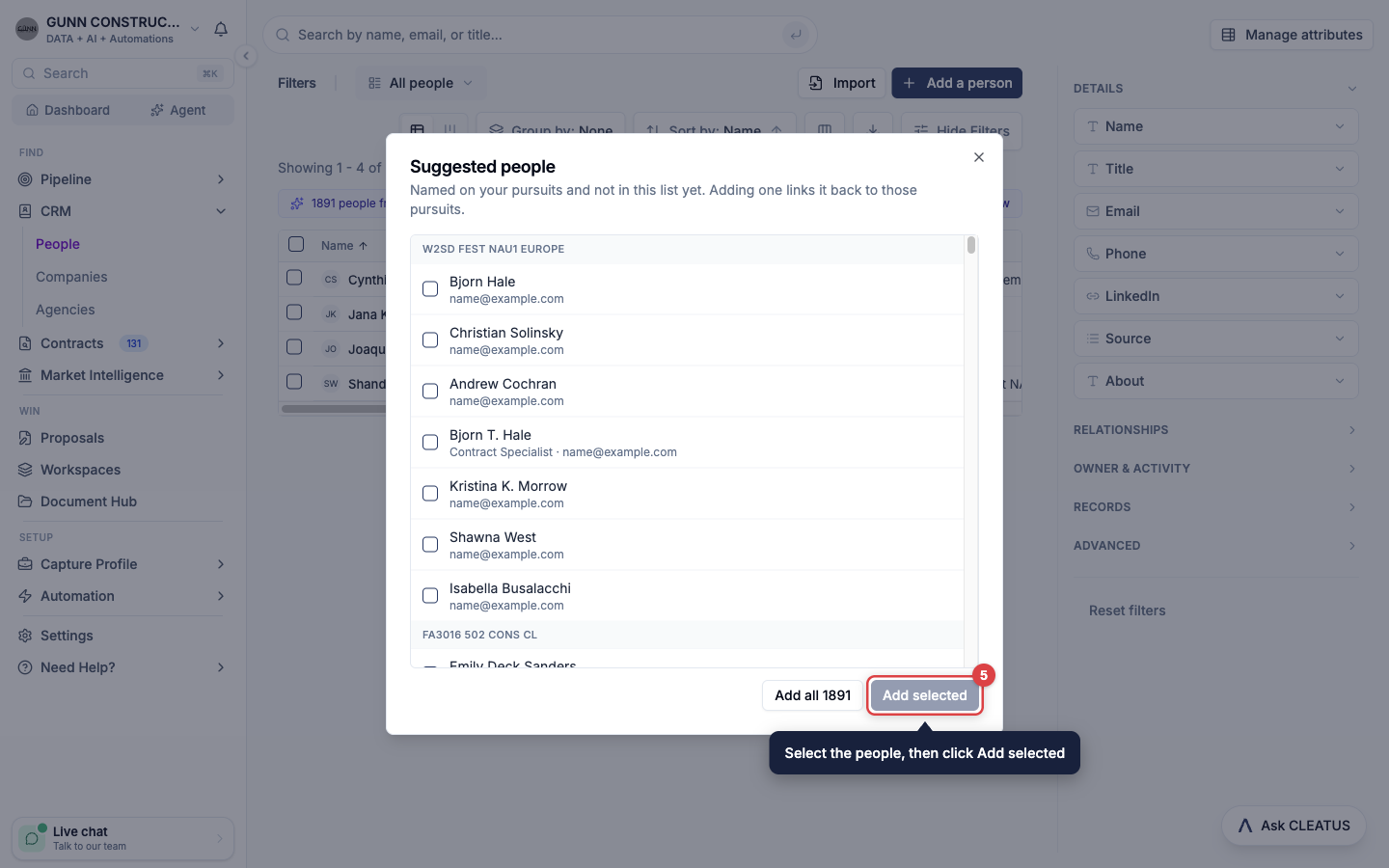
Your pursuits can name records that your CRM does not have yet. The directory then shows a line with a count. Click Review, select the records, and click Add selected. CLEATUS links each new record to the pursuits that name it. When the directory is empty, the suggestions show on the page instead.
Organize a directory
Filter, sort, and group
Click Show Filters to filter on any attribute, including your custom fields. Use the group and sort menus in the toolbar. Click Columns to show, hide, and reorder columns. CLEATUS saves your columns for you.
Switch to a board
Select Board view to show one column for each value of a field, such as an owner. Drag a card to another column to change its value. Select Table view to go back to the table.
Save a view
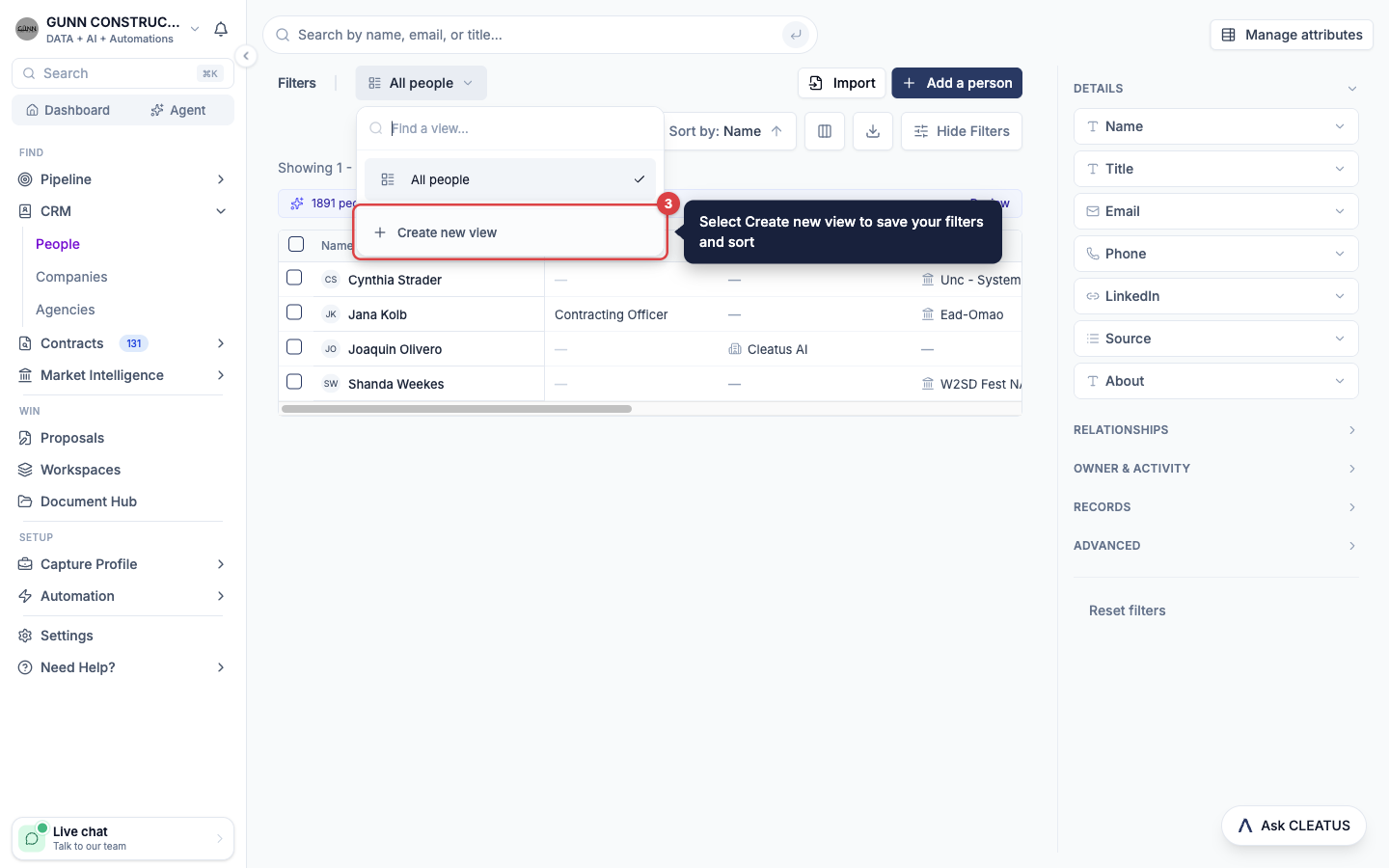
After you change the filters or the sort, click Save as new view and enter a title. You can also open the view list and select Create new view. To switch views, open the view list, which starts on All people, All companies, or All agencies. In the menu of a view that you created, select Share with team to show it to all teammates. A teammate can edit a shared view.
Act on many records
Select the rows. Then use the bar that opens: Set owner, Set attribute, Add to pursuit, Archive, Restore, and Export CSV.
Export a view
Click Export to download the current view as a CSV file. The export holds up to 10,000 rows.
Find a record
- Type in the search box at the top of a directory. People match by name, email, or title. Companies match by name or UEI. Agencies match by name or code.
- Press ⌘K (Ctrl K on Windows) on any page and type at least two letters. People match by name or email. Companies and agencies match as in the directory search. The results show under CRM.
- The same ⌘K menu has Add a person and Add a company.
Clean up duplicates
Open the duplicate person or company and click the menu in the header. Select Merge into another person or Merge into another company, then pick the record to keep. Notes, tasks, activity, and pursuit links move to that record. Its empty details fill from the duplicate, and CLEATUS archives the duplicate.
To remove a record from your active lists, select Archive in the same menu. An archived record keeps its history. To see archived records, click Show Filters and select Archived.
Tip:
Save contracting officers from your pursuits as you work. Within a few bids, your CRM holds the buyers that you actually talk to, already linked to their solicitations.