
Connect Outlook to CLEATUS
Log the email that you exchange with CRM contacts on their records in CLEATUS.
Connect your Outlook mailbox so that your email with your contacts logs itself. Your contacts are the people in the CLEATUS customer relationship management (CRM). When you exchange email with one of them, CLEATUS adds the message to the record of that person. Your team sees the latest contact on the record, and nobody copies email by hand.
Who this is for
CLEATUS users who keep their contacts in the CRM and email them from Outlook. Each teammate connects their own mailbox.
What you'll need
- A DATA + AI + Automations plan or higher.
- A Microsoft account with an Outlook mailbox, such as your Microsoft 365 work account.
- People in your CRM with their email addresses. CLEATUS matches messages to people by email address.
Connect your mailbox
-
Open Settings, then Integrations. Under Data & Automation, find the Outlook card and click Set up.
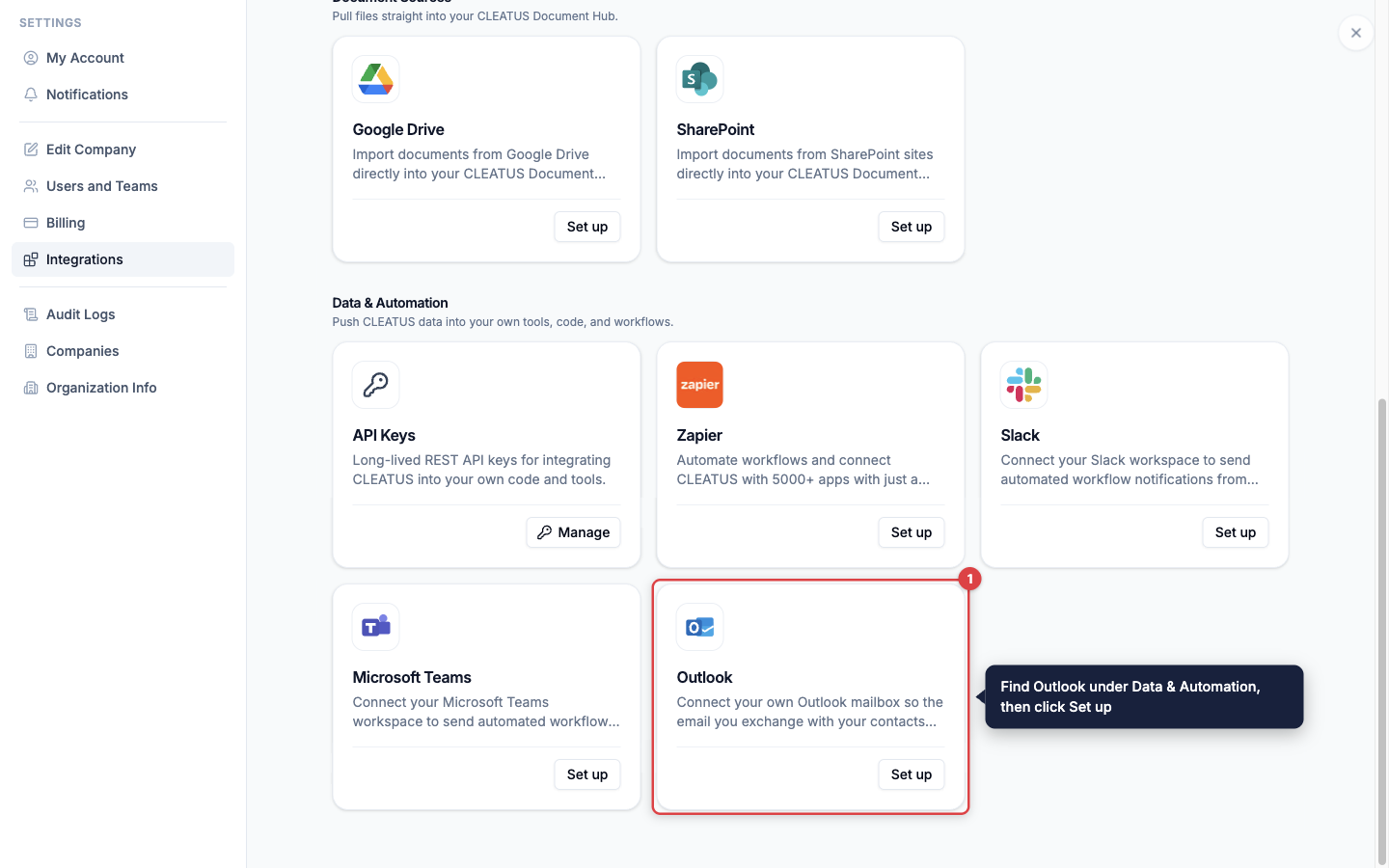
Outlook is under Data & Automation. -
Click Connect with Microsoft. A Microsoft sign-in window opens. Sign in to the mailbox that you use for work, and approve access.
-
The status changes to Connected as and your email address.
-
Click Go to Contacts to open your CRM. Make sure that the people you email are there, with their email addresses. See Managing People, Companies, and Agencies.
The connection is yours, in the company that is open in CLEATUS when you connect. If you switch between companies in CLEATUS, connect Outlook in each company.
What CLEATUS logs
From the moment that you connect, CLEATUS checks each new message in your mailbox. It logs the message in these cases:
- You send a message to a person in your CRM. CLEATUS matches the addresses on the To and Cc lines. This message also moves Last contacted forward on the person.
- A person in your CRM sends you a message. CLEATUS matches the sender address.
Each logged message shows on the Activity tab of the person. To see only calls, meetings, and email, select the Calls, meetings & emails filter. The entry shows the direction, the date, the subject, and a short preview of the text. Click the subject to open the message in Outlook.
When two teammates both have the same message, it shows only once on the record of the person.
What CLEATUS ignores
- Messages from before you connected. CLEATUS logs only new messages, as they arrive.
- Messages that no person in your CRM sent or received.
- Messages from someone who is not in your CRM, even when they copy a person in your CRM.
- Drafts.
- People that you archived in the CRM.
CLEATUS does not create new records from your email. Add a person to the CRM first, and email with that person logs from then on.
Privacy and permissions
- CLEATUS reads only your own mailbox. Each teammate decides to connect their own.
- The connection is read-only. CLEATUS cannot send, change, or delete your email.
- CLEATUS asks Microsoft for three permissions: read your mail (Mail.Read), read your basic profile (User.Read), and stay connected (offline_access).
- For each message, CLEATUS reads the sender, the recipients, the subject, the dates, and a short preview. It does not read attachments or the full message text.
- CLEATUS keeps only the messages that involve a person in your CRM.
- Teammates who open the record of a person can see the logged messages. They see the subject, the preview, and the date.
Disconnect Outlook
Open Settings > Integrations, open the Outlook card, and click Disconnect Outlook. CLEATUS stops logging your email and deletes its stored sign-in token for your mailbox. Messages that it already logged stay on your records.
Troubleshooting
- A message is not on the record. Check that the person is in your CRM with the same email address. Check that the record is not archived. Check that you sent or received the message after you connected. A message from a third party that only copies the person does not log.
- The Outlook card is locked. Outlook logging needs a DATA + AI + Automations plan or higher. See Plans and pricing.
- The status shows Not Connected. Click Connect with Microsoft and sign in again.