
Starting from a Template
Create a workflow from a ready-made template, fit it to your account, test it, and turn it on.
A template is a ready-made workflow. Its trigger and steps are already connected and configured. You create a copy, add the settings that only your account knows, test it, and turn it on. This guide shows that path. It also shows how to build a workflow from the public Workflow Directory.
Before you start:
Workflows are part of the DATA + AI + Automations plan and higher plans. Some templates post to Slack. To use them, connect Slack first, or delete the Slack step after you create the workflow.
The templates
CLEATUS has eight templates. Each one starts as a Draft, so nothing runs until you turn it on.
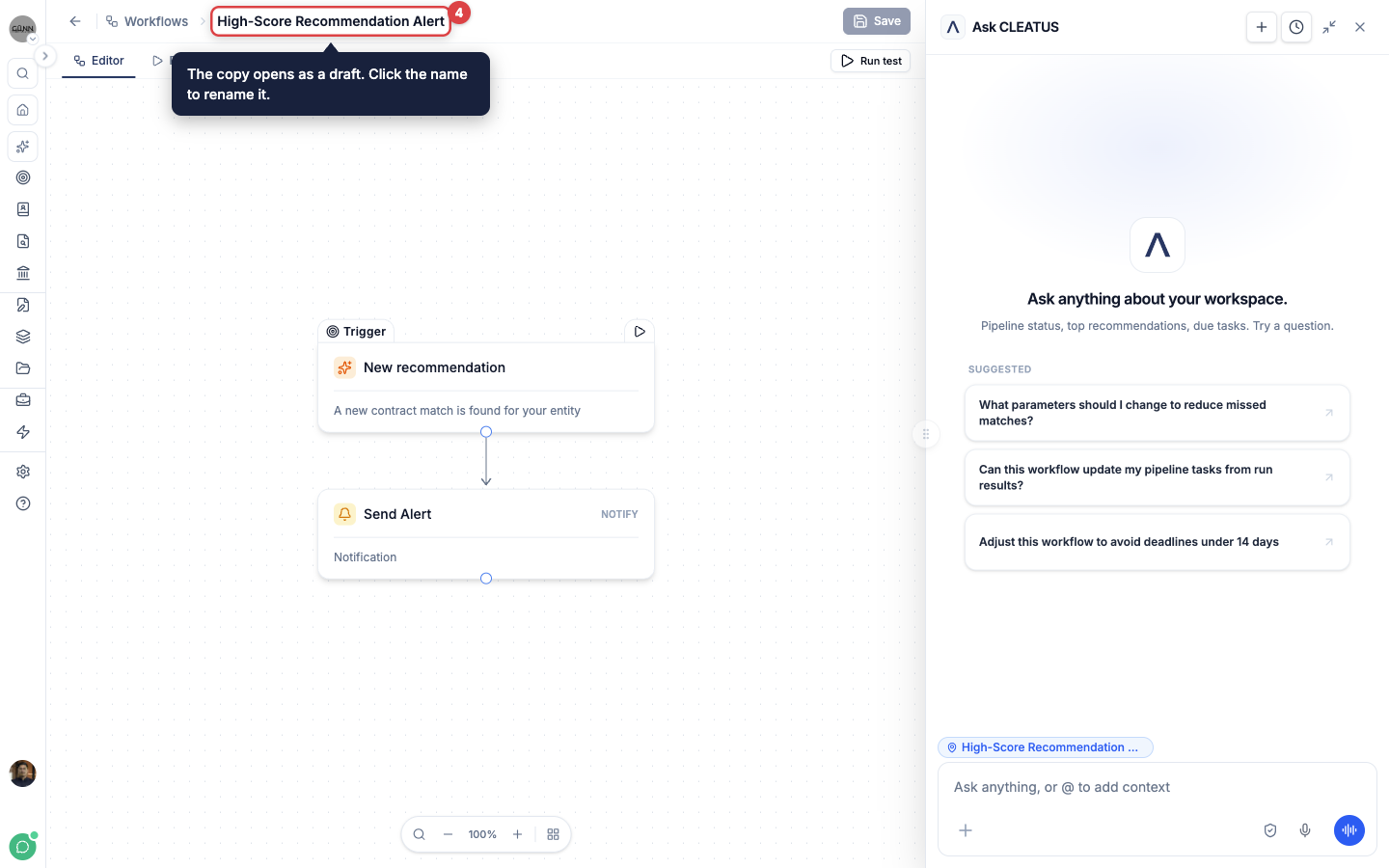
- High-Score Recommendation Alert (trigger: New recommendation). Sends an in-app notification to all members for each new recommendation with a score of 70 or higher.
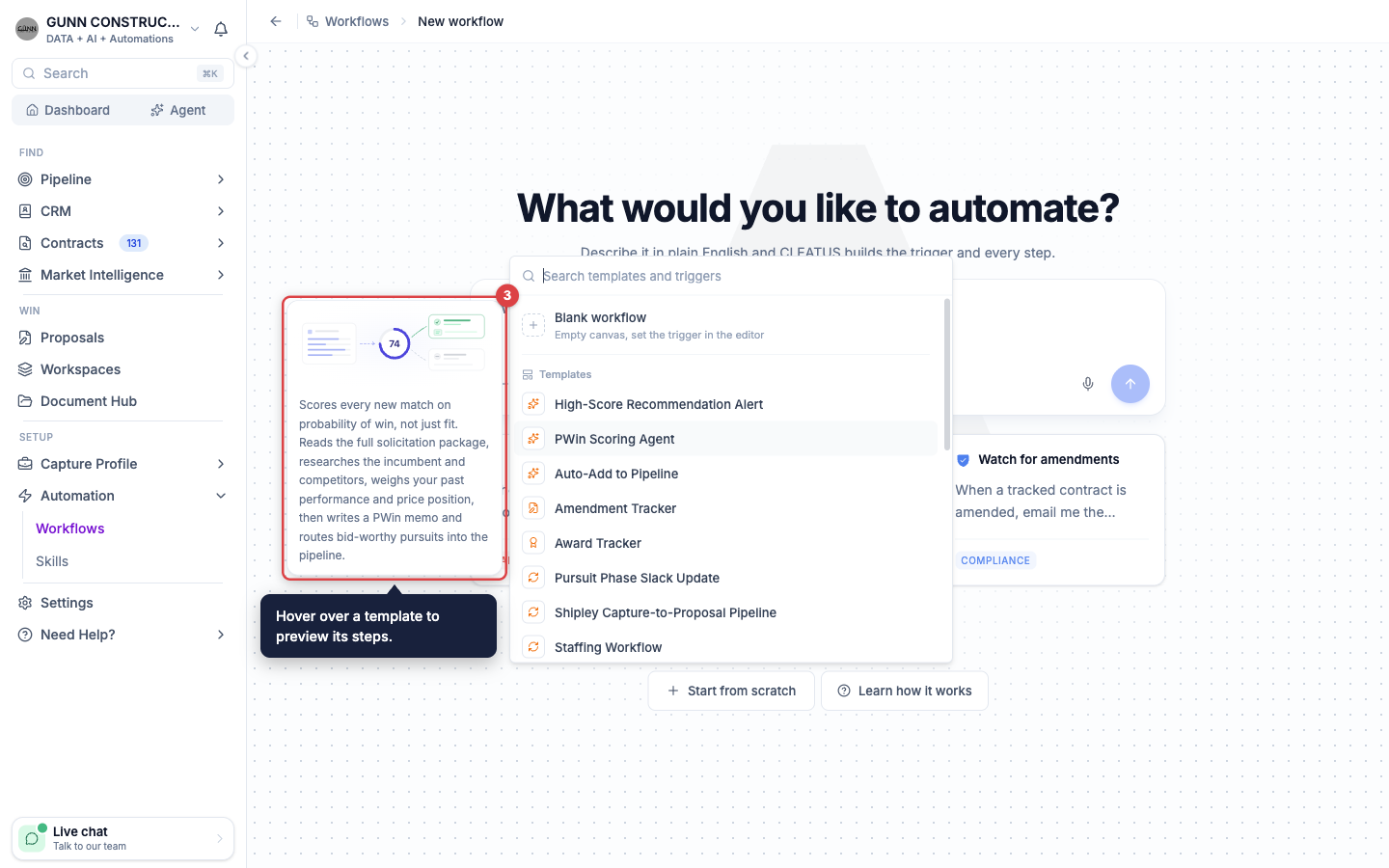
- PWin Scoring Agent (trigger: New recommendation). It runs on recommendations with a score of 50 or higher. An AI Agent step reads the solicitation and researches the incumbent and the competitors. Then it scores the probability of win (PWin) from 0 to 100. At a PWin of 70 or higher, the workflow adds the contract to your pipeline. It also saves the PWin memo to the pursuit and emails the team. Below 70, it sends an in-app notification that explains the score.
- Auto-Add to Pipeline (trigger: New recommendation). Adds each recommendation with a score of 70 or higher to your pipeline. See Automating Your Pipeline.
- Amendment Tracker (trigger: Contract updated). Sends an in-app alert, an email, and a Slack message when a contract in your pipeline gets an amendment.
- Award Tracker (trigger: Contract awarded). Sends an in-app alert, an email, and a Slack message when a contract in your pipeline gets an award notice.
- Pursuit Phase Slack Update (trigger: Pursuit phase changed). Posts the old phase and the new phase to Slack each time a pursuit moves.
- Shipley Capture-to-Proposal Pipeline (trigger: Pursuit phase changed). Runs a full color-team process. The stages are a capture gap analysis, a compliance check, a black hat review, a proposal build, and a red team review. It moves the pursuit through your board and emails the team a document package at each stage. A compliance blocker stops the process and creates a review task.
- Staffing Workflow (trigger: Pursuit phase changed). It runs when a pursuit enters your staffing phase. An AI Agent step matches each contract role to the resumes in your Document Hub. Then it saves a staffing analysis to the pursuit.
Create a workflow from a template
Open the New workflow page
Open Workflows under Automation in the sidebar, and click New Workflow.
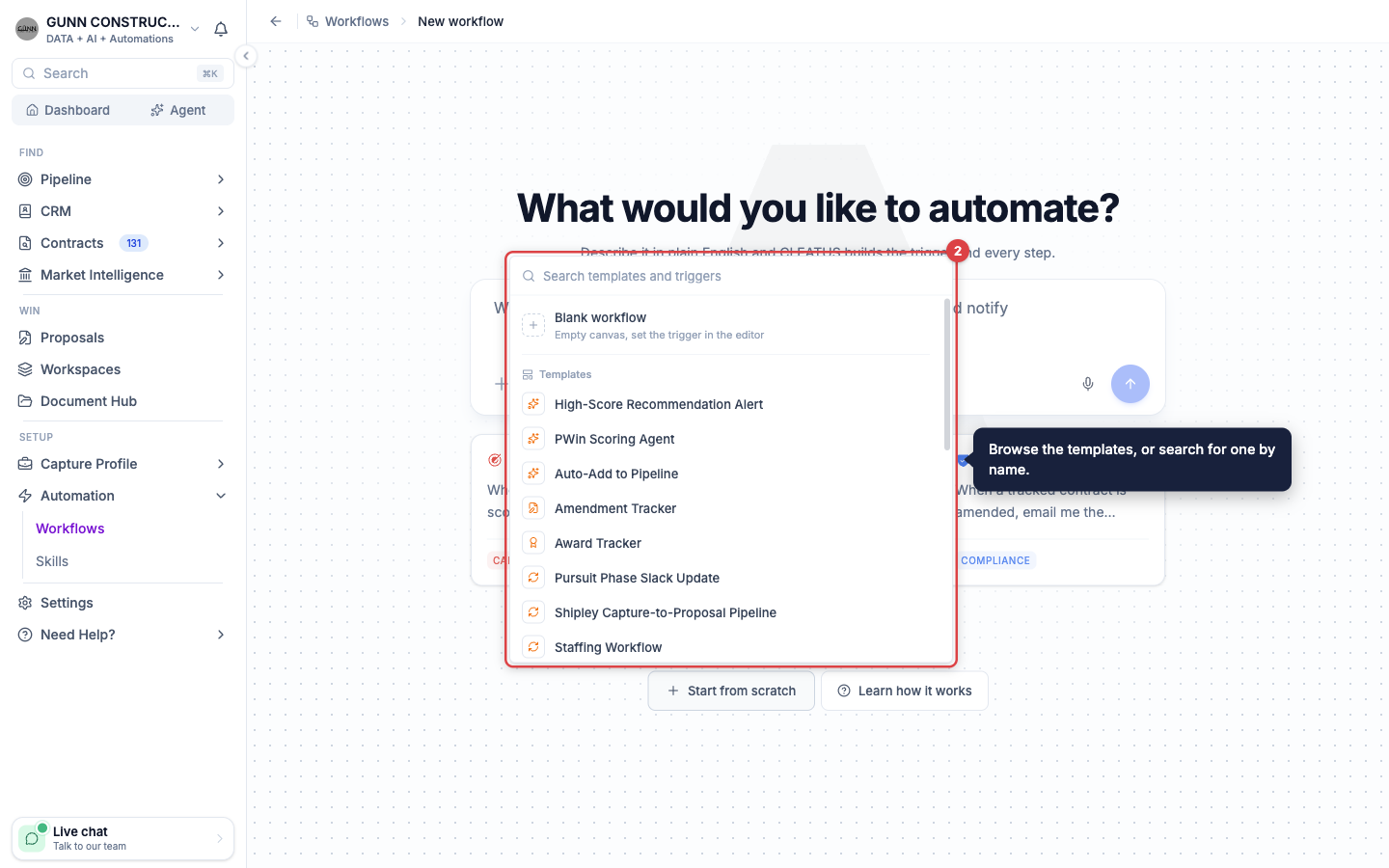
Browse the templates
Click Start from scratch. The list shows Blank workflow, then Templates, then Start blank with a trigger. Type in Search templates and triggers to find a template by name or purpose.
Preview a template
Hover over a template. A preview shows a diagram of its steps and a description of what it does.
Create the workflow
Click the template. CLEATUS creates a copy with the template's name and opens it in the editor as a Draft. To rename it, click the name at the top of the editor.
Fit it to your account
Click each step to see and edit its settings. A template cannot know your channels, columns, or teammates, so some settings start empty. Run test stays off until the required settings are complete. See the list below for each template. Click Save to keep your changes.
Run a test
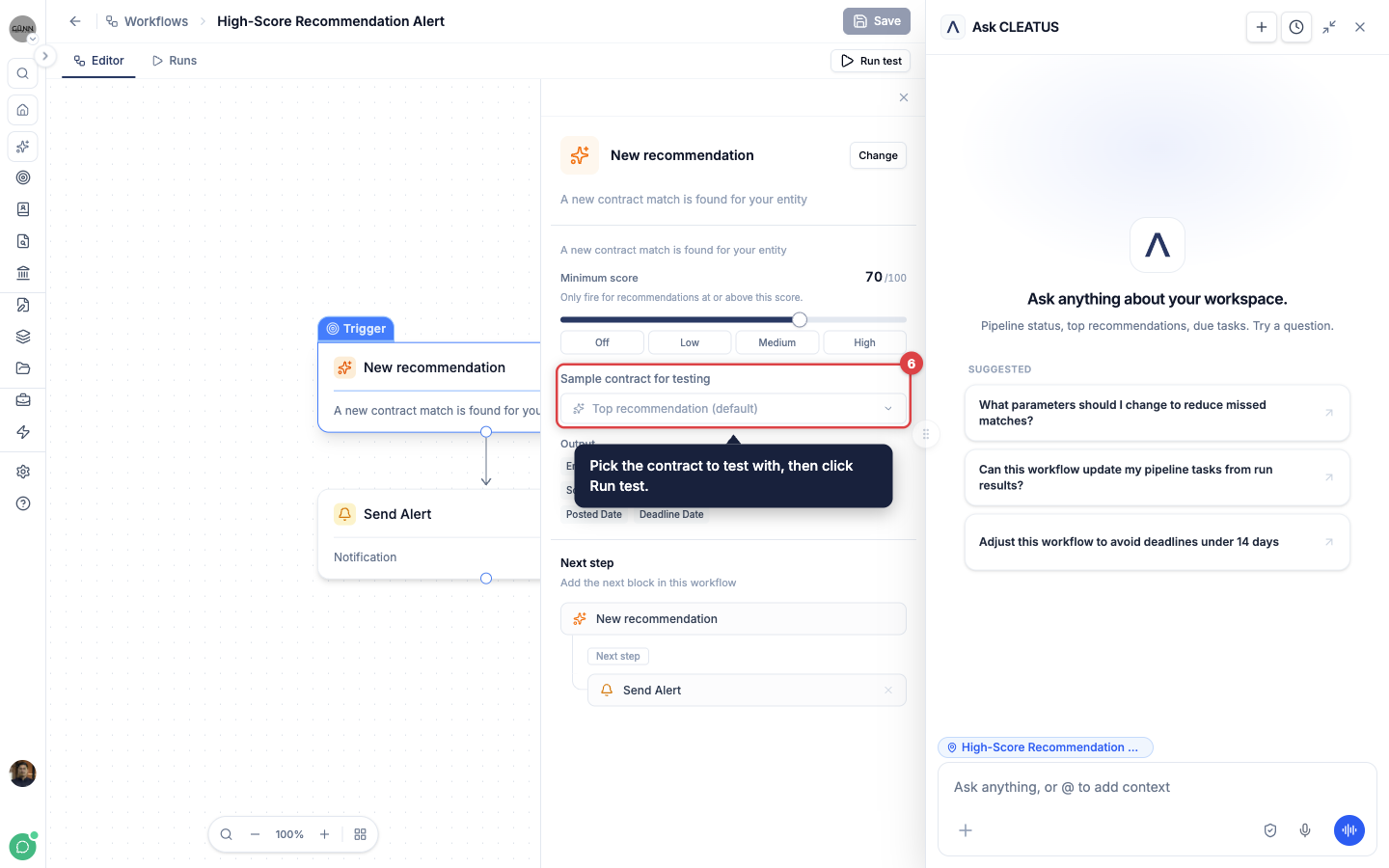
Click the trigger. Under Sample contract for testing or Sample pursuit for testing, pick the record to test with. If you pick none, CLEATUS picks one from your account. Click Run test and watch each step run on the canvas.
Turn it on
After a successful test, a switch replaces the Run test button. Switch it from Draft to Live. The workflow now runs each time its trigger fires.
A test run does real work:
A test sends real email and chat messages and changes your real pipeline. While you test, set the recipients to yourself. Pick a sample contract or pursuit that you can change.
Settings to complete for each template
- High-Score Recommendation Alert and Auto-Add to Pipeline: nothing is required. To change the score, click the trigger and move Minimum score.
- PWin Scoring Agent: nothing is required. To change the bid threshold, open the Gate: PWin At or Above Bid Threshold step. Then edit the rule value of 70. To choose the pipeline column, click Add to Pipeline and set Initial Column.
- Amendment Tracker, Award Tracker, and Pursuit Phase Slack Update: in the Slack step, choose the channel. If you do not use Slack, delete the Slack step.
- Shipley Capture-to-Proposal Pipeline: in Gate: Capture-Eligible Phase, choose the columns that start the process. Until you choose them, the process never starts. In each Move to step, choose the target column. In Start Proposal, choose the member under Run as member. In each task step, choose the member under Created by.
- Staffing Workflow: in Gate: Staffing Phase, choose your staffing column. Until you choose it, the analysis never runs. Keep your resumes in a Document Hub folder with "key personnel" or "resume" in its name.
Make the template your own
A template is a starting point, not a fixed process. To change it, open the Ask CLEATUS panel beside the canvas and describe the change. For example, ask "add a Teams message after the email." The canvas updates as GovCon Copilot edits the workflow. You can also add, remove, and edit steps by hand. See Creating a Workflow.
If a change goes wrong, click History and restore an earlier version. See Managing Your Workflows.
Use the Workflow Directory
The public Workflow Directory describes GovCon workflow ideas. It groups them in six categories: Opportunity Screening, Capture & Planning, Monitoring & Alerts, Reporting & Notifications, Pricing & Outreach, and Integrations. Each entry has a page that explains its trigger, its logic, and its actions.
A directory entry does not copy into your account. The SETUP WORKFLOW NOW button on an entry opens the pricing page. To build an entry in CLEATUS, do these steps:
- Open the entry and read what it does.
- If one of the templates above has the same purpose, start from that template. For example, the PWin Agent entry matches the PWin Scoring Agent template.
- If no template matches, open the New workflow page and describe what the entry does. GovCon Copilot builds the trigger and steps as a draft.
- Fit the draft to your account, run a test, and turn it on.
Some entries send results to other tools, such as Slack, Microsoft Teams, or your customer relationship management (CRM) system. Connect those tools first. See Connect Slack to CLEATUS, Connect Microsoft Teams to CLEATUS, and Integrate Zapier with CLEATUS.
Tip:
Not sure which template fits? Ask GovCon Copilot "which workflow templates do you have?" It lists them and can create the one that you choose.