
Managing Your Documents
Upload, organize, and search the company material CLEATUS learns from.
The Document Hub is where your company materials live so CLEATUS can use them everywhere. This guide shows you how to upload documents, organize them into folders, and find any of them later.
Or just ask CLEATUS
Create a folder for each agency I work with and file my capability statements into them
Uploading the files is still yours to do. The agent organizes what is already in the Document Hub.
Before you start:
Have your capability statement and recent past performance handy, they give CLEATUS the most useful context.
Manage your documents
Open the Document Hub
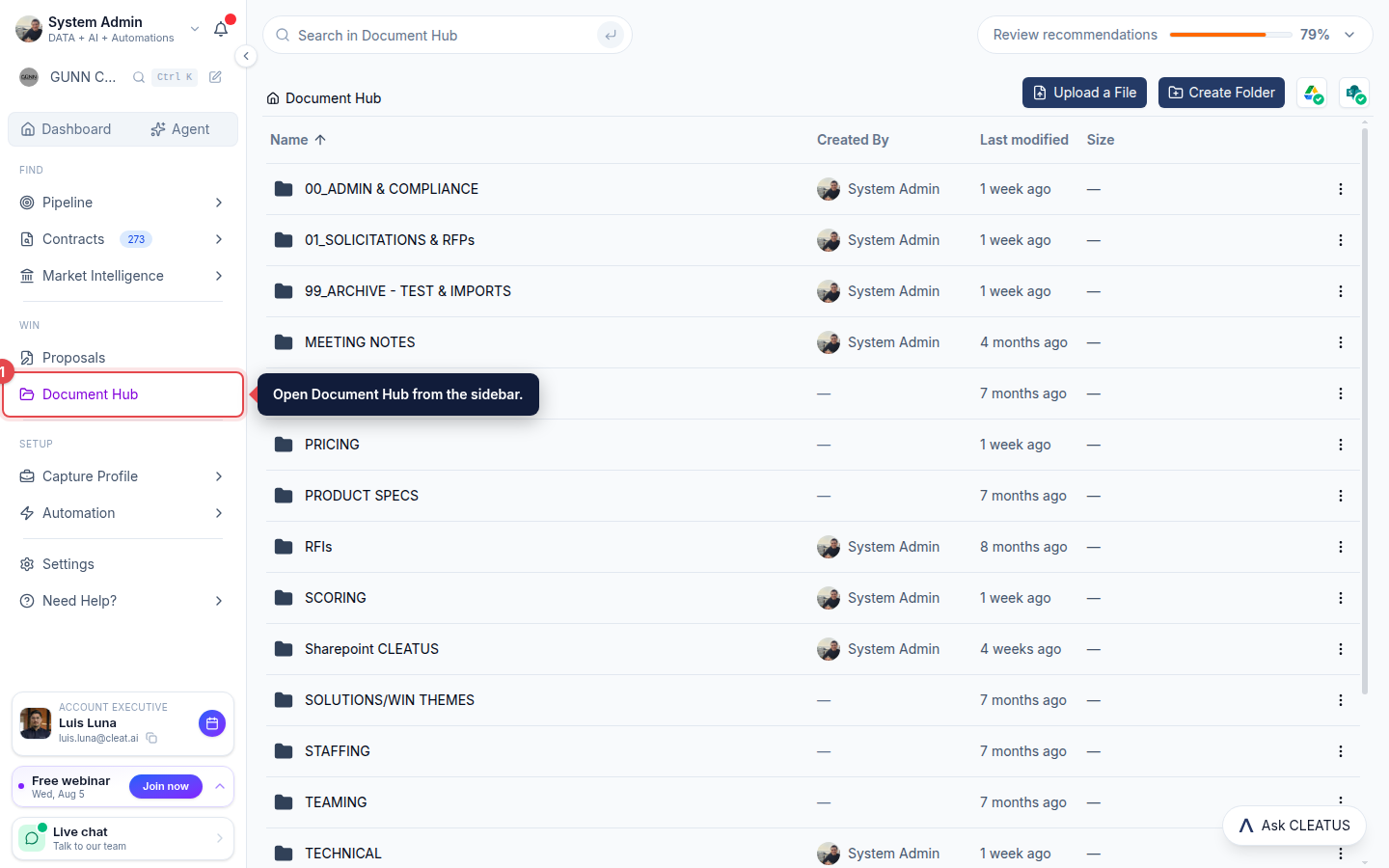
Open Document Hub from the sidebar to see everything your company has uploaded.
Upload your files
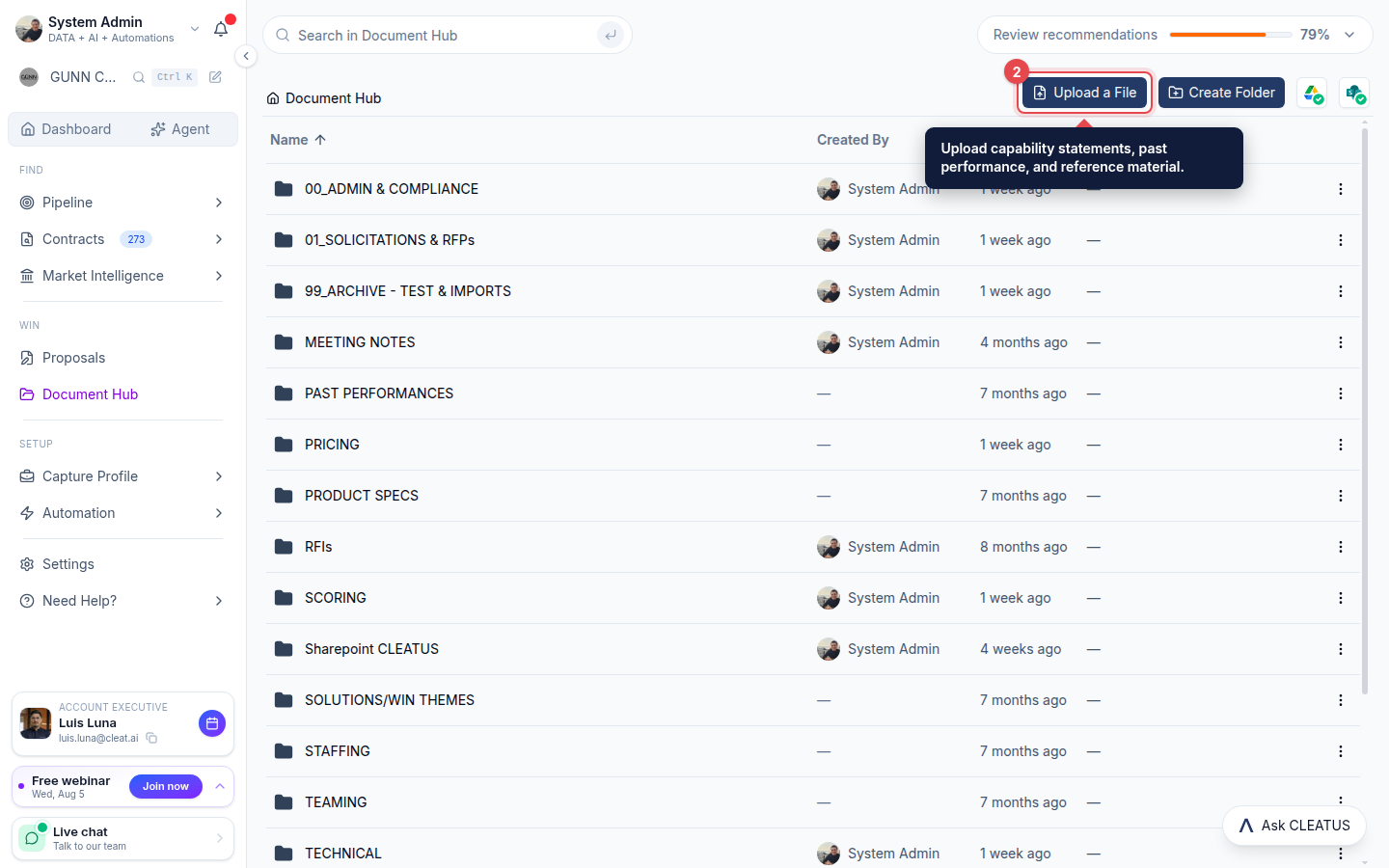
Click Upload a File, or drag files straight onto the page, to add capability statements, past performance, and reference materials.
Organize into folders
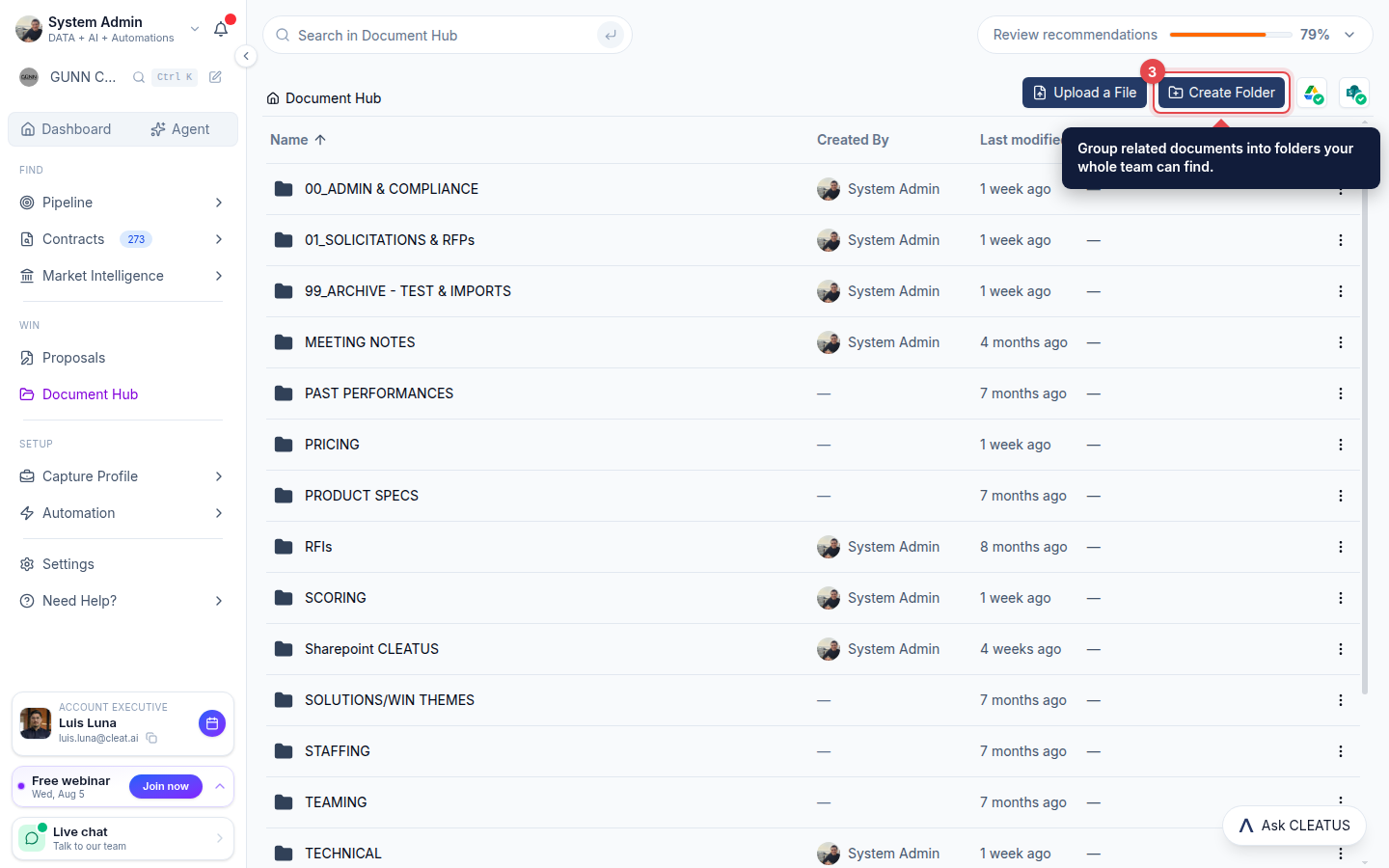
Use Create Folder to group related documents so your team can find the right material fast.
Let CLEATUS use them
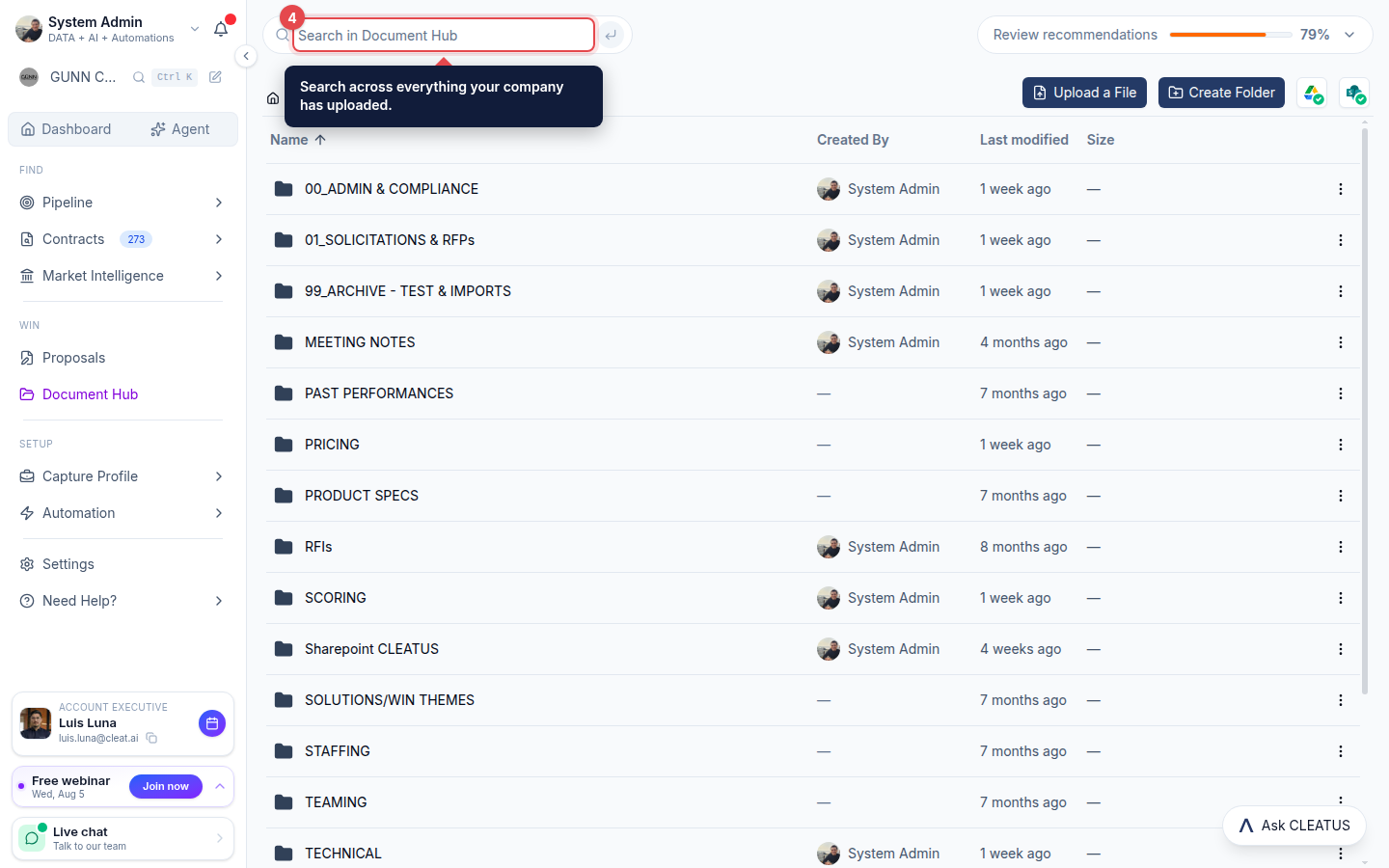
CLEATUS reads your documents as context when it drafts proposals and answers your questions, and the search bar finds any of them in seconds.
Tip:
Upload your capability statement first, it powers better matches and stronger proposals.