
Importing a Contract
Bring in an opportunity that CLEATUS does not have, from its documents or by hand, and keep it private to your company.
Some opportunities never reach a public portal. A contracting officer emails a request for quote (RFQ), or a customer sends a task order directly. Import them into CLEATUS. They then get the same contract page, pipeline, and agent support as your other work. This guide shows you how to import a contract and manage your imports.
Before you start:
Have the solicitation documents ready. CLEATUS accepts PDF, DOC, DOCX, XLS, XLSX, CSV, and TXT files. Each file can be up to 500 MB, and you can add up to 100 files. If your plan does not include imported contracts, the page shows an upgrade message.
Import from documents
Open Import Contract
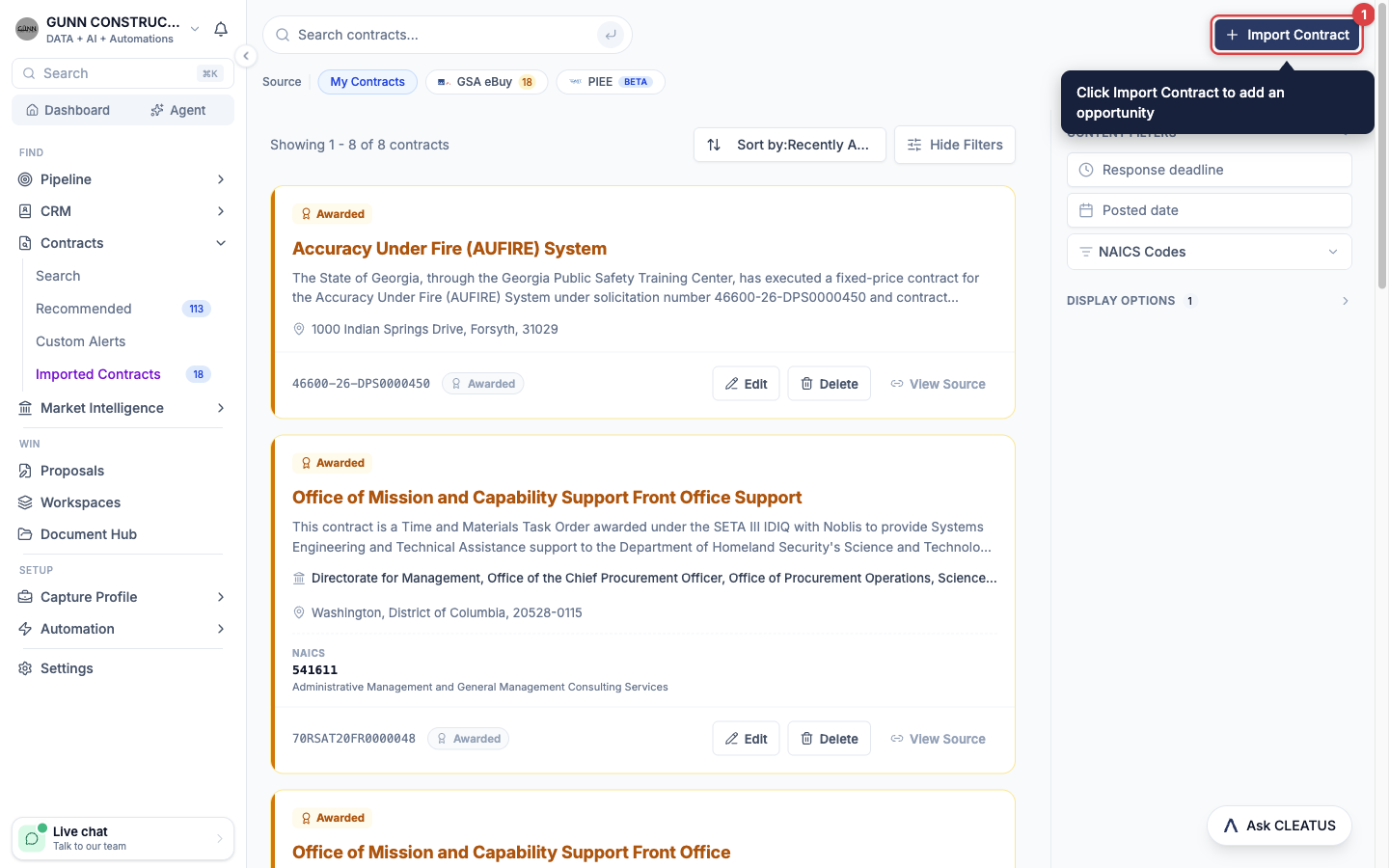
From the left sidebar, open Contracts > Imported Contracts. Click Import Contract.
Add the documents
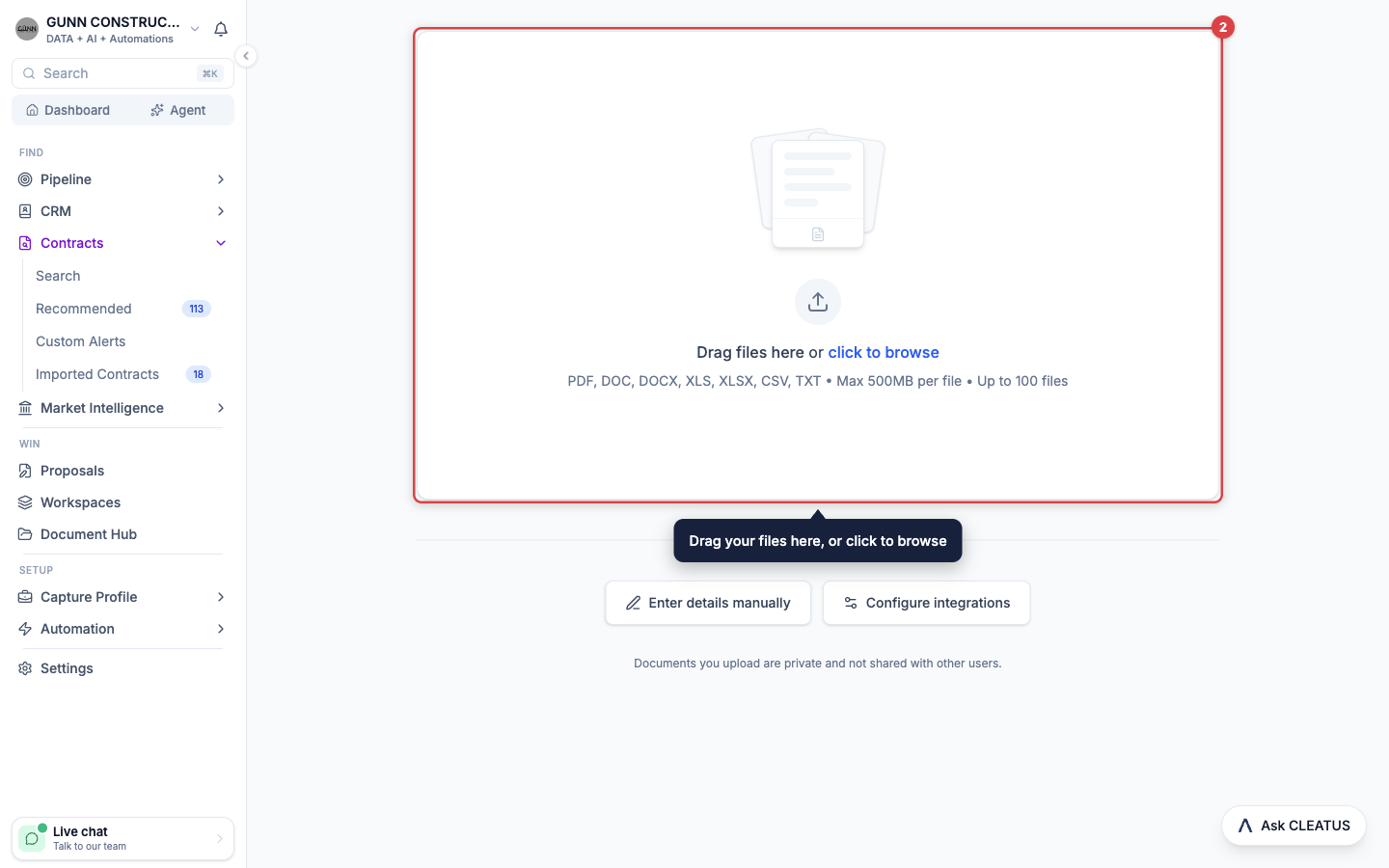
Drag your files onto the upload area, or click to browse. Then click the import button. It shows the number of files, for example Import 3 Documents.
Let the AI read them
The artificial intelligence (AI) reads the documents and extracts the contract details. If the analysis takes longer than expected, you can leave the page. The import continues, and you can finish it later from My Contracts.
Review the details
The review screen shows the extracted details on the left and your documents on the right. An amber badge counts the fields that need attention. Edit any value that is wrong. Pick the Source Type yourself, because the documents do not say where you found the opportunity.
Save the contract
Click Complete Contract. CLEATUS opens the new contract page.
Tip:
When no standard notice type fits the documents, the AI suggests a custom contract type. A violet note on the review screen tells you. Check the label before you save.
Enter the details by hand
Use manual entry when you have no documents, or when you want to type the details yourself.
- On the Import Contract page, click Enter details manually.
- Fill in the form. The form marks each required field with an asterisk, for example Contract Title and Solicitation Number.
- Click Create Contract. CLEATUS returns you to My Contracts.
The form has five sections: Basic Information, Place of Performance, Office Information, Classification, and Point of Contact.
Use your own contract types and sources
The Contract Type and Source Type pickers list the standard values. When none fits, use the label that the agency uses, for example task order request for proposal (TORFP).
- Open the Contract Type picker.
- Type your label, then click Create "your label". Or click Create custom type. On the Source Type picker, the action reads Create custom source.
- Save the contract.
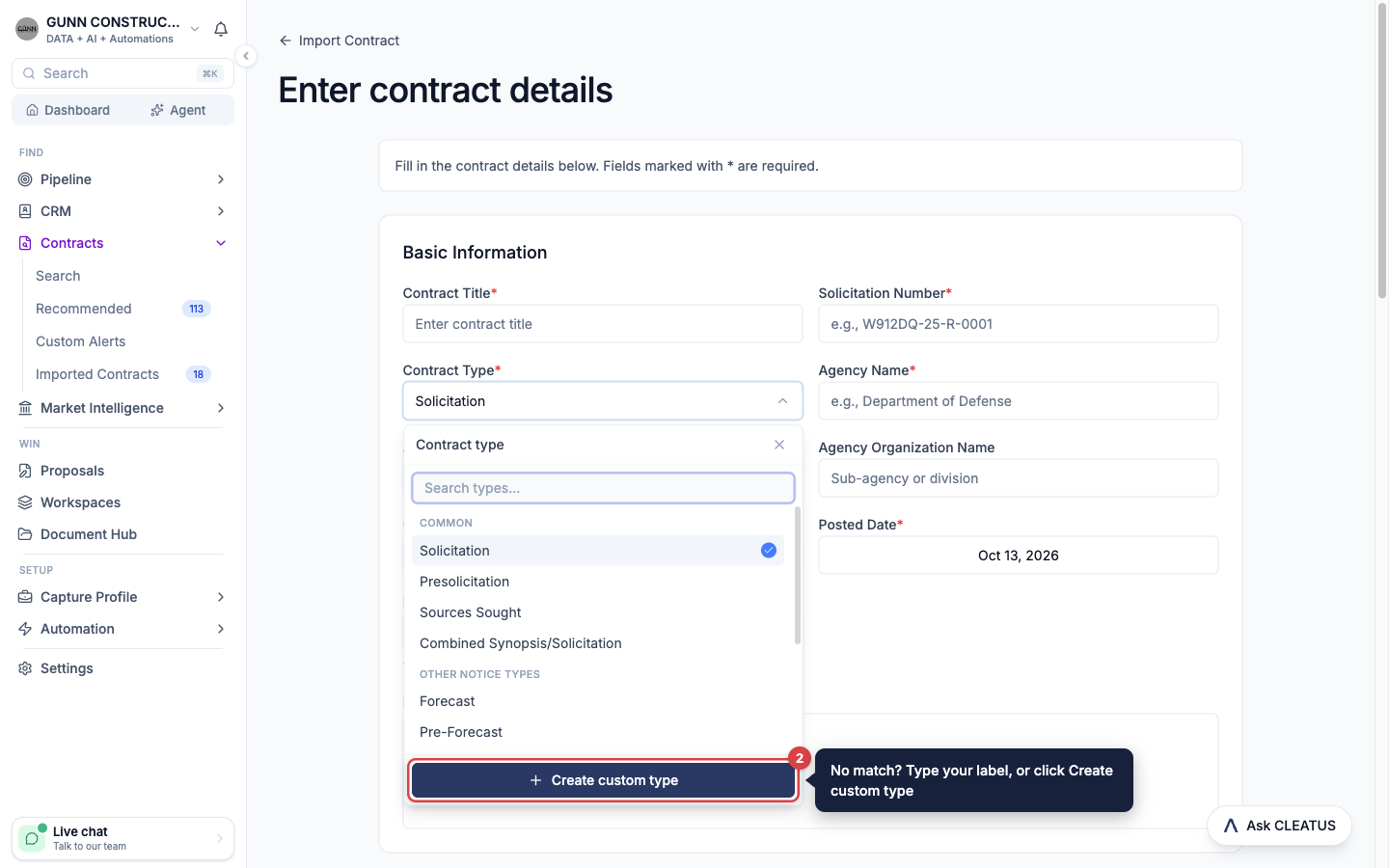
CLEATUS saves the label with the contract and shows it on the contract page. The next time you import, your labels show under Your types and Your sources. A new label can differ from one of yours only in case or spacing. Then CLEATUS keeps your existing spelling. Your labels also show in the Contract Type and Source Type lists of a workflow condition. An If or Filter step can route on them.
Record the contract vehicle
Use the Contract Vehicle field for the vehicle that the order is placed under, for example CFT. Do not put a vehicle in Source Type. The vehicle shows as Contract Vehicle on the contract page. Vehicles that you used before show under Your vehicles.
Who can see an import
Only your company can see a contract that you import. Documents that you upload are private and are not shared with other users. An import never gets a public CLEATUS page, so Copy Public Link does not show on it.
Manage your imports
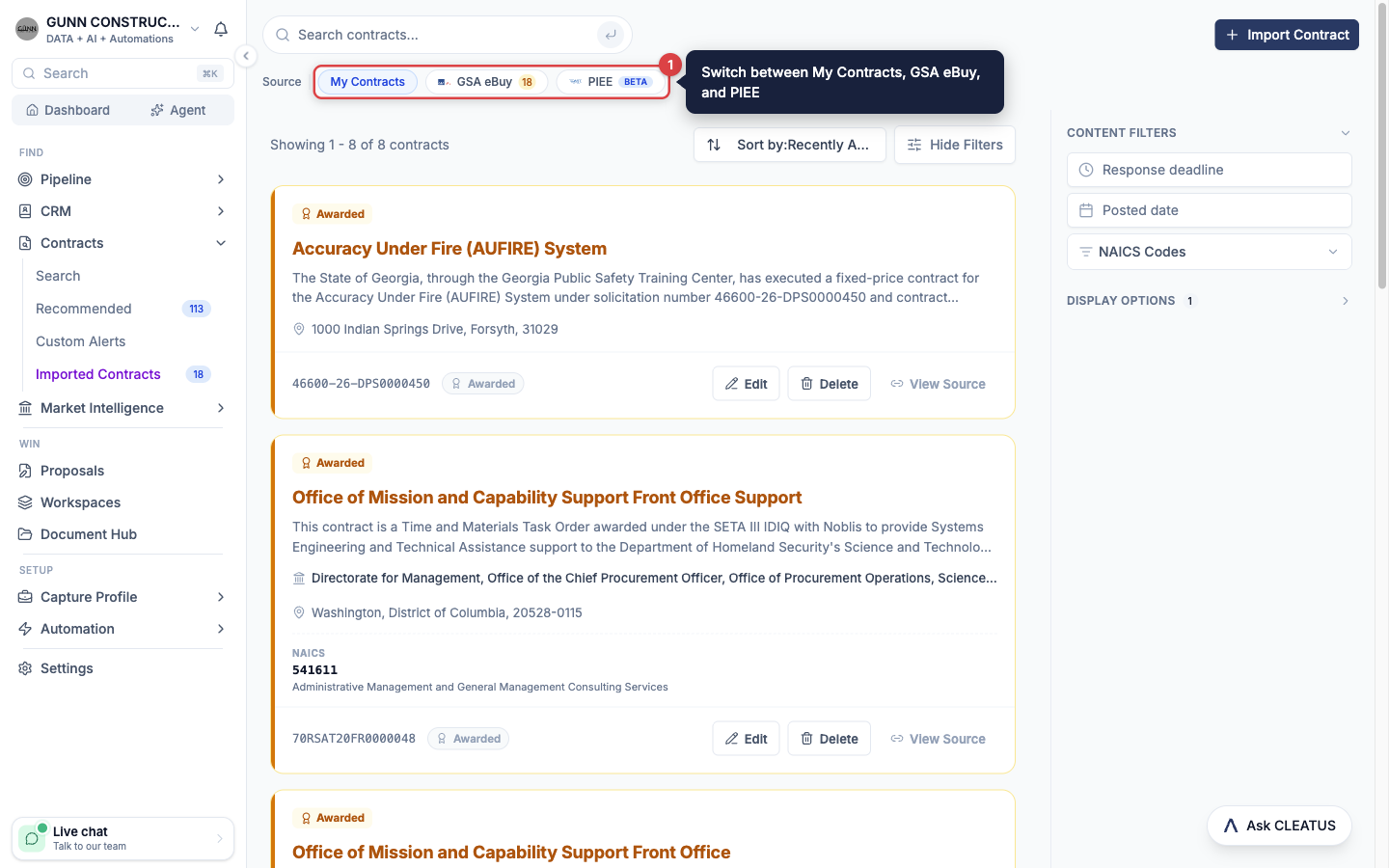
Contracts > Imported Contracts has three tabs: My Contracts, GSA eBuy, and PIEE.
My Contracts
The My Contracts tab lists the contracts that you imported, old and new. Imports from GSA eBuy and PIEE show on their own tabs. Use the search bar to find a contract, and Sort by to change the order. By default, the list hides contracts whose response deadline has passed. To include them, click Past Deadline under Display Options in the filter panel.
Each card has these actions:
- Edit opens the form. Change the details, then click Update Contract.
- Delete removes the contract from your imported contracts.
- View Source opens the source link that you entered.
- Add to Pipeline makes the contract a pursuit.
Two sections can show at the top of the tab:
- Processing lists imports that are still running. A failed import shows Import Failed. Click Retry to run it again, or Delete to remove it.
- Needs Review lists imports that are missing required fields. The card names the missing fields. Click Complete to open the review screen.
The sidebar shows a count beside Imported Contracts when an import needs your input.
GSA eBuy and PIEE
- The GSA eBuy tab shows requests for quote from your connected General Services Administration (GSA) eBuy account. It also shows the eBuy contracts that you imported. See GSA eBuy.
- The PIEE tab shows solicitations that Department of Defense (DoD) contracting officers directed to your company. They come from the Procurement Integrated Enterprise Environment (PIEE). See PIEE.
To connect either account, click Configure integrations on the Import Contract page.
Ask GovCon Copilot about your imports
GovCon Copilot is the CLEATUS AI agent. On Contracts > Imported Contracts, click Ask CLEATUS in the bottom-right corner. The agent reads the tab that you have open. A question on the GSA eBuy tab is about your eBuy requests, not your whole list.
Try questions such as:
- "Summarize my imported contracts."
- "What is due soonest?"
- "Which GSA eBuy RFQs are due this week?"
The agent gives each deadline with its time and time zone. It sees the response deadline, but not the end date of a contract. An import can be work that you hold or work that you only track. So the agent never says that you won it.
Add an import to your pipeline
Click Add to Pipeline on the import card, or open the contract and click Add to Pipeline. The pursuit lands in the Triage column of your pipeline. From the contract page, you can then extract the requirements and start your response. If the Contract Breakdown tab is empty, click Generate with AI.