
Exploring Market Intelligence
Research how agencies buy, who wins their work, and who to contact.
CLEATUS Market Intelligence is more than a directory. It shows how each agency spends, who wins its work, which vehicles carry that work, and which people run it. Use it to decide where to compete, who to team with, and when a recompete is coming. This guide shows how to research the market and put what you learn to work.
Or just ask CLEATUS
Who wins HVAC work at the VA, and which contracting officers run those awards?
Explore the market
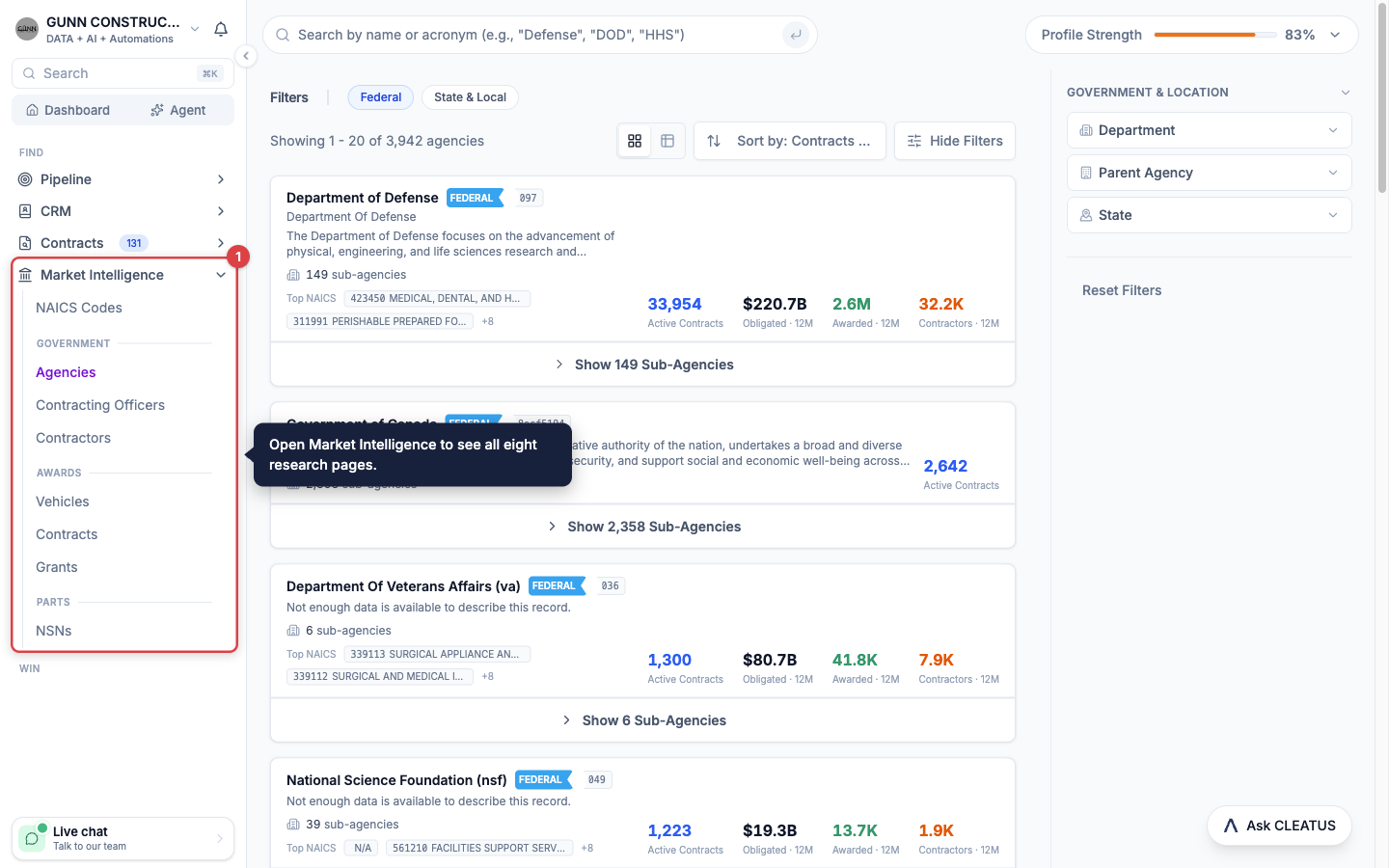
Open Market Intelligence
Open Market Intelligence from the sidebar. NAICS Codes lists the North American Industry Classification System (NAICS) industries. Under Government, open Agencies, Contracting Officers, or Contractors. Under Awards, open Vehicles, Contracts, or Grants. Under Parts, open NSNs, the National Stock Numbers (NSNs) of the parts catalog.
Find an agency
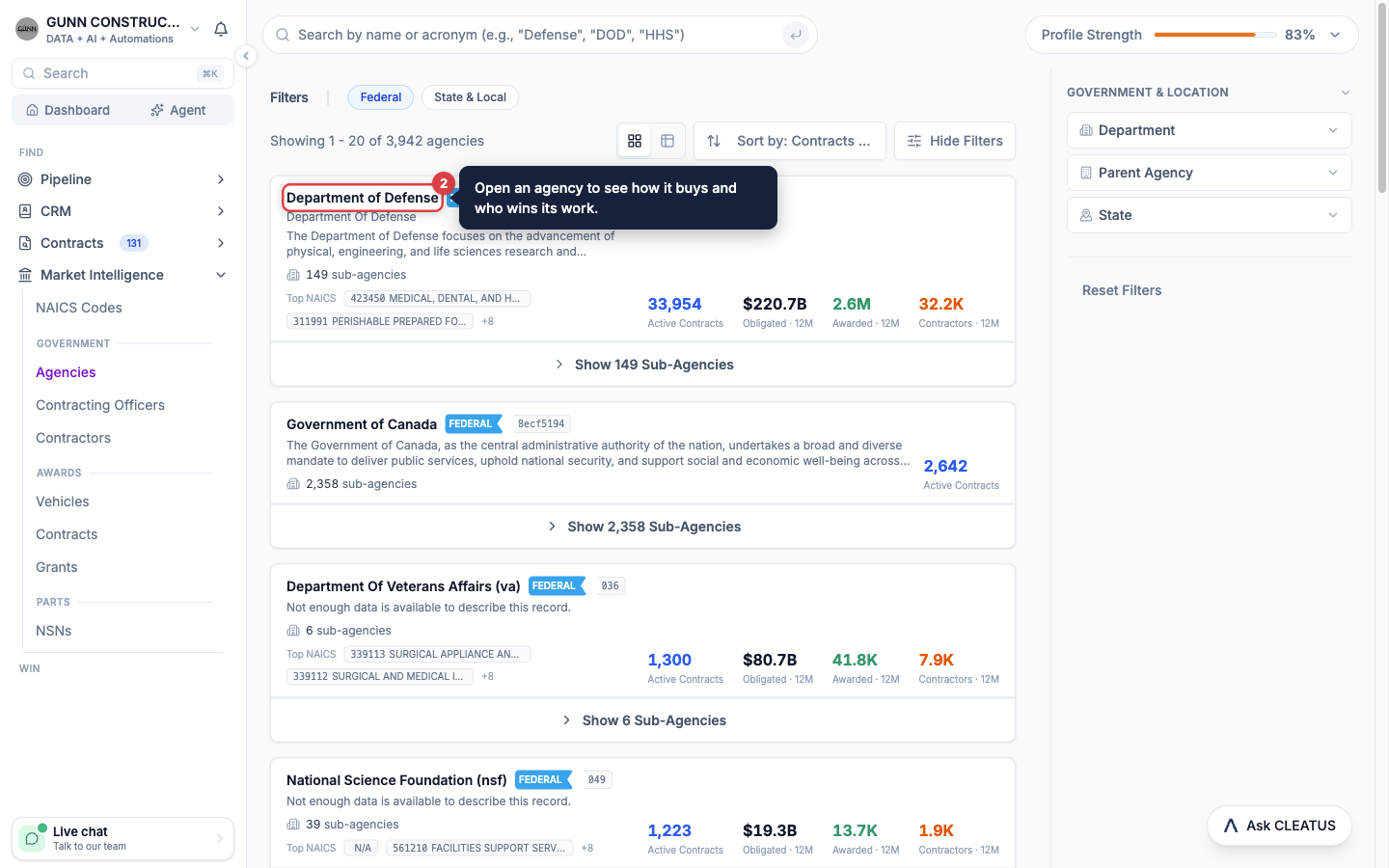
Open Agencies and search by name or acronym. Open an agency to see how it buys, who wins its work, and who leads it.
Switch between federal and SLED
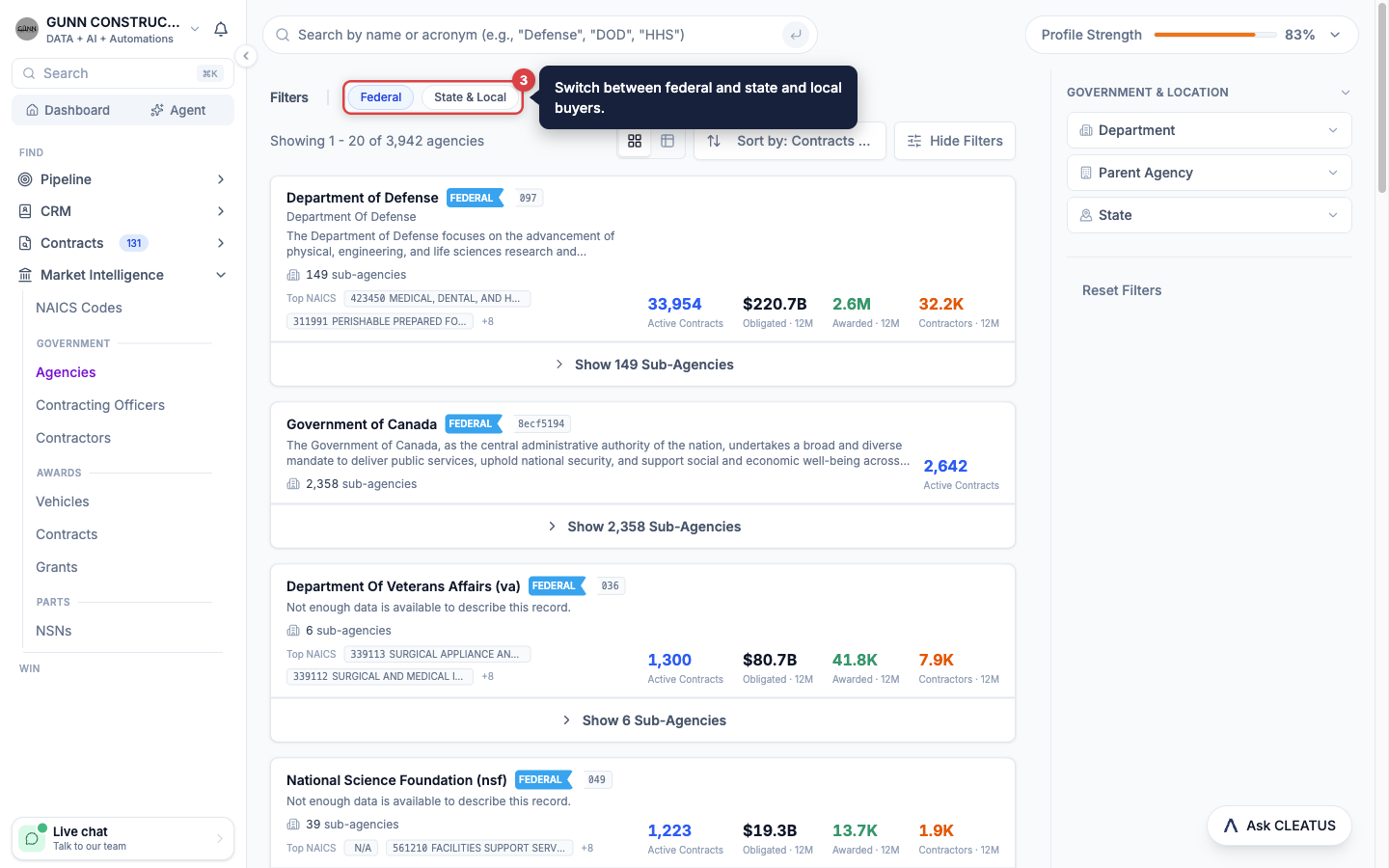
Click Federal or State & Local to research the side of the market that you sell into. SLED means state and local government.
Build a target list
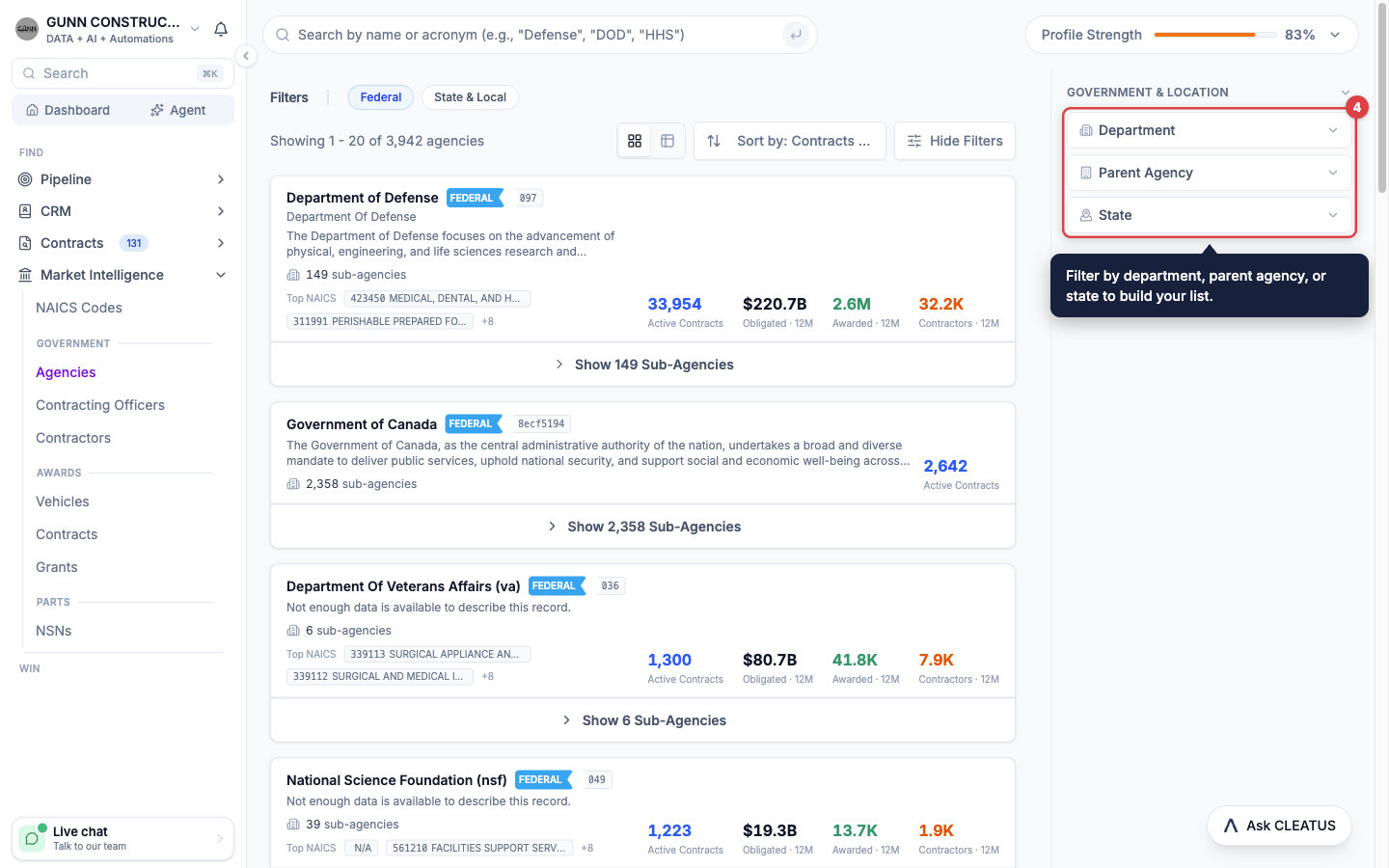
Sort agencies by contract count. Filter by department, parent agency, or state to make a shortlist of the agencies that are worth your capture time.
Read an agency
An agency page has these tabs. A tab shows only when the agency has data for it.
- Overview shows the AI Mission Profile, Key Metrics, spending trends, Top Contractors, Sub-Agencies, and Top Contracting Offices. Use This Agency Only or With All Subagencies to change the scope. Use Last 12 months or All time to change the period.
- Leadership is an org chart of the agency's senior leaders, from the Office of Personnel Management (OPM) Plum Book. It shows filled, vacant, and acting seats.
- Signals lists the agency's public meetings, such as advisory committees and hearings. Upcoming meetings come first.
- Opportunities lists the agency's solicitations that are still open for bid.
- Awarded lists the contracts that the agency awarded.
- Forecasts lists the procurements that the agency plans, including CLEATUS pre-forecasts of likely recompetes.
- Vehicles, Contractors Awarded, and Contracting Officers show the vehicles, companies, and people behind the agency's awards.
Top Contracting Offices ranks the offices inside the agency by award dollars. Use it to find the office that actually buys what you sell.
Find the people
Open Contracting Officers to search government contacts by name, agency, or email. Click the star on a contact to save it. Turn on Saved to see only your saved contacts.
A contact page shows the contact's agency chain and the date CLEATUS last saw the contact on a notice. It has these tabs:
- Overview, with an AI Professional Profile.
- Contracts, the active solicitations and awarded contracts that are associated with the contact.
- Colleagues, the other contacts who appear on the same solicitations. Sort by Most shared to see the closest colleagues first.
- Agency Contractors, the companies that received awards from the contact's agency.
Size up a contractor
Open Contractors and search by name, Unique Entity ID (UEI), or Commercial and Government Entity (CAGE) code. Click the star to save a company, and turn on Saved to see your shortlist.
A contractor page shows the company's full federal footprint. The tabs show only when the company has data for them:
- Overview shows total awards, award trends by agency and type, places of performance, and an AI Capability Profile.
- Awards lists every award. Filter by Prime Contracts, IDVs (indefinite delivery vehicles), Sub-contracts, Grants, or Sub-grants.
- Corporate Family lists the parent and subsidiary records of the company. The header shows Parent with the number of subsidiaries, or Subsidiary of with the parent's name.
- Vehicles Held lists the contract vehicles that the company holds. Click a vehicle or its task order count to see the orders placed under it.
- Teaming Partners lists the other subcontractors that worked under the same prime awards as the company.
- Primes and Subcontractors show the company's subcontract relationships, from federal subaward filings.
- Expressed Interest lists the state and local opportunities where the company is on an interested-vendor or plan-holder list.
- Approved Supplier shows the NSNs for which the company is a Defense Logistics Agency (DLA) approved source, and where it is the sole approved source.
- Contacts lists the points of contact that the company publishes on General Services Administration (GSA) eLibrary and NASA Solutions for Enterprise-Wide Procurement (SEWP). An address that reaches a team is marked Shared inbox.
- Registration shows the company's SAM.gov registration details.
To find a partner and add it to a pursuit, see Finding Teaming Partners.
Trace a contract vehicle
Open Vehicles and filter by vehicle family, type, status, agency, NAICS code, ceiling, or dates. A vehicle page has these tabs:
- Overview shows Ceiling Utilization, Obligations by Year, task orders by NAICS code and by place of performance, and the Award Hierarchy (prime holders, task orders, and subcontracts).
- Task Orders lists every order under the vehicle.
- Awardees lists each company on the vehicle with its share of the awards.
- Subcontracts shows who subcontracts under the vehicle, and for how much.
Read a past award
Open Contracts or Grants to search federal awards. For contracts, choose IDV Awards, Prime Awards, or Sub Awards. Use the Recompete Window filter (Next 12 mo or Next 18 mo) to find awards that end soon.
An award page starts with a note that the award is past work, not an open solicitation. The note shows the award's end date. When CLEATUS can trace the original solicitation, click View the original solicitation. When it cannot, the note tells you why, for example an order placed under a vehicle.
The award page also shows:
- The Activity Timeline of obligated dollars over the life of the award.
- Obligated vs Outlaid, the dollars committed and the dollars paid for each fiscal year, with a Funding & Timeline summary.
- The vehicle that the award belongs to, and for a vehicle, the Awards Under This IDV.
- A History tab with every modification. Click Export to download it as a CSV file.
- A Subcontractors tab with every company paid under the award.
Look up a part
Open NSNs to search the DLA parts catalog by NSN, part number, or item name. Filter by supply class, supply group, or approved source. A part page has these tabs:
- Overview describes the item.
- Approved Suppliers lists the companies that DLA approves for the part. Openly competable means any capable supplier can quote. Approved source only means only the listed companies can quote.
- MOE Rules shows the acquisition rule of each Major Organizational Entity (MOE) that manages the part.
- Government Organizations and Additional Identifiers show more catalog data.
- DIBBS Opportunities and Awards and Pricing list the solicitations and awards that named the part.
To decide whether to quote a part on the DLA Internet Bid Board System (DIBBS), see Researching a Part for DIBBS.
Read an industry
Open NAICS Codes and select a code. The Overview tab shows an AI Industry Description and the Small Business Size Standard. Its Competition section shows how contested the code usually is: Usually Single-Bid, Fewer Bidders, Moderate Competition, or Crowded Field. The Contracts and Contractors Awarded tabs list the work and the winners.
Ask the agent on any page
The Ask CLEATUS panel opens automatically on agency, contractor, contracting officer, NAICS, vehicle, and NSN pages. The agent knows the record that you have open. Ask it to compare competitors, list an agency's decision makers, or build a teaming list. For example, on a contractor page, ask "Give me the contacts for this company."
Tip:
Award end dates and the Recompete Window filter show when work comes back to market. Start your capture plan before the solicitation posts. See Finding Recompetes and Forecasts.