
Finding Teaming Partners
Search contractors, read who they already work with, and bring the right partner into your pursuit.
This guide shows you how to find a teaming partner in Market Intelligence. You search contractors, read who they already work with, and save a shortlist. Then you add a partner to your pursuit and reach out. CLEATUS builds each teaming network from federal subaward filings, so you see real relationships, not claims.
Or just ask CLEATUS
Which woman-owned subcontractors have worked at Fort Bragg, NC since fiscal year 2024?
The agent reads the federal subaward filings for that place and ranks the companies by their work there.
Before you start:
Name the gap that the partner must fill: a capability, a certification, agency past performance, or a place. The pipeline and the customer relationship management (CRM) are part of the DATA + AI plan and higher plans.
Find and save candidates
Open Contractors
Open Market Intelligence > Contractors in the sidebar. Search by company name, Unique Entity ID (UEI), or Commercial and Government Entity (CAGE) code.
Filter the list
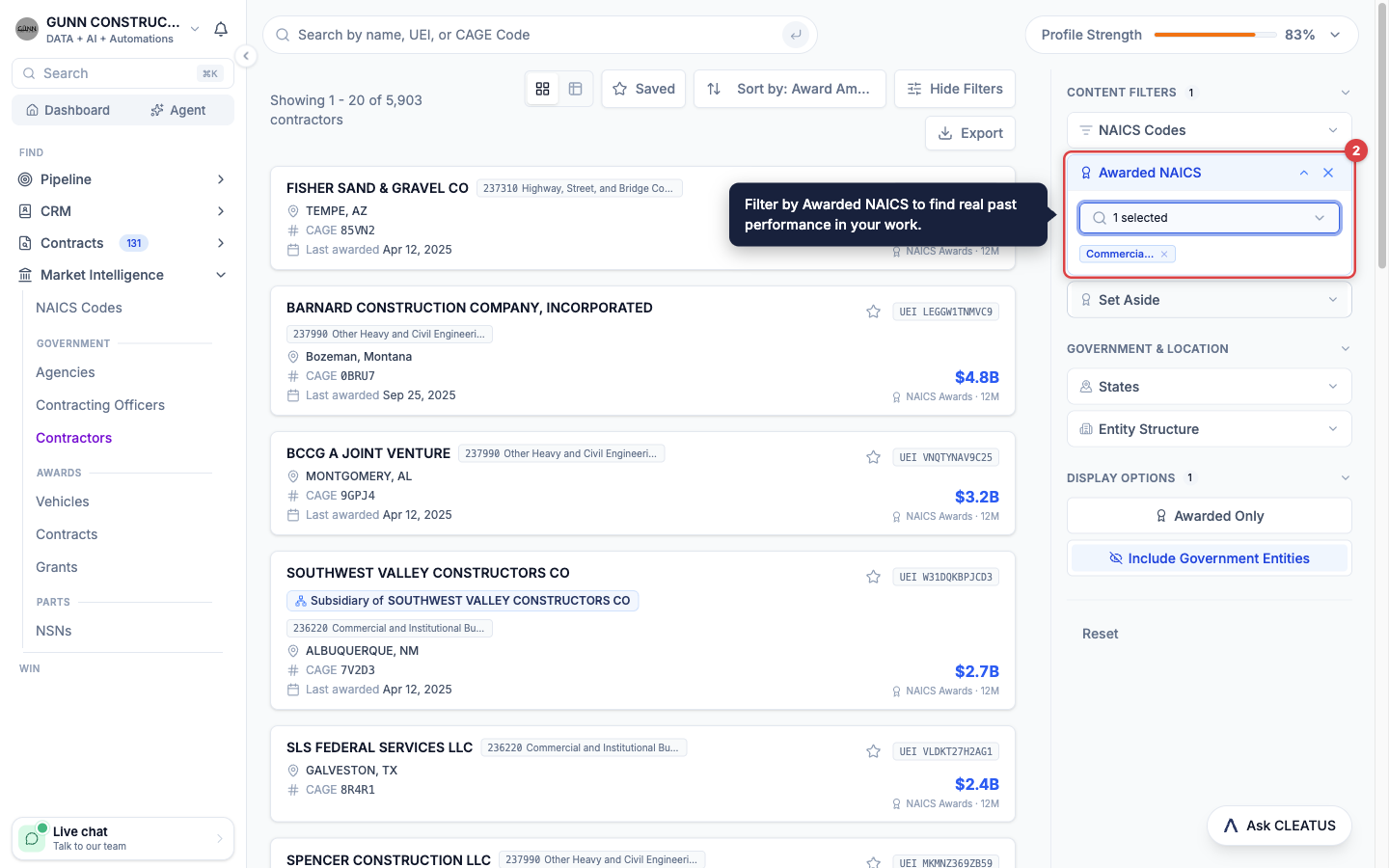
Use the filters on the right. Click Show Filters if they are hidden. NAICS Codes filters by the North American Industry Classification System (NAICS) codes that a company registered. Awarded NAICS filters by the codes on awards that a company actually won. Use it to find real past performance in your work. Set Aside filters by registered business types, such as 8(a) or woman-owned. You can also filter by States and Entity Structure, or turn on Awarded Only.
Compare and export
Switch to the table view to compare companies side by side. Click Export and select a size: 100, 250, 500, or 1000 rows. CLEATUS downloads the list as a comma-separated values (CSV) file.
Save your shortlist
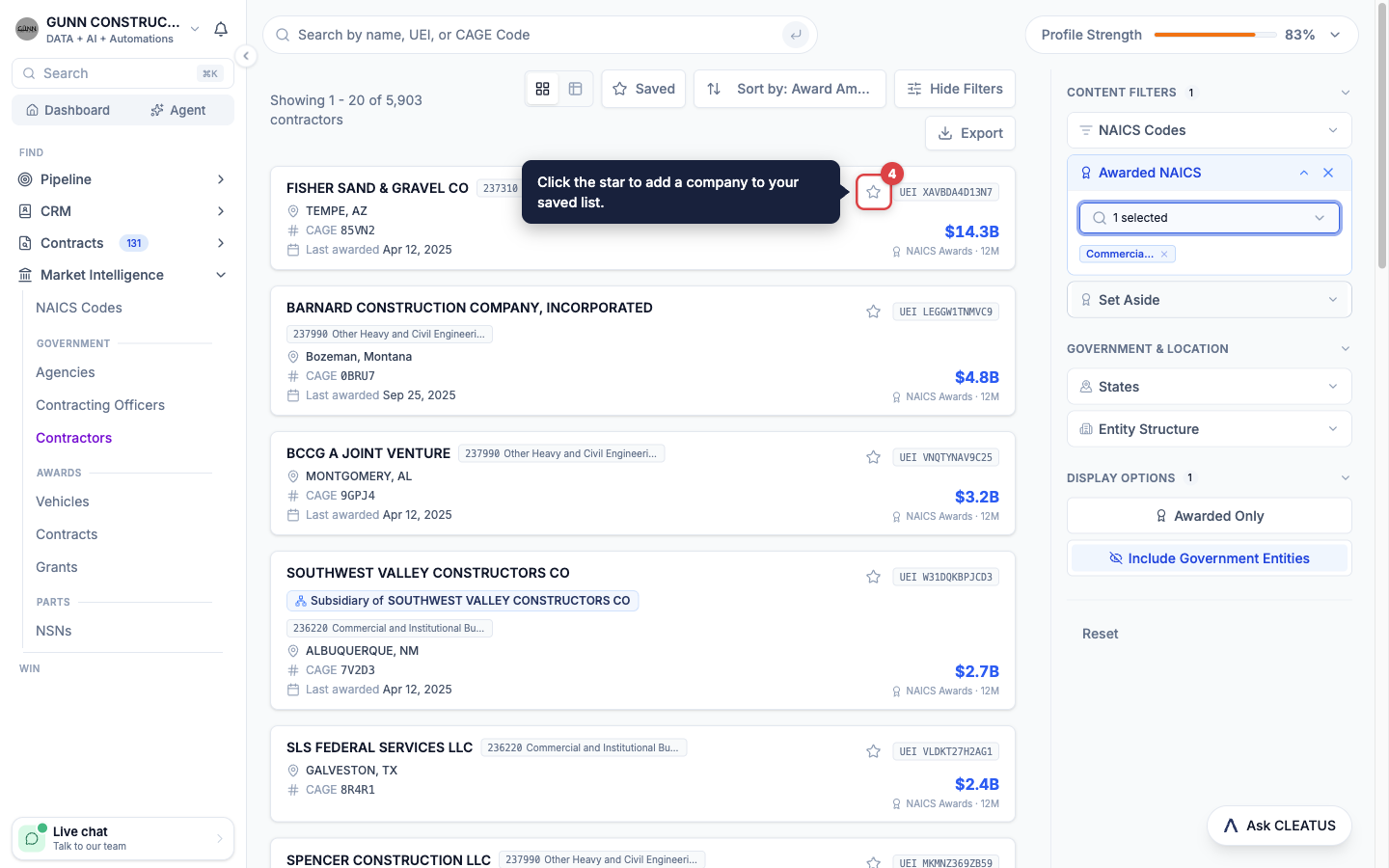
Click the star on a company to save it. Turn on Saved to see only your saved companies. Your saved list is personal, so your teammates do not see it. To share a partner with your team, add it to your CRM (see below).
Read a candidate's network
Open a company from the list. Its Overview tab shows where and how the company wins. Then read the tabs below. Each tab shows only when the company has data for it.
Primes
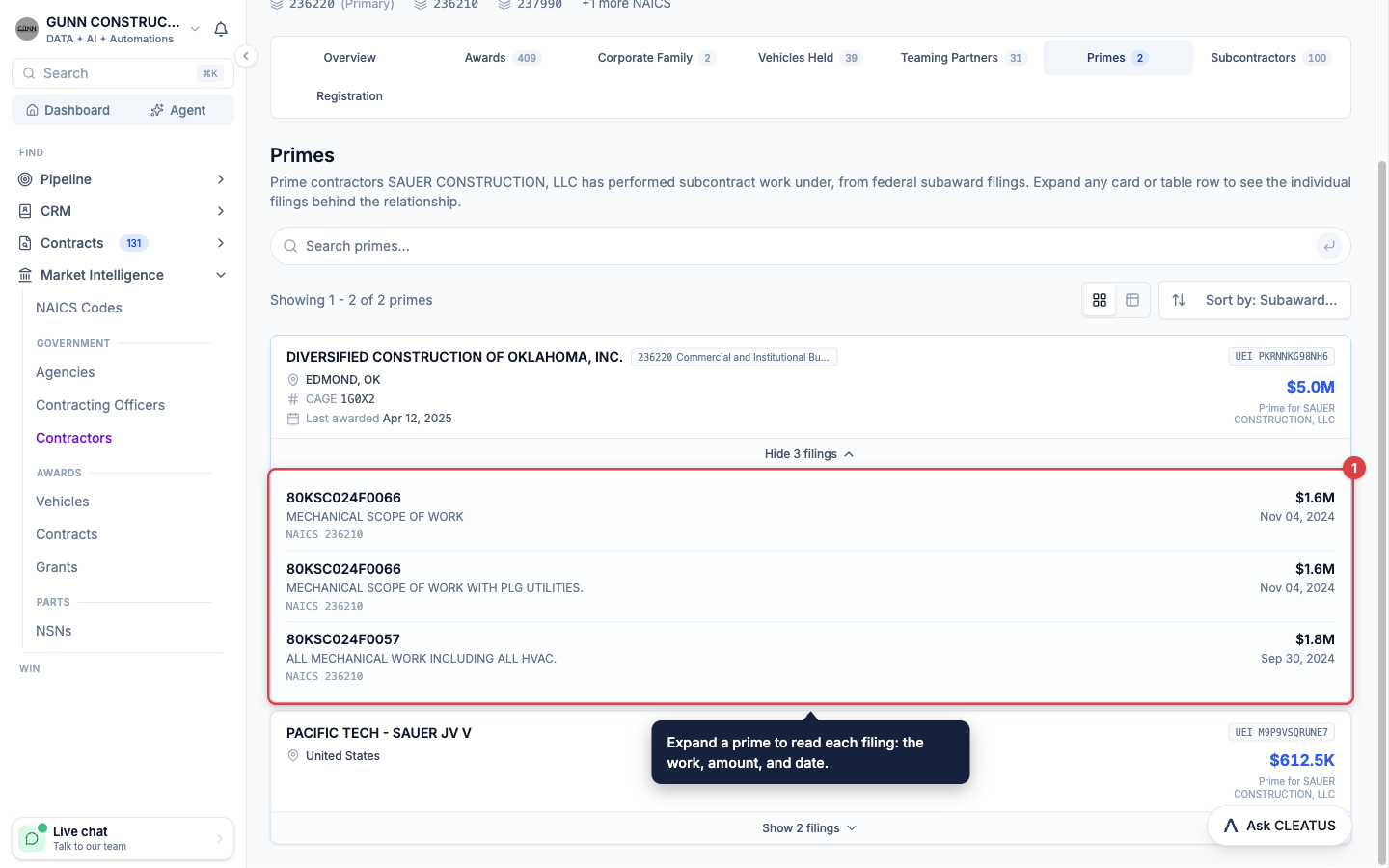
Primes lists the prime contractors that the company subcontracted under. Each card shows the subawarded dollars and the number of filings. Expand a card to read each filing: the work, the amount, the date, and the NAICS code. Repeat work under your target prime is strong evidence of a good fit.
Subcontractors
Subcontractors lists the companies that the company hired as the prime. Use it to find a prime that already subcontracts work like yours. It also shows which subcontractors a competitor relies on.
Teaming Partners
Teaming Partners lists the other subcontractors that worked under the same prime awards as the company. Use it to grow your list from one good partner. The tab has the same search, filters, and sort as the Contractors page.
Expressed Interest
Expressed Interest lists the opportunities where a procurement portal lists the company as an interested vendor. Use it to find a prime that already chases a program that you want to join.
Contacts
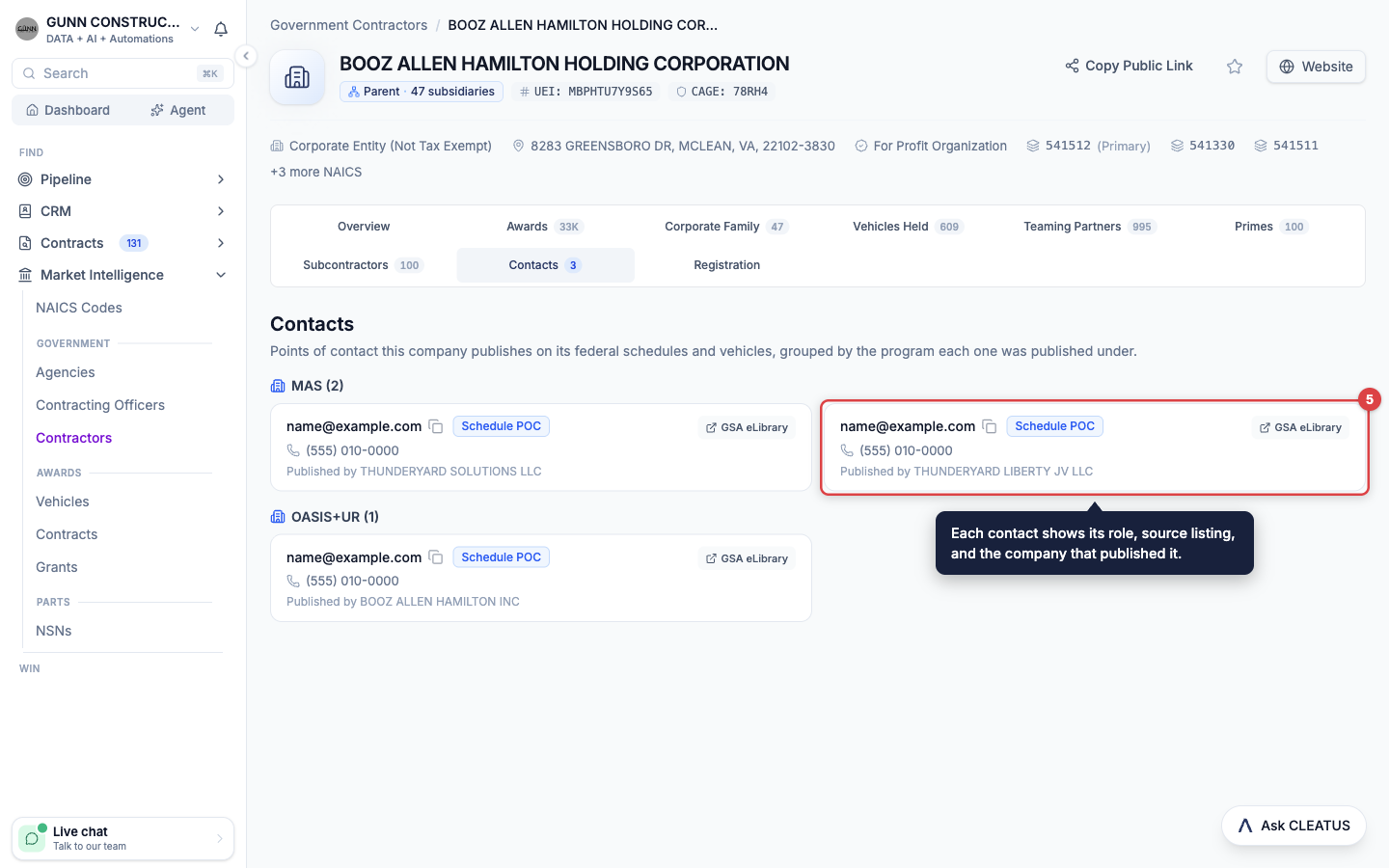
Contacts lists the points of contact that the company publishes on its federal schedules and contract vehicles. The contacts are grouped by schedule or vehicle. Each card shows the role, the email, and a link to the source listing. Some cards also show a phone number. An address that reaches a team shows Shared inbox. On a parent company, the tab also lists the contacts that its subsidiaries published.
Vehicles Held shows the contract vehicles where the company can take orders. Corporate Family shows its parent and subsidiaries. Check both before you choose between two related companies.
Search by place with the agent
The States filter uses the headquarters of a company. A company next to a base may never have worked on it. To find who actually worked at a place, ask GovCon Copilot. The agent searches federal subaward filings by place of performance.
Ask the question
Open Ask CLEATUS, or click Agent in the sidebar. Name the base, city, or zip code, and the state. For example: "Which subcontractors have worked at Camp Lejeune, NC since fiscal year 2025?" Renamed bases match their old names. Add zip codes when the filings for a base use the name of a nearby town.
Narrow the list
Add a trade, such as "electrical" or "roofing." The agent reads the scope of each filing and keeps the companies whose work matches. Add a status, such as "woman-owned" or "HUBZone" (Historically Underutilized Business Zone). The agent filters before it ranks, so a qualifying company outside the top 20 stays on the list.
Read the results
For each company, the agent shows its subawards and dollars at the place. It also shows the primes, the agencies, the scope of work, and the first and last fiscal year there. The answer states the fiscal years that it covers and the date of the latest filing. The chat lists the top 20 companies.
Check each status
The agent marks each status as verified or reported. An agency grants a verified certification, such as 8(a) or HUBZone, and can revoke it. A reported status is a claim that the company made in its System for Award Management (SAM) registration. A missing certification means unknown, not "no." Confirm it in the Small Business Administration (SBA) search before you rely on it.
Dates in a place search:
Most filings since early 2025 have no place of performance. In a search without a trade, CLEATUS places those filings by the city and state of their prime award. A search with a trade uses only recorded places, so its results end in early 2025.
In an AI Workflow, an AI Agent step can run the same place search. It saves the results as an Excel workbook and a Portable Document Format (PDF) summary.
Add a partner to your pursuit
Add the company to your CRM
Open CRM > Companies and click Add a company. Enter the Name, then click Add and open. On the company page, click Link to SAM, search by name or UEI, and select the registration. Your whole team now sees the company and its SAM data. See Managing People, Companies, and Agencies.
Link the partner to a pursuit
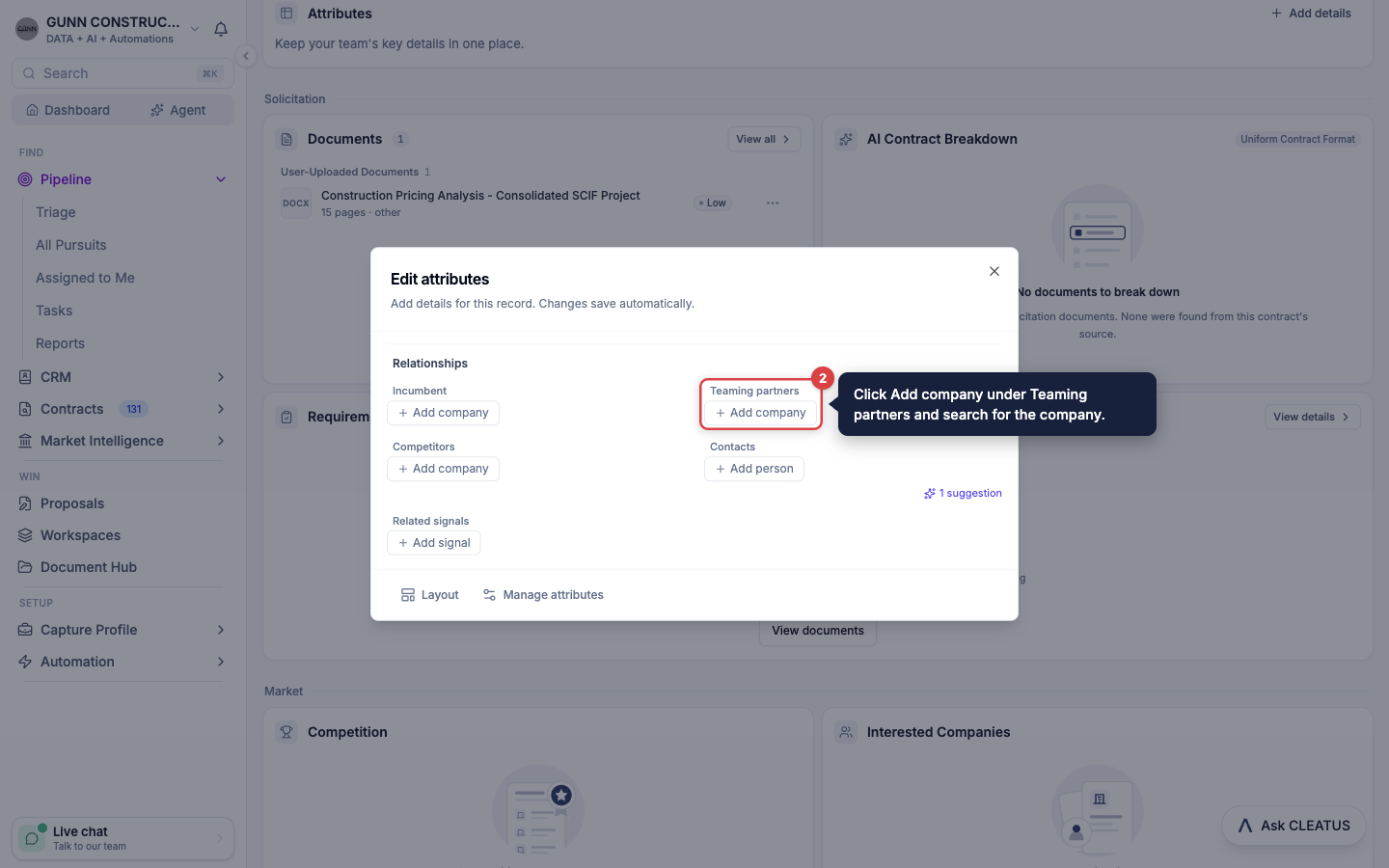
Open the pursuit. On the Contract Overview tab, find the Attributes card and click Edit attributes. On an empty card, the button is Add details. In the Teaming partners field, click Add company and search for the company. You can also start from the company page. Open its Pursuits tab, click Add to pursuit, and select Teaming Partners in As.
Or ask the agent
When the company is in your CRM, ask GovCon Copilot, for example: "Add Acme Federal to the Teaming Partners field on my Fort Bragg roofing pursuit." The agent names the pursuit, the field, and the company before it writes the change.
Reach out
Get the contacts
Open the Contacts tab of the company. Click the copy icon beside an email to copy it. For several companies, ask the agent: "Give me the contacts for these contractors." The agent returns the published contacts of each company with the source of each contact. It can also include contacts from the parent company or its subsidiaries. If no contact exists, the agent tells you.
Track the conversation
Add the person in CRM > People, and set Works at to the company. On the person page, click Email to start an email. Click Log to record a call, a meeting, or an email. Link the person to your pursuit in the Contacts field.
Tip:
Start your first message with the work that you share. Name the agency, the prime, or the place where your experience and theirs overlap. The filings on the Primes and Subcontractors tabs give you those facts.
Other places to find partners
- Subcontract signals: in Contracts > Recommended, a SIGNAL badge marks a scope inside a prime contract that a subcontractor can fill. Open it to see Potential Primes, the companies interested in the prime contract. See Teaming.
- Award pages: the Subcontractors tab of a past award lists every company that the prime paid under it.
- Vehicle pages: the Awardees and Subcontracts tabs show who holds a vehicle and who works under the holders.
- Agency pages: the Contractors Awarded tab lists the companies that win the agency's work.