
Using Workspaces
Describe the work, let the agent create the files, and keep your workspaces organized.
A workspace is an artificial intelligence (AI) agent, a chat, and a set of files in one place. You describe the work, and the agent creates real Word, Excel, and PowerPoint files that you edit. Every proposal opens in a workspace. A standalone workspace does not need a pursuit. Use it for work such as a capability statement, a pricing worksheet, or a competitor award benchmark.
Before you start:
Upload your past performance, capability statements, and other company documents to the Document Hub. The agent in every workspace reads them, so the first draft starts from your real company information.
Start a workspace
Open Workspaces
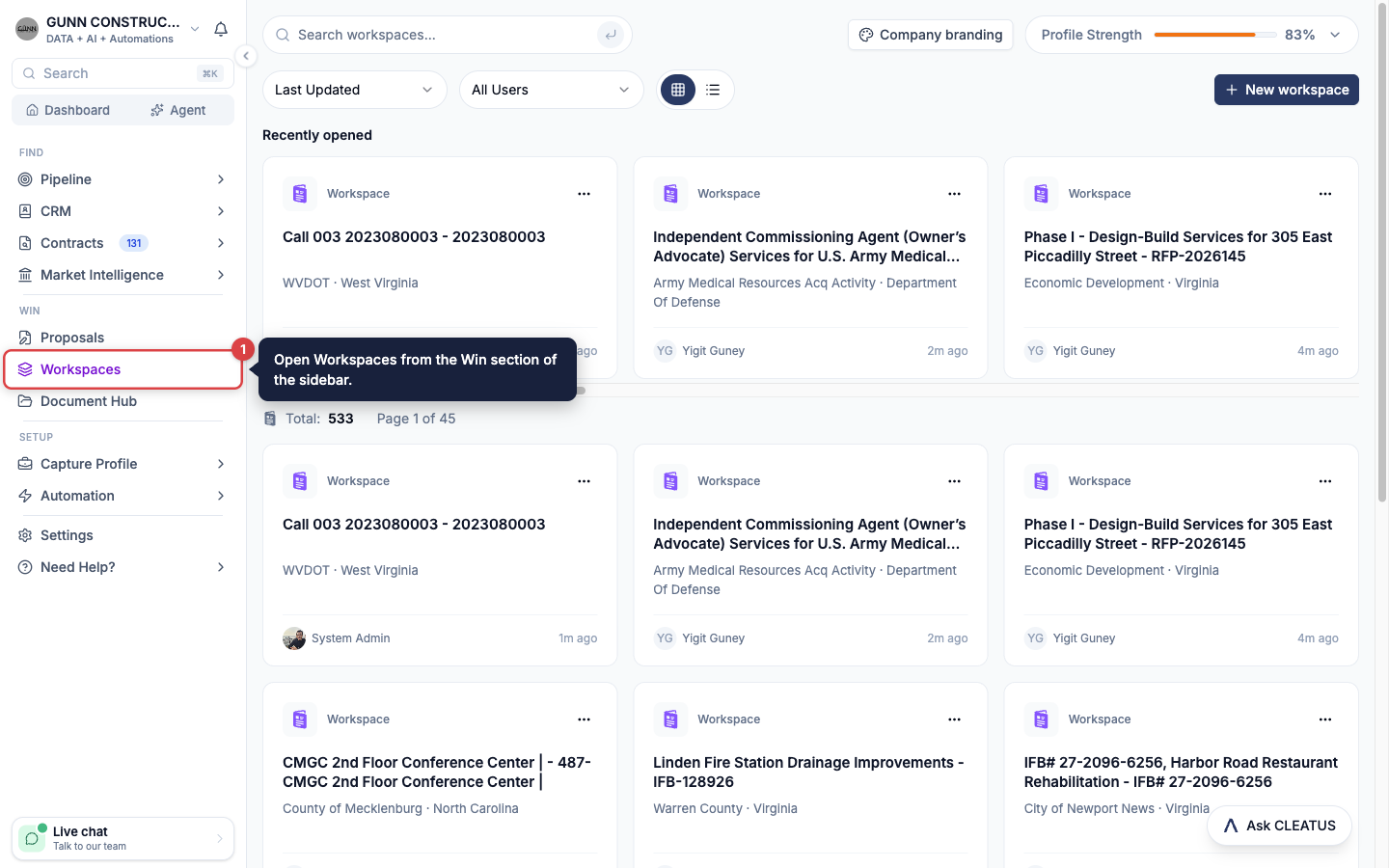
Open Workspaces from the Win section of the sidebar. The page lists every workspace in your company, proposals included. Click New workspace.
Describe the work
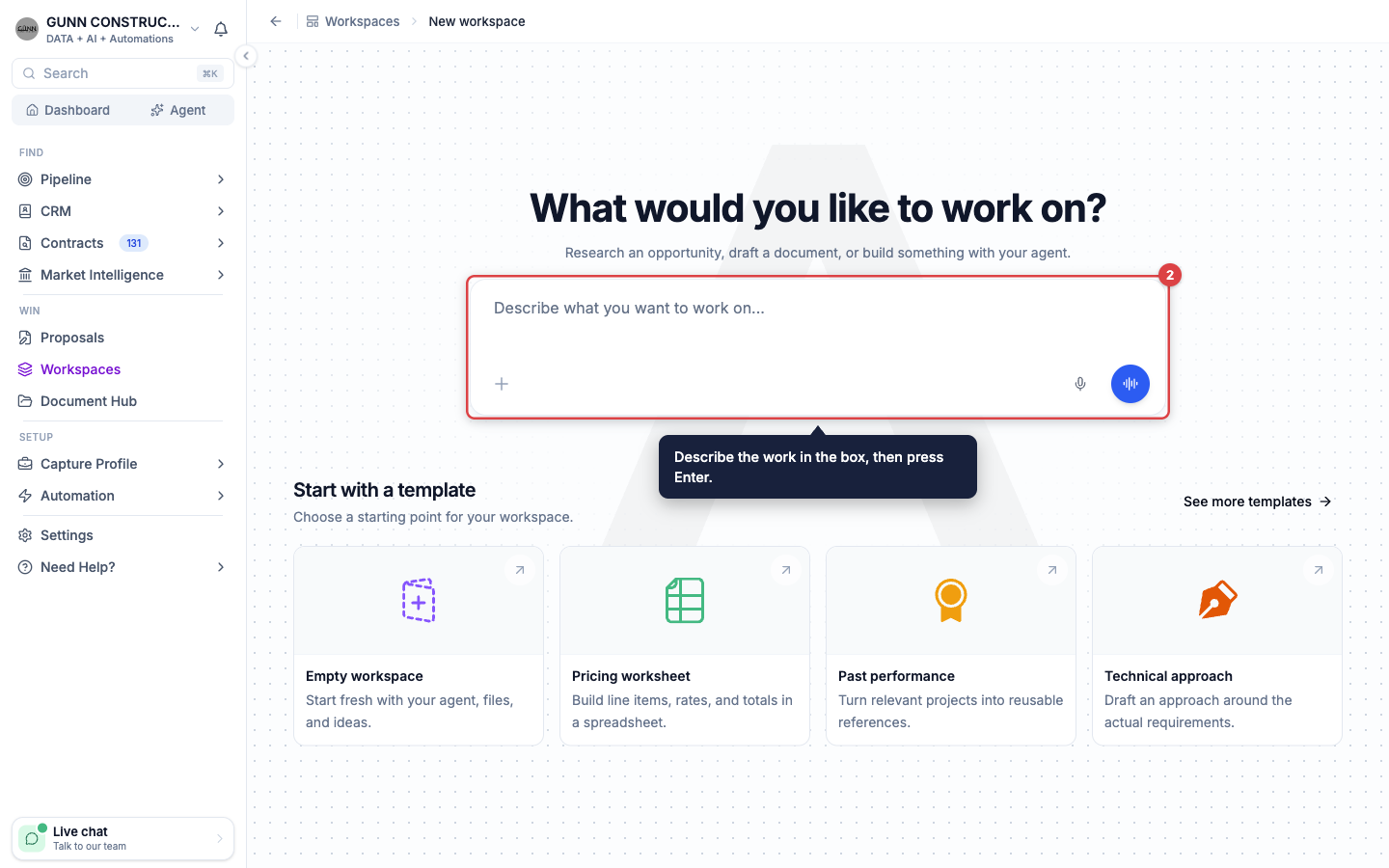
The page asks What would you like to work on? Type your request in the box, then press Enter or click the arrow (Start workspace). The workspace opens, and CLEATUS names it from your request. To insert a saved skill, click + and select it.
Speak instead of typing
Click the microphone (Dictate a message) and speak. CLEATUS writes your words into the box. To talk with the agent, leave the box empty and click Talk to CLEATUS. The workspace opens and starts a voice conversation.
Or start from a template
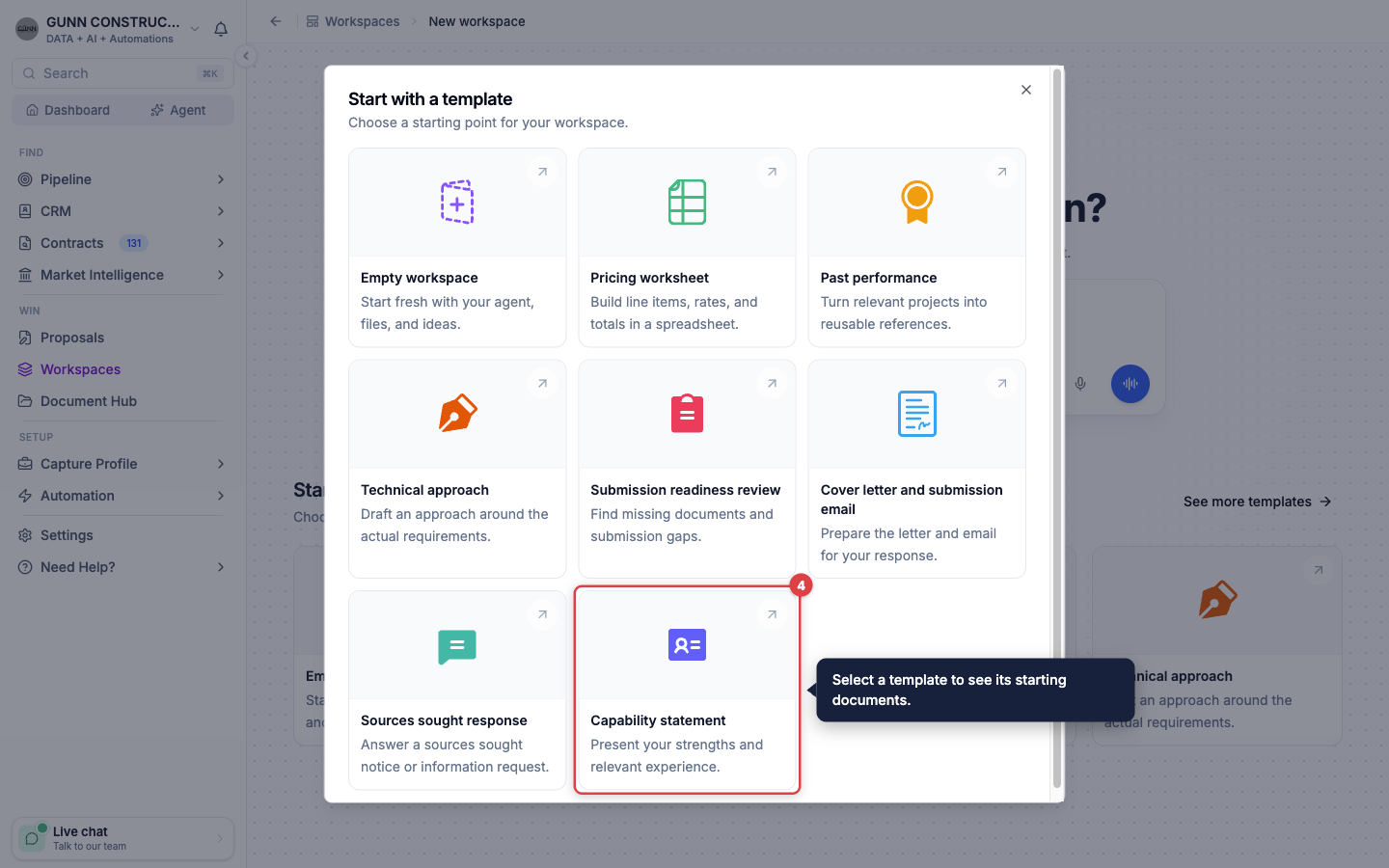
Below the box, Start with a template shows the first templates. Click See more templates to see all eight. Select a template. The dialog lists your starting documents. Enter a Workspace name, add the details that you know, and add requirements or document references. The two text boxes are optional. Click Use template.
Work with the agent
The agent creates the files in the workspace. When it needs a fact or a decision from you, it asks a question. To give the agent a file, attach it in the chat after the workspace opens.
Templates
| Template | Starting documents |
|---|---|
| Empty workspace | None. Enter a Name, click Create workspace, then send a message |
| Pricing worksheet | A pricing worksheet in Excel, plus the assumptions and missing inputs |
| Past performance | A past performance document and a project relevance table |
| Technical approach | A technical approach document, plus requirements and evidence notes |
| Submission readiness review | A compliance matrix, plus a submission checklist with the gaps |
| Cover letter and submission email | A cover letter and a draft submission email |
| Sources sought response | A sources sought or information response, plus a missing-information checklist |
| Capability statement | A one-page capability statement |
A template gives you a starter draft, even when inputs are missing. The agent marks each gap, lists the missing inputs, and asks for the most useful one next. It does not invent rates, results, references, or certifications. It does not call a package compliant from file names alone. It does not send an email or submit a response for you.
Tip:
The Pricing worksheet template keeps a missing price blank and shows the total as incomplete. It never shows a zero-dollar bid. If the buyer supplies a pricing workbook, the agent fills that workbook instead of a new one.
Work in a workspace
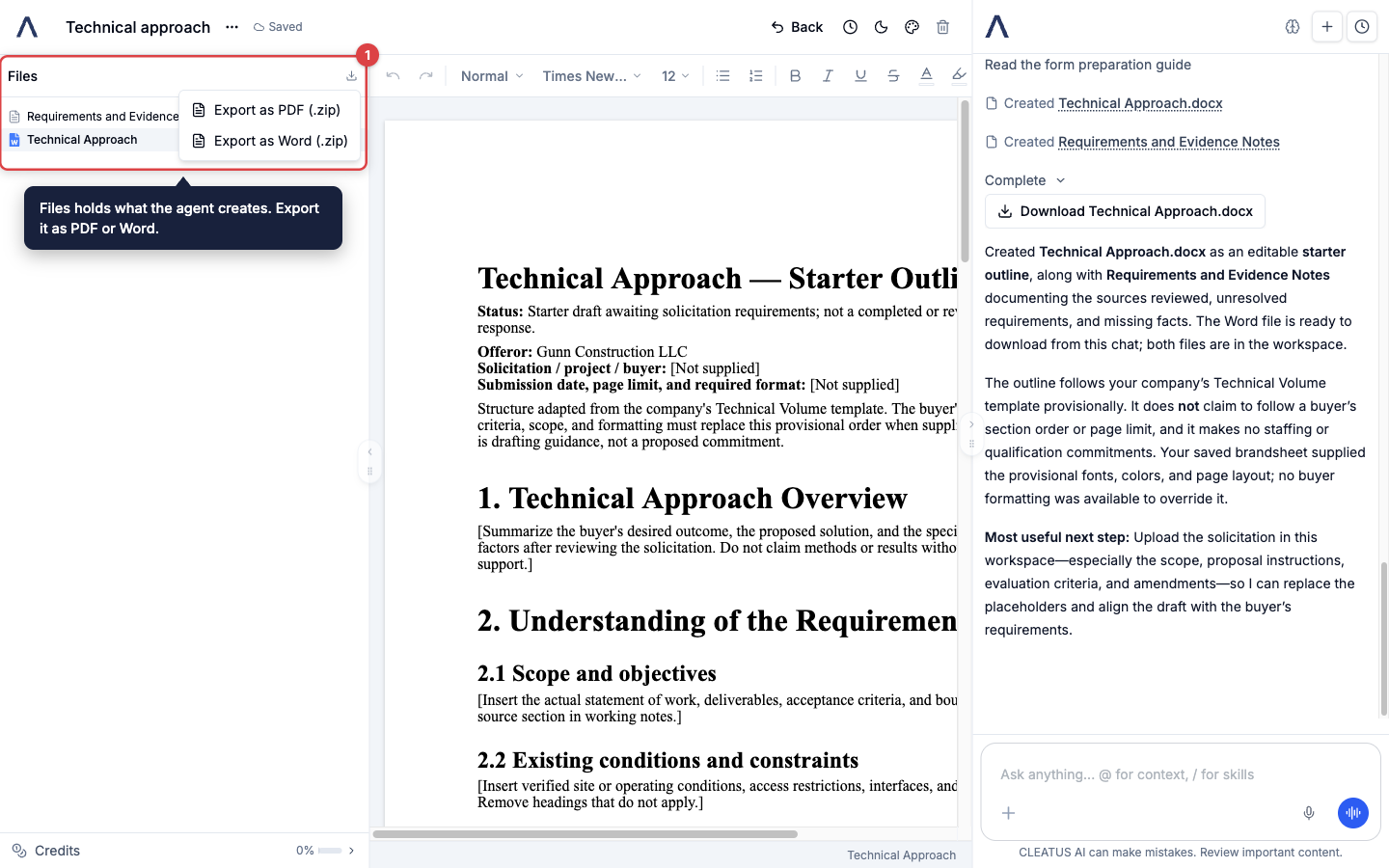
- Files. The file browser on the left has one tab, Files. It holds everything that the agent creates. To add a file or a folder yourself, right-click in the list and select New File or New Folder.
- No guided plan. A proposal follows a proposal plan. A standalone workspace does not. The agent starts from your request. For a large task, it writes a short brief first.
- What the agent reads. The agent reads your company profile, your Document Hub, your company branding, and the files that you attach. It can research federal awards, opportunities, and contractors. It searches the web only when you ask it to.
- The chat. Type @ to reference a document. Type / to use a skill. Click New chat to start a separate thread, and use Recent chats to go back to an earlier one.
- Edit the files. Word documents and Excel workbooks open in an editor, and your changes save automatically. PowerPoint decks show as a preview. While the agent works, your editing pauses. To restore an earlier version, click the clock icon in the header. See Writing a Proposal for the editor details.
- Export. Click the download icon at the top of the file browser. Select Export as PDF (.zip) or Export as Word (.zip). To save one file, right-click it and select Download. You can also ask the agent to export a file, and the chat shows a download button.
Start a workspace from a pursuit
Start a workspace from a pursuit for side work on that opportunity, for example research or a quote.
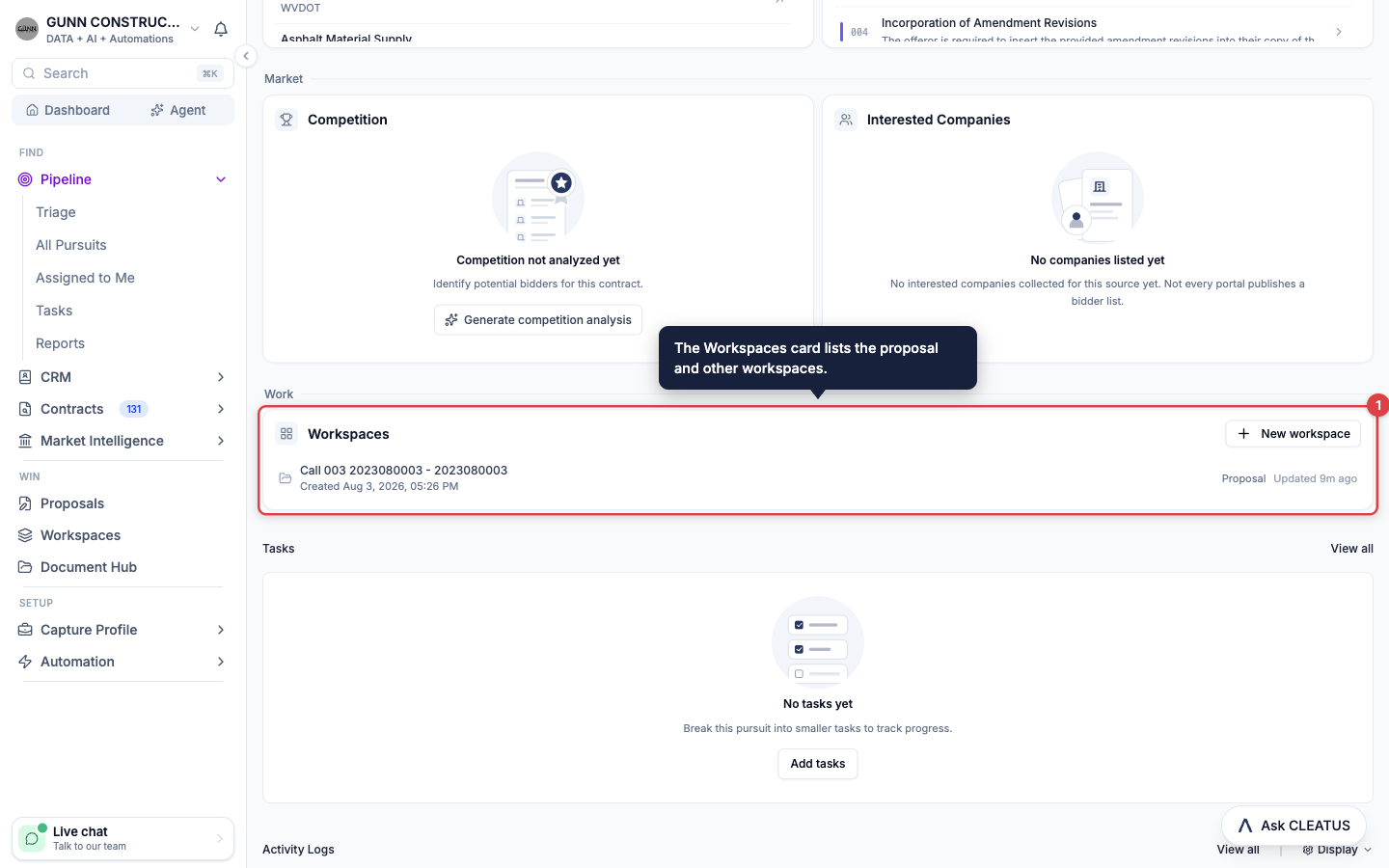
- Open the pursuit. The Workspaces card is in the Work section of the overview. It lists the proposal and every other workspace of that pursuit.
- Click Start workspace. If the pursuit already has a workspace, the button says New workspace.
- Enter a Name and click Create workspace.
- Send your first message in the chat.
The workspace reads the solicitation documents and the opportunity details of the pursuit. The agent uses them when your request needs them. It does not start a proposal unless you ask for one.
Start a workspace from a workflow
The Start Workspace workflow step creates a workspace on each run. Enter a Workspace name and, optionally, an Initial task for the agent. In Run as member, select the teammate who owns the workspace. To give the workspace the documents of a pursuit, enter a Pursuit ID. See Creating a Workflow.
Find and organize your workspaces
- Recently opened. The workspaces that you opened last on this browser show in a row at the top. The row hides while you search.
- Search. Type in Search workspaces... to match a workspace name or description. CLEATUS writes the description from your first request.
- Sort and filter. Sort by Last Updated or Title (A-Z). Filter by creator with All Users. Switch between the grid view and the list view.
- Rename. Click the ... menu on a workspace and select Rename. Enter the name and click Save. Inside a standalone workspace, the same menu is next to the title.
- Delete. Click the ... menu and select Delete workspace. Type the workspace name to confirm, then click Delete. The workspace leaves your list, and you cannot undo this. You can delete only standalone workspaces from this page. To delete a proposal, see Managing Your Proposals.
To set your logo, letterhead, and brand guidelines, click Company branding at the top of the Workspaces page. See Setting Up Company Branding.
Plans:
Workspaces are part of the DATA + AI + Automations plan and the GovCloud plan. On other plans, the Workspaces page shows an upgrade message, and New workspace is not available. Work in a workspace uses AI credits from your monthly limit. See Plans and pricing.