
Contract Vehicles Directory
Browse more than 400 federal contract vehicles, including GWACs, IDIQs, BPAs, and GSA schedules, and see who holds each vehicle, its task orders, and its subcontractors.
The free CLEATUS Contract Vehicles directory lists more than 400 federal contract vehicles. Use it to find the vehicles that cover your work and to see who already holds them. You can also follow the task orders and the subcontracts under each vehicle. You do not need an account.
What a contract vehicle is
A contract vehicle is a contract that the government awards first and buys through later. Agencies place task orders or delivery orders under the vehicle. Usually, only the companies that hold the vehicle can compete for those orders. These are the common types:
- Government-Wide Acquisition Contract (GWAC): a contract for information technology (IT) that any federal agency can use.
- Indefinite Delivery, Indefinite Quantity (IDIQ) contract: usually one agency's contract for a defined scope of work.
- Blanket Purchase Agreement (BPA): a simple ordering agreement for recurring needs.
- Multiple Award Schedule (MAS): the General Services Administration (GSA) schedule for commercial products and services. In the directory, its type is FSS / GSA Schedule (Federal Supply Schedule).
To learn more, read the contract vehicles guide on the CLEATUS blog.
Browse and filter the directory
- Open the Contract Vehicles directory.
- Search by name, description, or agency.
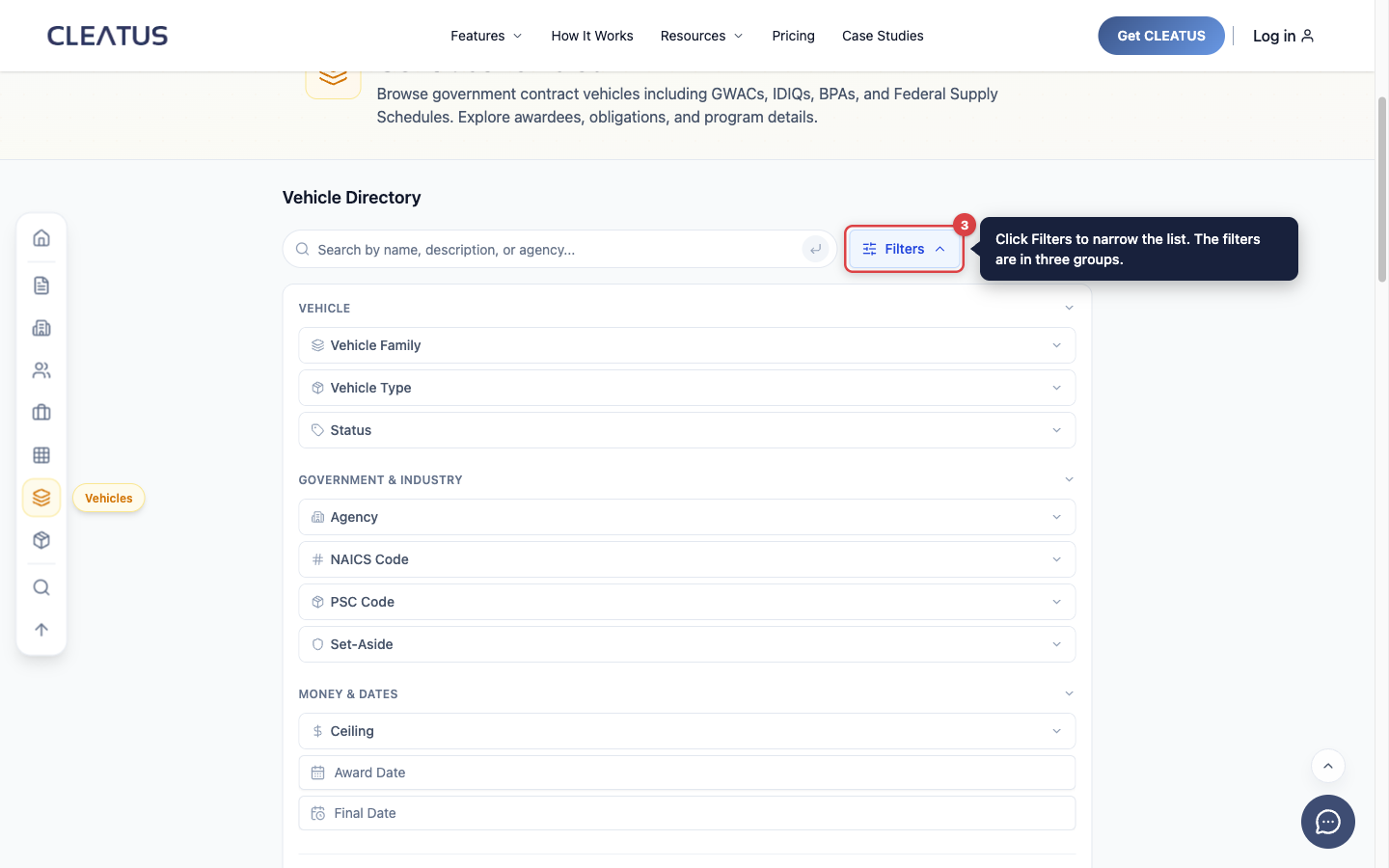
- Click Filters to narrow the list. The filters are in three groups:
- Vehicle: Vehicle Family, Vehicle Type, and Status.
- Government & Industry: Agency, NAICS Code, PSC Code, and Set-Aside.
- Money & Dates: Ceiling, Award Date, and Final Date.
- Sort the list. It starts with Obligations (High-Low). You can also sort by ceiling, Most Awards, Soonest Expiring, or name.
- Open a vehicle to see its full page.
NAICS is the North American Industry Classification System. PSC is the Product and Service Code.
What a vehicle page shows
The header shows the vehicle family, the status, the agency, the ceiling, and the end of the period of performance. When CLEATUS has the solicitation for the vehicle, click View Solicitation to open it.
The page has these tabs:
- Overview: the Ceiling, the Total Obligated, the Active Awardees, and the number of Task Orders. Cards show how much of the ceiling is used, the Awardee Share, and the Obligations by Year. Charts show the task orders by NAICS code and by place of performance. The Award Hierarchy panel links the vehicle to its prime holders, task orders, and subcontracts.
- Task Orders: the delivery orders and task orders awarded under the vehicle.
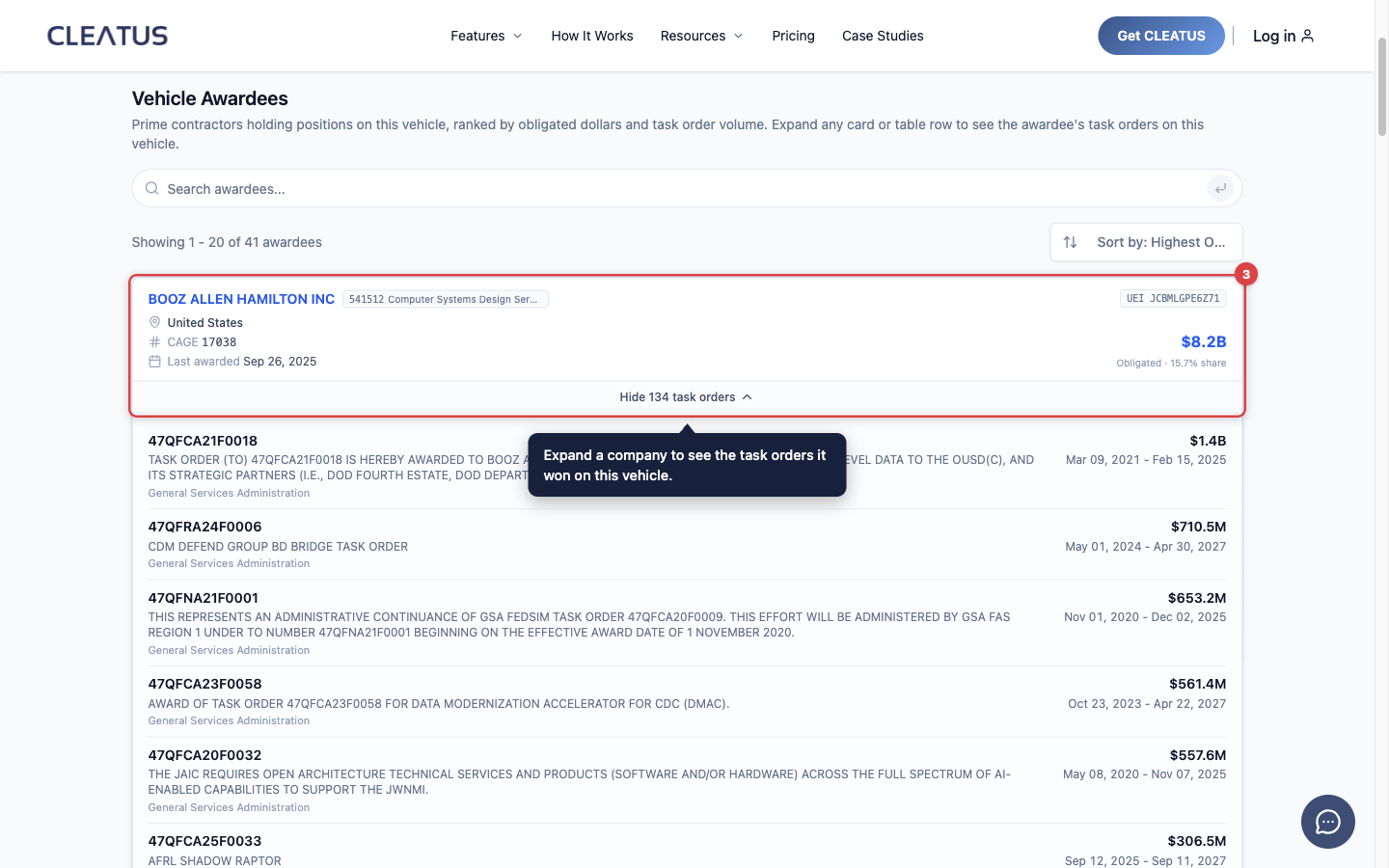
- Awardees: the prime contractors that hold the vehicle, ranked by obligated dollars. Expand a company to see its task orders on this vehicle.
- Subcontracts: the companies that do subcontract work under the task orders of the vehicle. Expand a company to see each subaward.
Find which competitors hold a vehicle
- Open the vehicle page and select the Awardees tab.
- Sort by Highest Obligations or Most Task Orders to see the strongest holders first.
- Expand a company to see the task orders that it won on this vehicle.
- Click a company to open its contractor profile, if CLEATUS has a profile for it.
To find teaming partners, select the Subcontracts tab. It shows which companies already do work under each prime holder.
To see every vehicle that one company holds, open its profile in the CLEATUS dashboard. Then select the Vehicles Held tab. This tab is only in the dashboard.
Use contract vehicles in CLEATUS
In the CLEATUS dashboard, open Market Intelligence > Vehicles to browse the same directory. The filters are in a sidebar next to the list. On a vehicle page, click Copy Public Link to copy a link that anyone can open without an account.
Related: Contractor Search Tool, Government Intelligence Hub, and Exploring Market Intelligence.