
PWin Calculator
Score your probability of win (PWin) for a government contract across 10 weighted capture factors, and get a bid or no-bid verdict. Free tool for government contractors.
The free CLEATUS PWin Calculator scores your probability of win (PWin) for one government contract. It works like a bid or no-bid scorecard. For each factor, you pick the statement that is true today and say how strong your evidence is. You do not need an account.
The 10 factors and their default weights
The calculator scores 10 capture factors. Each factor has a default weight:
| Factor | Default weight |
|---|---|
| Customer Relationship | 12 |
| Competitive Position | 10 |
| Technical Fit | 15 |
| Past Performance | 12 |
| Key Personnel | 10 |
| Price-to-Win | 15 |
| Teaming Strategy | 8 |
| Compliance & Risk | 10 |
| Capture Maturity | 8 |
| Operational Readiness | 10 |
To change a weight, type a number from 0 to 99 in the Weight box of the factor. A weight of 0 removes the factor from the score. The weights do not have to add up to 100, because the calculator divides by their total.
Score a pursuit
- Open the PWin Calculator.
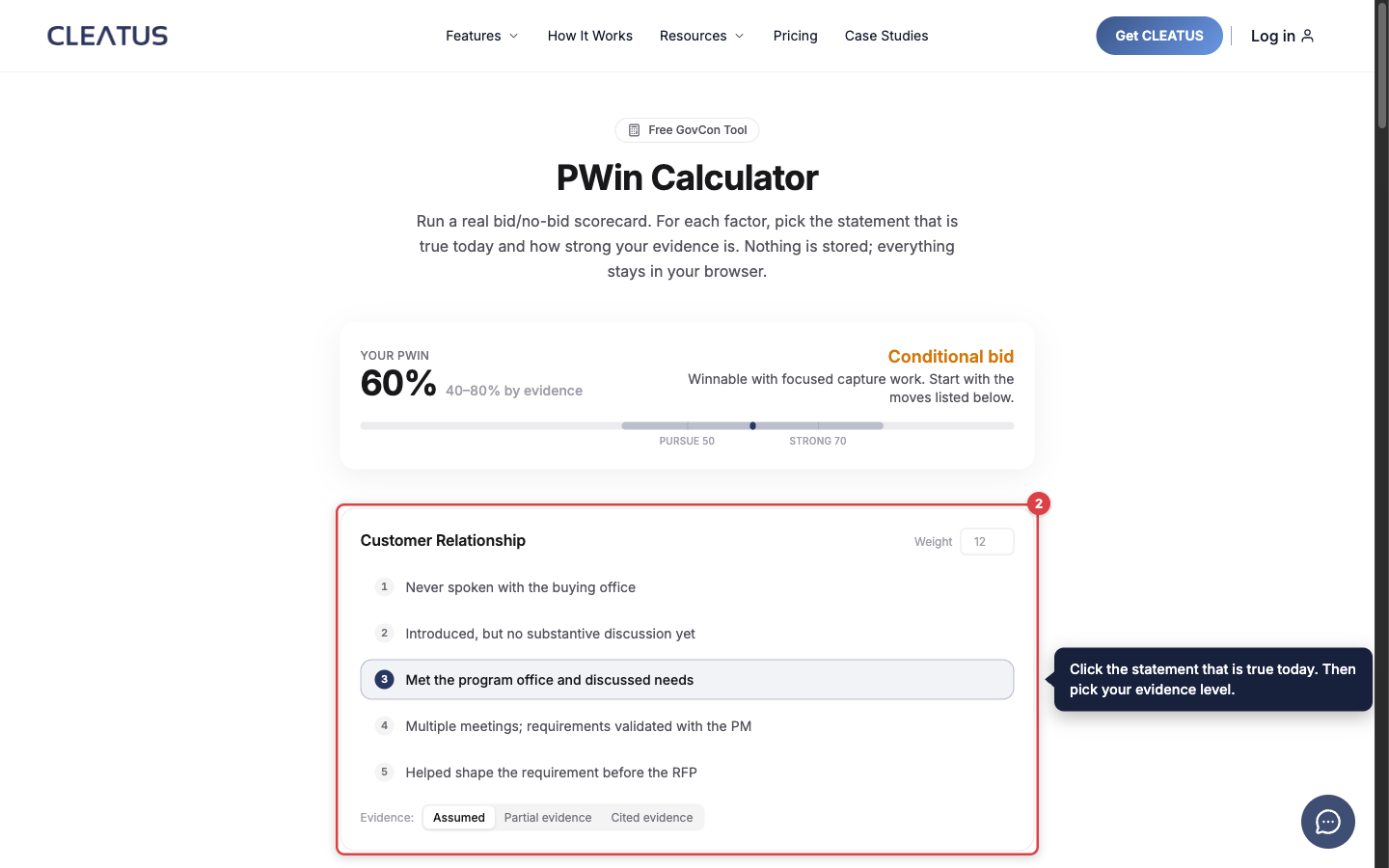
- For each factor, click the statement that is true today. The five statements are numbered 1 to 5. For example, under Customer Relationship, statement 1 is "Never spoken with the buying office". Statement 5 is "Helped shape the requirement before the RFP" (request for proposal).
- Under each factor, click an Evidence level: Assumed, Partial evidence, or Cited evidence.
- Read Your PWin in the score bar at the top. The bar stays on screen while you scroll.
Every factor starts at rating 3 with Assumed evidence. The PWin is the weighted average of your ratings out of 5. A rating of 3 on every factor gives a PWin of 60%.
How evidence changes the PWin range
The evidence level says how sure you are of a rating. Weaker evidence gives a wider range:
- Assumed: the true rating can be 1 step higher or lower.
- Partial evidence: the true rating can be half a step higher or lower.
- Cited evidence: the rating is fixed.
The calculator scores the low end and the high end of each rating. It shows the result next to your PWin, labeled by evidence. A shaded band on the score bar shows the same range. When every factor has Cited evidence, the range goes away.
Read the verdict
| PWin | Verdict | What it means |
|---|---|---|
| 70 or higher | Strong bid | You are positioned to win. Commit resources and protect your advantages. |
| 50 to 69 | Conditional bid | You can win with focused capture work. Start with the moves that the calculator lists. |
| Below 50 | No-bid territory | The pursuit costs more than the expected return. Re-qualify, join a stronger team, or walk away early. |
The score bar marks the two gates: 50 (pursue) and 70 (strong).
Raise your PWin
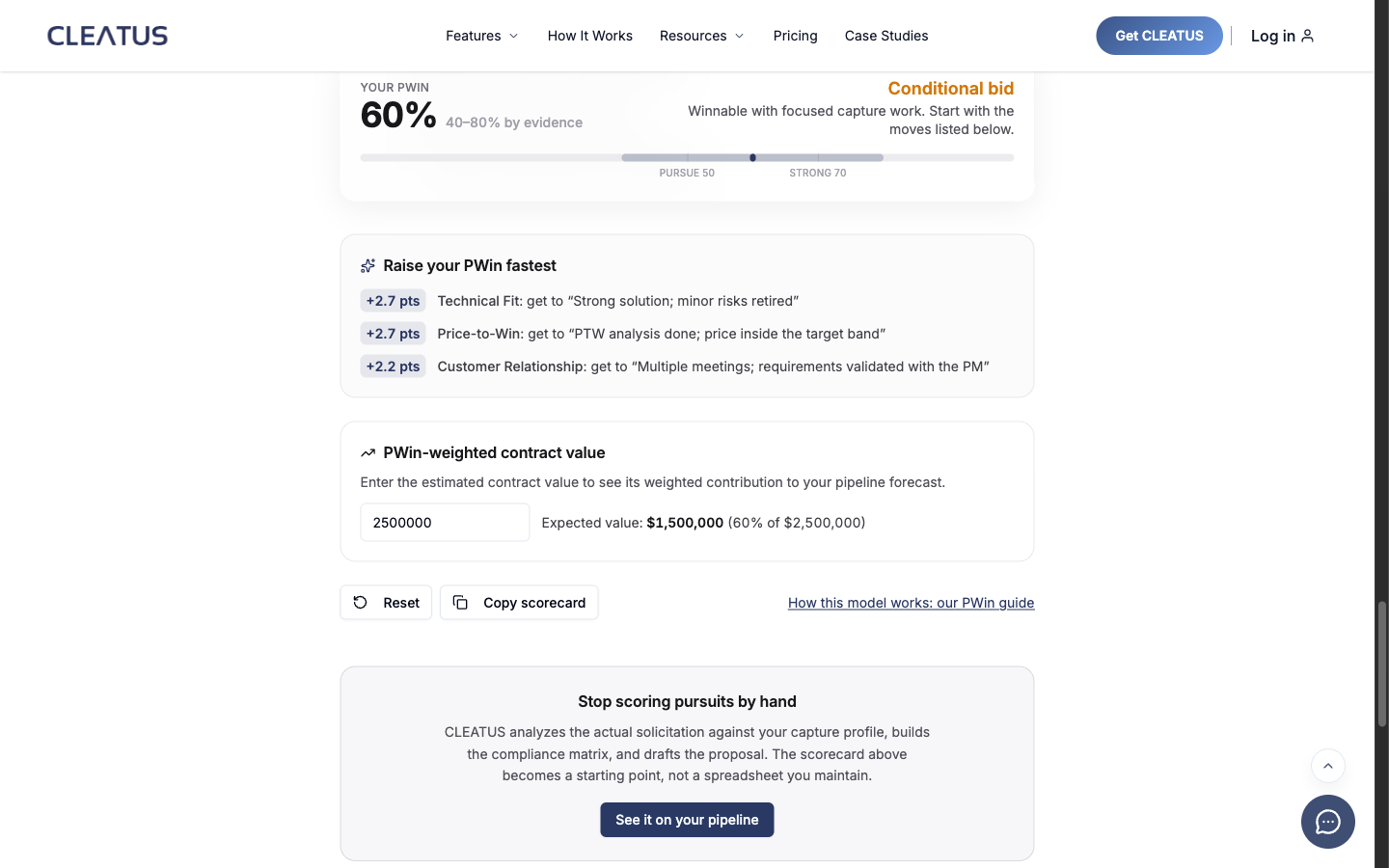
The Raise your PWin fastest box lists the three factors where one more step adds the most points. Each line shows the points that you gain and the next statement to reach. For example, with the default weights, one step on Technical Fit adds 2.7 points. The list skips factors that are already at 5.
See the PWin-weighted value
In PWin-weighted contract value, type the estimated value of the contract. The calculator shows the Expected value, which is the contract value multiplied by your PWin. For example, a $2,500,000 contract at a PWin of 60% has an expected value of $1,500,000. Use this number in your pipeline forecast.
Copy or reset the scorecard
- Click Copy scorecard to copy a text summary to your clipboard. The summary has your PWin, the range, and the verdict. For each factor, it has the rating, the evidence level, the weight, and the statement. It also has the expected value if you typed a contract value. Paste it into the notes for your bid or no-bid meeting.
- Click Reset to set every factor back to its default weight, rating 3, and Assumed evidence. Reset does not clear the contract value.
Your scorecard stays in your browser:
The calculator runs in your browser. It does not store or send your ratings. When you reload or close the page, your scorecard is gone, so copy it first.
To learn how the model works, read the PWin guide on the CLEATUS blog.
Score every new match automatically
In CLEATUS, the PWin Scoring Agent workflow template scores PWin for you. It runs on each new recommendation above a match score that you set (50 by default). The agent reads the solicitation package and researches the incumbent and the competitors. It scores the same 10 factors, or your own rubric if you keep one in the Document Hub. Then it writes a PWin memo.
- At or above the bid gate (70 by default), the workflow adds the pursuit to your pipeline. It saves the memo to the pursuit and emails the team.
- Below the gate, your team gets a notification that lists the risks that hold the score down.
To add the template, open Automation > Workflows, click New Workflow, and click Start from scratch. Under Templates, select PWin Scoring Agent. Workflows are not available on every plan.
Related: Starting from a template and Creating a Workflow.